Add Webmail Login button To Enhance WHMCS Module

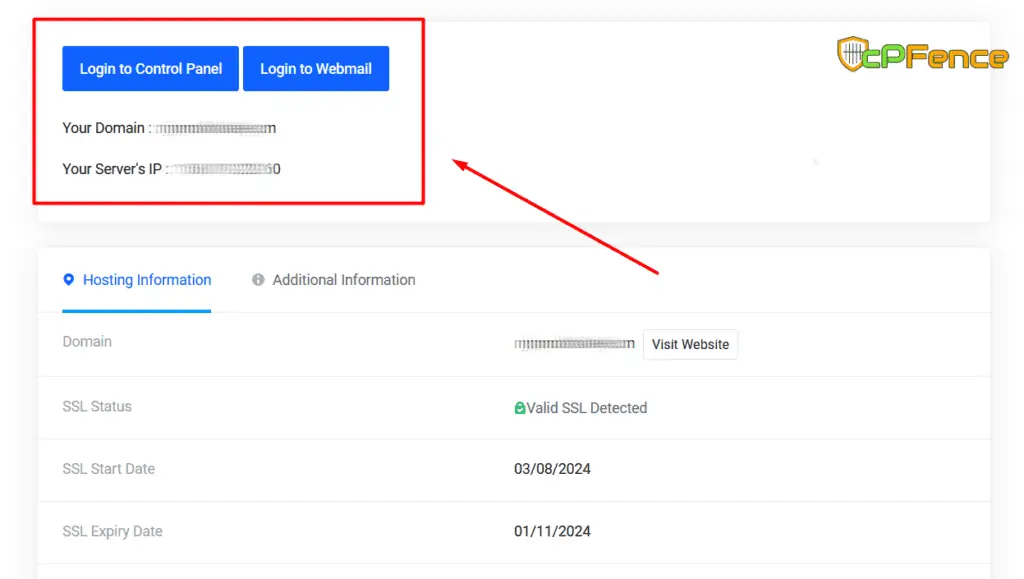
Using the Enhance WHMCS module? Here is a quick tip on how to add a Webmail login button and a domain IP lookup in the client area. It puts two useful destinations beside the customer’s hosting service.
You’ll need access to your WHMCS module files and an already-working Enhance integration. Try this on a staging copy with a test customer first, and keep a private backup of the original module outside the public web directory. The before-and-after pictures below are the original examples; your WHMCS theme may look different.
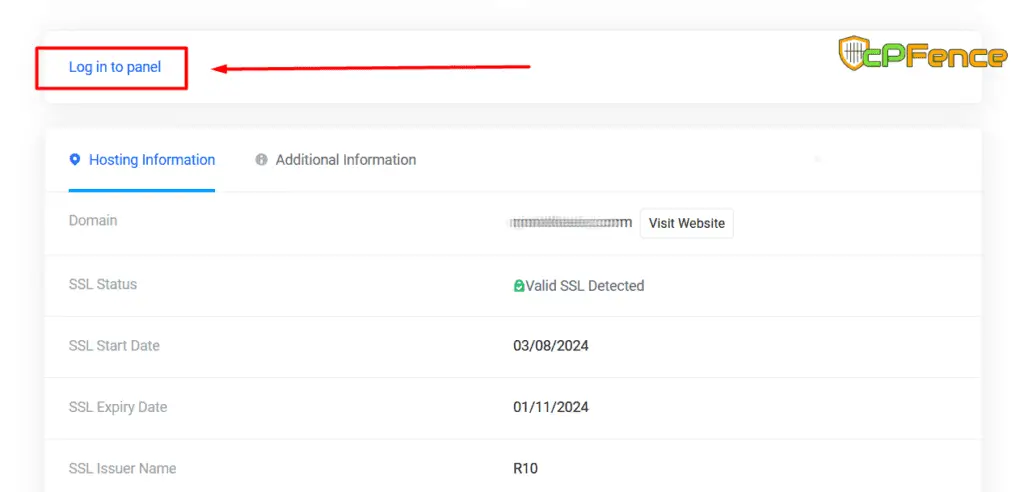
Before :
After :
Locate the Enhance WHMCS file :
/whmcspath/modules/servers/enhance/enhance.php
Find enhance_ClientArea and compare it with the old function below. The official module download checked for this update still uses this function, but compare your own installed copy before replacing it—especially if another customization is already present. Follow Enhance’s module instructions if you need to install or upgrade the integration first.
Old Function :
function enhance_ClientArea($params)

{

$systemurl = Setting::getValue('SystemURL');

return 'Log in to panel';

}
Original improved function:
Get it from this link: https://gist.github.com/cPFence/9590cdbe9e341dee226fde206778c3f9
Don’t forget to replace this:
$webmailLink = 'https://webmail.enhance.com/';
with your own central webmail login link, for example:
$webmailLink = 'https://webmail.Your-Own-Domain.com/';
One adjustment before you use it: the original Gist inserts values directly into HTML and uses an inline JavaScript webmail button. The version below keeps the same idea while escaping displayed values and using a normal webmail link. Replace only the existing function, leaving the rest of the module in place. Do not paste a second copy or add another PHP opening tag.
function enhance_ClientArea($params)
{
    $systemurl = rtrim((string) Setting::getValue('SystemURL'), '/');
    $webmailLink = 'https://webmail.example.com/';
    $domain = (string) ($params['domain'] ?? '');
    $domainIP = filter_var($domain, FILTER_VALIDATE_DOMAIN, FILTER_FLAG_HOSTNAME)
        ? gethostbyname($domain) : '';
    $domainIP = filter_var($domainIP, FILTER_VALIDATE_IP, FILTER_FLAG_IPV4)
        ? $domainIP : 'No IPv4 address found';

    $panelLink = $systemurl . '/clientarea.php?action=productdetails&id='
        . (int) $params['serviceid'] . '&dosinglesignon=1';

    return '<p><a href="'
        . htmlspecialchars($panelLink, ENT_QUOTES | ENT_SUBSTITUTE, 'UTF-8')
        . '">Log in to panel</a> · <a href="'
        . htmlspecialchars($webmailLink, ENT_QUOTES | ENT_SUBSTITUTE, 'UTF-8')
        . '" target="_blank" rel="noopener">Login to Webmail</a></p>'
        . '<p>Your Domain: '
        . htmlspecialchars($domain, ENT_QUOTES | ENT_SUBSTITUTE, 'UTF-8')
        . '</p><p>Domain IPv4 address: '
        . htmlspecialchars($domainIP, ENT_QUOTES | ENT_SUBSTITUTE, 'UTF-8')
        . '</p>';
}
Set $webmailLink in this version to your own trusted HTTPS webmail address too; webmail.example.com is only a placeholder. Keep the WHMCS System URL configured to your real HTTPS client area. PHP’s HTML escaping function protects the markup when displaying these values.
What’s New in This Function?
- Dual Access Links: Clients can open the control panel or webmail from the client area. The panel link uses the module’s existing single-sign-on flow; the webmail link opens its login page and does not sign the customer into a mailbox automatically.
- Domain and IP Display: The function displays the service domain and an IPv4 address returned by DNS. That can be a CDN or proxy address, rather than your origin server. The original “Your Server’s IP” label has been made more precise. PHP’s gethostbyname does not look up IPv6; an unsuccessful lookup now gets a clear message.
Check It Before Going Live
Run a syntax check on the edited file using the PHP version used by WHMCS:
php -l /whmcspath/modules/servers/enhance/enhance.phpThen sign in as your test customer and open the hosting service’s details. Check that the domain is correct, the panel link signs into the intended Enhance account, and the webmail link opens your own login page. Test more than one service if the customer has several. A clean syntax check does not verify single sign-on or mailbox access.
If the page fails or either link behaves incorrectly, restore your backed-up module file and confirm the original panel login works again. Enhance module updates replace the module directory, so save this small customization separately and review it against the new function before reapplying it. That’s it—a small change that makes the client area more useful.
A simpler client area. A protected hosting server.
Pair your Enhance setup with cPFence v4+ for malware scanning, WordPress protection and server monitoring.
Start your free trial →