WP AutoShield®: One-Click Security for High-Performance Secure Hosting
In the ever-evolving landscape of WordPress hosting, security and performance go hand in hand. At cPFence, we understand the challenges hosting providers and VPS owners face when managing and securing WordPress sites at scale. Introducing WP AutoShield®, the latest module in our cPFence arsenal, designed to deliver enterprise-level WordPress security with a single command.
The Game Changer: WP AutoShield®
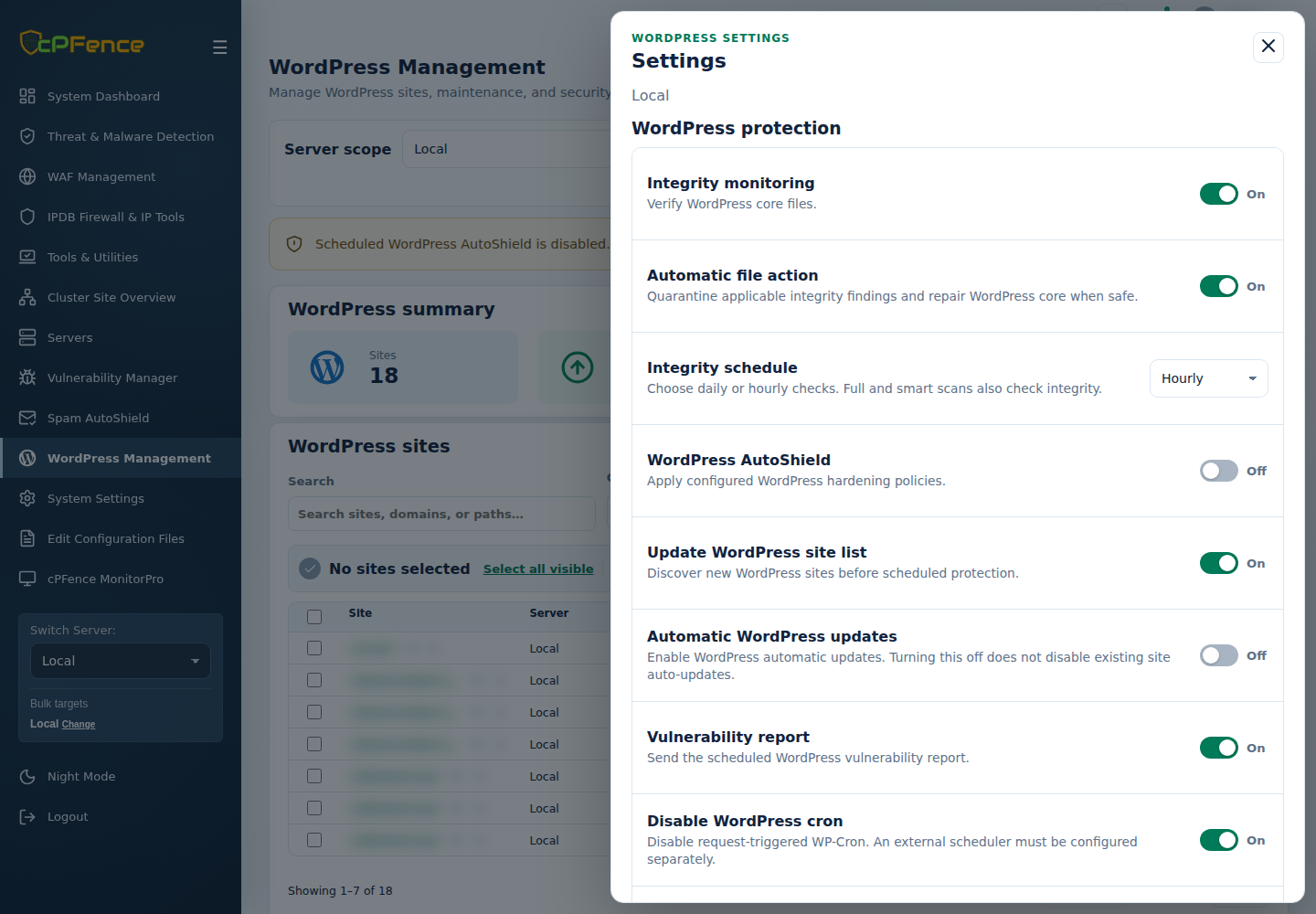
Gone are the days of running security tools manually for each site. With WP AutoShield, you’re just one click away from fortifying your server. Activate it from WordPress Management → Settings: choose Local or one secondary server, enable WordPress AutoShield, review the policies, and select Save settings.
Expecting complex setups and tedious configurations? Not with cPFence. Enable the policy once to automate WordPress security across your server’s sites.
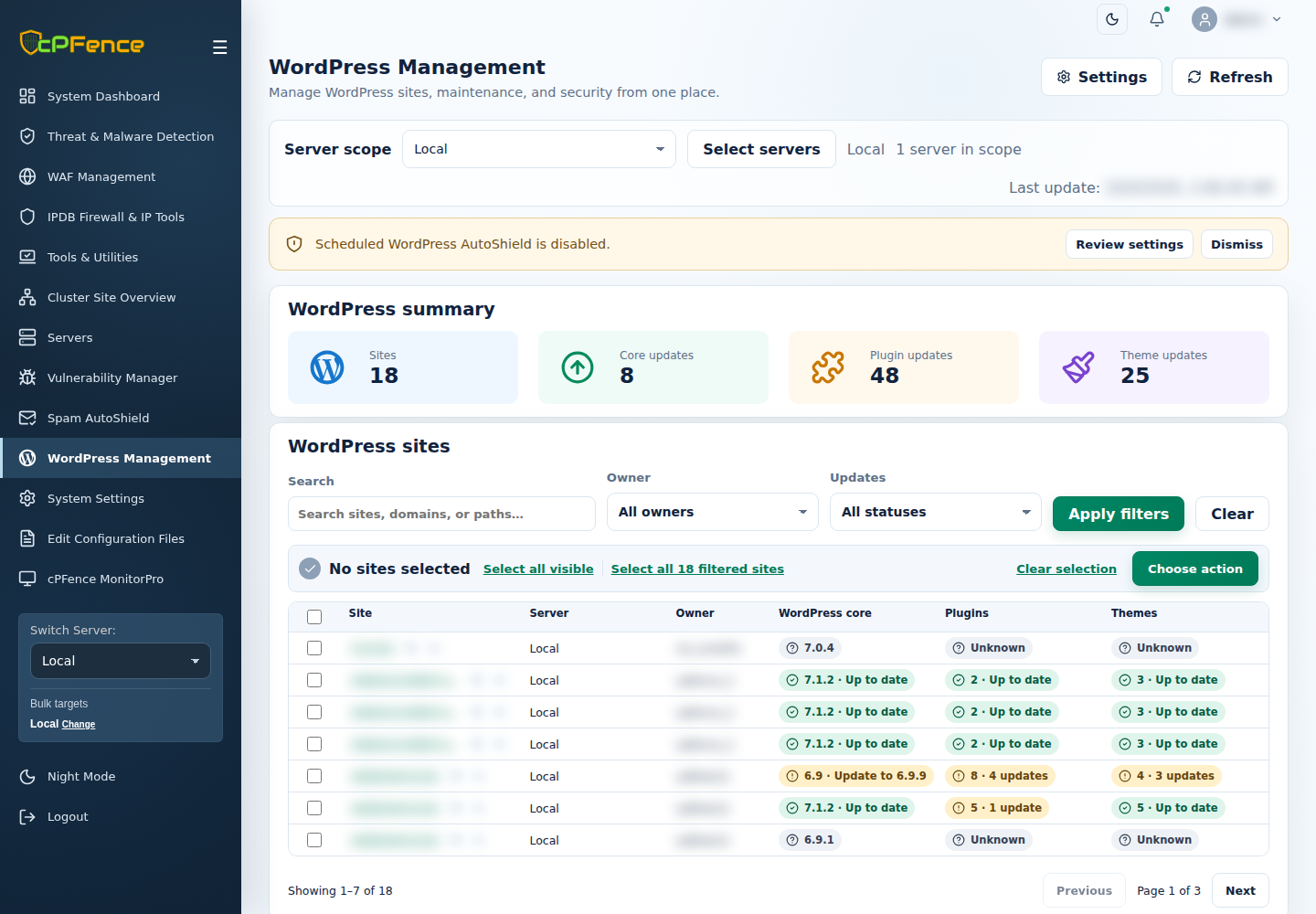
cPFence v4+ WebUI:
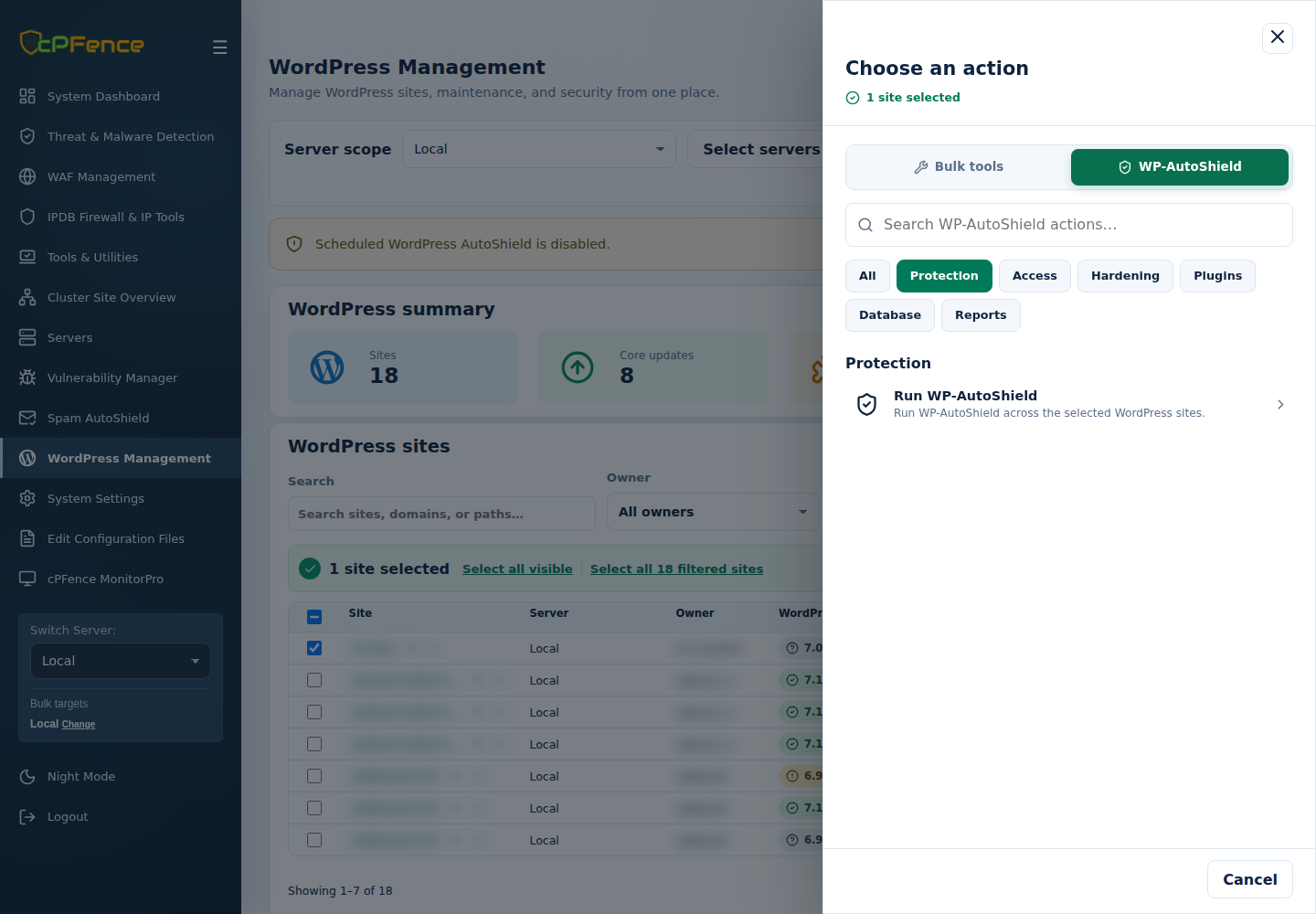
Open WordPress Management, choose your server scope and select the intended sites. Then use Choose action → WP-AutoShield → Protection → Run WP-AutoShield. Review the targets before confirming and check each final result.
Why WP AutoShield?
- Automatic Site Detection: WP AutoShield detects all WordPress installations on your server, automatically updating the list daily to include new sites.
- Vulnerability Scans with Actionable Insights: Receive weekly vulnerability reports in a neat Excel format, detailing issues with paths and ownership information. Even if your server has thousands of vulnerabilities, you’re covered:
- Use WordPress Management → Choose action → Bulk tools → Updates → Update WordPress components for selected sites. Review the update choices and targets, then check the final results and site functionality.
- Got a stuck
.maintenancefile? WP AutoShield fixes it for you and rechecks the site.
- Performance Optimization: Disable request-triggered WordPress cron for better server performance. Keep an external scheduler in place so scheduled tasks still run.
- Hardened Admin Security: Block file editing in the WordPress admin panel and set secure file permissions, reducing risks from misconfigurations.
- Enhanced Key Management: Initialize missing WordPress secure keys while retaining existing ones, addressing gaps left by manual installations without logging users out through daily key rotation.
- Automated File and Directory Permissions: WP AutoShield enforces best-practice permissions (644 for files, 755 for folders) and locks sensitive files (e.g.,
wp-config.php) to600. - Daily Security Hardening: Protects
wp-config.phpand applies supported WordPress hardening, undoing accidental client changes. Web-server rules depend on your engine; an.htaccessuploads rule alone does not protect an Nginx site. - XML-RPC Protection: Completely disable XML-RPC, serving a
403 Forbiddenresponse to block potential abuse. - Brute Force Defense: Apply login rate limits and block offending IPs to protect wp-login.
- Idle Session Management: Automatically log out inactive admin users, addressing security risks in multi-user environments. The current WebUI uses 120 minutes by default and retains existing custom values.
- Server-Wide Captcha Integration: Automatically enable math CAPTCHA for wp-login, registration, and lost password forms, complementing rate limits and cPFence’s bot protection.
- Admin Username Protection: Optionally rename insecure usernames like
adminto secure alternatives, notifying you via email with a detailed report. - XSS and Risky Code Prevention: Optionally disable iframes, embeds, and risky scripts in WordPress posts server-wide.
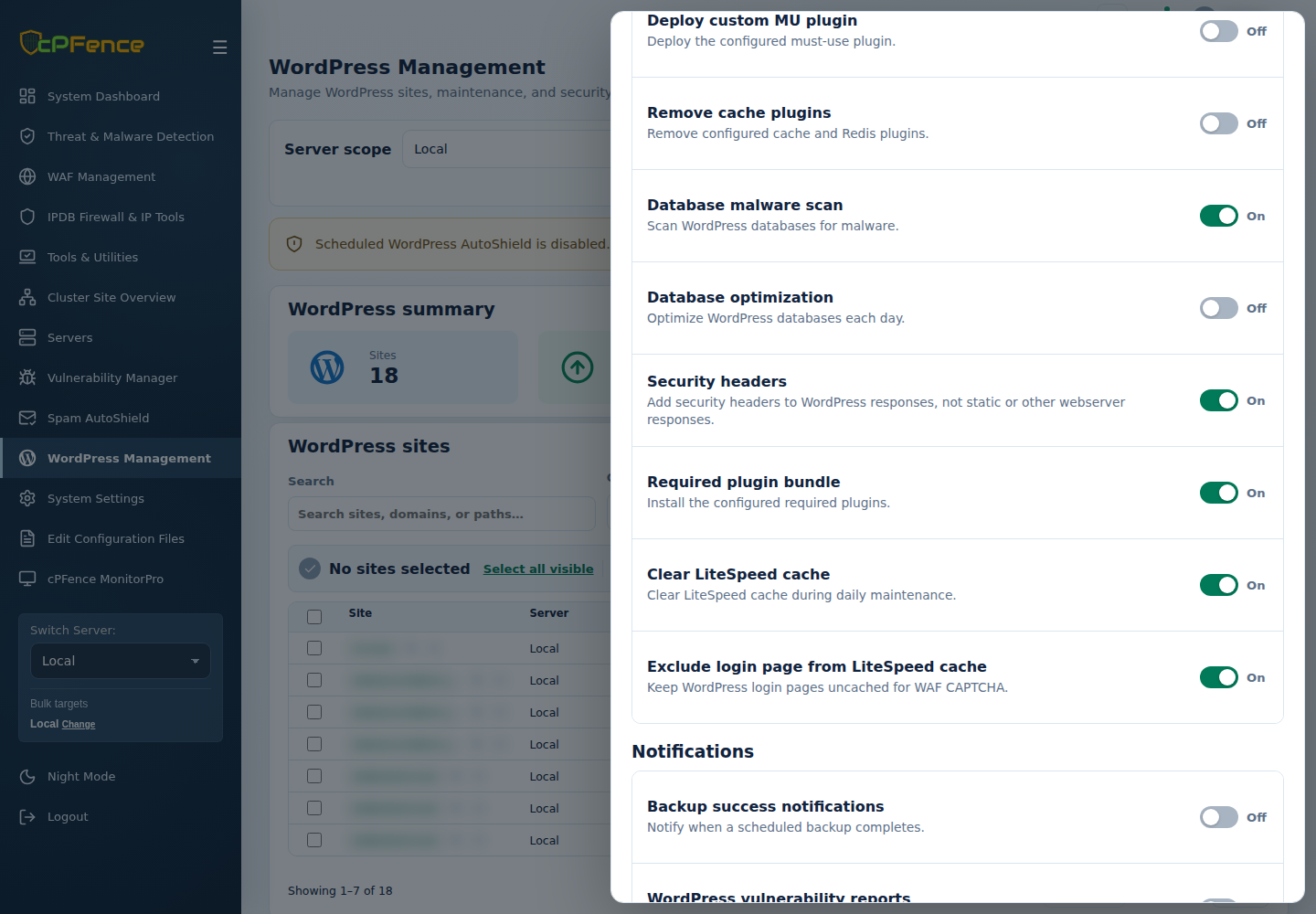
- Security Headers, Without the Busywork: Enable recommended headers for WordPress-generated responses. Static files still need their own web-server configuration.
- Database Protection & Housekeeping: Choose database malware scanning and database optimization independently—use the controls you need, with enough spare resources for the work.
- Plugin Policies at Scale: Remove blacklisted plugins, deploy your custom MU plugin, or install a required plugin bundle. Back up first: switching a removal policy off does not restore removed plugins.
- Updates on Your Terms: Manage automatic updates for core, plugins, themes or translations independently, instead of making every component follow the same policy.
New in cPFence v3.3.12: Automation at Scale
The latest update makes securing WordPress sites easier than ever. Previously, tools like vulnerability scans, cron disabling, and brute force protection had to be run manually. With WP AutoShield, it’s all automated. Just flip the switch, and WP AutoShield does the rest, protecting all sites while you sleep.
The module includes robust logging so you can monitor everything happening in /var/log/cpfence_autoshield.log. Need customization? Open WordPress Management → Settings for the selected server to enable or disable specific features—you’re in full control.
Other Highlights in cPFence v3.3.12
- Fix Permissions Commands:
cpfence --fix-permissions-dry: Preview permission changes.cpfence --fix-permissions: Correct root-owned files and folders across the server to avoid backup issues.
- Backup and Restore Settings:
cpfence --backup-cpf-settings: Backup your cPFence settings.cpfence --restore-cpf-settings: Restore settings on a new server for seamless migrations.
Get Started with WP AutoShield
Here’s how to begin:
- Enable WP AutoShield:
Open WordPress Management → Settings for Local or one secondary server. Enable WordPress AutoShield, choose the policies you want, and select Save settings. - Want to see it in action? Trigger WP AutoShield manually:
Select the intended sites in WordPress Management, then open Choose action → WP-AutoShield → Protection → Run WP-AutoShield. Review and confirm the targets, then inspect each result.
Prefer to fine-tune updates for selected sites? Open Choose action → Bulk tools → Updates → Manage WordPress auto updates, choose the operation and component, review your targets, and check the final results. This changes the future update policy; it does not run an update immediately.
Daily AutoShield follows the saved master switch and child policies. A manual run is a separate request. Exclude incompatible sites where needed rather than switching protection off for everyone; see AutoShield exclusions and compatibility.
Prefer the terminal? Run these as root on the intended server, with backups ready. These commands use that server’s WordPress site list; the run command follows its saved policies. Use the WebUI when you want to select specific sites:
cpfence --run-wp-autoshield
cpfence --enable-wp-auto-updates plugins
cpfence --bulk-enable-sec-headers
Use cpfence --exclude-wp-site for the interactive AutoShield exclusion tool. For each operation, read the final output and check the affected sites.
For shared hosting companies and VPS owners, WP AutoShield is the ultimate tool to bulk-secure WordPress sites. Whether you’re managing a handful of sites or thousands, WP AutoShield simplifies and scales WordPress security like never before.
Read More:
Ready to secure your WordPress sites effortlessly?
WP AutoShield is your answer. Try it today and experience a new era of one-click WordPress security.
Start free trial