cPFence vs. ClamAV: 11 Reasons cPFence Takes Security to the Next Level
When it comes to Linux server security, ClamAV and cPFence offer different solutions to the same problem: protecting your server from malicious attacks. With cPFence v4+, website and server-file protection now uses our own native malware scanner—20× faster than our legacy scanner. ClamAV remains part of cPFence for email scanning only. In this post, we’ll look at what that change means for your Enhance hosting servers and why cPFence goes beyond a standalone antivirus.
1. ClamAV: A Great Product with a Focused Role
ClamAV has earned its place as a respected antivirus solution, widely used for scanning messages and attachments. That is exactly where we use it in cPFence v4+. Website and server-file scans use the native cPFence malware engine instead, so your hosting protection no longer depends on ClamAV as its file scanner.
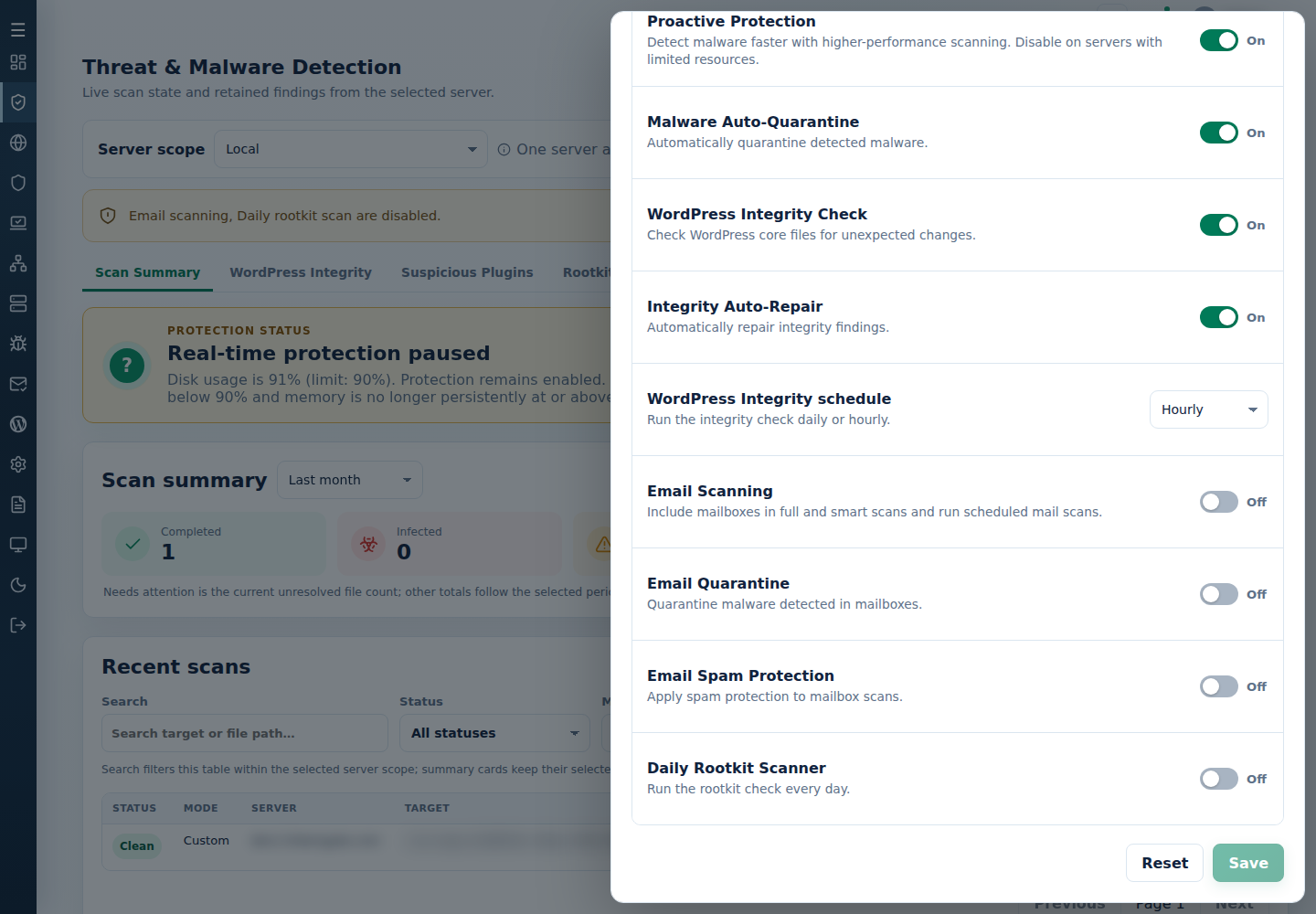
In Threat & Malware Detection → Settings, Email Scanning controls mailbox scans separately from website protection. Email Quarantine decides whether detected messages are isolated; Email Spam Protection has its own setting too. Enable only the policies you intend to use on the selected server. Our email scanning guide covers the setup.
2. Hosting Malware Needs Hosting-Focused Detection
PHP backdoors, infected plugins and malicious files hidden inside a WordPress installation are familiar problems on shared hosting servers. cPFence’s native engine brings our hosting-malware signatures into a scanner built for this workload, while ClamAV continues to handle the separate email-scanning role.
3. Detection Rates: Read the Test Behind the Number
The original version of this article linked to Splunk’s 2022 ClamAV study, which reported about 60% detection across its particular commodity-malware sample. That is useful historical context, but it is not a current PHP-hosting benchmark or a measurement of the native cPFence v4+ engine. File types, samples and signature versions all matter when comparing detection.
4. Compare the Workload That Matters to You
For an Enhance hosting server, a useful comparison starts with the same files and the same machine. Check which threats each scanner finds, how long it takes, and what happens to the detected files. Keep speed and detection coverage separate: scanning faster is a major improvement, but it does not turn an old test’s detection percentage into a new result.
5. PHP Malware: A Familiar Threat in Shared Hosting
On shared hosting servers, PHP and WordPress infections deserve special attention. A scanner needs to recognize malicious hosting files, not just general desktop malware. This is why cPFence combines its native file engine and hosting-malware signatures with WordPress integrity checks and the other protection layers around your websites.
6. cPFence’s Own Malware Database
cPFence’s malware database remains a core part of our protection. The native scanner uses cPFence signatures for website and server-file detection; it does not hand that work to ClamAV. The important difference is the combination of our detection database and our own scanning engine, alongside the other security tools built for Enhance hosting.
7. Real Malware, Real Protection
cPFence signatures are drawn from real-world hosting malware, especially the PHP and WordPress infections found on busy servers. Generic signatures help recognize related variants, and signature updates keep that detection coverage current.
8. Native Malware Scanning—20× Faster Than Our Legacy Scanner
This is one of the biggest changes in cPFence v4+: our native malware scanner is 20× faster than the old legacy scanner. The comparison is against the previous cPFence file-scanning engine, not a claim that every scan is 20× faster than ClamAV. Actual scan time depends on the files, scan mode and available server resources.
For busy hosting environments, that improvement makes the native engine a major reason to move to v4+. You keep cPFence’s hosting-focused detection and gain a faster engine for the work your server needs to do.
9. Try the Native Scanner Yourself
Start with the cPFence free trial on a test server or a site you are authorized to scan. Open Threat & Malware Detection, select one server in Server scope, then click New scan. Choose Smart scan, Full scan, or Custom path for one website. Check the target and quarantine policy before starting: moving an infected file can affect the website.
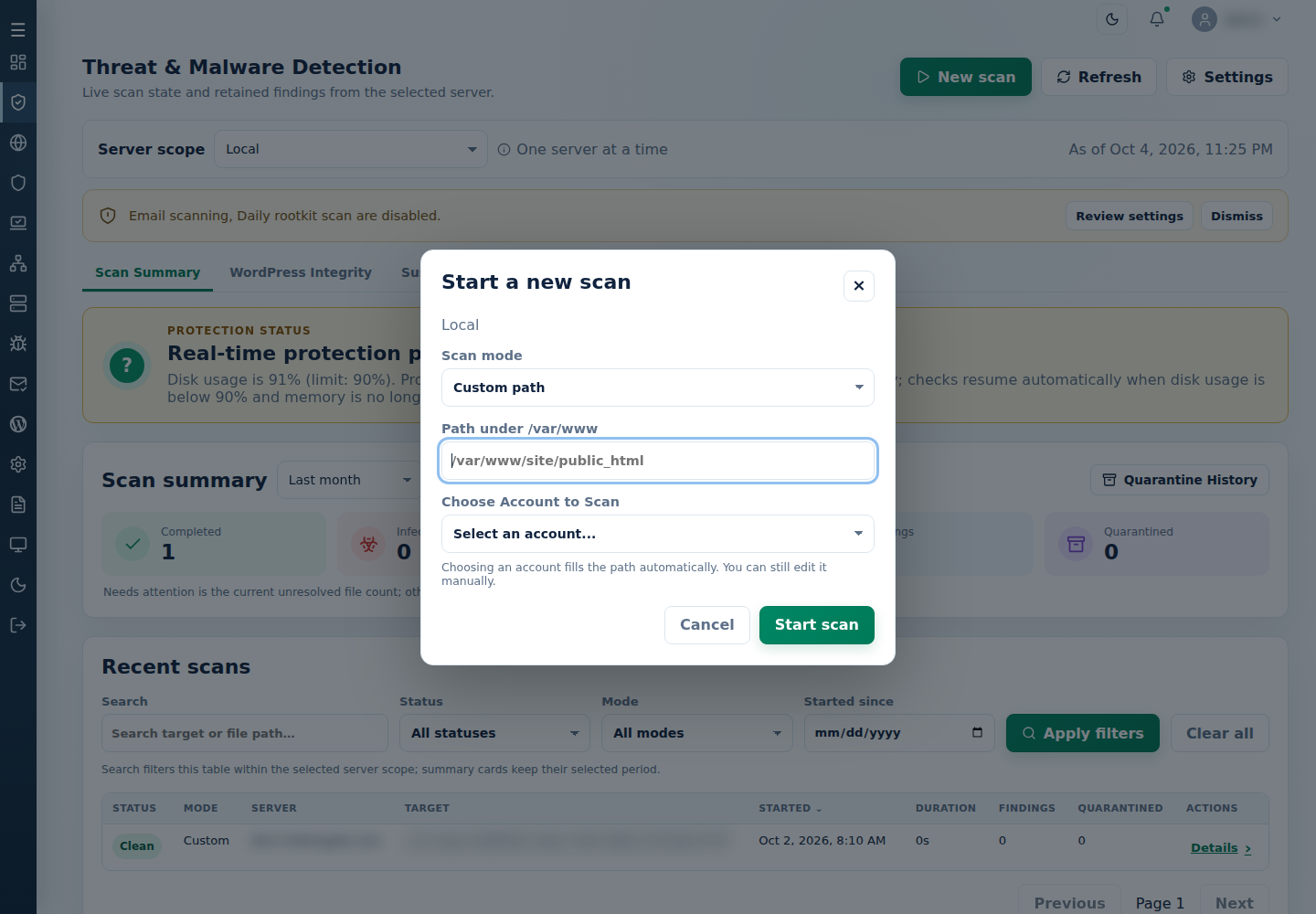
After starting, watch Recent scans and open Details to read findings, actions and any errors. A submitted scan is not a finished scan. For the terminal, run the supported commands as root on the licensed target server, replacing the example with your real website path:
cpfence --custom-scan /var/www/EXAMPLE/public_html
cpfence --scan-status
cpfence --smart-scan and cpfence --full-scan provide the other scan modes. For the complete flow, see run a scan and review results. If you compare detection using malware samples, keep them on an isolated test system rather than a live website.
10. Faster Scanning, Clearer Control
The native engine handles website-file scanning, while scheduled changed-file checks avoid repeatedly treating every file as new work. cPFence v4+ checks changed website files every five minutes when protection is enabled and resources permit. Proactive Protection provides a higher-performance scanning option on capable servers; review the displayed protection status rather than assuming a saved switch means a check has completed.
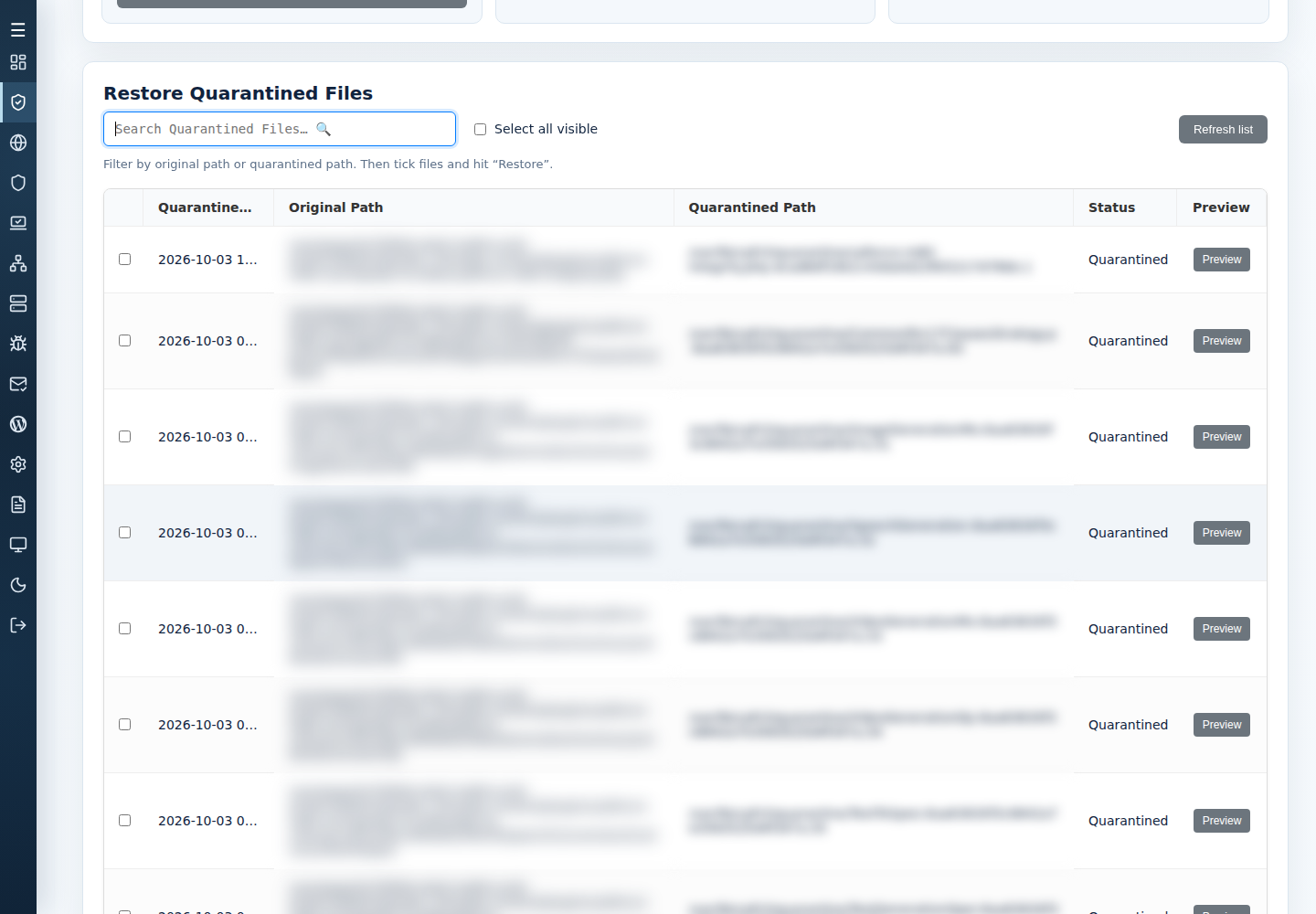
When malware is detected, Malware Auto-Quarantine can isolate the file if enabled. Check the finding’s actual action, then use Advanced Tools → Restore Quarantined Files to review stored content. Verify a file is clean before restoring it—returning malware makes it available to the website again. Follow the quarantine recovery guide for preview, recovery and narrow exceptions.
11. cPFence: More Than Just Antivirus
Native malware scanning is one part of cPFence v4+. The wider protection suite helps you prevent attacks, identify problems and respond when something gets through:
- DDoS and brute-force protection: Controls for abusive traffic and authentication attempts.
- Email malware and spam protection: ClamAV-based mailbox scanning, separate email quarantine and Spam AutoShield tools.
- cPFence Owl™: Service and resource monitoring with alerts and configurable actions.
- Process and resource monitoring: Review resource limits and the controls for long-running processes.
- MySQL resource management: Owl AutoMySQL controls for long-running queries, with automatic and manual monitoring modes.
- Rootkit checks: Separate checks and findings to investigate; a finding does not automatically remove a rootkit.
- Bot and proxy-client protection: WAF controls that help identify and block abusive clients, including those behind proxies.
- IP intelligence: cPFence’s IP database and IP/country controls for blocking known malicious sources.
- Web Application Firewall: Application protection for supported Nginx, Apache, OpenLiteSpeed and LiteSpeed configurations.
- WP AutoShield and Vulnerability Manager: WordPress security controls and an inventory of known component vulnerabilities.
Ordinary cPFence v4+ features do not need passwordless SSH access between your servers. Only MultiRun and remote WordPress backup/restore require it; if you do not use those features, you can disable that inter-server access and the other v4+ features will work normally.
Conclusion
For threats hidden in WordPress content, read about database malware scanning and IPv6 protection.
ClamAV remains useful for email scanning. For your websites and server files, cPFence v4+ brings its own native malware scanner, hosting-focused signatures and a 20× speed improvement over our legacy scanner. Add the firewall, WordPress and monitoring tools around it, and you have protection built for the way Enhance hosting servers are used.
Meet the native cPFence scanner.
Explore cPFence v4+ and bring malware scanning, WordPress protection and server security into one WebUI.