Integrity Auto-Repair: The New Self-Healing Shield for WordPress

Keeping your WordPress sites secure has never been more crucial—or more challenging. Even the most vigilant site owners can face issues when critical files are compromised by malware or unauthorized modifications. With this in mind, cPFence has introduced the new Integrity Auto-Repair feature, elevating your site’s resilience to unprecedented levels.
What Exactly Is Integrity Auto-Repair?
Integrity Auto-Repair is an advanced security enhancement within cPFence that helps detect changed WordPress core files and restore official copies when safe automatic repair is available.
When an integrity check detects modifications, tampering, or unexpected files within the checked WordPress core, enabled automatic file actions can:
- Quarantine unexpected files when the recorded finding and policy allow it.
- Restore affected core WordPress files from the official repository when safe repair is supported.
- Record findings and actions so you can review repairs, failures and anything that still needs attention.
Simply put, your WordPress core gains a helping hand with recovery. Keep backups and check site functionality afterward; this is not a guarantee of uninterrupted service or a clean site.
Why Integrity Auto-Repair Matters
In the past, dealing with infected WordPress files could mean significant downtime. Typically, files flagged as suspicious were quarantined, but restoring the correct files required manual intervention, potentially causing prolonged outages.
Integrity Auto-Repair helps close that recovery gap:
- Faster Recovery: Supported core repairs reduce manual restoration work, while failed or unsafe repairs remain visible for follow-up. Downtime is still possible.
- Increased Reliability: Restoring official core files can help recover a damaged installation, supporting your site’s operation and your business reputation.
- Reduced Admin Workload: Let cPFence handle supported safe core repairs, then focus your attention on the findings that need a manual response.
How Integrity Auto-Repair Works in Practice
When enabled, the Integrity Auto-Repair feature checks your WordPress core installation on the selected schedule. Here’s the step-by-step process:
- Automatic Detection: Integrity checks regularly verify all WordPress core files against official WordPress checksums.
- Quarantine Where Applicable: Automatic file actions can isolate unexpected files identified by the check, subject to policy and exclusions.
- Safe Core Restoration: Where supported and safe, affected core files are replaced with official copies. Review the result; not every finding can be repaired automatically.
- Detailed Logs & Notifications: Every action is logged, and admins are promptly informed about repairs performed, enabling transparent oversight.
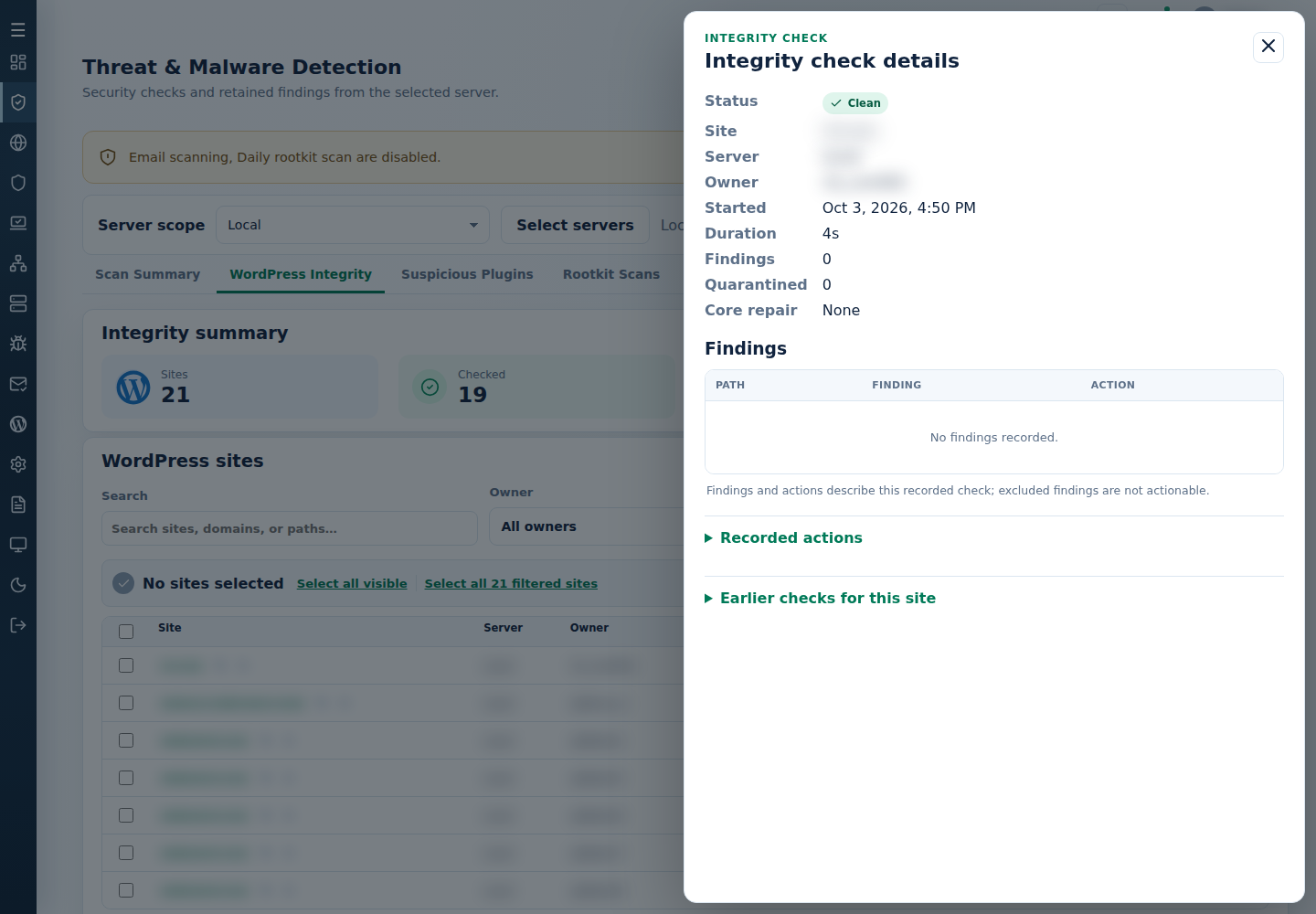
Want to check just one site? Select it in WordPress Management and use its integrity-check action. Then open Threat & Malware Detection → WordPress Integrity and the result’s Details. Findings, recorded actions, core repair and earlier checks tell you what happened. After a repair, a subsequent check and a working site are what matter—not just an accepted request. Core checksums alone do not prove plugins, themes or accounts are clean.
Activating Integrity Auto-Repair
Enabling this powerful feature is straightforward, either from your cPFence WebUI or directly from the command line:
From WebUI:
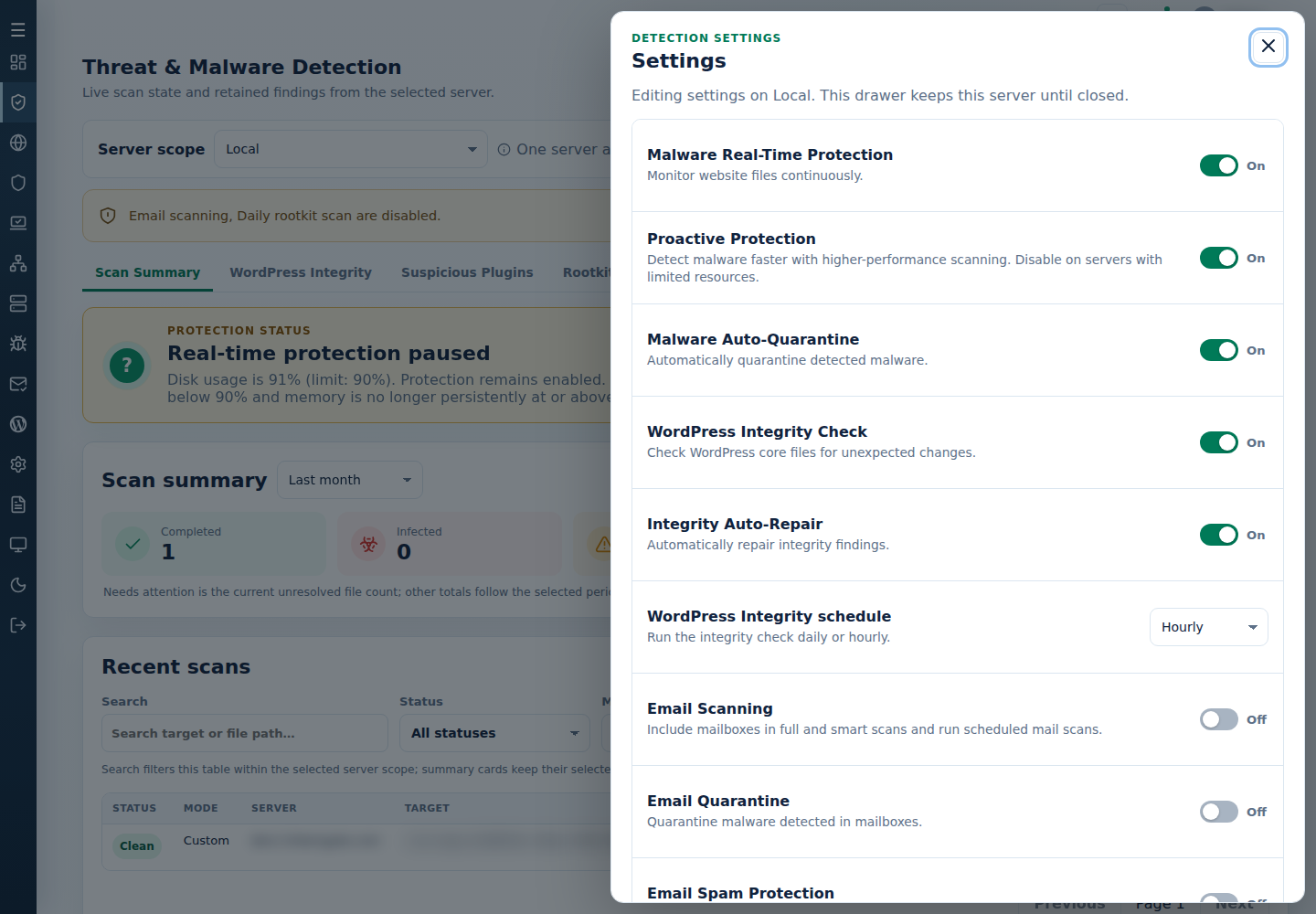
- In cPFence v4+, open Threat & Malware Detection, choose Local or one secondary server, and open Settings.
- Review your backups and exclusions, enable WordPress Integrity Check and Integrity Auto-Repair, choose the WordPress Integrity schedule, then select Save. Automatic file actions can repair core files or quarantine unexpected files; review recorded results under WordPress Integrity.
From the command line:
cpfence --enable-auto-file-action
To deactivate at any time:
cpfence --disable-auto-file-action
As root on the intended server, choose daily or hourly checks, or request a check of one explicit installation:
cpfence --set-check-frequency hourly
cpfence --wp-integrity-scan /PATH/TO/WORDPRESS
Need an exception? Use Threat & Malware Detection → Advanced Tools → Integrity exclusions, or the interactive commands cpfence --exclude-integrity-site and cpfence --exclude-integrity-file. A site exception uses its full path; a file-name exception matches that exact basename across sites, so keep exceptions narrow. See integrity checks and recovery.
For a separate, deliberate repair of a supported official WordPress core, plugin or theme component, back up first: the following replaces the whole exact-version component, potentially removing local changes and extra files. It is not automatic plugin or theme repair:
cpfence remediate --force /PATH/TO/COMPONENT/FILE
Replace the path with a file in the component you intend to restore, read the final output, and test the site afterward.
We strongly recommend keeping this feature enabled for maximum security and reliability.
Bulletproofing Your WordPress Sites
Integrity Auto-Repair adds a practical recovery layer to your WordPress sites. By combining integrity findings, applicable quarantine and safe core restoration, it helps you respond to damaged core files while keeping the remaining investigation in view.
Whether you’re a hosting provider managing hundreds of websites or an individual webmaster, Integrity Auto-Repair can reduce manual recovery work and operational headaches. Keep backups, review recorded actions and investigate anything outside the checked core.
Take the next step in WordPress security—activate Integrity Auto-Repair in cPFence today and experience what true website resilience feels like.
Don’t have a cPFence license yet?
Start your one-month free trial now!
Start free trial