Granular User Access Control Comes to WebUI

The cPFence WebUI isn’t just a security panel — it’s a full security and server monitoring platform. Malware protection, WAF management, bulk tools, WordPress and server utilities, 30 days of performance history, uptime monitoring, and instant alerts — all in one place.
But there was one limitation.
WebUI was built around a single hardcoded admin user.
As agencies and hosting providers adopted cPFence, they needed a way to give support staff access — without giving them full control.
That’s exactly what this release solves.
Introducing Support Users
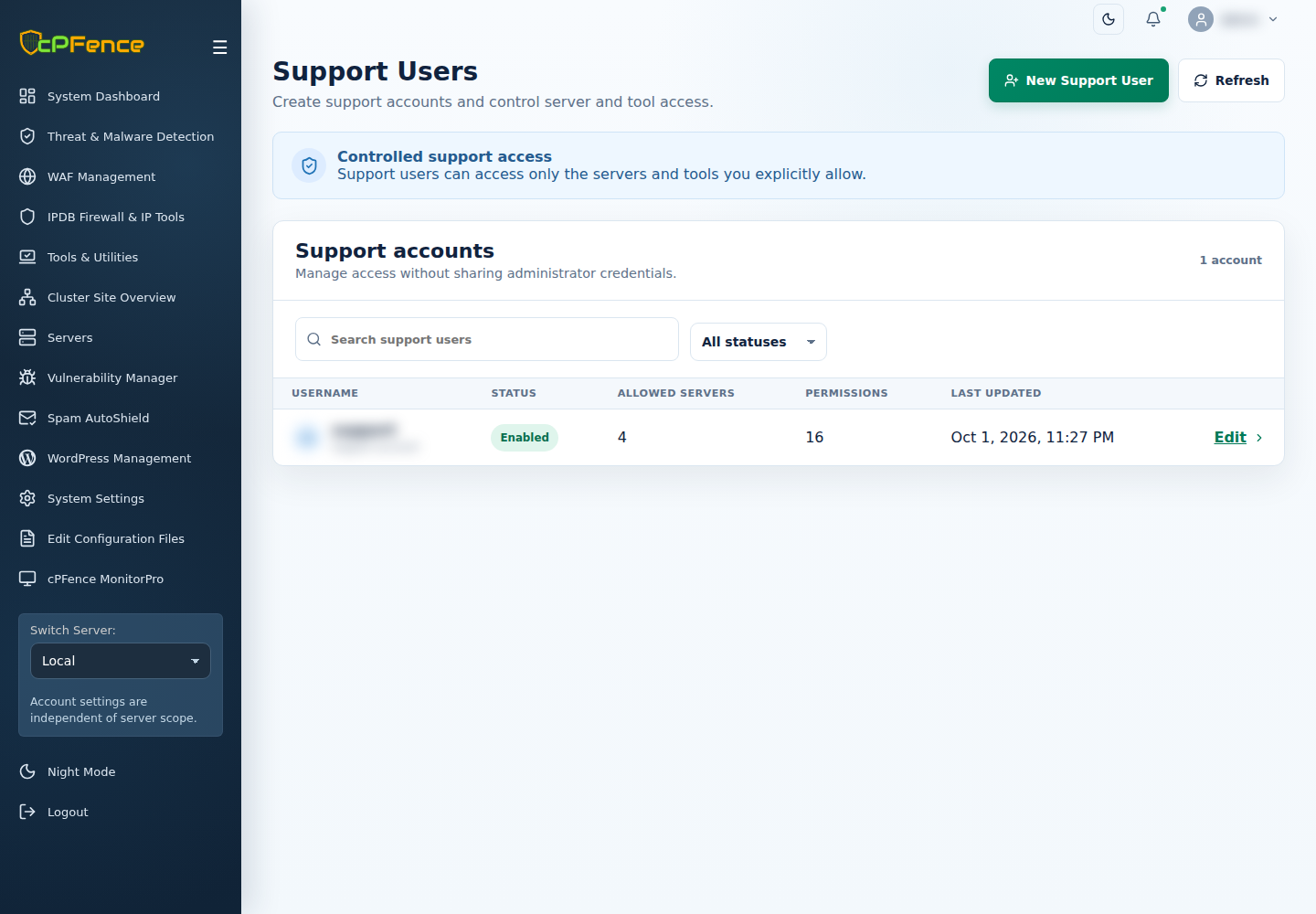
You can now create Support Users directly inside WebUI and define exactly what they are allowed to access and manage.
In cPFence v4+, sign in as an administrator on the main control panel server, then open Support Users → New Support User. Enter a separate username and unique password, review Account enabled, choose the servers and permissions, and Save changes. Check the saved account’s status and grants, then share its sign-in details privately.
No more shared admin credentials.
No more all-or-nothing access.
No more risky delegation.
Just controlled, structured permissions.
Click here for a Quick Start Guide
Fine-Grained Permissions
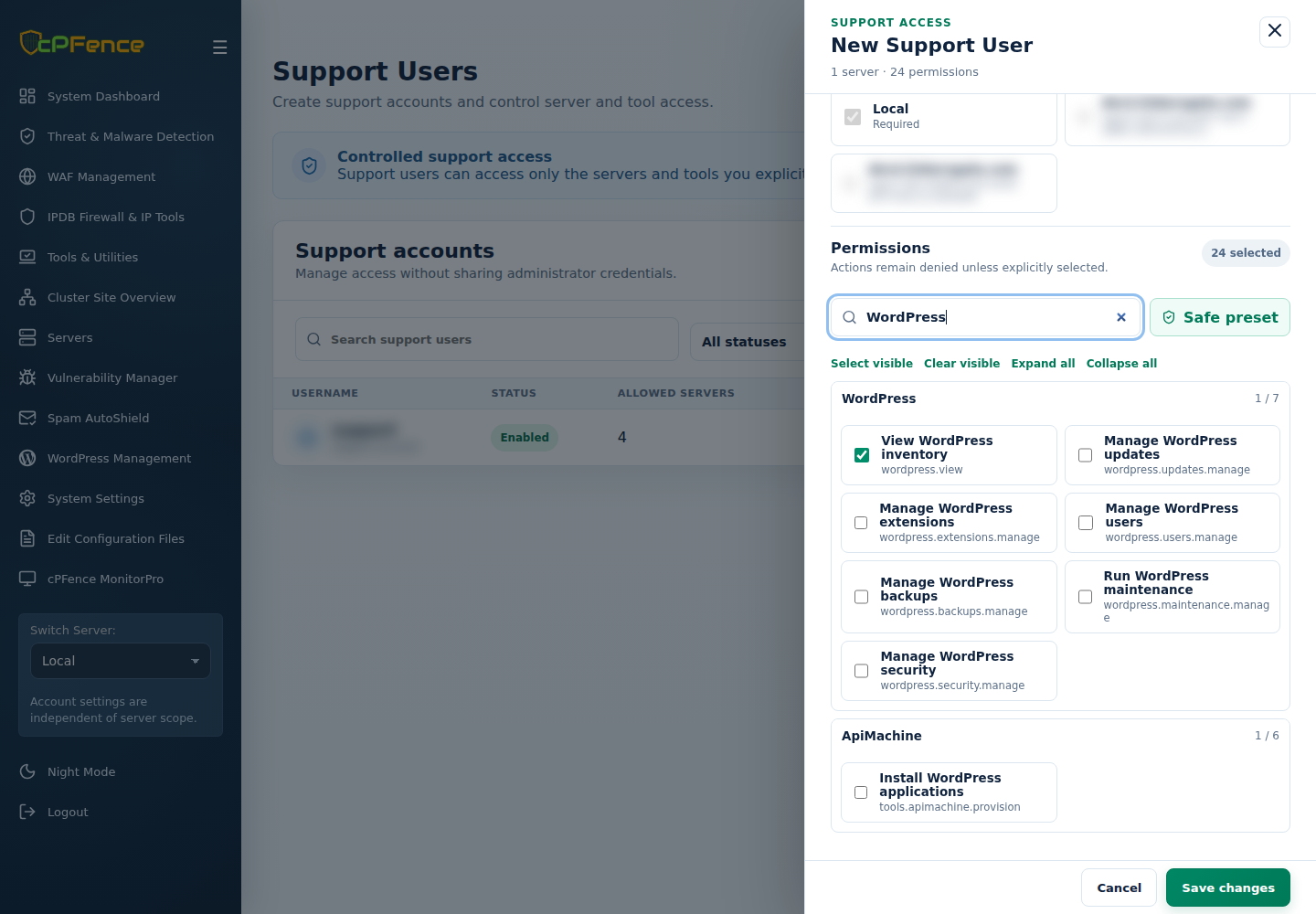
Support users can be granted access to specific tools and actions across WebUI, including:
- Dashboard visibility and stats commands
- IP whitelist and blacklist management
- Temporary IP actions
- Malware scans and scan control
- Quarantine management
- Vulnerability reports
- WAF rule enable/disable and monitoring
- WAF and OWL log streaming
- Cluster site access
- And more
Permissions are grouped logically, making it easy to assign exactly what’s needed — and nothing more.
Use Search permissions, Expand all and Collapse all to find the right tools. Select visible and Clear visible affect the filtered choices. Review Safe preset carefully: it includes changes such as scans, IP lists, WAF rules, vulnerable-component updates and quarantine restore. Reading an inventory is separate from permission to change it or request a site login.
Server-Level Restrictions
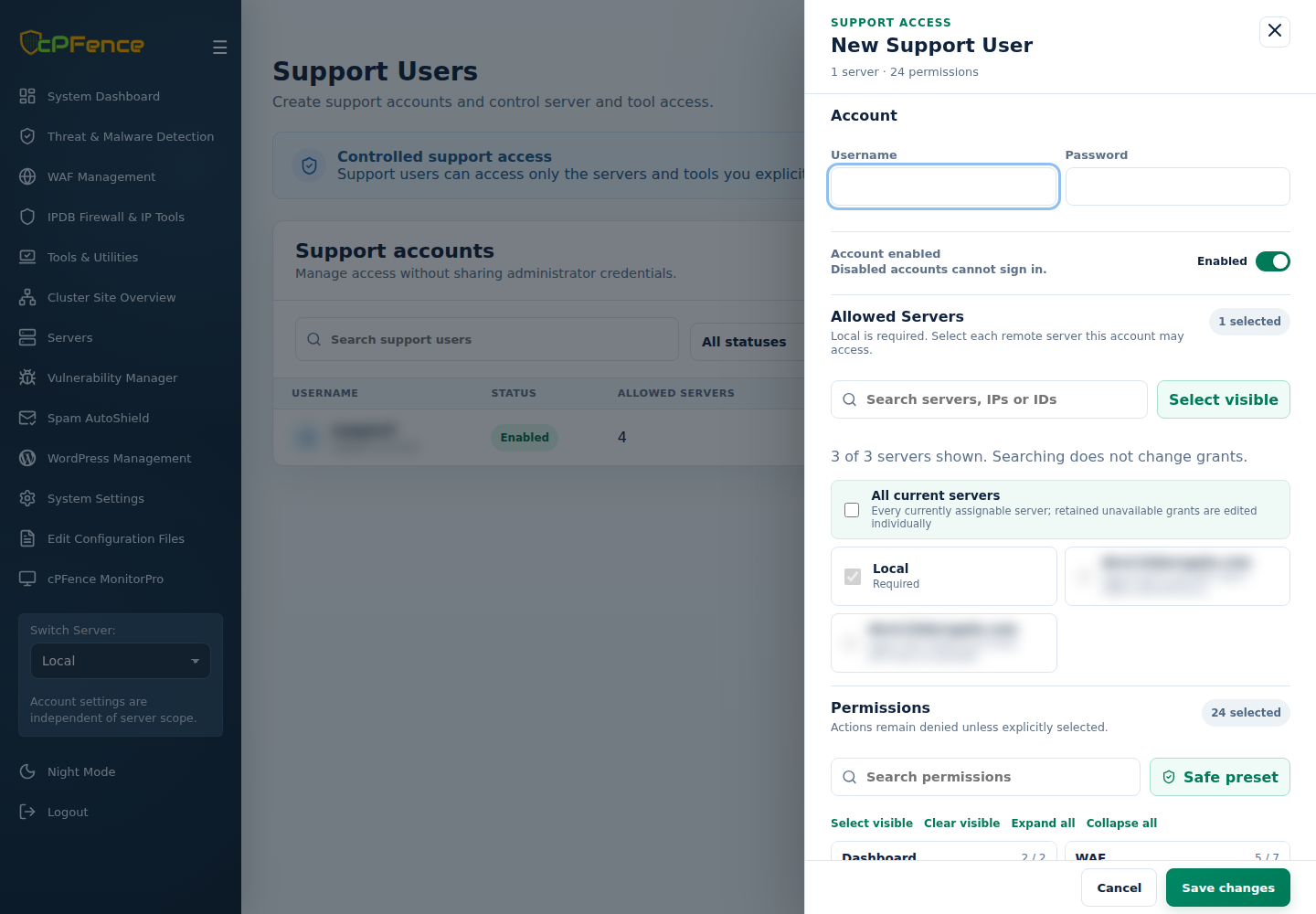
Managing multiple servers?
Support users can be limited to:
- Local server only
- Selected secondary servers
This means you can safely delegate responsibility without exposing your entire infrastructure.
Search allowed servers finds the available members; Select visible selects matching choices. All current servers includes current assignable servers, not future additions. Server access and tool permissions work together, and site tools use sites within that server scope.
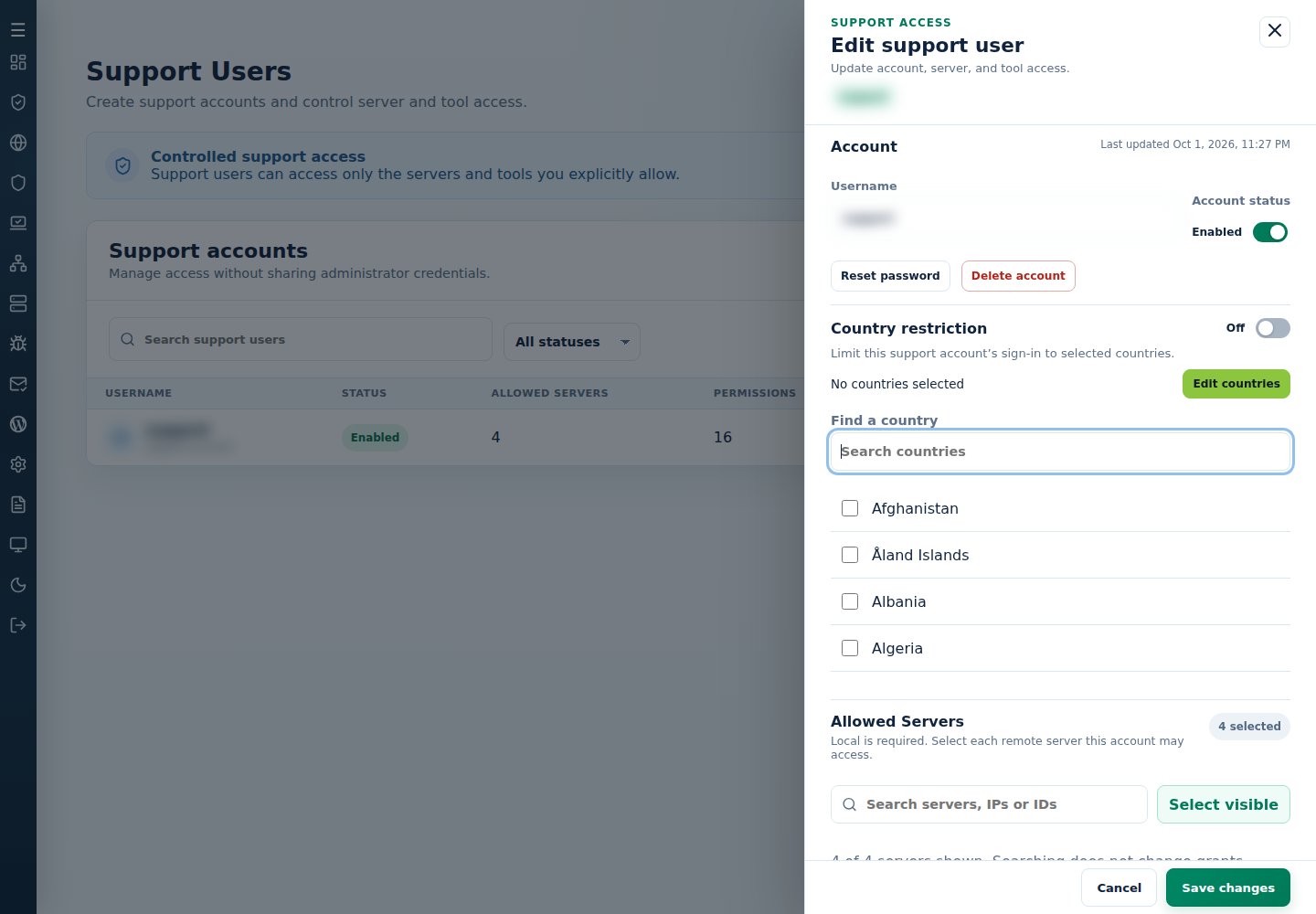
Need tighter sign-in controls? Open an existing account’s Edit → Edit countries, select its allowed countries and enable the restriction. Saving a country-policy change requires administrator verification. The user can also set up their own MFA in My account. Turn Account enabled off to suspend access; Reset password ends existing sessions immediately. Check the named account before a permanent deletion.
Built for Real-World Teams
Granular user access control is designed for:
- Hosting companies with internal support teams
- Agencies managing client infrastructure
- Companies with tiered admin structures
- Teams working with outsourced technicians
You can now hand over access with confidence — knowing every permission is intentional.
Start Your Free Trial
If you’re not using cPFence yet, now is the perfect time to experience the full power of WebUI — advanced security, deep monitoring, bulk management tools, and now structured user access control. See how cPFence helps you secure, monitor, and scale your infrastructure — all from one powerful panel.
Start free trial