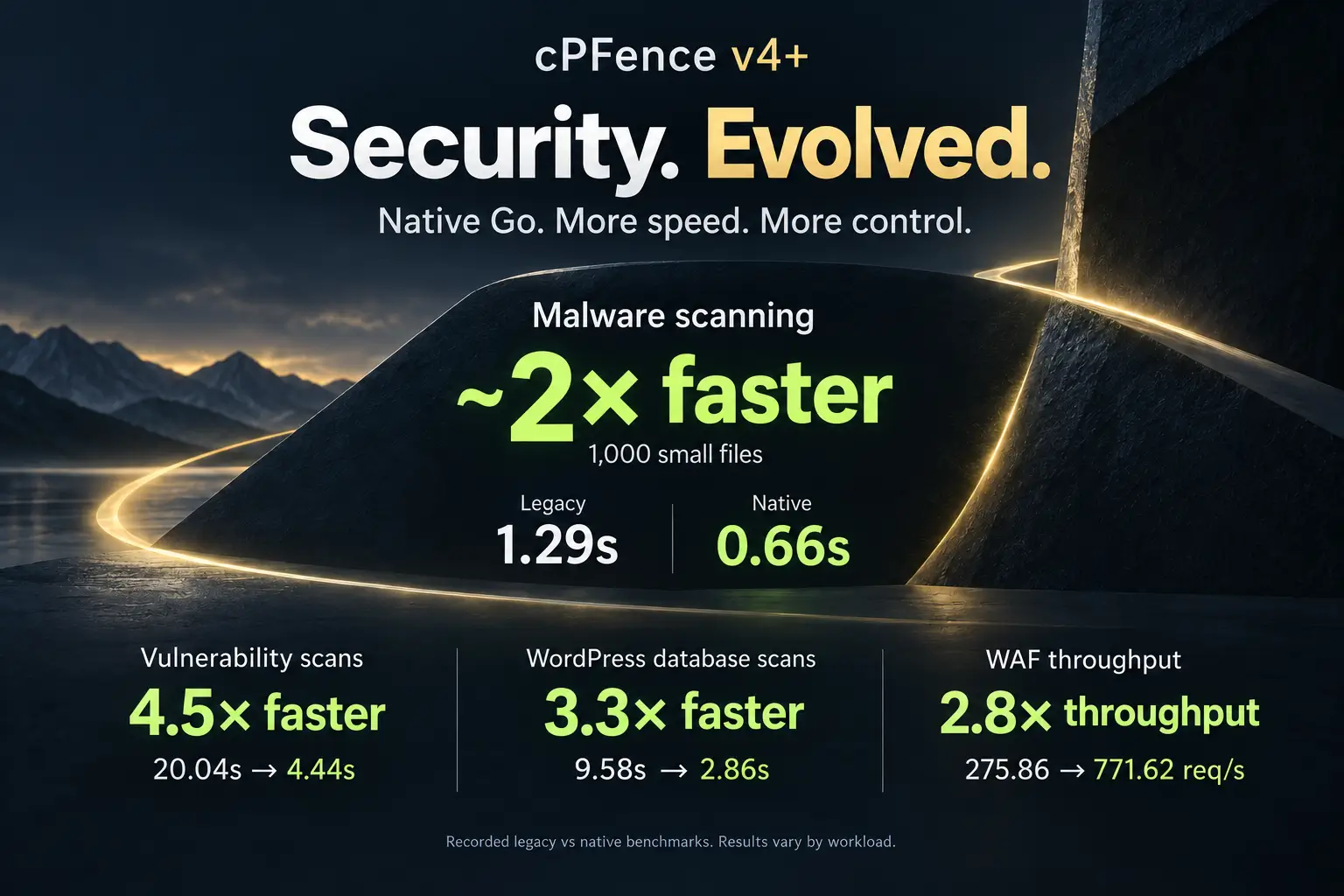
Supercharge Your WordPress Network With cPFence’s New Tools

In today’s competitive hosting landscape, efficiency and consistency are more than buzzwords—they’re essential. cPFence Bulk Tools have been designed with the modern WordPress hosting company in mind. Our latest updates, along with our proven legacy commands, streamline management and ensure a uniform, secure, and high-performance network across all your sites.
In this post, we’ll introduce our exciting new bulk commands and showcase how you can leverage our must-use (MU) plugin feature to deliver custom functionality, branding, and much more—all with a few simple commands.
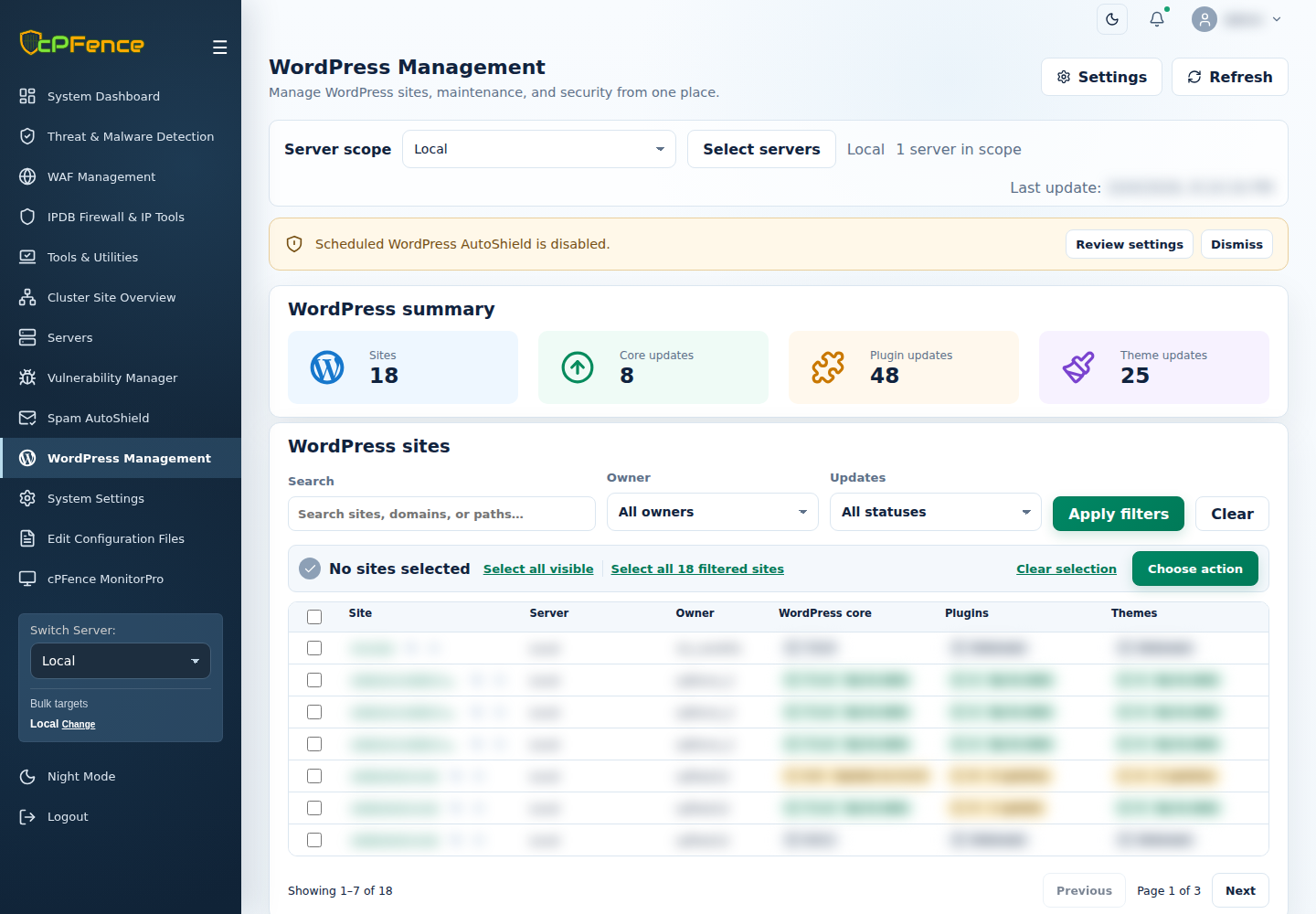
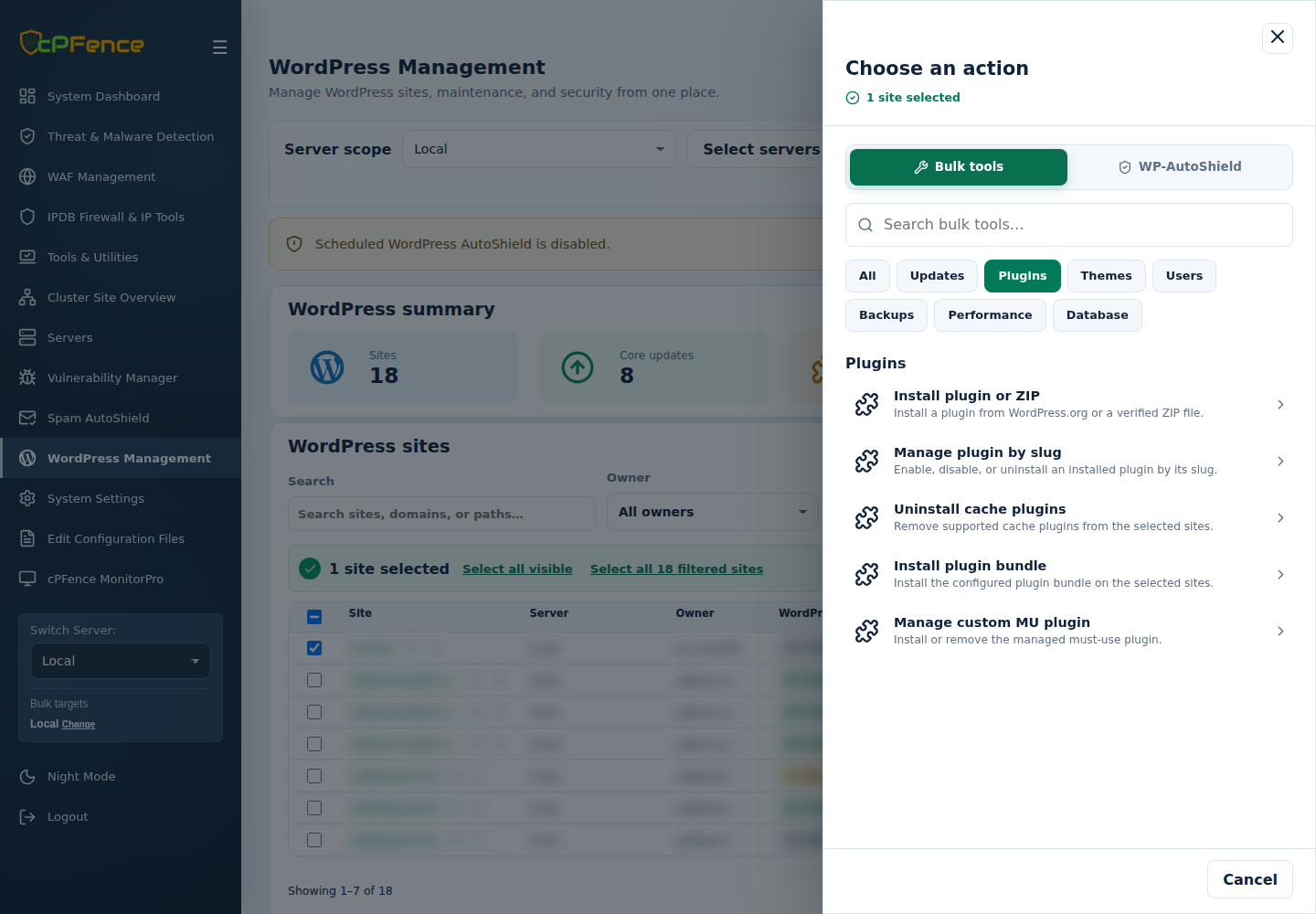
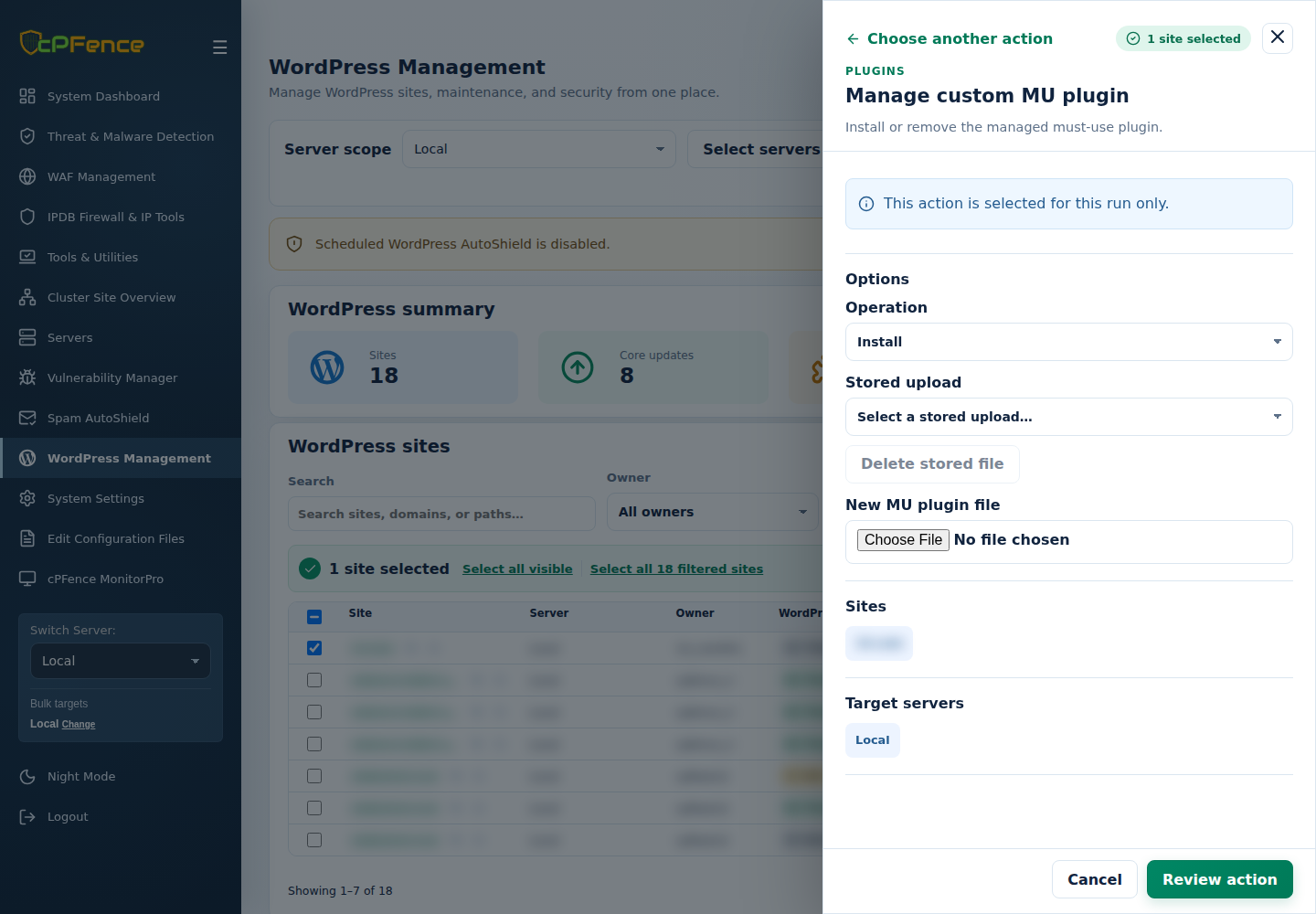
No passwordless SSH needed for normal cPFence v4+ operation. Only remote WordPress backups/restore and MultiRun need it. If you do not use those two features, you can disable passwordless SSH access and the rest of v4+ will keep working.
In cPFence v4+, choose the intended server and sites in WordPress Management, then Choose action → Bulk tools → Plugins. Select the tool, review its options and targets, confirm, then inspect each site’s final result. Back up first and try one site before changing a whole network. CLI commands run as root against the reviewed site list on the hosting server, independently of WebUI selections.
New cPFence Bulk Commands: Simplify, Secure, and Standardize
cPFence’s latest updates make it easier than ever to manage your WordPress sites in bulk. Here are the new features designed to give you unparalleled control:
1. Bulk Install Plugin Bundle
Command:
cpfence --bulk-install-plugin-bundle
How it works:
Deploy a curated bundle of essential plugins across all your WordPress sites in one go.
Tip: Add the plugin slugs to /var/log/cpfenceav/wp-plugin-bundle.txt before running the command.
Cronjob Example:
/usr/bin/cpfence --bulk-install-plugin-bundle -y
In the WebUI, choose Install plugin bundle. Maintain the list under Edit Configuration Files → Required plugin bundle, preserving existing entries. For daily enforcement, enable Required plugin bundle and the WordPress AutoShield master in WordPress Settings. The cron examples here are alternatives for your own scheduling, not extra jobs to add on top of an enabled daily policy.
2. Bulk Uninstall Blacklisted Plugins
Command:
cpfence --bulk-uninstall-bl-plugins
How it works:
Automatically remove any plugins that are not compliant with your security or performance standards.
Tip: List the blacklisted plugin slugs in /var/log/cpfenceav/blacklisted-wp-plugins.txt.
Cronjob Example:
/usr/bin/cpfence --bulk-uninstall-bl-plugins -y
The removal action is under WP-AutoShield → Plugins → Uninstall blacklisted plugins. Its saved list is available as Edit Configuration Files → Blacklisted plugins. Turning off recurring removal does not reinstall a removed plugin.
3. Bulk Install Custom MU Plugin
Command:
cpfence --bulk-install-custom-mu-plugin
How it works:
Deploy your custom must-use plugin across all your sites in one simple move—ideal for enforcing company-wide functionality.
Tip: Place your one-file MU plugin in /var/log/cpfenceav/mu-plugin before executing.
Cronjob Example:
/usr/bin/cpfence --bulk-install-custom-mu-plugin -y
Prefer the WebUI? Choose Manage custom MU plugin, set Operation → Install and choose a Stored upload or one trusted PHP file under New MU plugin file. Review and confirm the targets. MU plugins load automatically, so review the code, preserve backups and test it first. For CLI staging, keep exactly one reviewed PHP file in the folder above and protect it from other users writing to it.
To reverse deployment, use Operation → Uninstall or cpfence --bulk-uninstall-custom-mu-plugin. Retain the staged filename so the CLI can identify the deployed file. Delete stored file manages the stored upload; it does not remove an installed plugin from sites. Daily Deploy custom MU plugin policy can reinstall it unless that policy is also disabled.
4. Bulk Uninstall Cache Plugins
Command:
cpfence --bulk-uninstall-cache-plugins
How it works:
Ensure optimal performance by removing major cache and Redis plugins that might conflict with your server’s caching strategy.
Cronjob Example:
/usr/bin/cpfence --bulk-uninstall-cache-plugins -y
Uninstall cache plugins is in the same Bulk tools Plugins category. Confirm that the listed sites do not need those plugins before removal; disabling the recurring policy does not put them back.
Unleashing the Power of MU Plugins: Use Cases That Transform Your Network
Our bulk install MU plugin feature lets you inject custom functionality into every WordPress site with a single command. Here are four use cases that demonstrate how this powerful feature can revolutionize your network:
1. Add Your Google Analytics Code in One Shot
Effortless Tracking Across All Sites
With our bulk install feature, you can instantly deploy your Google Analytics tracking code to every WordPress site you manage. This means you don’t have to manually insert the code on each site, ensuring consistent data collection and saving you hours of repetitive work.
2. Add Your Company’s Link to Every Footer in One Shot
Unified Branding Across Your Network
Maintain a consistent brand presence by automatically adding your company’s link to the footer of all your sites. This feature helps reinforce your corporate identity and drives traffic back to your main site—without the need for individual site edits.
3. Add Custom JavaScript to All Your Sites in One Shot
Seamless Integration of Custom Functionality
Whether you need to implement A/B testing, enhance site interactivity, or integrate third-party services, our bulk install MU plugin feature lets you inject custom JavaScript across all your WordPress sites. Customize your sites’ behavior quickly and uniformly, without the hassle of editing each one separately.
4. Add Custom Functionality—The Sky Is the Limit!
Tailor-Made Solutions for Your Unique Needs
From enhancing security measures and implementing custom analytics to adding bespoke widgets or any other functionality, our bulk install MU plugin feature empowers you to deploy virtually any PHP code or functionality across your entire network. This flexibility ensures that your sites always stay ahead of the curve with your unique customizations.
A Legacy of Excellence: 16 Proven Bulk Tools
cPFence has a strong track record of simplifying WordPress management with our suite of 16 powerful bulk tools. These commands have already transformed the way hosting companies manage their environments:
- cpfence --bulk-configure-ls-plugin
Configure the LiteSpeed plugin with advanced presets and Redis enabled server-wide. - cpfence --bulk-enable-ls-redis
Enable Redis caching within the LiteSpeed plugin across all sites. - cpfence --bulk-enable-ls-heartbeat
Bulk enable and configure heartbeat options in the LiteSpeed Cache plugin. - cpfence --bulk-reset-ls-plugin
Reset all options in the LiteSpeed Cache plugin to factory defaults server-wide. - cpfence --bulk-clear-litespeed-cache
Clear the LiteSpeed cache on all WordPress sites with one command. - cpfence --bulk-install-wp-plugin
Search and install any WordPress plugin using a name, ZIP file path, or URL. - cpfence --bulk-uninstall-wp-plugin
Deactivate and uninstall any WordPress plugin server-wide using its slug. - cpfence --bulk-run-due-wp-cron
Execute all due WordPress cron events across your network immediately. - cpfence --bulk-force-wp-core-files
Force restore WordPress core files to default (for experienced admins only). - cpfence --bulk-create-wp-user
Create a new WordPress user across all sites—complete with interactive prompts. - cpfence --bulk-backup-wp-sites
Bulk backup all WordPress sites (files and databases) into/cpf_wp_backups/. - cpfence --bulk-update-wordpress
Perform bulk updates for WordPress core, plugins, themes, and translations. - cpfence --enable-wp-auto-updates
Enable future WordPress core, plugin and theme auto-updates on listed sites; this does not run an update now. - cpfence --disable-wp-auto-updates
Disable automatic updates across your WordPress sites. - cpfence --vuln-export
Export a detailed vulnerability scan report in CSV format. - cpfence --monitorpro-scan-status
Check the uptime status of all websites in your cluster on demand.
Embrace the Future of WordPress Hosting
For smart WordPress hosting companies, the ability to manage and standardize operations across hundreds of sites isn’t just a luxury—it’s a necessity. With cPFence’s new bulk tools and the flexibility of our MU plugin feature, you can streamline site management, enforce consistent branding, and deploy custom functionality across your entire network—all with minimal effort.
Ready to revolutionize your WordPress management? Discover the power of cPFence Bulk Tools and see how effortless it can be to run a high-performance, secure, and fully customized hosting environment.
Explore our tools today and elevate your WordPress network to new heights!
Supercharge Your WordPress Network
Standardize plugins and manage selected sites from the cPFence v4+ WebUI. Start your free trial today.
Start free trial