
Manage support users and permissions
Use Support Users to give someone their own account and access to the servers and tasks they need.
For cPFence v4+ on Enhance. Sign in as an administrator on the main control panel server. Accounts belong to its WebUI; the sidebar does not move account administration to a secondary server. Operations still need eligible, connected, licensed destinations.
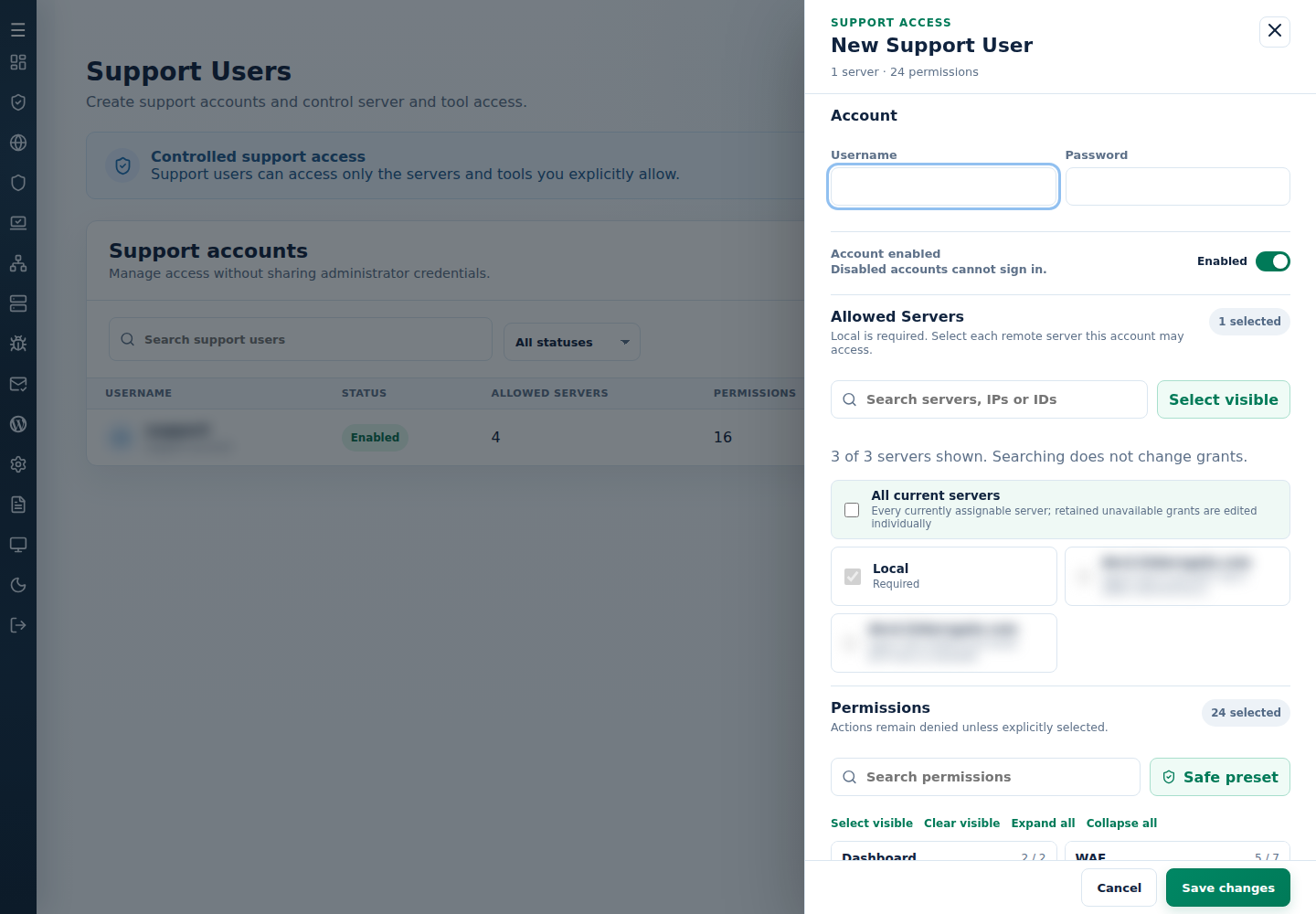
1. Create or edit a support account
Section titled “1. Create or edit a support account”- Open Support Users → New Support User, or select Edit for an existing account.
- For a new account, enter the person’s Username and a unique Password. For an existing account, use Reset password if a replacement is needed. Leave Account enabled on only if they should be able to sign in immediately.
- Under Allowed Servers, keep the required Local grant and choose each intended secondary server. Use Search allowed servers for names, IPs or IDs and review the selected count.
- Under Permissions, search for the necessary tools and select their checkboxes. Review the starting preset before saving.
- Select Save changes and confirm the account appears with the expected status, server count, permission count, and update time.
- Deliver the username, initial password, and main control panel server WebUI URL through a private channel. Ask the user to set up their own account security and MFA.
Select visible acts on search results. All current servers selects current assignable members, not future servers. Retained unavailable grants are edited individually.
Server and tool grants work together. Required Local access does not grant every action. Site tools use eligible sites within the server scope; there are no separate per-site grant checkboxes.
2. Review the permission groups
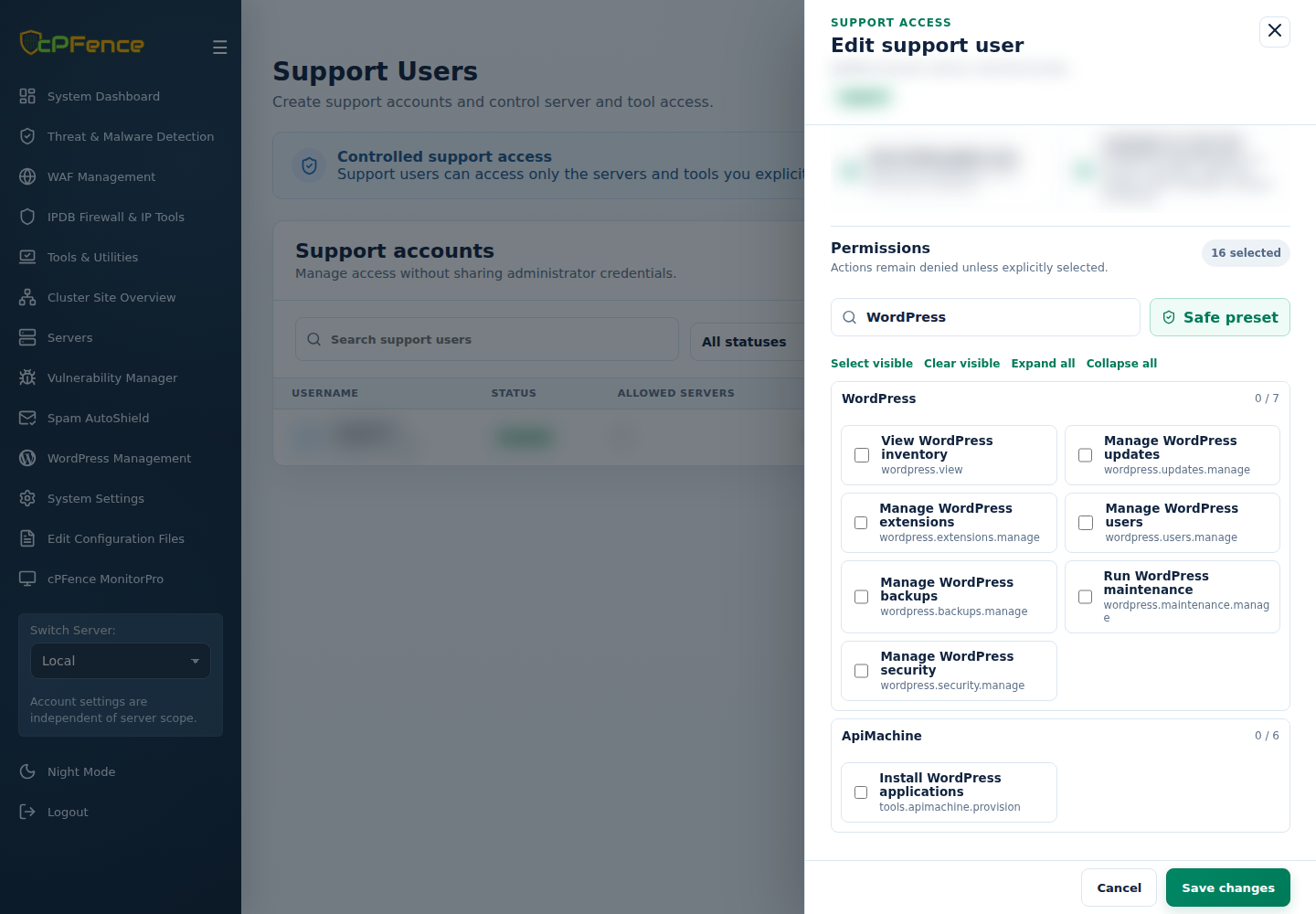
Section titled “2. Review the permission groups”Use Search permissions, Expand all, and Collapse all to review the groups. Select visible and Clear visible affect the current filtered controls. Check prerequisite permissions that become selected automatically.
| Permission area | Operations to distinguish |
|---|---|
| Dashboard | View the page versus run status/statistics commands. |
| WAF | Read history/domains; stream logs/domain debug/Owl output; manage rules; manage domain settings or protection. |
| IP tools | Check/monitor IPs; manage permanent lists or temporary entries; view policy; separately manage countries, UFW rules, or protection. |
| Detection and vulnerabilities | Run or stop scans; view history, diagnostics and findings; view reports versus update vulnerable plugins/themes; view quarantine versus restore it; separately quarantine or permanently delete files; manage exclusions or protection settings. |
| Cluster context | Read sites versus Use SSO login to all sites. Login is a sensitive access privilege, not a prerequisite for reading inventory. |
| MonitorPro | View status/history; manage policy/settings; run or stop checks. |
| Spam AutoShield | View; manage policy; separately run training and settings actions. |
| WordPress | View inventory; separately manage updates, extensions, users, backups, maintenance, or security. |
| Tools & Utilities | View websites; separately provision apps, manage TLS/DNS, Cloudflare, website runtime or backups; run inventory, settings backup/restore, maintenance/updates, or support-access/homelink utilities. |
| System Settings | View; manage General or Notification Settings; bulk apply only authorized settings; run advanced tools. |
| Configuration Files | View versus edit supported files. |
Dependent tools retain their required grants. Bulk settings also needs an authorized General or Notification Settings manager.
3. Edit, disable, reset, or delete an account
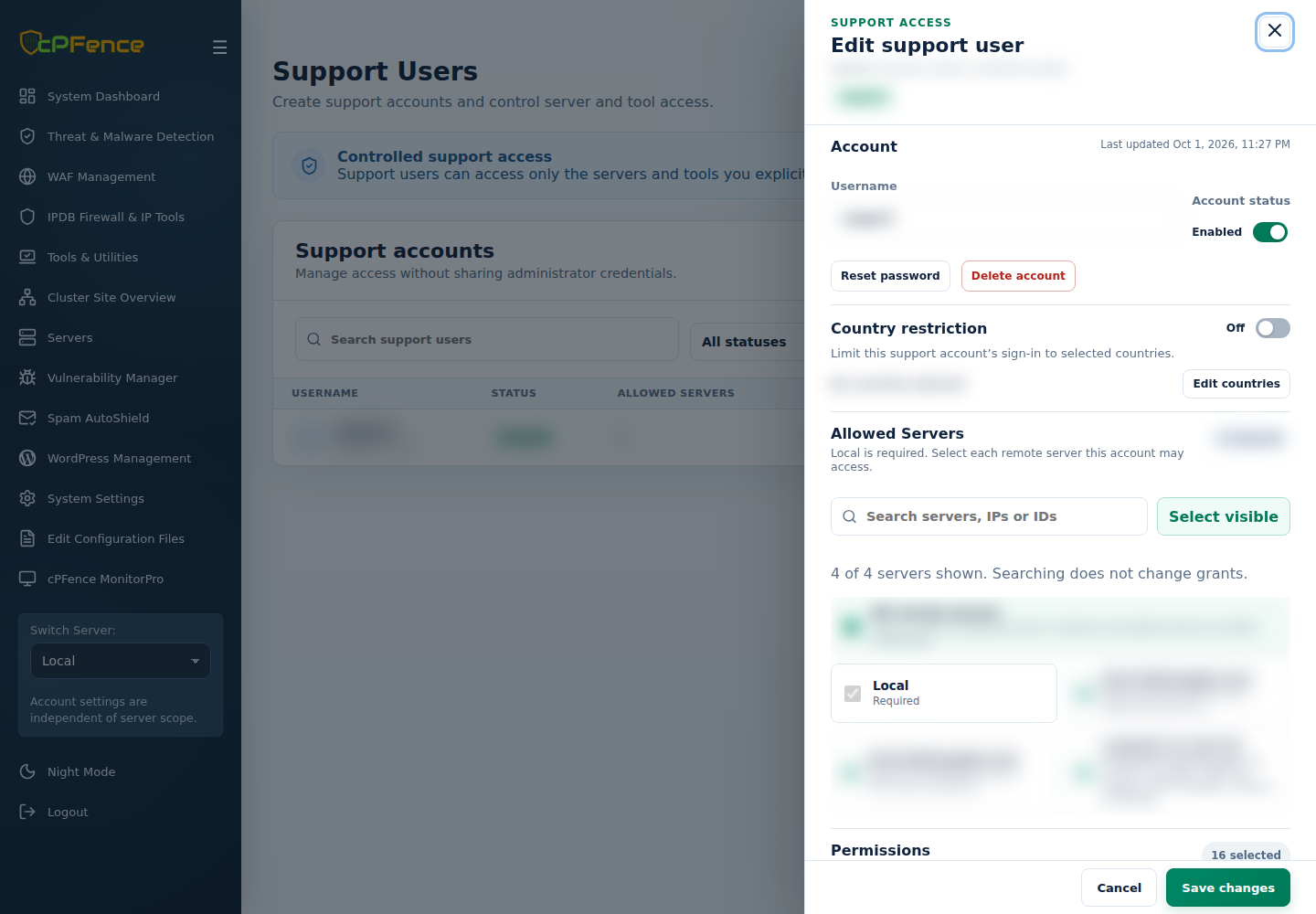
Section titled “3. Edit, disable, reset, or delete an account”- Find the account with Search and Status, then select Edit.
- Review the username and current grants. Keep unavailable grants unless you intend to remove them; unresolved imported grants require verification and do not establish access to a new server with the same IP.
- Change Account enabled, server grants, or permissions and select Save changes. A disabled account cannot sign in; removed grants no longer authorize new work.
- For a password change, select Reset password, enter the replacement in the private confirmation form, and confirm. Existing sessions end immediately; deliver the replacement privately.
- To remove the account permanently, use Delete account and confirm the named account. Use Cancel if the identity or intention is wrong.
Revoked grants also apply to open previews. Ask the user to refresh and make a fresh selection; check an uncertain action’s effect before repeating it.
4. Restrict an existing account by country
Section titled “4. Restrict an existing account by country”- Open the account’s Edit drawer and wait for Country restriction to load.
- Select Edit countries, choose the intended allowed countries, and enable Restrict this support account to selected countries.
- When prompted to verify your administrator identity, enter Your current password and any requested Authenticator or recovery code privately.
- Select Save changes, reopen the account, and check the saved policy.
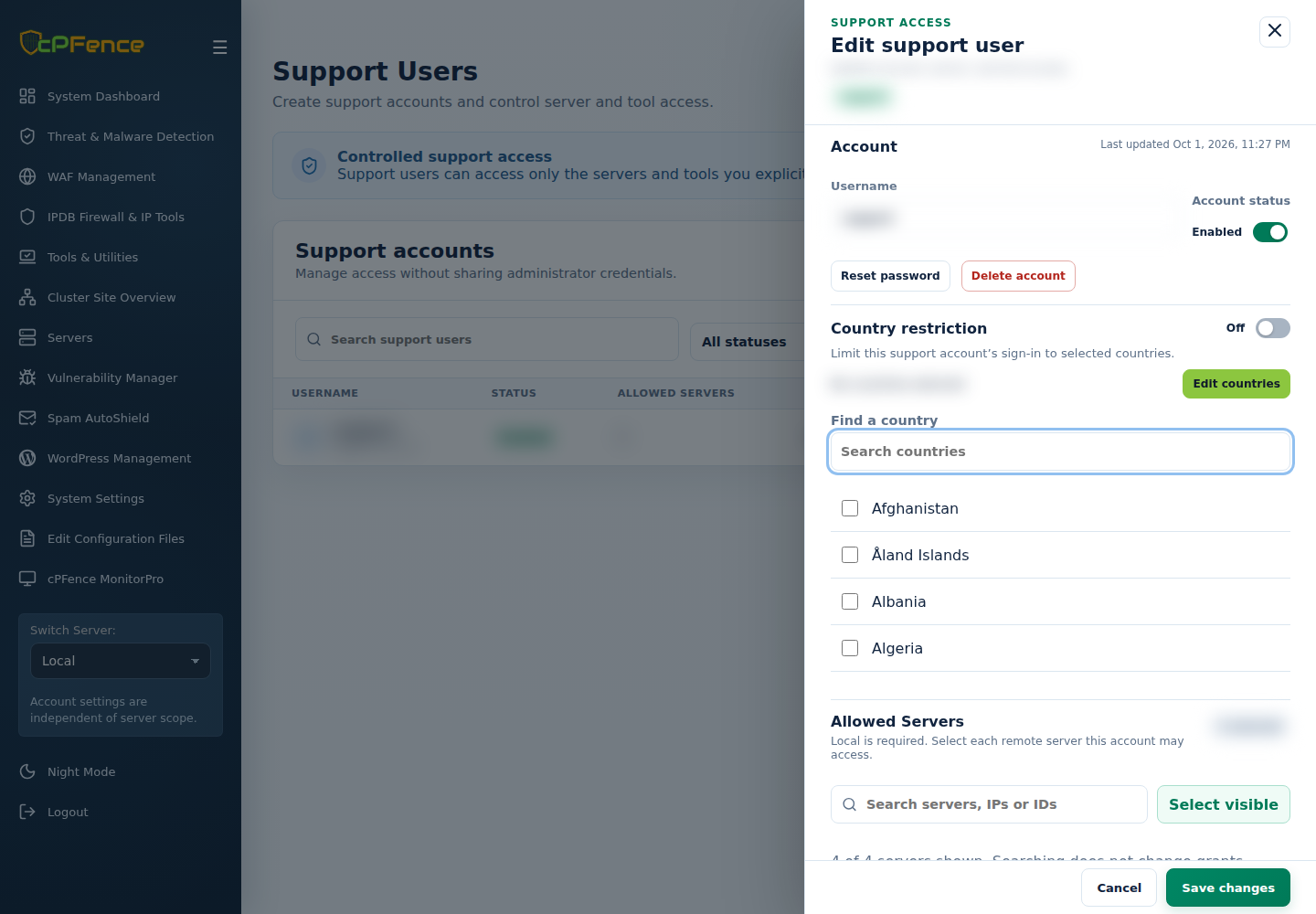
Choose at least one country when enabled. Check the user’s sign-in country first; approved-IP access is a separate restriction. Recovery codes are single-use secrets. The user sets their own MFA in My account; see account recovery for lost access.
Troubleshooting
Section titled “Troubleshooting”- Server absent: check verified enrollment and retained grants. A reused IP or name does not restore identity-based access.
- Action absent or denied: review both server grants and the specific operation permission. Reading a page does not grant mutations or login links.
- A selection changes other checkboxes: review prerequisite permissions and any SSO/dashboard warning before saving.
- Country save refused: wait for account security to load, choose an allowed country, and complete administrator verification without exposing the password or code.
- Old session no longer works after password reset: sign in with the new password and the account’s existing MFA method. Password reset is not MFA reset.