
Secure your account and recover access
Open the account menu and select My account. These cPFence v4+ controls apply to your signed-in administrator or support account, regardless of the selected server.
Have your current password and, when MFA is enabled, an authenticator or unused recovery code ready. Keep passwords, setup keys, and recovery codes private.
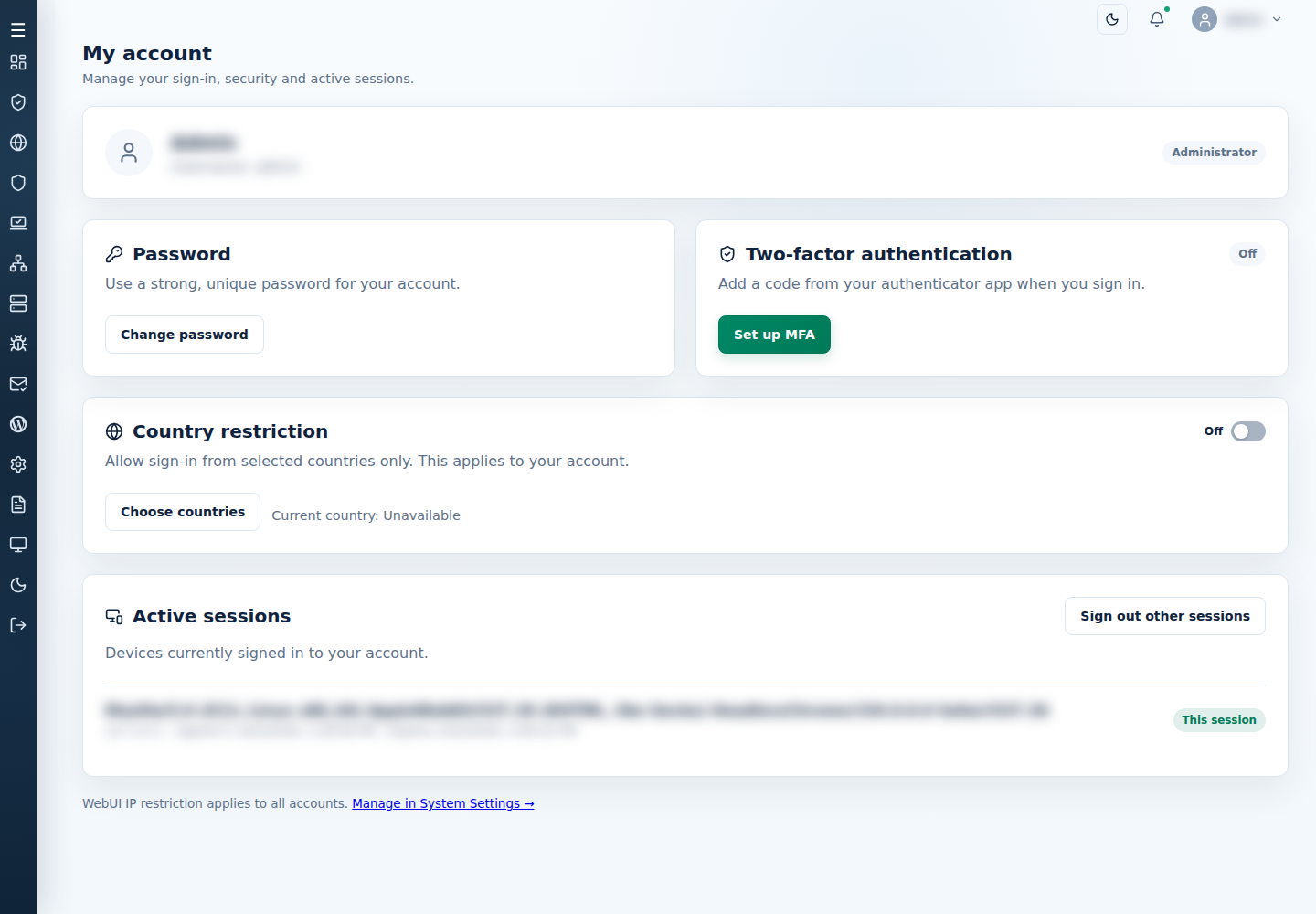
Change your password
Section titled “Change your password”- Select Change password.
- Enter Current password, New password, and Confirm new password, plus the requested MFA/recovery code.
- Use a strong password meeting the displayed requirements, then select Change password.
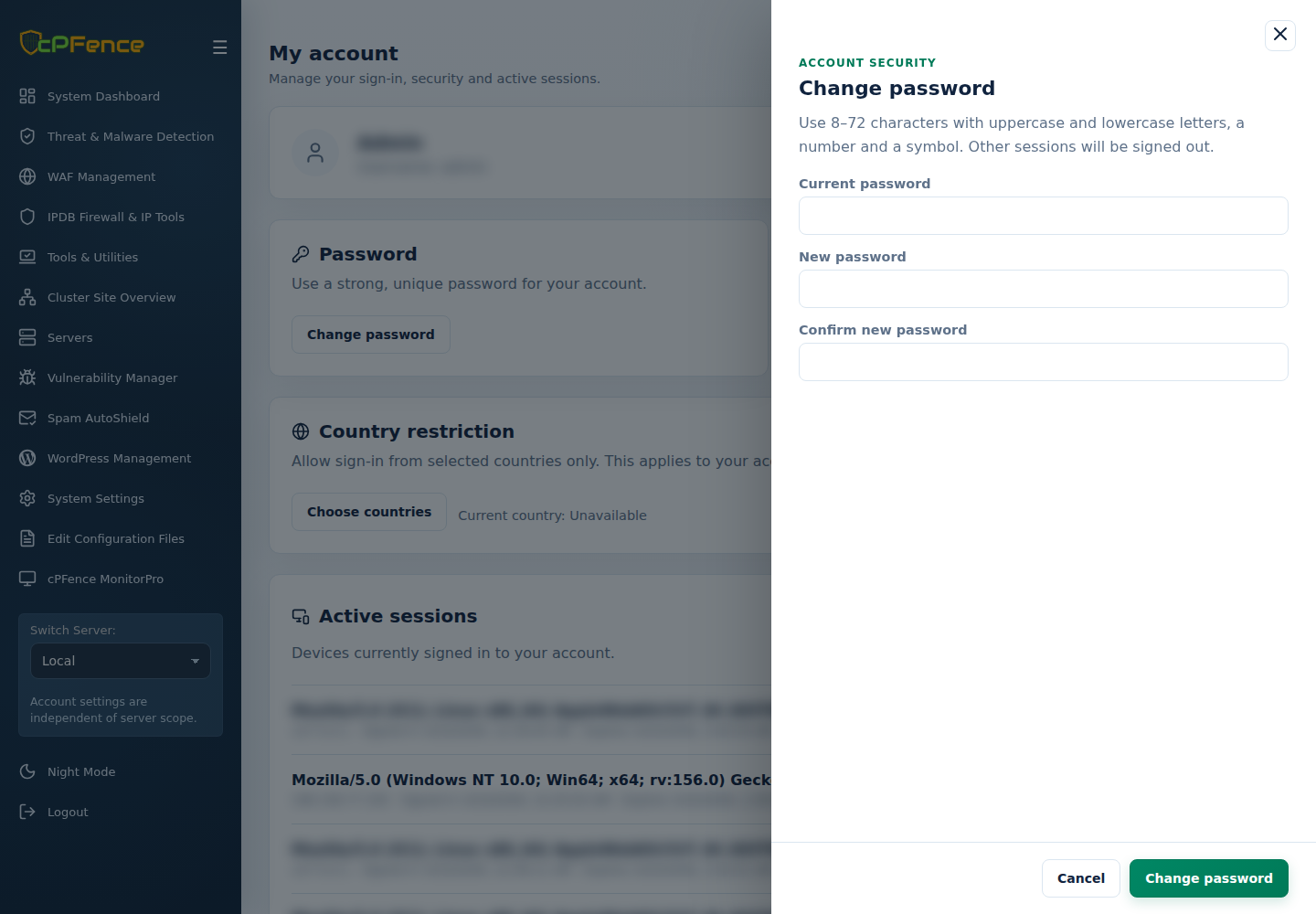
Other sessions are signed out. Cancel leaves the password unchanged.
Enable MFA
Section titled “Enable MFA”- Select Set up MFA, confirm your password, and select Continue.
- Scan the QR code in your authenticator app, or enter the Manual setup key privately.
- Enter its six-digit Authentication code and select Verify & enable.
- In Save your recovery codes, choose Copy codes or Download codes and store them safely.
- Check I saved my recovery codes, then Done. MFA should show On.
Leaving before verification cancels setup. At login, use your current authenticator code. If the authenticator is unavailable, choose Use a recovery code; each code works once.
Manage MFA and sessions
Section titled “Manage MFA and sessions”| Action | What happens |
|---|---|
| Replace authenticator | Confirm your identity, verify the new authenticator, and save its new recovery codes. Keep the old entry until replacement succeeds. |
| Generate new recovery codes | Confirm your identity, then Generate codes. Save the new codes; previous codes become invalid. |
| Disable MFA | Confirm your identity and Disable MFA. The authenticator/recovery codes stop working and other sessions are signed out. |
| Sign out other sessions | Confirm your identity and the action. Your current session stays signed in; other devices must sign in again. |
Limit sign-in countries
Section titled “Limit sign-in countries”- Open Choose countries under Country restriction.
- Keep your detected current country selected. Use Find a country to add permitted countries.
- Confirm your identity and select Enable restriction or Save changes.
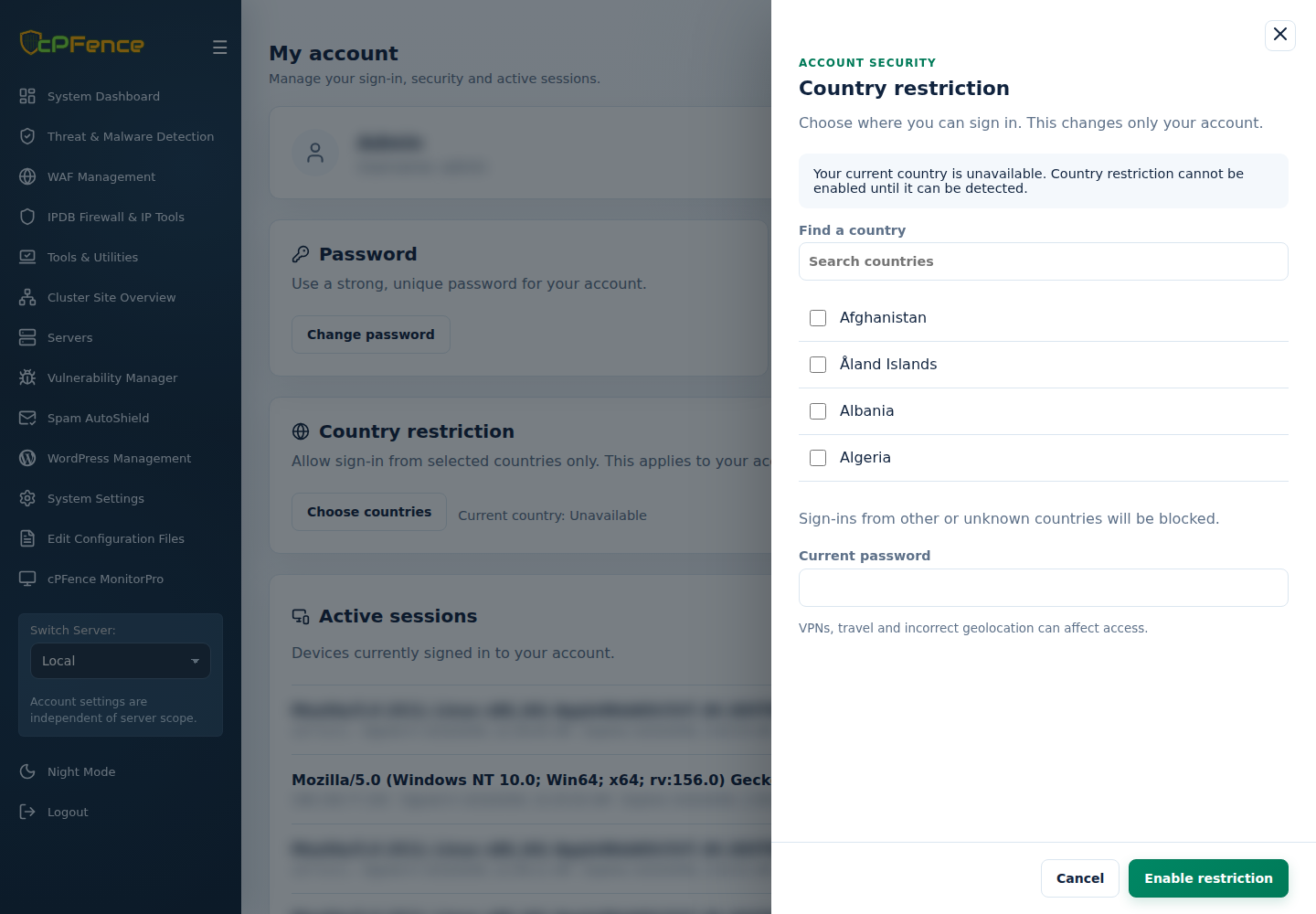
Other or unknown countries are blocked. VPNs and travel can affect detection; you cannot enable restriction when the current country is unavailable. Turn Restrict access to selected countries off and confirm Turn off restriction to remove it.
Country settings affect your account. The shared approved-IP restriction is separate and still applies.
Recover lost access
Section titled “Recover lost access”Run these commands as root on the Enhance main control panel server.
For a forgotten administrator password:
cpfence --reset-webui-passFollow the private prompts. Administrator sessions are invalidated. Support users should ask their administrator for a password reset in Support Users.
For a lost authenticator with no unused recovery code:
cpfence --reset-webui-mfa adminFor a country lockout:
cpfence --reset-webui-country-lock adminReplace admin with the affected support username when needed and type the displayed username to confirm. MFA reset invalidates that account’s factor, codes, and sessions; sign in with its existing password and enroll again. Country reset disables its country restriction.
Each command fixes only the named restriction. Password, MFA, countries, and approved-IP access may need separate attention. Factor/country recovery does not require a WebUI login or an online license check.
If login is throttled, wait for the displayed cooldown. If a code is rejected, check the device’s time or use an unused recovery code. For a dashboard access problem, see WebUI browser access.