New! Bulk Manage Themes, Users, Plugins, and Updates Across All Sites
Managing WordPress at scale has always been a headache for hosting providers and VPS owners. Security, performance, and routine updates across dozens—or even hundreds—of sites can easily eat up hours each week. With the latest cPFence update, that changes. We’ve expanded WP-AutoShield Bulk Tools to dozens of powerful actions, giving you one-click control over your entire WordPress fleet.
And the best part? Every bulk action can run per website, per server, or across your full cluster. That flexibility means you decide the scope—surgical precision for one site, sweeping automation for them all.
No passwordless SSH needed for normal cPFence v4+ operation. Only remote WordPress backups and MultiRun need it. If you do not use those two features, you can disable passwordless SSH access and the rest of v4+ will keep working. See secure SSH access.
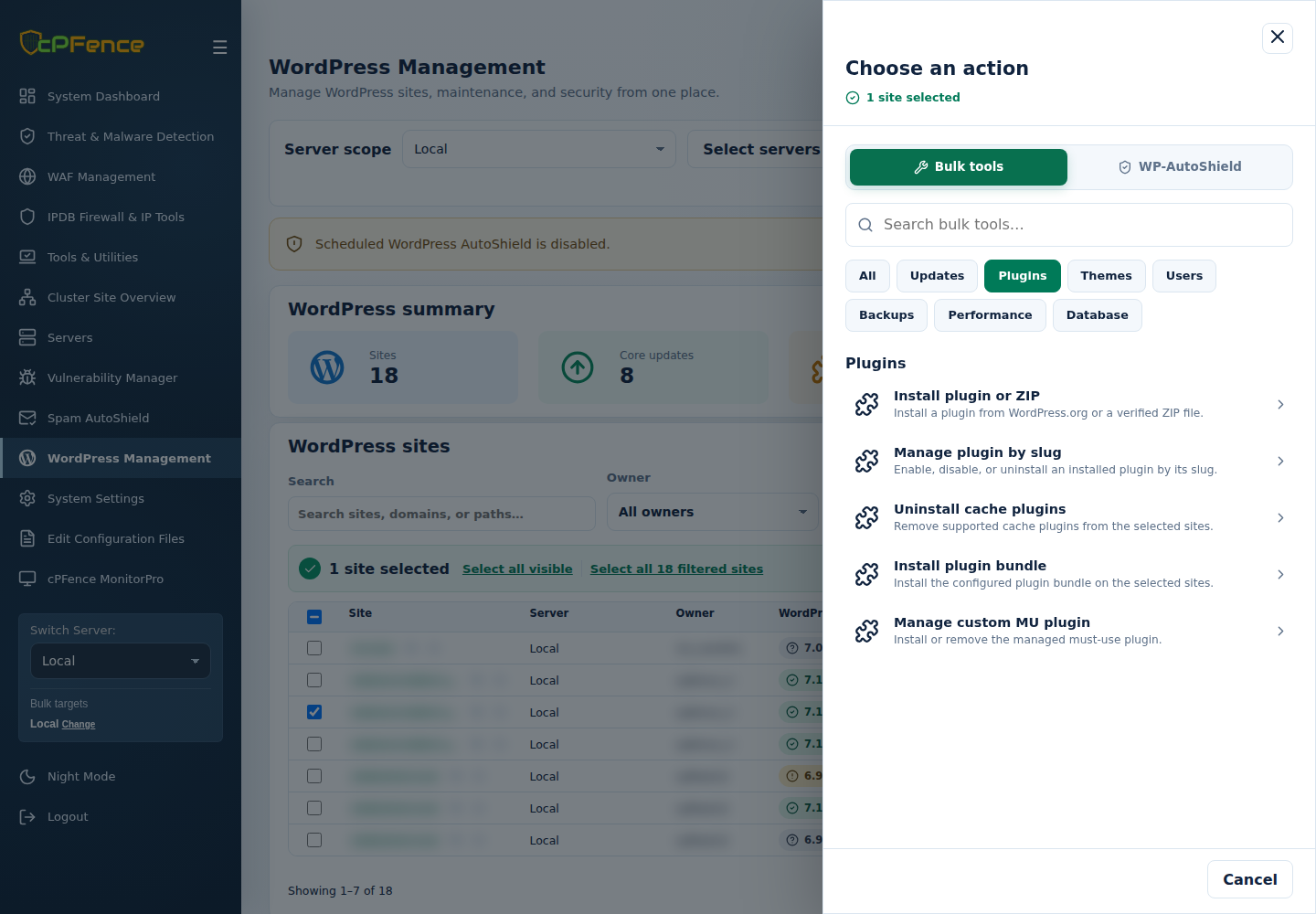
In cPFence v4+, open WordPress Management, choose Server scope, filter the table and explicitly select the sites. Select all visible covers the current page; Select all … filtered sites includes matching sites on other pages. Support users need the permission for the chosen action and access to those sites and servers. Back up before updates, deletion or password resets, and start with one site.
Open Choose action, then Bulk tools or WP-AutoShield, and search or pick a category. Fill any options and select Review action; actions without options open the confirmation directly. Check the action, site count and target servers before confirming, then read every site’s final result. Submitting an action is not the same as successful completion.
What’s New?
This release unlocks some of the most requested features, built to give you control at any scale:
-
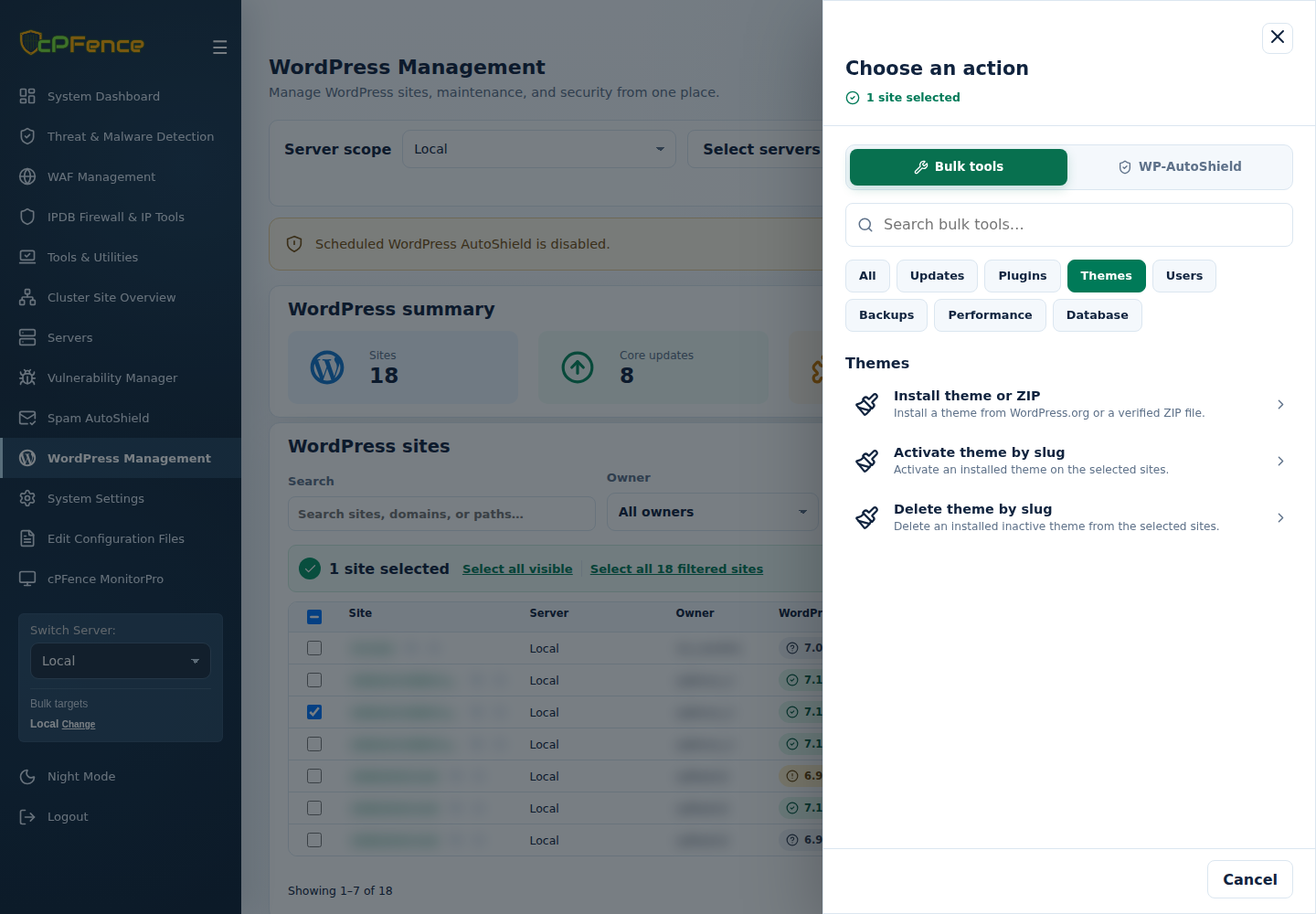
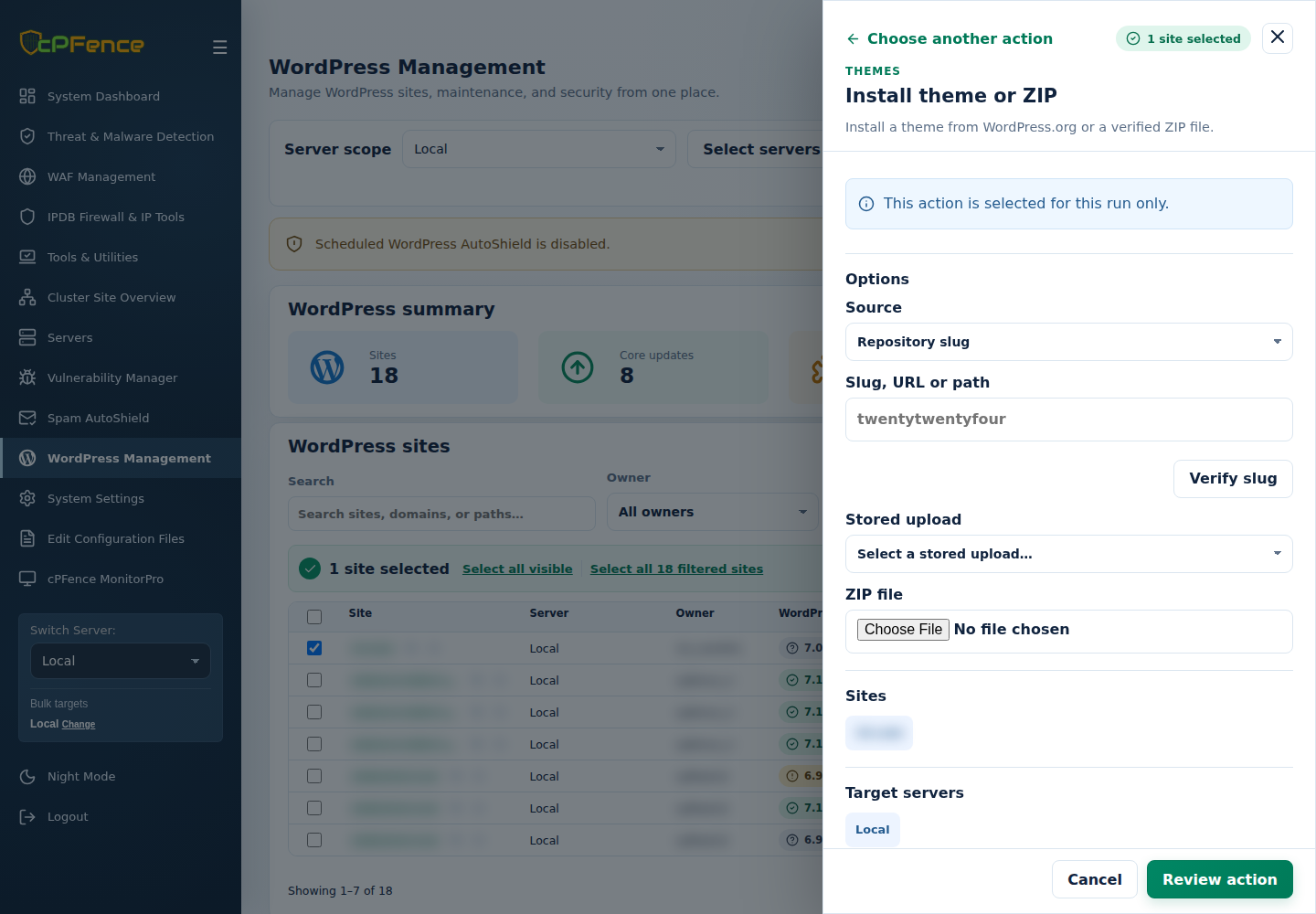
Manage WP Themes
Bulk install, activate, or delete themes instantly, no matter how many sites you’re managing. -
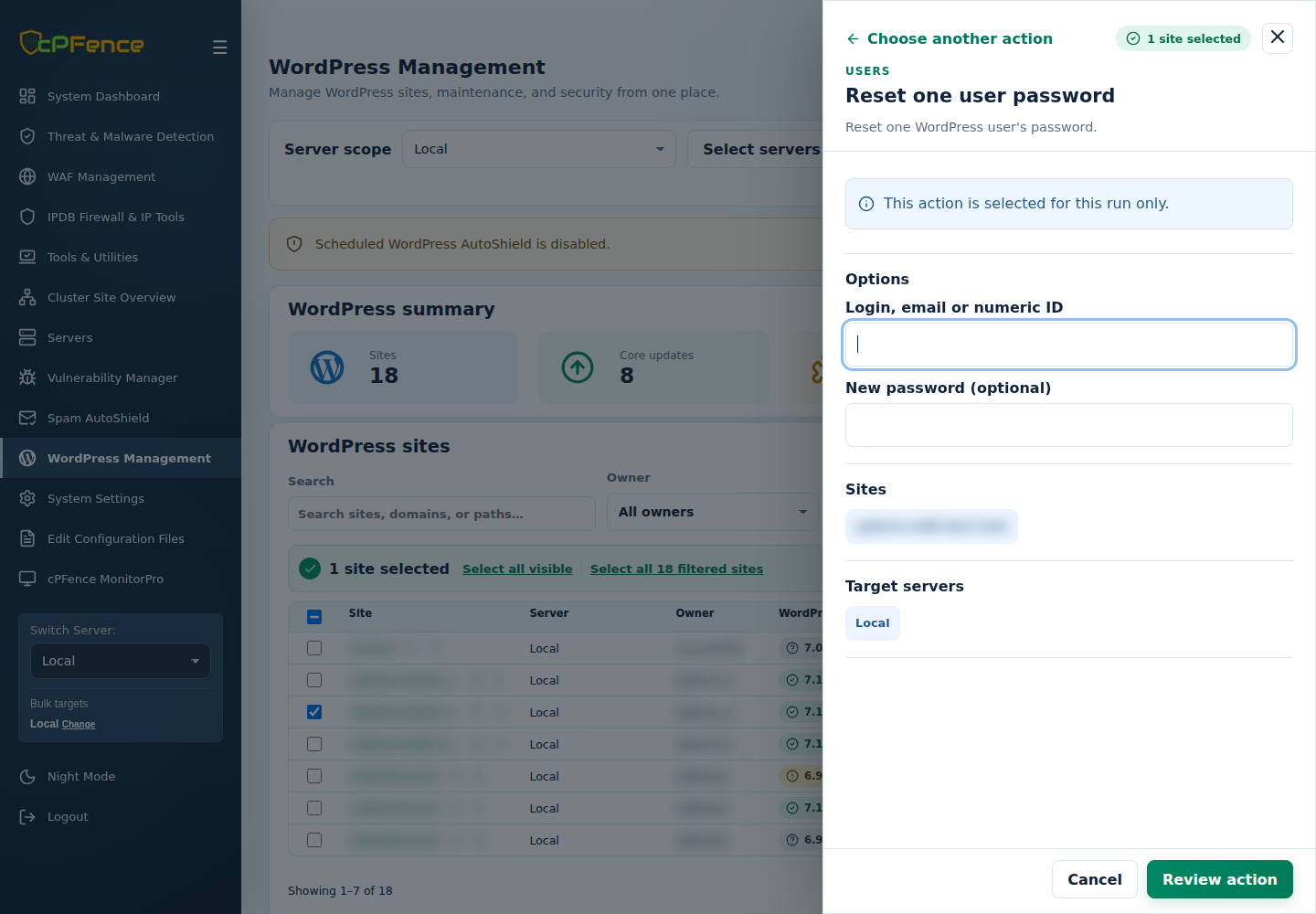
Manage WP Users
Create, list, reset, or delete users at scale, with the option to reassign content where needed. -
Rebuilt Plugin Management
Bulk enable, disable, or uninstall plugins cluster-wide. Completely rebuilt for speed and reliability. -
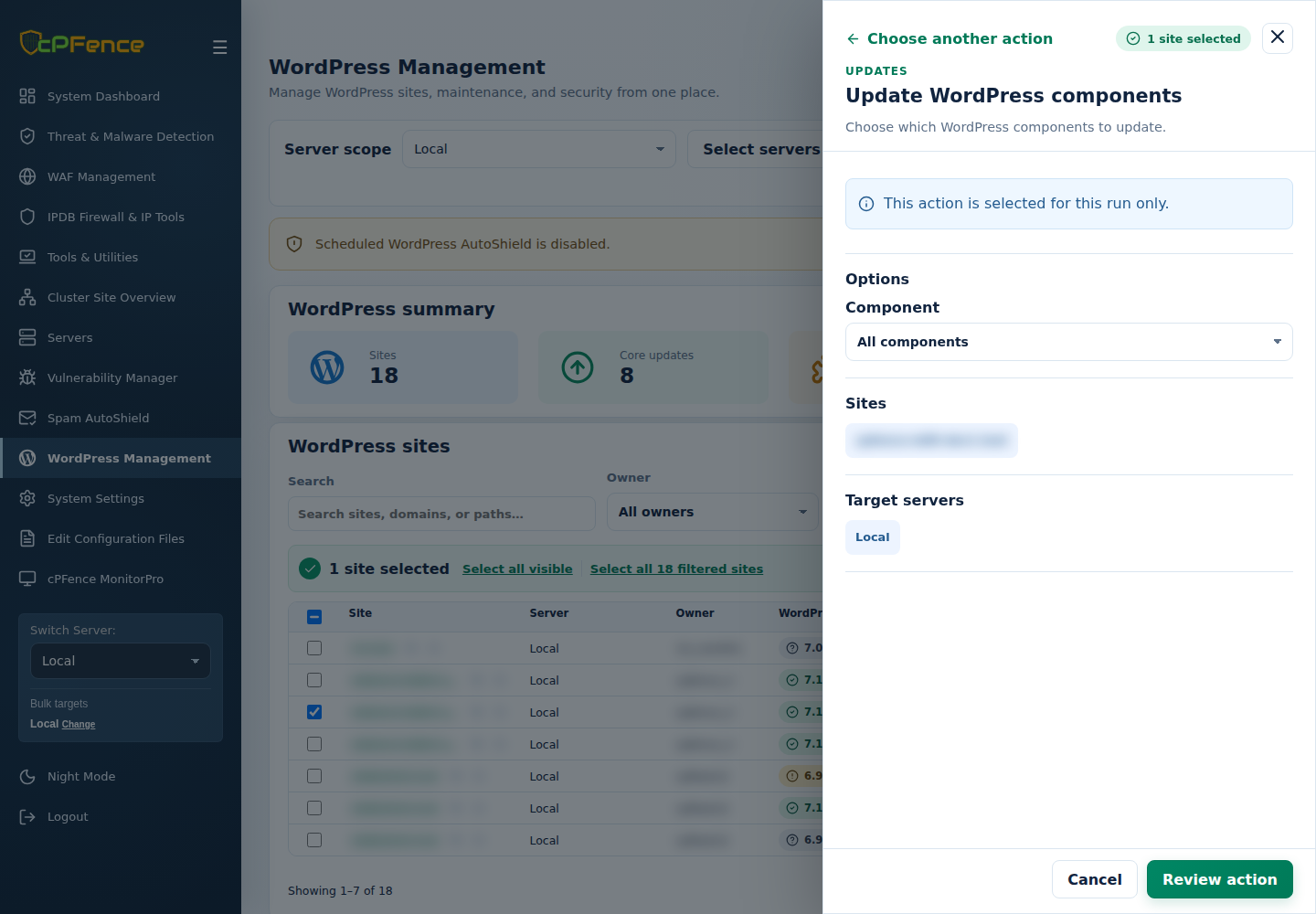
Refined Update Control
Decide exactly what gets updated: core, plugins, themes, translations—or everything. Enable or disable auto-updates on a single site, a single server, or your whole cluster. - Bulk Enable LiteSpeed Heartbeat from WebUI
And beyond these headline additions, cPFence now gives you dozens of bulk tools covering everything from backups and malware scanning to LiteSpeed optimization, database tuning, and advanced security hardening.
4 Real-World Use Cases
With cPFence you can apply changes per website, per server, or across your full cluster, giving you the power to solve big headaches in minutes instead of hours. Here are a few ways hosting companies and VPS owners can put these tools to work:
1- Supercharge Cluster Performance
-
Uninstall Cache Plugins
-
Install LiteSpeed Plugin
-
Configure LiteSpeed Plugin
-
Bulk Enable LiteSpeed Heartbeat
- Optimize All WordPress Databases
- Bulk Enable Redis Caching in Enhance Settings (found in ApiMachine Bulk Tools)
Run these powerful bulk tools in sequence and you’ll strip away conflicts, drop in LiteSpeed, optimize it, and unlock full heartbeat control. The result? Up to 80% faster performance across your LiteSpeed servers—done in just a few clicks.
2- Improve Security on Newly Migrated Sites
Got a fresh server migrated to Enhance and worried about the state of those WordPress installs? With cPFence you can lock them down and clean them up in minutes, not days.
-
Restore WordPress Core Files
Re-downloads the exact version each site is running, overwriting any tampered or missing core files—without touching themes, plugins, or uploads. -
Bulk Update All WordPress Sites
Update everything in one sweep. Choose core, themes, plugins, translations, or run a full update pass across every site. -
Bulk Install WordPress Plugin or ZIP
Deploy your go-to security plugin in a single pass—for example, install All-In-One Security (AIOS) using the slugall-in-one-wp-security-and-firewall. -
Bulk List WP Users
Quickly surface unwanted accounts and bulk delete or reset passwords with precision. -
Bulk Reset All Passwords
Force-rotate credentials for any role—or all users—cluster-wide. Generated passwords are hidden in WebUI output; use a known replacement for one user or arrange WordPress password recovery. -
Scan All WordPress Databases for Malware
Sweep through every database and catch hidden injections before they spread. -
Let WP-AutoShield Finish the Job
The next cron run will auto-apply daily powerful security measures like: disabling file editing, turning off pingbacks and XML-RPC, initializing missing secure keys, turning off request-triggered WP Cron when you have arranged an external scheduler, adding brute-force protections, setting file permissions, and hardening installs top to bottom. All on autopilot.
3- Disaster Recovery & Maintenance
When things break, speed matters. With cPFence you can handle disaster recovery and routine maintenance without taking down your clients’ sites.
-
Bulk Backup All WordPress Sites
Take full backups cluster-wide before making major changes. -
Bulk Restore All WordPress Sites
Roll back fast—restore a single WordPress install while leaving the rest untouched. -
Run Due WP Cron
Trigger scheduled tasks on demand, keeping sites in sync without waiting. -
Bulk Update All WordPress Sites
Selectively re-enable updates for core, plugins, themes, or translations—on specific sites, one server, or your entire cluster. -
Content & Visibility Controls
Toggle maintenance mode to shield users during work, or adjust search engine indexing in bulk so new or restored sites don’t accidentally go live before they’re ready. -
Bulk Switch WP Language
Need multilingual consistency after a restore? Change WordPress language across dozens of sites instantly.
With these tools, you can isolate the problem and restore the affected sites. Restore replaces their files and databases, so save current data and choose a maintenance window; read each site’s final result before reopening it.
4- Branding & Custom Tweaks
Every hosting company has its own flavor—preferred plugins, support workflows, and rules about what’s allowed on client sites. cPFence lets you enforce that brand identity and apply your custom tweaks across the board with just a few clicks.
-
Install Plugin Bundle
Installs and activates your curated plugin stack (from/var/log/cpfenceav/wp-plugin-bundle.txt) on every WordPress site. Perfect for rolling out your “must-have” plugins cluster-wide.
Tip: You can schedule this daily in Settings by enablingautoshield_force_plugin_bundle. -
Uninstall Blacklisted Plugins
Automatically scan and remove plugins you don’t allow, based on your blacklist (/var/log/cpfenceav/blacklisted-wp-plugins.txt).
Tip: Turn onautoshield_plugin_blacklist_removalin Settings to enforce this daily with WP-AutoShield. -
Install Custom MU Plugin
Deploy your own must-use plugin through Manage custom MU plugin using a stored PHP file or New MU plugin file to all sites at once. A quick way to enforce custom rules, tracking, or branding touches.
Tip: Enableautoshield_custom_mu_pluginin Settings to have this applied automatically. -
Bulk Create WP User
Add a dedicated support account across all client sites in one pass—so your team can jump in and help without waiting for credentials.
With these tools, you don’t just manage WordPress at scale—you stamp your brand and policies into every site cluster-wide, consistently and automatically.
Current v4+ controls also include Update one plugin, Update one theme and per-plugin or per-theme auto-update policy. Package sources include Repository slug, HTTPS URL, Server path, Stored upload and Upload ZIP. Use trusted packages; a server path must exist on the server that runs the action. Changing future auto-update policy does not run an update immediately.
Complete List of WP-AutoShield Bulk Tools
-
Manage WP Themes
-
Bulk Install Theme or ZIP
-
Bulk Activate Theme by Slug
-
Bulk Delete Theme by Slug
-
-
Manage WP Users
-
Bulk Create WP User
-
Bulk List WP Users
-
Bulk Reset All Passwords
-
Bulk Reset One User Password
-
Bulk Delete WP User (Reassign Content)
-
Bulk Delete WP User (No Reassign)
-
-
Manage WP Plugins (rebuilt for more speed and reliability)
-
Bulk Uninstall Plugin by Slug
-
Bulk Disable Plugin by Slug
-
Bulk Enable Plugin by Slug
-
Uninstall Cache Plugins
-
Uninstall Blacklisted Plugins
-
Install Plugin Bundle
-
Install Custom MU Plugin
-
Uninstall Custom MU Plugin
-
-
Manage Updates & Cron (now with component-level control: core, themes, plugins, translations, all)
-
Bulk Update All WordPress Sites
-
Enable WP Auto Updates
-
Disable WP Auto Updates
-
Disable WP Cron
-
Enable WP Cron
-
Run Due WP Cron
-
-
General & Backups
-
Manually Run WP-AutoShield
-
Bulk Backup All WordPress Sites
-
Bulk Restore All WordPress Sites
-
Export Vulnerability Report
-
Generate WP Sites List
-
Restore WP Core Files
-
-
LiteSpeed Tools
-
Clear LiteSpeed Cache
-
Configure LiteSpeed Plugin
-
Install LiteSpeed Plugin
-
Enable LiteSpeed Redis
-
Enable LiteSpeed Plugin
-
Bulk Enable LiteSpeed Heartbeat
-
Reset LiteSpeed Plugin
-
Enable Cache Login Page
-
Disable Cache Login Page
-
-
Access & Limits
-
Rename WP Admin
-
Disable XML-RPC
-
Enable XML-RPC
-
Enable Login Limit
-
Disable Login Limit
-
Enable WP Captcha
-
Disable WP Captcha
-
Enable Idle Logout
-
Disable Idle Logout
-
-
Content & Visibility
-
Disable Search Engine Indexing
-
Enable Search Engine Indexing
-
Enable Maintenance Mode
-
Disable Maintenance Mode
-
-
Permissions & Hardening
-
Enable Security Headers
-
Disable Security Headers
-
Set Secure Keys
-
Set WP Permissions
-
Disable File Edit
-
Enable File Edit
-
Disable Pingbacks
-
Enable Pingbacks
-
Enable WP Hardening
-
Disable WP Hardening
-
Disable XSS in Posts
-
Enable XSS in Posts
-
-
Database Tools
-
Scan All WordPress Databases for Malware
-
Optimize All WordPress Databases
-
-
Language
-
Bulk Switch WP Language
-
Prefer the CLI? Run these interactive commands as root on the intended server; WebUI site selections do not limit a separate CLI run. Read the prompts and target scope before continuing.
cpfence --bulk-update-wordpress
cpfence --bulk-install-wp-plugin
cpfence --bulk-update-wp-plugin
cpfence --bulk-install-wp-theme
cpfence --bulk-update-wp-theme
See the current bulk-management guide for exact menu labels, permissions and recovery details. Remote-backup enable/disable and site-list generation use the server scope, rather than checked rows.
Still on the fence?
Try the cPFence free trial today and experience how easy it is to transform WordPress security and management on your servers. Once you’ve used cPFence bulk tools at cluster scale, you’ll never want to go back.
Start free trial