cPFence Security Alerts Now on your Mobile

Tired of drowning in emails or missing important server alerts while you’re on the go? We hear you. That’s why cPFence now supports Slack integration — delivering real-time security alerts straight to your mobile, desktop, or even your smartwatch (if you’re that fancy).
Whether you’re sipping coffee or having dinner outside, cPFence can now gently (or urgently) tap you on the shoulder via Slack when something important happens.
Why Slack?
Because it’s Free, fast, reliable, and powerful — just like cPFence. But more importantly, Slack shines on mobile. It turns our security alerts into clean, actionable messages you’ll actually read. No more digging through your inbox or checking a hundred logs. One Slack ping is all it takes.
What Notifications Can You Get?
Glad you asked. Here’s the full lineup of what cPFence can now deliver to your Slack channel, DM, or group:
- Malware Found
Real-time alerts when malware is detected — no delay, no nonsense. - Scan Completion Alerts
Know when your full, smart, or custom scans wrap up, so you can take action (or relax). - Rootkit Detected
If something sneaky’s hiding at the kernel level, we’ll let you know. - WordPress Vulnerabilities Found
Critical plugin or theme issues? You’ll be the first to know. - Malicious Entries in Database
When bad actors hide things where they shouldn’t, cPFence spots them. - Root Login Detected
Get notified the moment someone logs in as root. You or not you? - IP Reputation Blacklist Alerts
We’ll ping you if your server lands on any major reputation blacklists. - WordPress Integrity Issues
Unexpected changes to WP core files? Yep — you’ll get a Slack ping. - Watchdog: Server Services Down
When something critical crashes, you’ll be the first to know. - Website Up/Down & Keyword Monitoring
Uptime, downtime, or suspicious keyword changes — all covered. - Resource Overload Alerts
High CPU, RAM, disk, or inode usage? We’ll buzz you before things melt. - cPFence Updated
Every time your system upgrades to a new version, you’ll get a gentle nudge. - WordPress Backup Completed
Completed backups? Success or failure — cPFence keeps you informed either way. - SSL Certificate Issues
Expiry and certificate problems from enabled SSL monitoring. - Outbound Spam Lockdown
Alerts when enabled outbound rate protection blocks a sender.
In cPFence v4+, delivery depends on the owning module, its event switch and any notification cooldown. Review System Settings → Notification Settings for the events you need. Backup success alerts are optional. A successful connection test does not trigger every event.
How to Enable It?
Prefer the CLI? Run these as root on the intended server and provide the webhook privately at the prompt:
cpfence --slack-notifications-on

cpfence --set-slack-webhook
Check the intended Slack channel for the connection test after configuring the webhook with Slack notifications enabled. Keep the webhook secret; never share it in screenshots or tickets.
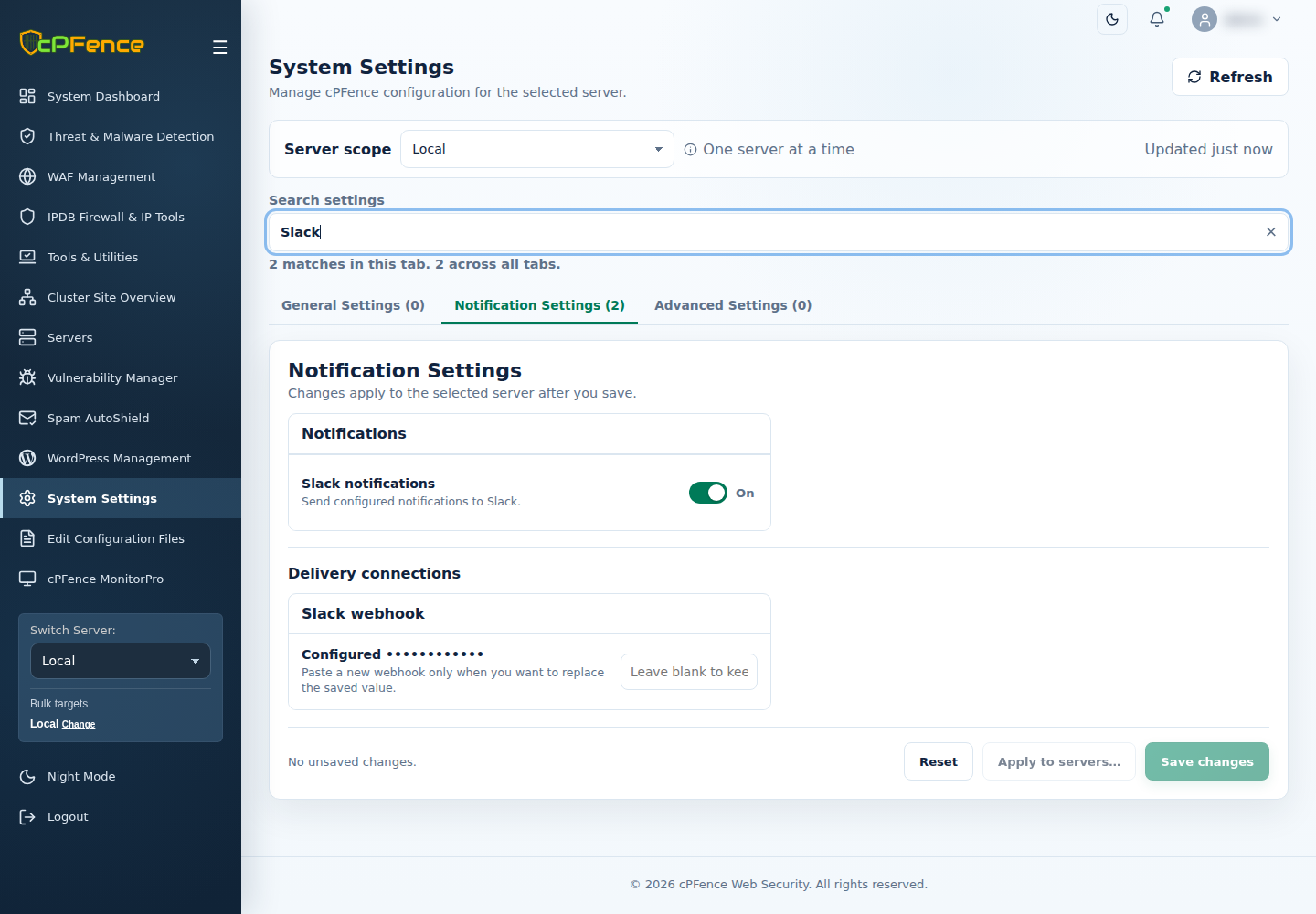
Got 10 or 100+ servers? In the cPFence v4+ WebUI, open System Settings, choose one Server scope, select Notification Settings and search for Slack. Enable Slack notifications and save. Under Delivery connections → Slack webhook, paste the intended URL and save again; submitting it while Slack is enabled sends a connection test. A blank field preserves the saved webhook.
For several servers, use Apply to servers…, review the changed fields and destinations, and check every server’s result and test message. Support users need Manage Notification Settings on those servers.
New to Slack? Need help setting it up?
We’ve got you covered with a full step-by-step guide (with screenshots):
How to Set Up Slack Notifications in cPFence
No passwordless SSH needed for normal cPFence v4+ operation. Only remote WordPress backups and MultiRun need it. If you do not use those two features, you can disable passwordless SSH access and the rest of v4+ will keep working. See secure SSH access.
If a test reaches the channel but your phone is silent, check Slack’s channel preferences and notification schedule. If no test arrives, check the selected server, Slack switch, saved webhook and workspace approval. See notification settings for event switches and shared delivery controls.
Stay Notified, Stay Secure
Security alerts should meet you where you are — and for most of us, that’s on our phones. With cPFence + Slack, you’re never out of the loop, whether you’re at your desk or having a lunch break outside.
Give it a try. And if you haven’t yet, check out our new WebUI for even more centralized power.
Stay Notified, Stay Secure
Bring cPFence security alerts to your desktop and mobile. Start your free trial and manage notification choices from the v4+ WebUI.
Start free trial