
Enable or exclude mailbox scanning
cPFence v4+ mailbox scans check messages and attachments separately from website files. Messages larger than 10 MB are skipped and counted in the scan log.
Enable or disable scanning
Section titled “Enable or disable scanning”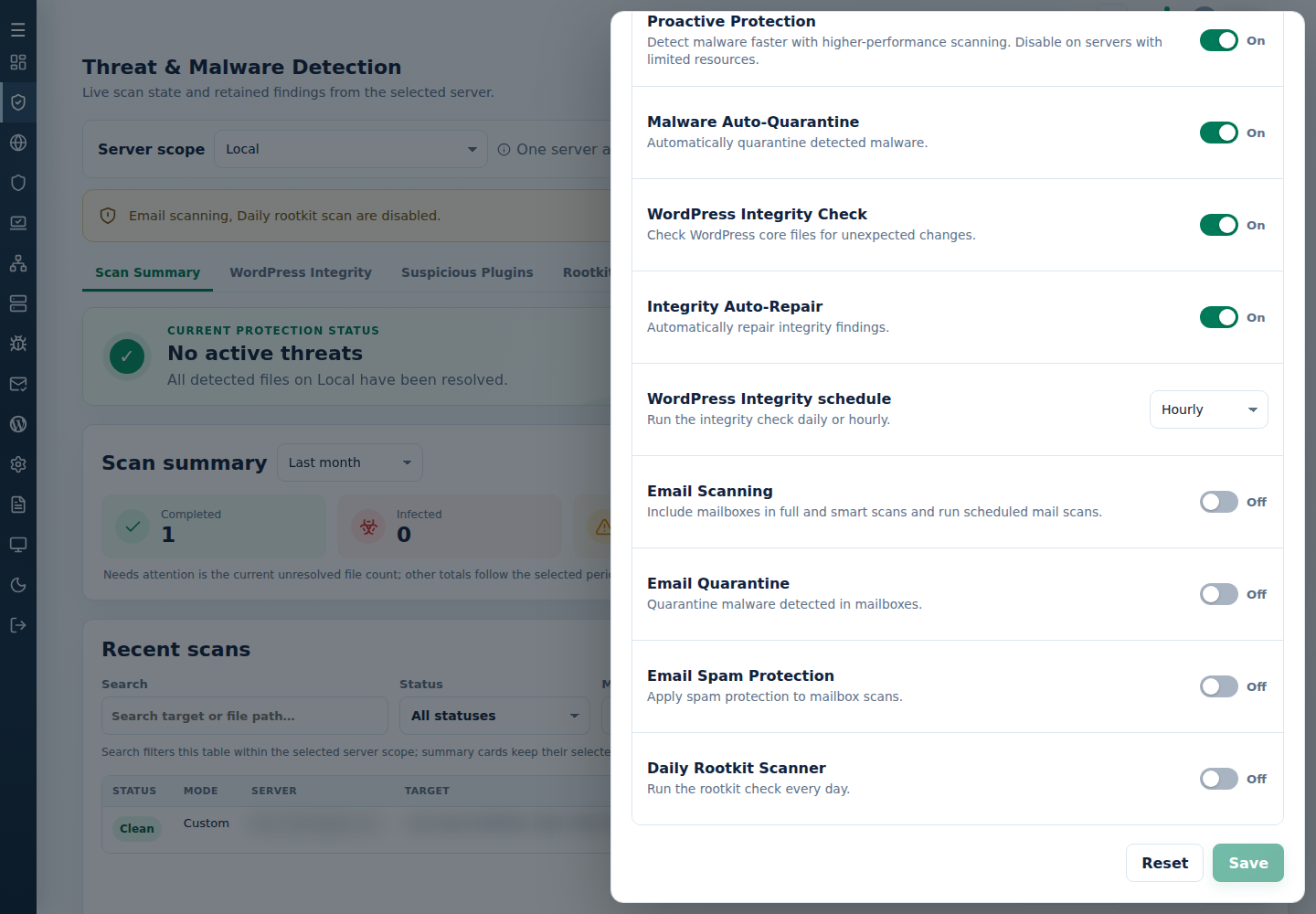
- Open Threat & Malware Detection and choose one server.
- Open Settings, set Email Scanning, then Save.
- Review mail counts and errors in full/smart scan output.
Root administrators can use:
| Action | Command |
|---|---|
| Enable mailbox scanning | cpfence --enable-mail-scan |
| Disable mailbox scanning | cpfence --disable-mail-scan |
Exclude one mailbox
Section titled “Exclude one mailbox”Identify the mailbox’s actual absolute directory before adding an exception. As root, replace the example with that directory:
| Action | Command |
|---|---|
| Add exact-path exception | cpfence --exclude-exact-path /var/local/enhance/email/mailboxes/CONTAINER/MAILBOX |
| Remove exact-path exception | cpfence --del-exclude-exact-path /var/local/enhance/email/mailboxes/CONTAINER/MAILBOX |
The second command reverses the exception. Excluding a mailbox skips its messages; it does not make them safe. See email quarantine and mail scheduling.