
Manage Cloudflare tokens for organizations and domains
Use cPFence v4+ on the Enhance main control panel server, with a valid cPFence license, a saved Enhance API key and permission for Cloudflare actions on the selected websites.
Select the intended targets
Section titled “Select the intended targets”- Open Tools & Utilities → ApiMachine Bulk Tools and choose Cluster scope or Select servers.
- Filter the websites, then check the intended rows. Filtering alone does not select them; Select all … filtered websites includes other pages.
- Open Choose action → Cloudflare and choose one task below.
Organization actions affect the organization owning each selected website, including its other domains. Domain actions apply to the selected domains. Check the owners as well as the website names before continuing.
Add a token to organizations
Section titled “Add a token to organizations”- Choose Add Cloudflare token to Org.
- Enter a Friendly name and the complete Cloudflare API token privately.
- Select Review action and inspect the selected websites, servers and organization scope. Select Confirm and run only for the intended targets.
- Read each organization’s result and check its saved token in Enhance. An already-present matching token can be skipped.
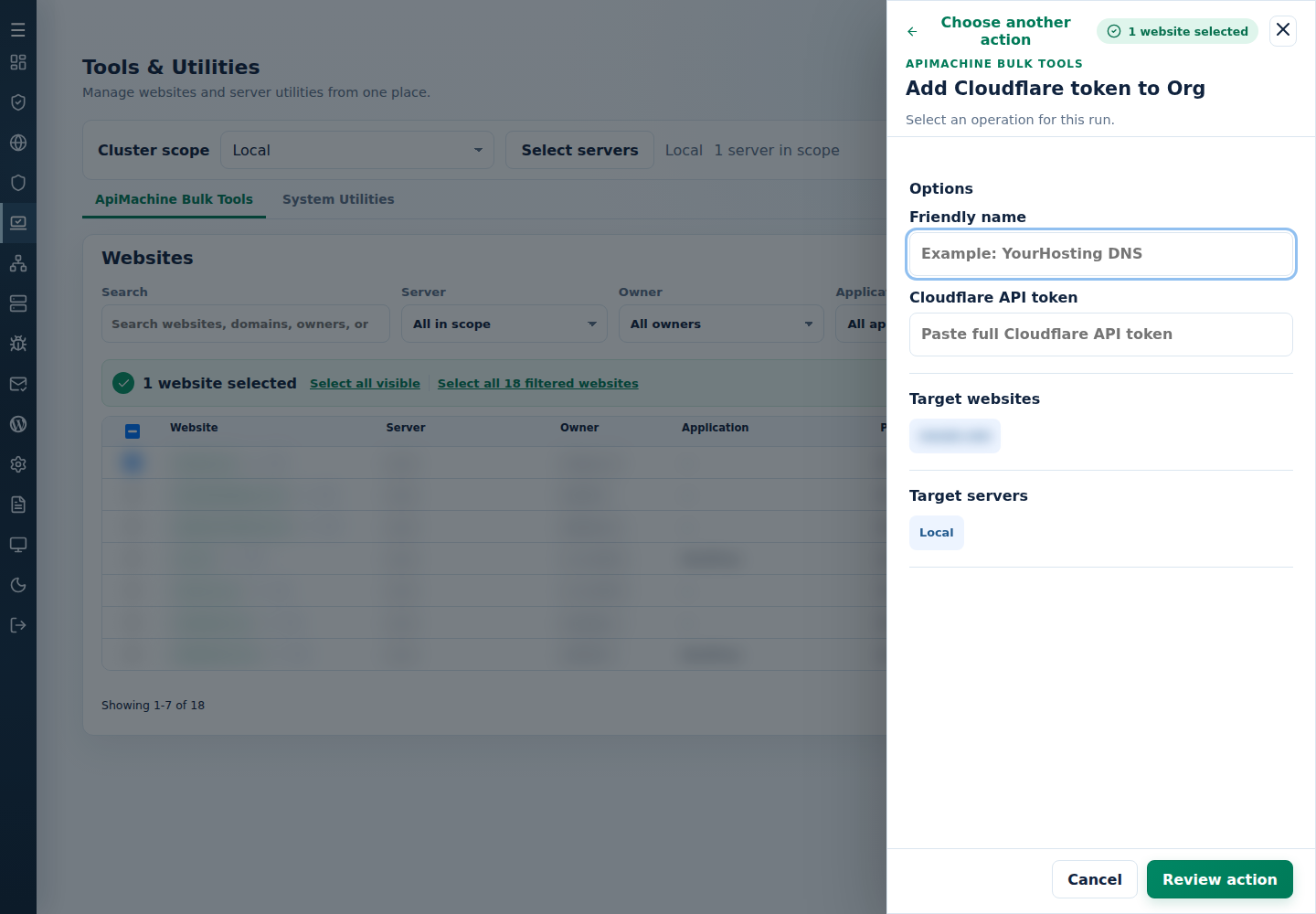
Keep the original token securely; you will need its friendly name and first five characters to identify it for the other tasks.
Remove a token from organizations
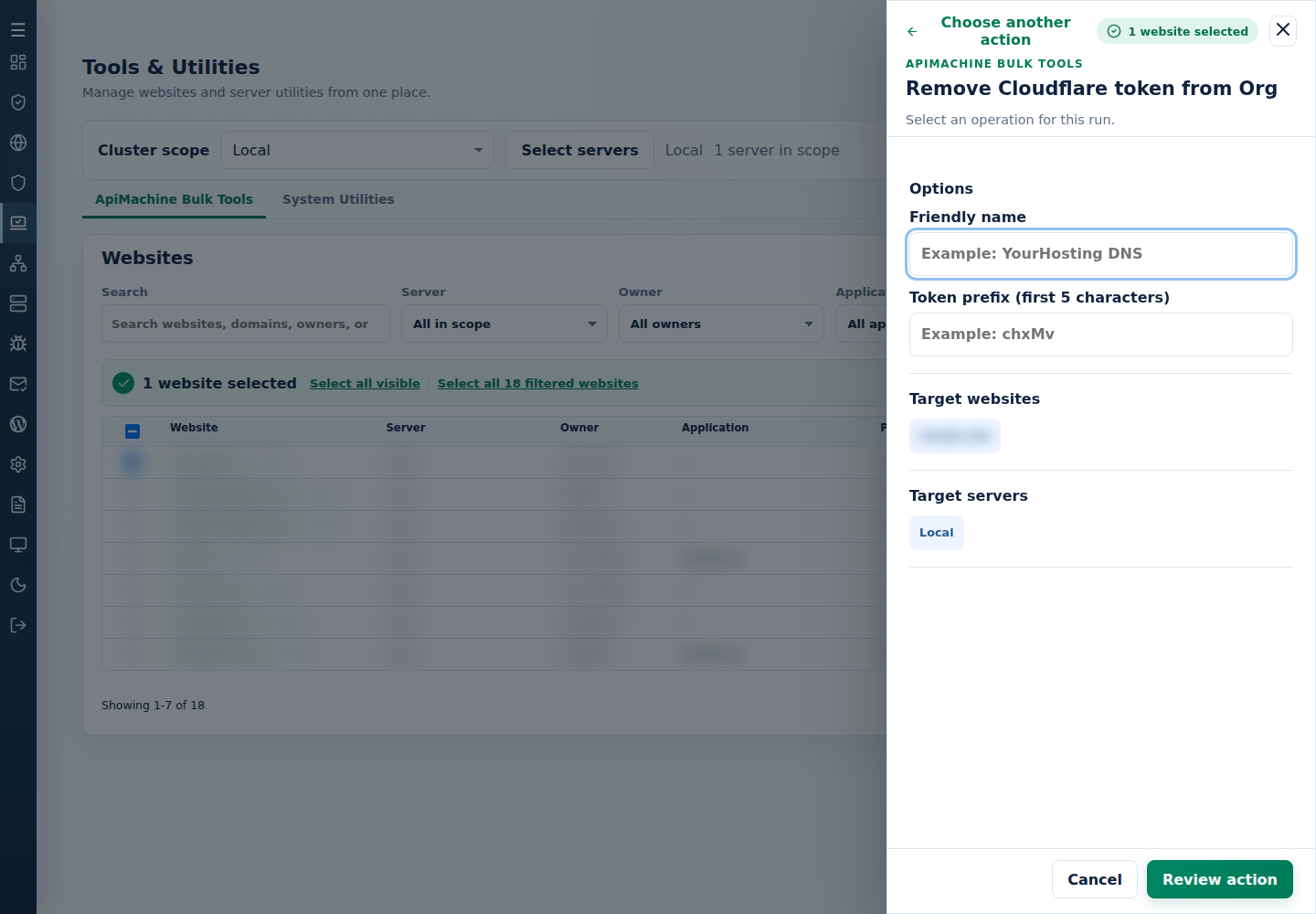
Section titled “Remove a token from organizations”- Choose Remove Cloudflare token from Org.
- Enter its Friendly name and Token prefix (first 5 characters).
- Select Review action, check the organization scope, then Confirm and run.
- Check each result and the organization’s token list. A missing matching token is skipped without removing the organization’s other tokens.
Link an existing token to domains
Section titled “Link an existing token to domains”The matching token must already exist in each target domain’s organization. Add it there first if needed.
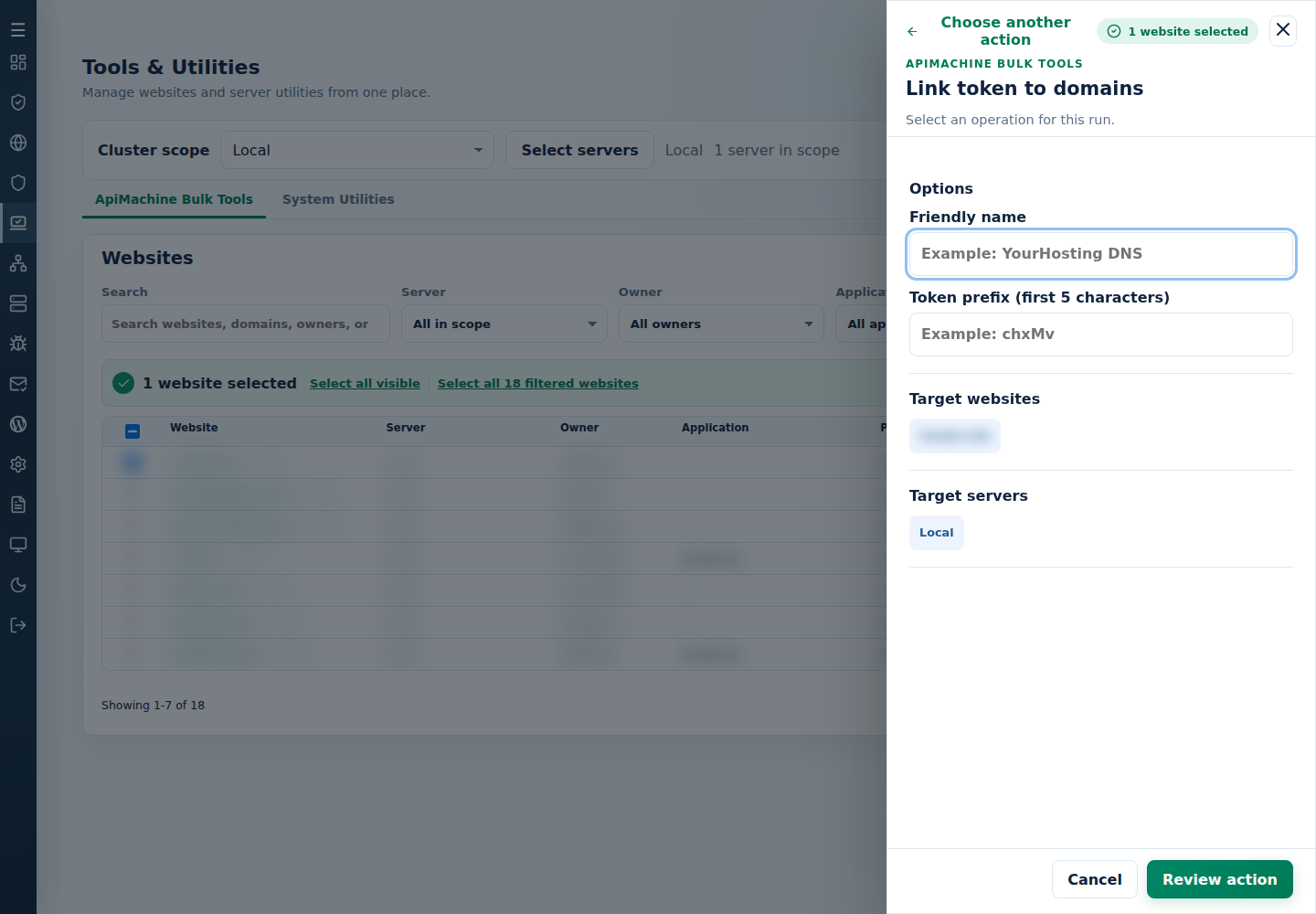
- Choose Link token to domains.
- Enter the existing token’s Friendly name and Token prefix (first 5 characters).
- Select Review action, check the selected domains and warning, then Confirm and run.
- Check the resulting domain mapping and DNS state in Enhance/Cloudflare. A domain already linked to that token can be skipped.
Remove a token from domains
Section titled “Remove a token from domains”This removes the domain’s link to the matching token; it does not delete the organization token.
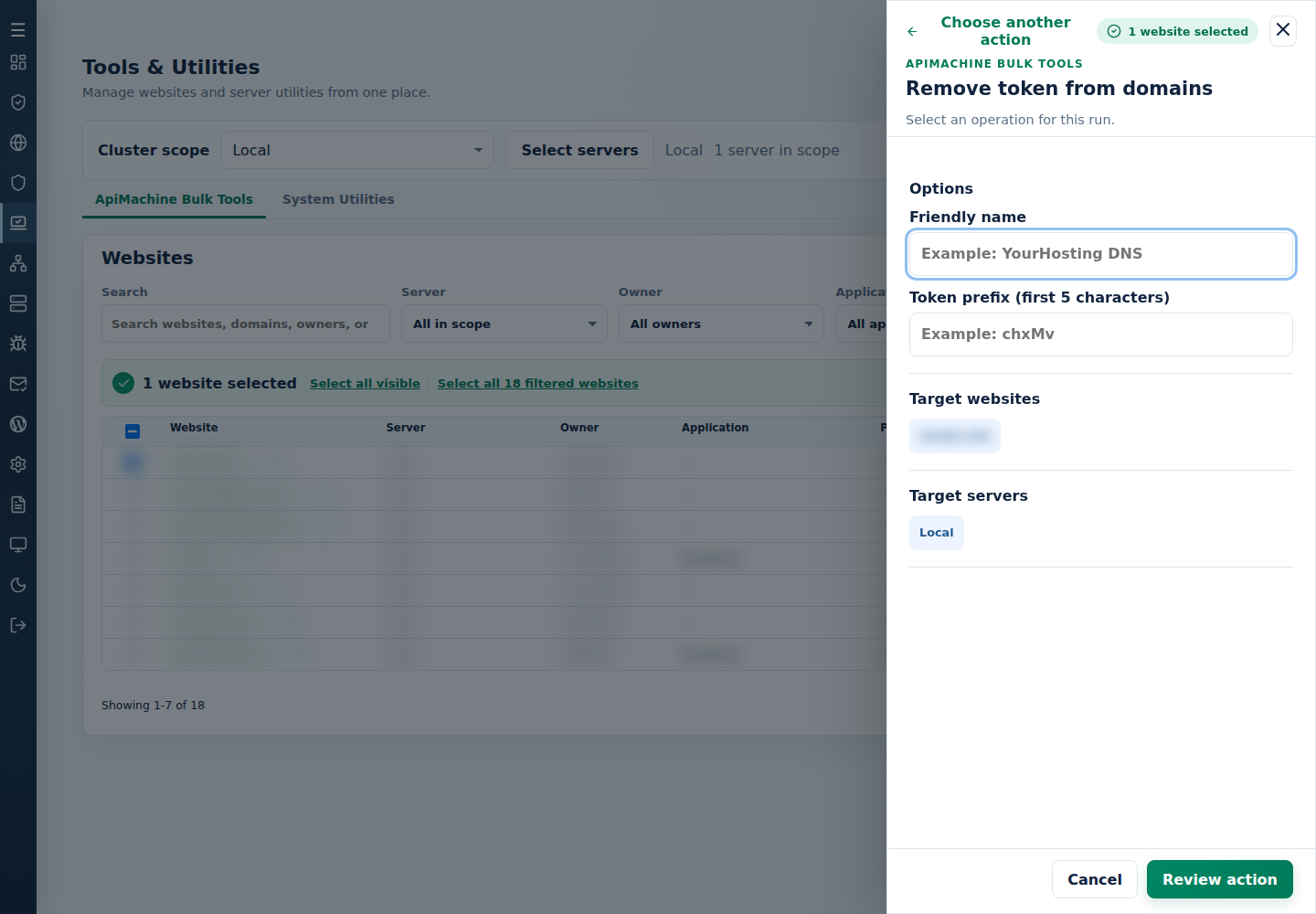
- Choose Remove token from domains.
- Enter its Friendly name and Token prefix (first 5 characters).
- Select Review action, verify the intended domains, then Confirm and run.
- Read the results and check each domain’s mapping. A domain linked to a different token is left unchanged.
CLI alternative
Section titled “CLI alternative”As root on the main control panel server, prepare and review the CLI site list. Replace the placeholders privately and run only the intended command:
| Task | Command |
|---|---|
| Add organization token | cpfence --bulk-set-cloudflare-key-org "FRIENDLY_NAME,FULL_TOKEN" |
| Remove organization token | cpfence --bulk-remove-cloudflare-key-org "FRIENDLY_NAME,FIRST_5_CHARACTERS" |
| Link token to domains | cpfence --bulk-set-cloudflare-key-dom "FRIENDLY_NAME,FIRST_5_CHARACTERS" |
| Remove domain link | cpfence --bulk-remove-cloudflare-key-dom "FRIENDLY_NAME,FIRST_5_CHARACTERS" |
Read the targets and confirmation before answering yes. Keep token arguments and terminal history private. Do not regenerate the site list after reviewing your exclusions.
If an action needs attention
Section titled “If an action needs attention”Check the friendly name, complete token versus five-character prefix, API permissions and token availability in the correct organization. Read which targets succeeded or were skipped. After a lost output stream, inspect the actual token/mapping state before retrying; do not replay an uncertain removal or zone change across the whole selection.