
Set WordPress auto-update policy
Choose which WordPress components should receive future automatic updates. For old or customized sites, check compatibility and keep a usable backup before enabling automation.
WebUI method
Section titled “WebUI method”- Select the sites.
- Choose Bulk tools → Updates → Manage WordPress auto updates.
- Choose Enable or Disable in Operation and the intended Component: all, core, plugins, themes or translations.
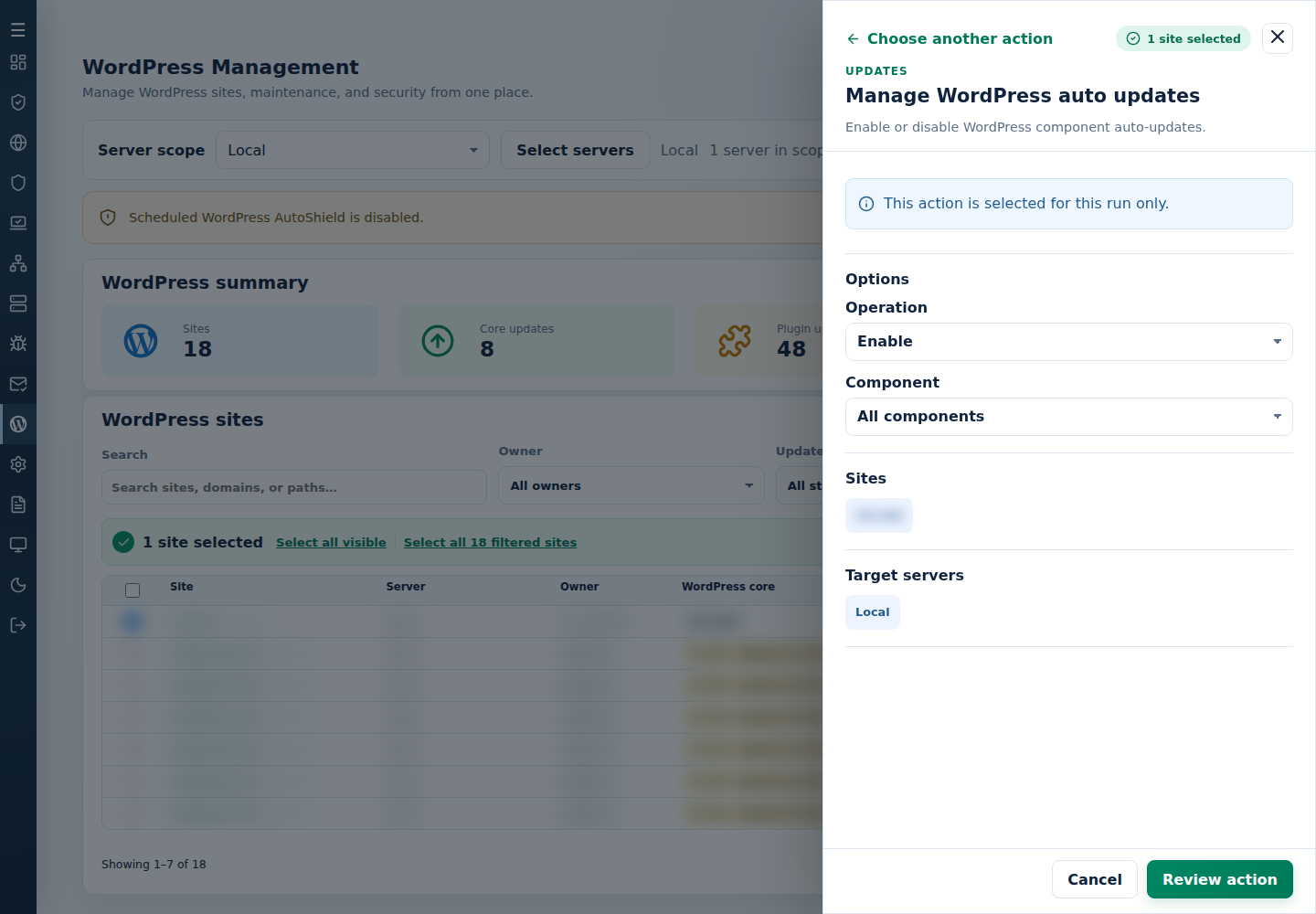
- Review, confirm and inspect each site’s stored policy.
This changes future updates; it does not install available updates now.
Command-line method
Section titled “Command-line method”Sign in as root to the server hosting the WordPress sites. Review /var/log/cpfenceav/wp-sites-list.txt first; these commands use the server’s list, not your selected WebUI rows.
To enable automatic plugin updates:
cpfence --enable-wp-auto-updates pluginsTo disable them again:
cpfence --disable-wp-auto-updates pluginsReplace plugins with core, themes, translations or all for the intended component. An explicit component applies the change without another confirmation. If you omit the component, the command asks for confirmation and applies to all components. Use the selected-site WebUI method for an individual site’s policy.
Read the results and check the affected sites’ stored policy. Disabling future automatic updates does not roll back versions already installed; run a manual update separately when needed.
WordPress can still apply automatic translation updates after that translation option is disabled. Do not treat it as a guarantee that every translation update stops.
For a single extension, use plugin auto updates or theme auto updates.