
Manage cluster servers and enrollment
Use Servers to check which Enhance members are connected to your main control panel server and manage a secondary server’s enrollment. A connected secondary server can provide remote management while keeping its own local protection.
This guide applies to cPFence v4+ on Enhance. Use an administrator account for connection actions; support users see permitted members and require the relevant page access. Root access to each server is required for local installation or migration. Remote work remains license-gated.
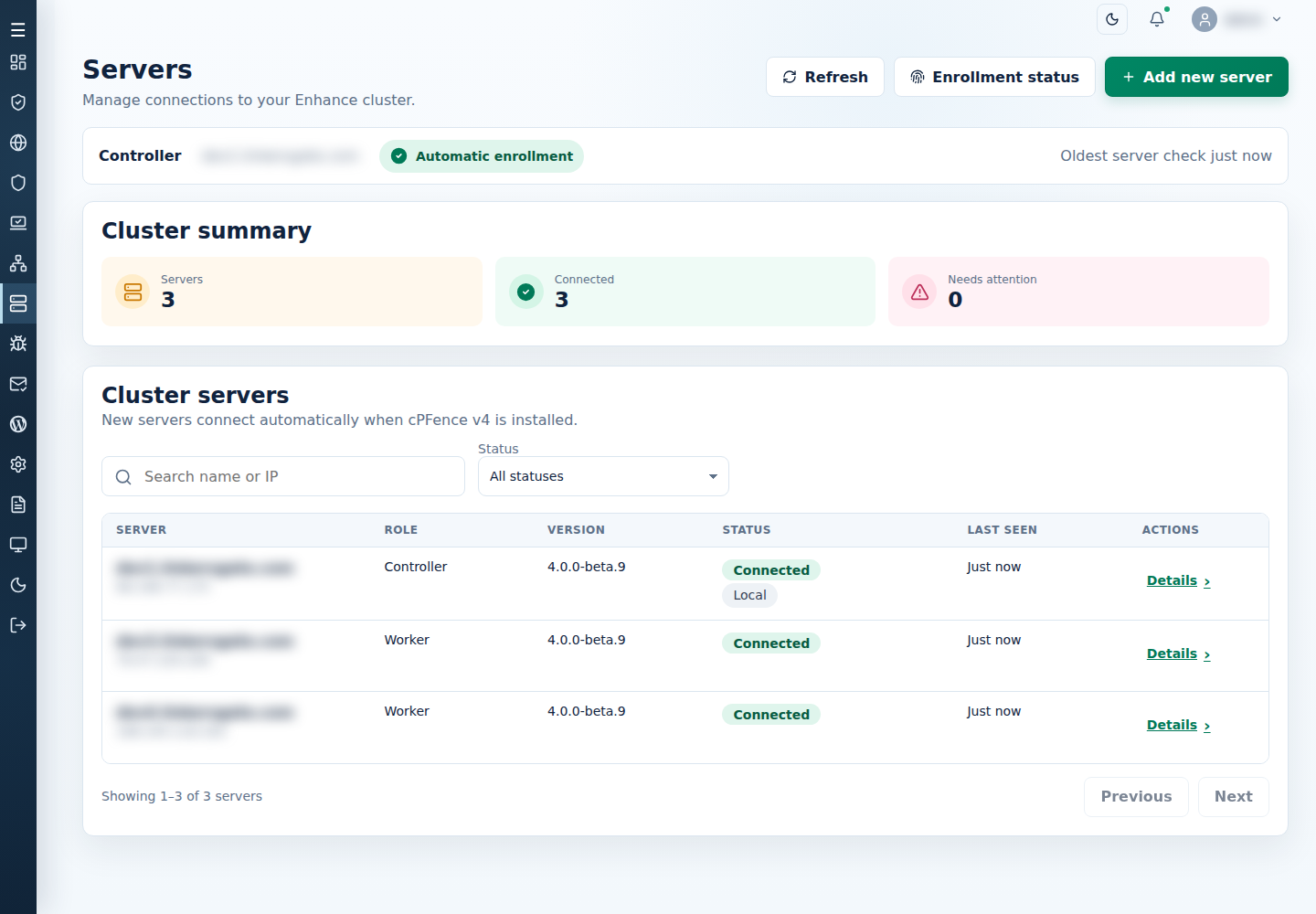
1. Prepare a new secondary server
Section titled “1. Prepare a new secondary server”- Add the server to the same Enhance cluster as the main control panel server.
- Install cPFence v4 locally on that server using the installation guide. Application, backup, database, email, and DNS roles can be secondary servers; an Application role is not required.
- Make sure the main control panel server can reach the secondary server on TCP 9096, including through the provider firewall. Browser access to the main control panel server uses TCP 9095.
- Open Servers → Add new server to review these prerequisites. This drawer provides instructions; it does not install cPFence remotely.
- Select View enrollment status or open Enrollment status from the page header.
The secondary server enrolls automatically after its cluster identity and connection can be verified. There is no fixed enrollment delay; it depends on successful discovery and reachability. A secondary server has one main control panel server owner.
For a v3 cluster, upgrade the main control panel server first and then upgrade each secondary server locally. The main control panel server’s v4 WebUI remains usable during that transition; secondary servers still running v3 retain their local protection but are unavailable for v4 remote management. Use the v3 migration guide for the installation consequences.
2. Inspect membership and enrollment
Section titled “2. Inspect membership and enrollment”- Open Servers and review Cluster summary: Servers, Connected, and Needs attention. The server count includes the main control panel server; the enrollment drawer counts secondary servers.
- Use Search name or IP and Status to find the member. For a longer list, use Previous and Next. These controls filter the roster; they do not choose action targets elsewhere.
- Review Role, Version, Status, and Last seen.
- Select Details for a connected member or View issue for an unavailable one. In Enrollment status, select View details to open one secondary server and return to the secondary-server list when finished.
The Server enrollment drawer identifies the main control panel server. A connected secondary server shows Cluster identity verified and a successful connection to this main control panel server. A missing version is unknown; an unavailable connection does not establish that the server runs v3. Last-known values can remain visible after connectivity is lost.
Use Check connection for a connected secondary server or Retry/Retry connection when offered for an unavailable secondary server. Read the resulting status before treating the request as successful. Retry performs connectivity and enrollment checks; it does not install or upgrade a secondary server. A reinstalled secondary server, or one whose cPFence identity changed, reconnects automatically after the same Enhance identity check a new server gets; a Disconnected server stays disconnected.
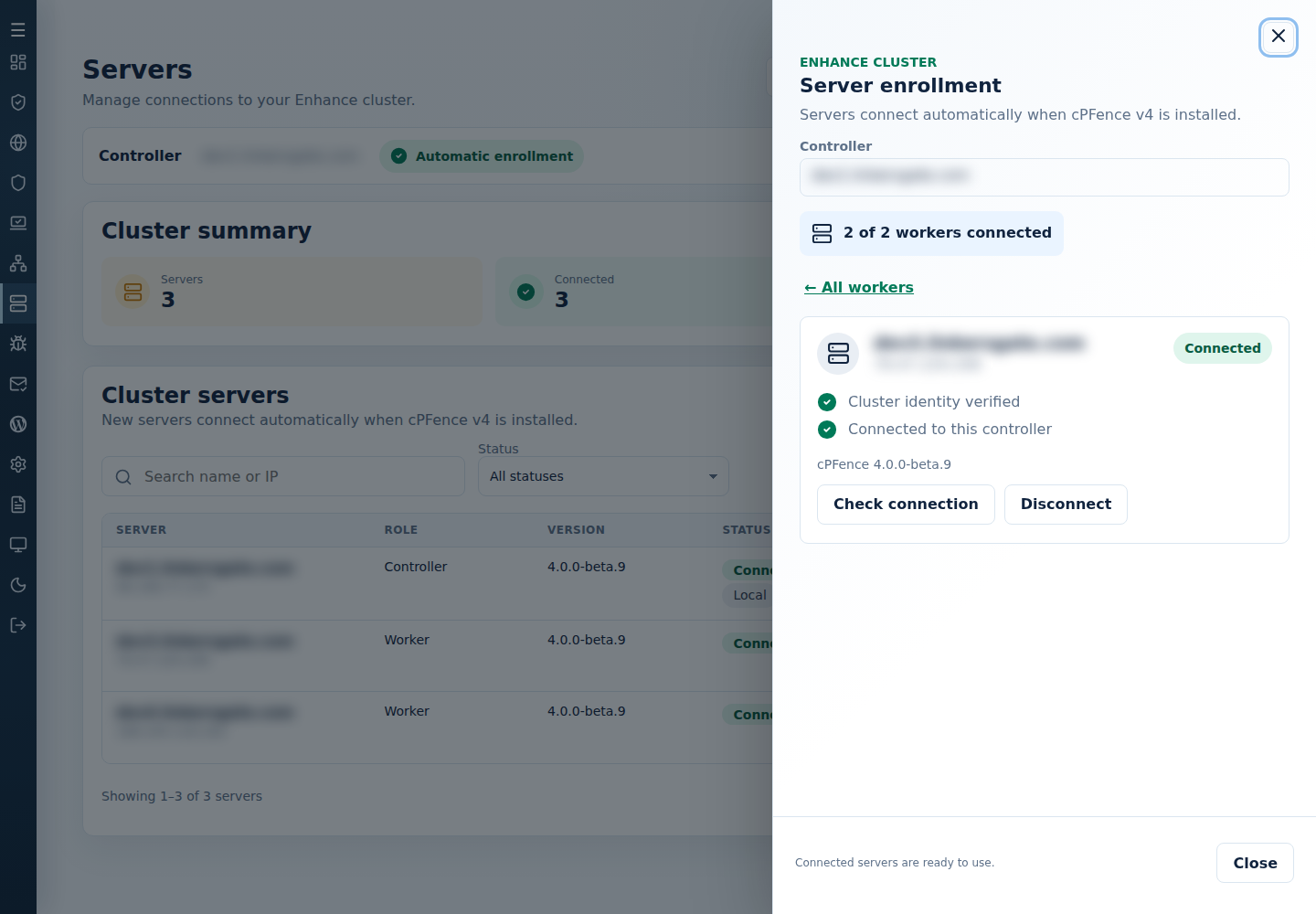
3. Deliberately disconnect or reconnect a secondary server
Section titled “3. Deliberately disconnect or reconnect a secondary server”- Open the chosen secondary server’s details and verify its name and address.
- Select Disconnect only when you intend to suspend this main control panel server’s remote management of that secondary server.
- Read and confirm the warning. The secondary server becomes Disconnected, and automatic enrollment remains blocked.
- When you want this main control panel server to manage it again, open the same secondary server, select Reconnect, confirm the named destination, and verify Connected.
Local protection stays active during a disconnection. Disconnect does not uninstall cPFence, remove the server from Enhance, or replay previously failed remote actions when you reconnect. Use a fresh action preview after the connection is restored.
Troubleshooting
Section titled “Troubleshooting”Use Troubleshoot a secondary server connection for read-only service, socket, and firewall checks, interpreting unavailable states, and recovery boundaries.
If Cluster inventory is unavailable appears, check the Enhance main control panel server before relying on cluster totals or submitting cluster actions. If an expected server is absent only for a support user, check that user’s grants. Root-only enrollment reset rotates secondary server communication credentials and interrupts remote management; it belongs to deliberate recovery, not routine roster management.