
Run a rootkit scan and review history
In cPFence v4+, Threat & Malware Detection → Rootkit Scans shows retained system-check results. Findings are advisory; a rootkit check does not automatically remove suspicious software. Support users need target-server access and history/finding permissions; starting a check also needs scan permission.
A rootkit check never runs at the same time as a Full or Smart scan, so the server is not overloaded. Starting one while the other runs shows a message asking you to wait, and a scheduled rootkit check waits its turn.
Review recorded checks
Section titled “Review recorded checks”- Open Rootkit Scans and choose Local or one secondary server in server scope.
- Read the latest check’s status and message, then choose Summary period: Last month, Last week, Last 24 hours or All time.
- Review Completed, Findings and Incomplete. Filter Recent rootkit scans by Status and Started since, then Apply filters; Clear all resets the filters.
- Use Previous and Next, then open Details for the intended check.
Select a summary card to filter the records; select it again to clear that card’s filter. Incomplete includes interrupted checks.
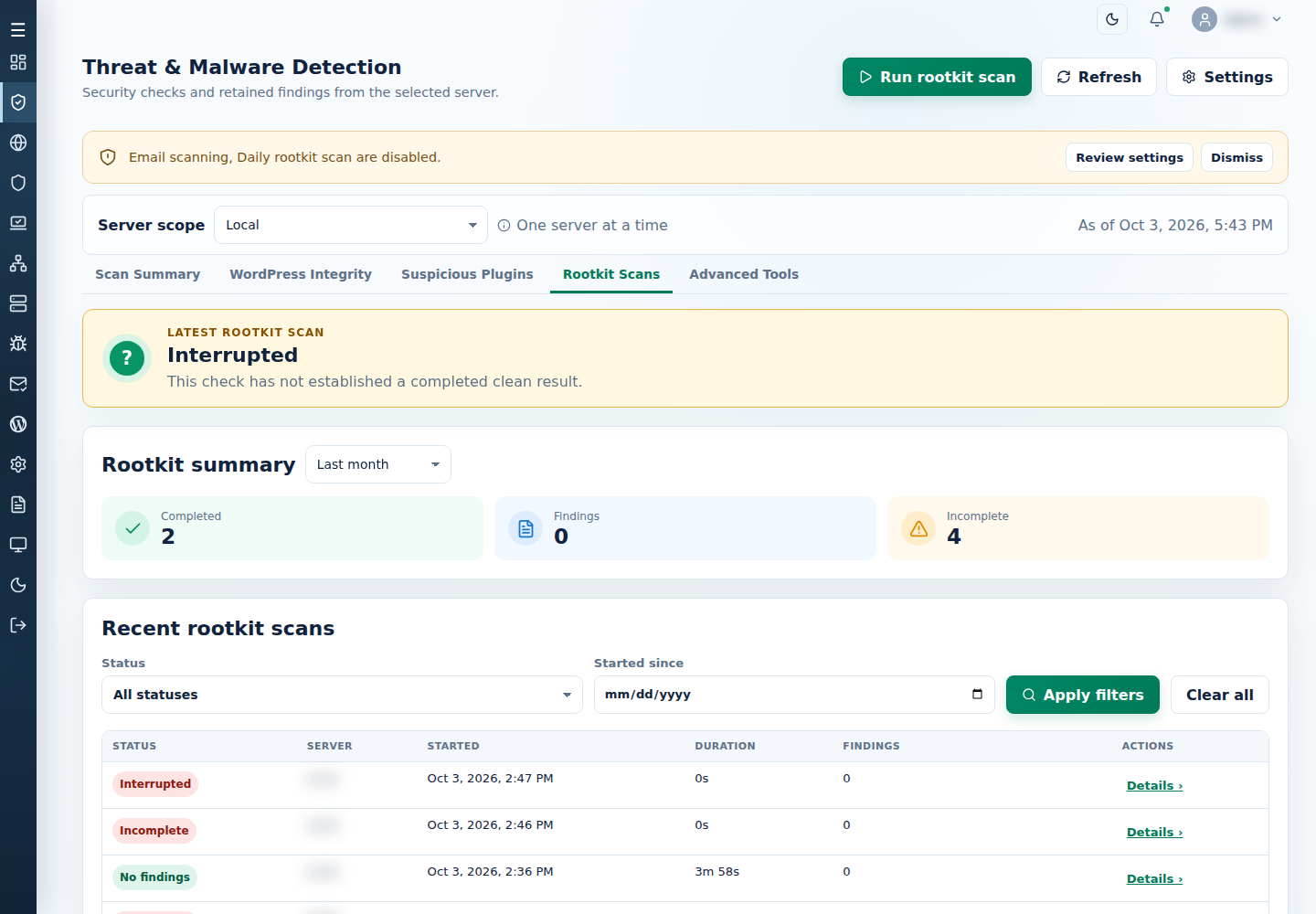
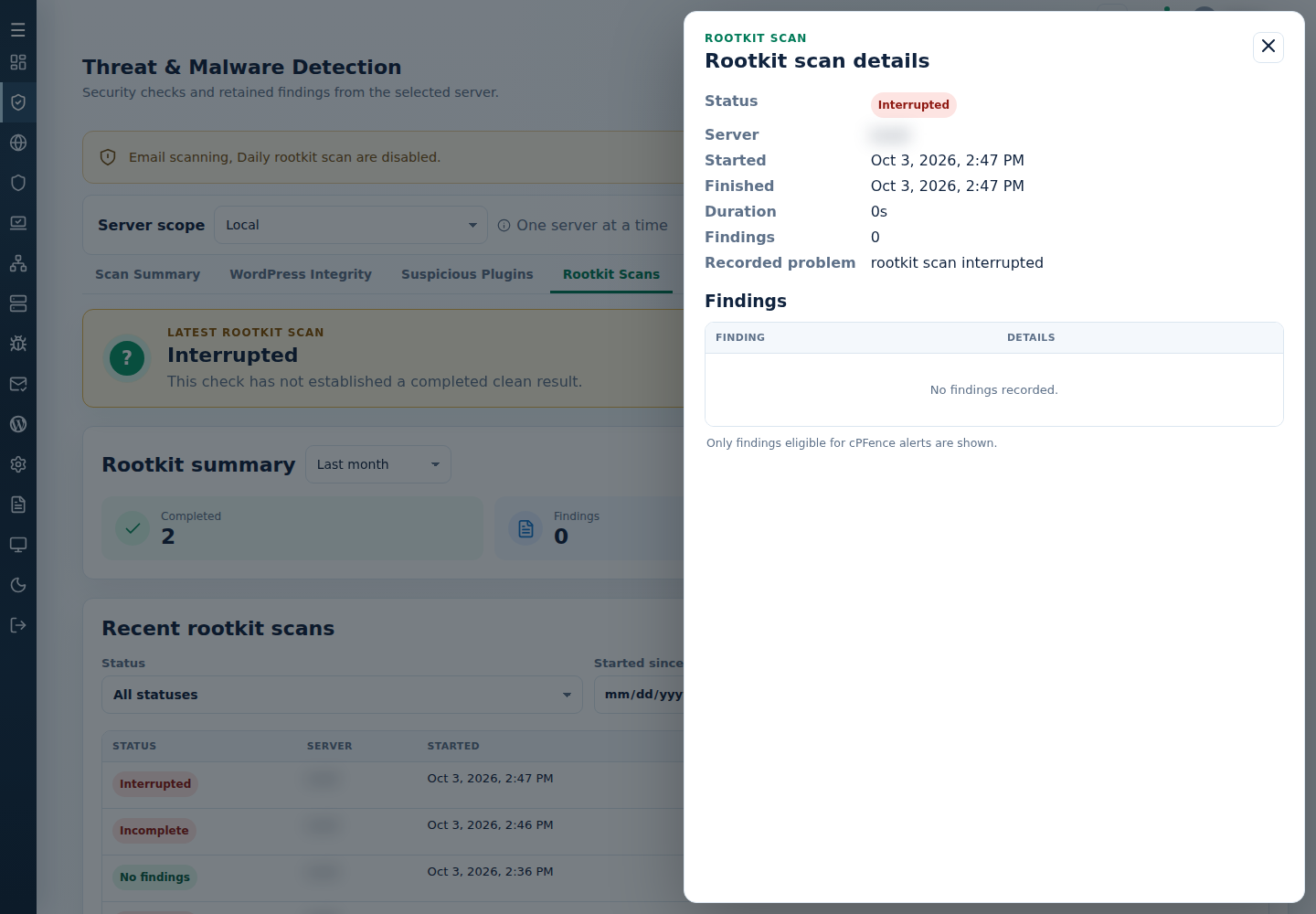
Status choices include Completed, No findings, Findings, Incomplete, Running and Interrupted. In details, inspect Status, Server, Started, Finished, Duration, Findings and any Recorded problem.
Only findings eligible for cPFence alerts are shown. A Running or Interrupted check has not established a completed clean result.
Start a rootkit check
Section titled “Start a rootkit check”Starting a check needs a connected target with an eligible license. See the shared scan prerequisites and server scope.
- Choose the intended server and select Run rootkit scan.
- In Confirm rootkit scan, review Selected server, Action and options and Target servers. If the target changed, refresh and review it again.
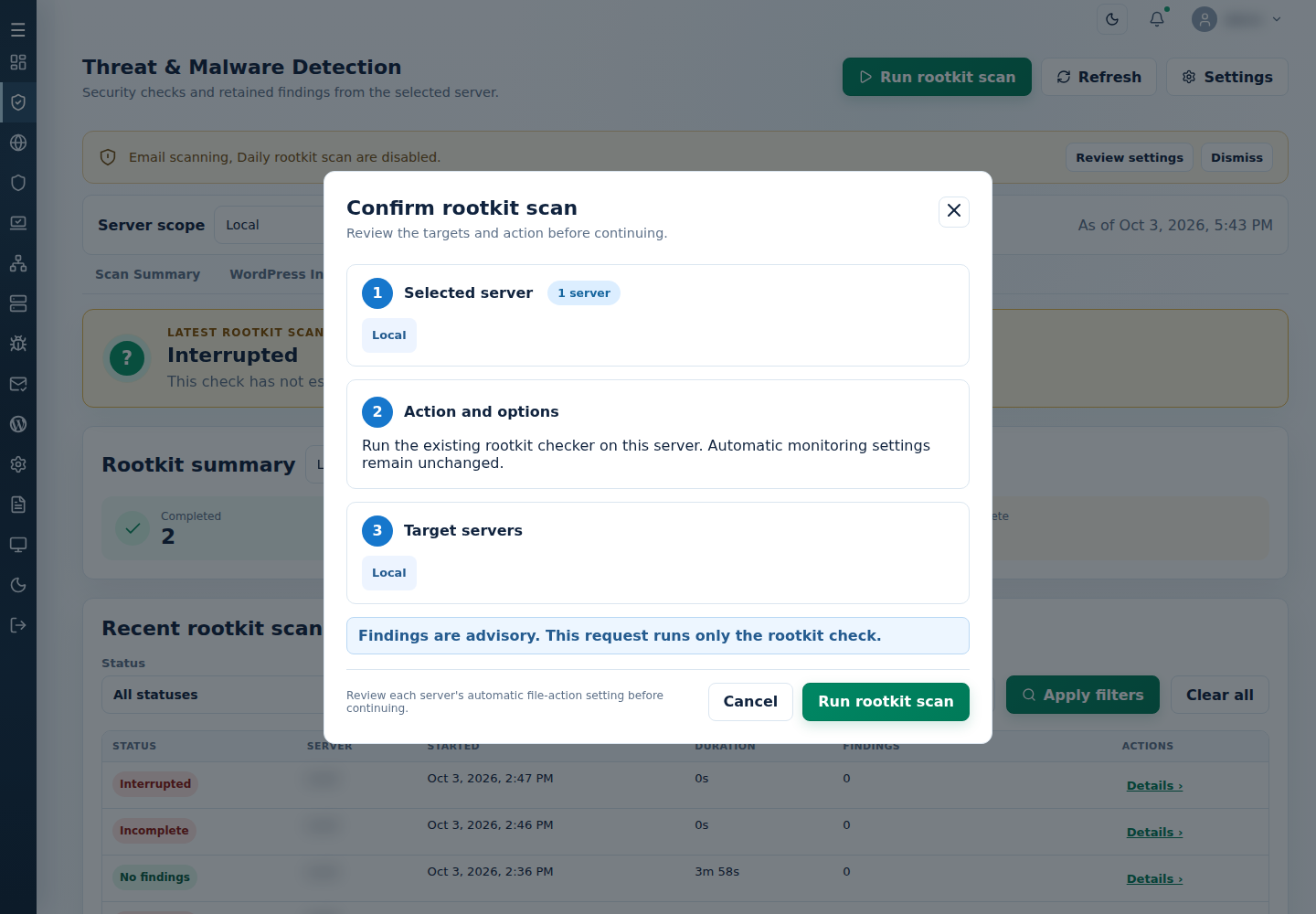
- Choose Cancel to leave without starting, or Run rootkit scan to submit the check.
- Read the output. After the request finishes, refresh Rootkit Scans and open the recorded result.
This runs only the rootkit check on the selected server. It does not change automatic monitoring settings. Use daily rootkit and IP reputation settings to configure scheduling or inspect service output.
Use Copy output for a private record, Cancel to request cancellation, then Back and Refresh to check retained history; cancellation alone does not establish the final check status. Finished describes the request, not a guarantee of a clean server. For Needs attention or interruption, inspect the recorded problem before retrying. Investigate advisory findings before deleting software or changing access. Use malware scans for a separate website malware investigation.