
Generate the WordPress sites list
cPFence can generate a list of WordPress installations and their account owners on your server. Use it to plan updates, review ownership or cross-check a site that needs investigation.
Generate the list from the WebUI
Section titled “Generate the list from the WebUI”- Open WordPress Management and choose the intended Server scope.
- Open Choose action → Bulk tools, search for Generate WordPress sites list, then choose that entry.
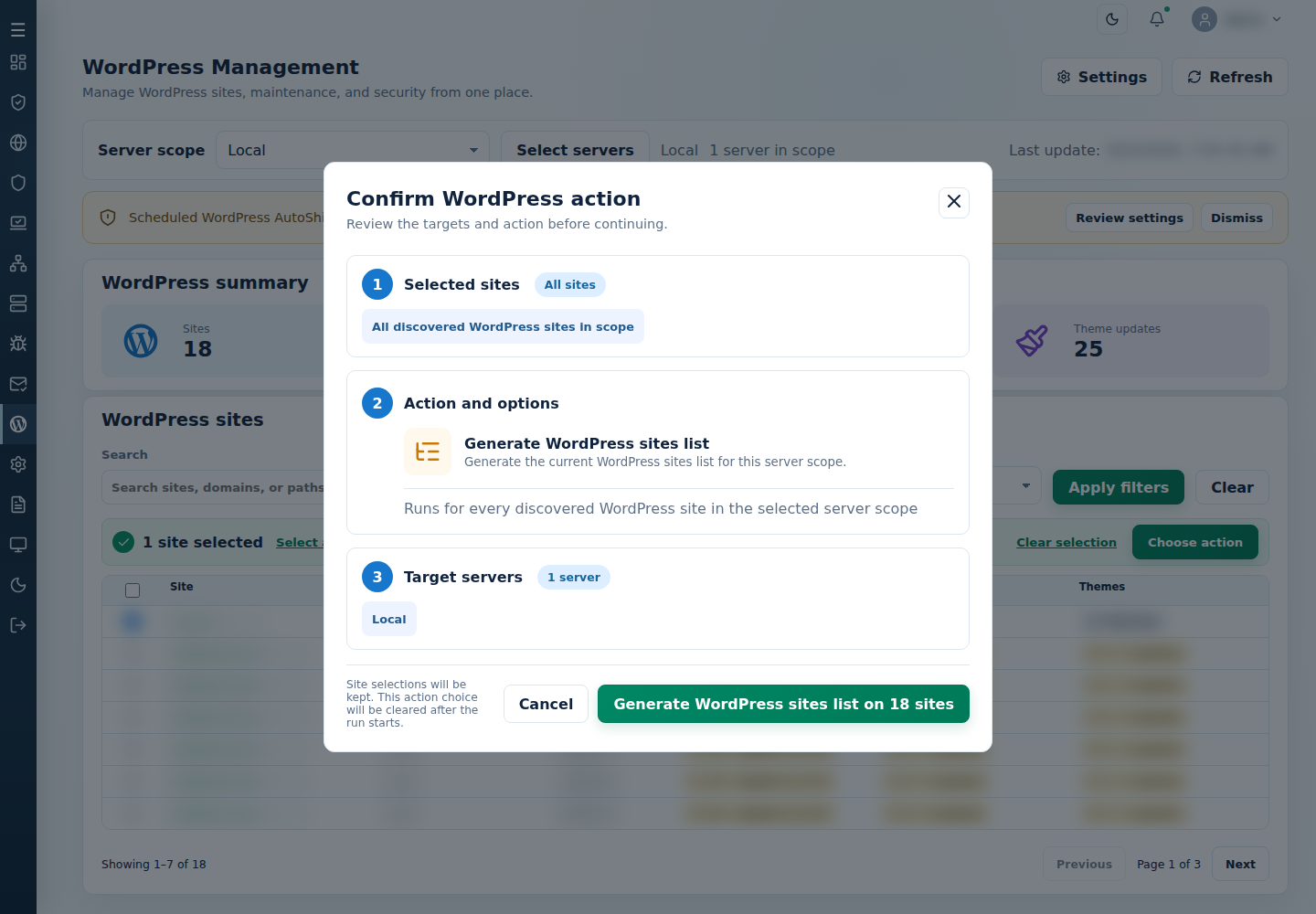
- Review the server targets and confirm. This uses server scope, not checked site rows.
- Inspect each server’s result and the generated
/var/log/cpfenceav/wp-sites-list.txt.
Command-line method
Section titled “Command-line method”From a root terminal on the server hosting the sites, run:
cpfence --generate-wp-sites-listWait for completion and check /var/log/cpfenceav/wp-sites-list.txt. This rebuilds that server’s list; it does not use a checked-site selection from the WebUI.
Read or export the list
Section titled “Read or export the list”Each line contains an installation path and account owner:
/path/to/wordpress,account_ownerFor example:
/var/www/ACCOUNT_ONE/public_html,owner_one/var/www/ACCOUNT_TWO/public_html,owner_two/var/www/ACCOUNT_THREE/public_html/blog,owner_threeThese are placeholders, not real site records. Copy the list to a .csv file for Excel or LibreOffice:
cp /var/log/cpfenceav/wp-sites-list.txt /var/log/cpfenceav/wp-sites-list.csvDownload your copy securely and keep its account information private. Do not rename or move the operational .txt file out of place; other WordPress tools use it. Refresh discovery after adding, moving or removing installations.
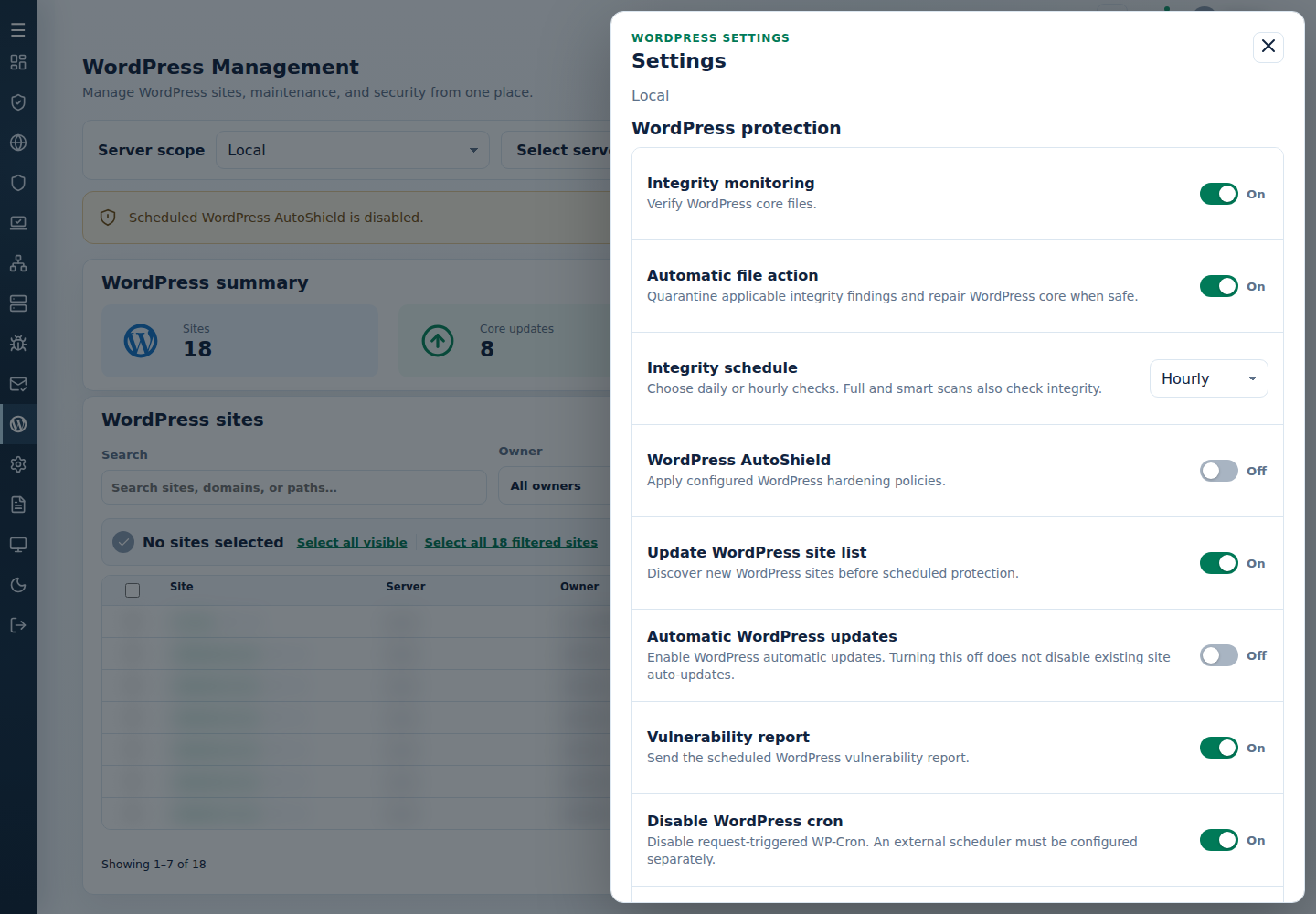
WebUI operations use their reviewed explicit selection. Use that selection rather than editing the generated list to limit a browser action.