
Resolve a scan that will not start
If a cPFence v4+ scan does not start, read the actual error before retrying.
- Confirm the target server is connected, licensed and available to your account. Support users need scan permission.
- Check Scan Summary for an active scan. Wait for it, or stop that scan deliberately; do not start duplicates. A Full or Smart scan also waits for a running rootkit check, and the message asks you to wait for it to finish.
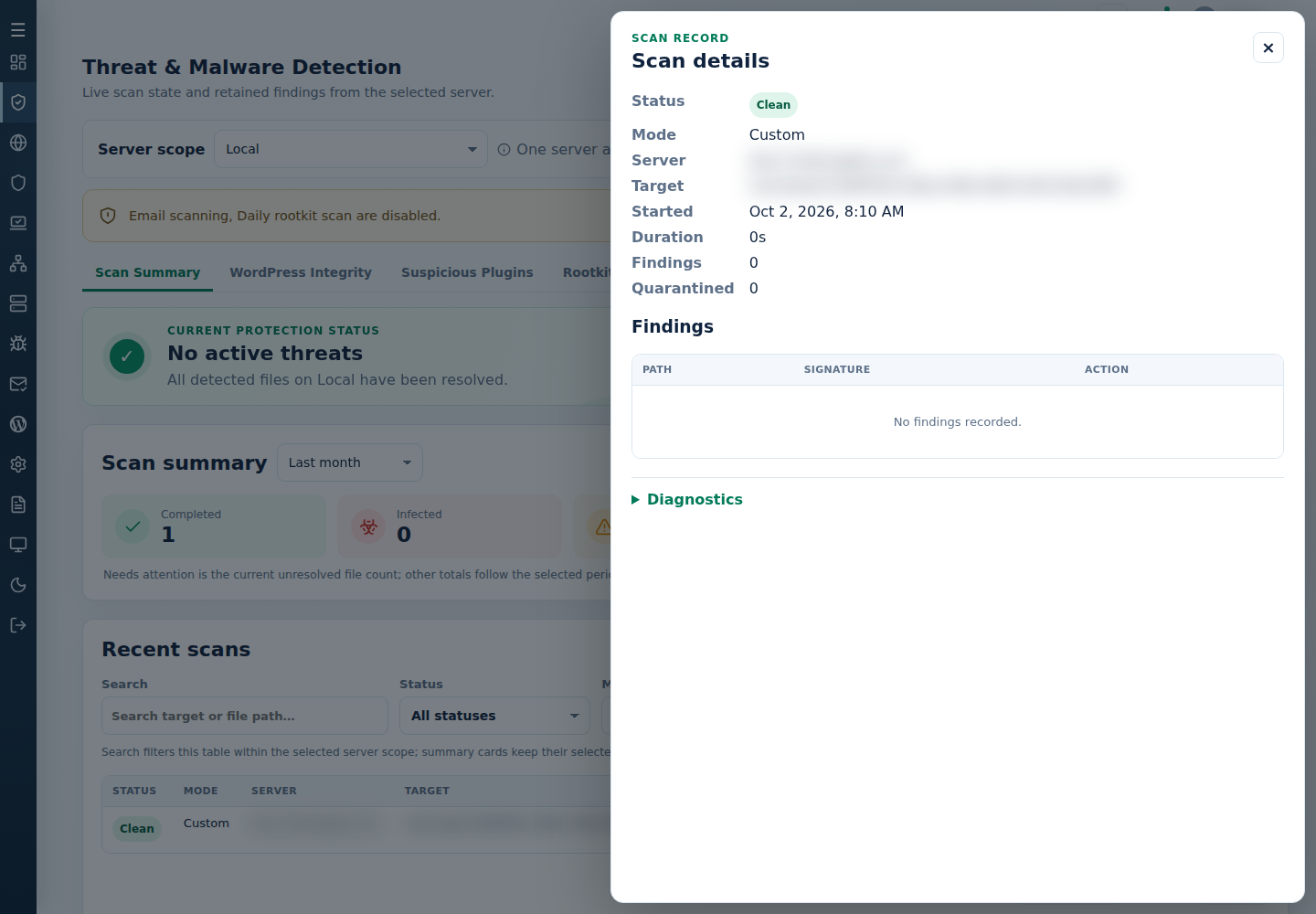
- Check Diagnostics or the command’s reported log for the failure stage.
- As root, check memory and swap with
free -h. Look at available memory and sustained swap use, not just the free column. - Resolve the reported condition and retry once the server has spare capacity.
If the cause remains unclear, contact support with the error, scan mode and time. Omit credentials and unrelated private data. See scan progress and results.