
Whitelist or blacklist a country
Country policies in cPFence v4+ use two-letter ISO country codes and available IPv4/IPv6 datasets.
Using the WebUI
Section titled “Using the WebUI”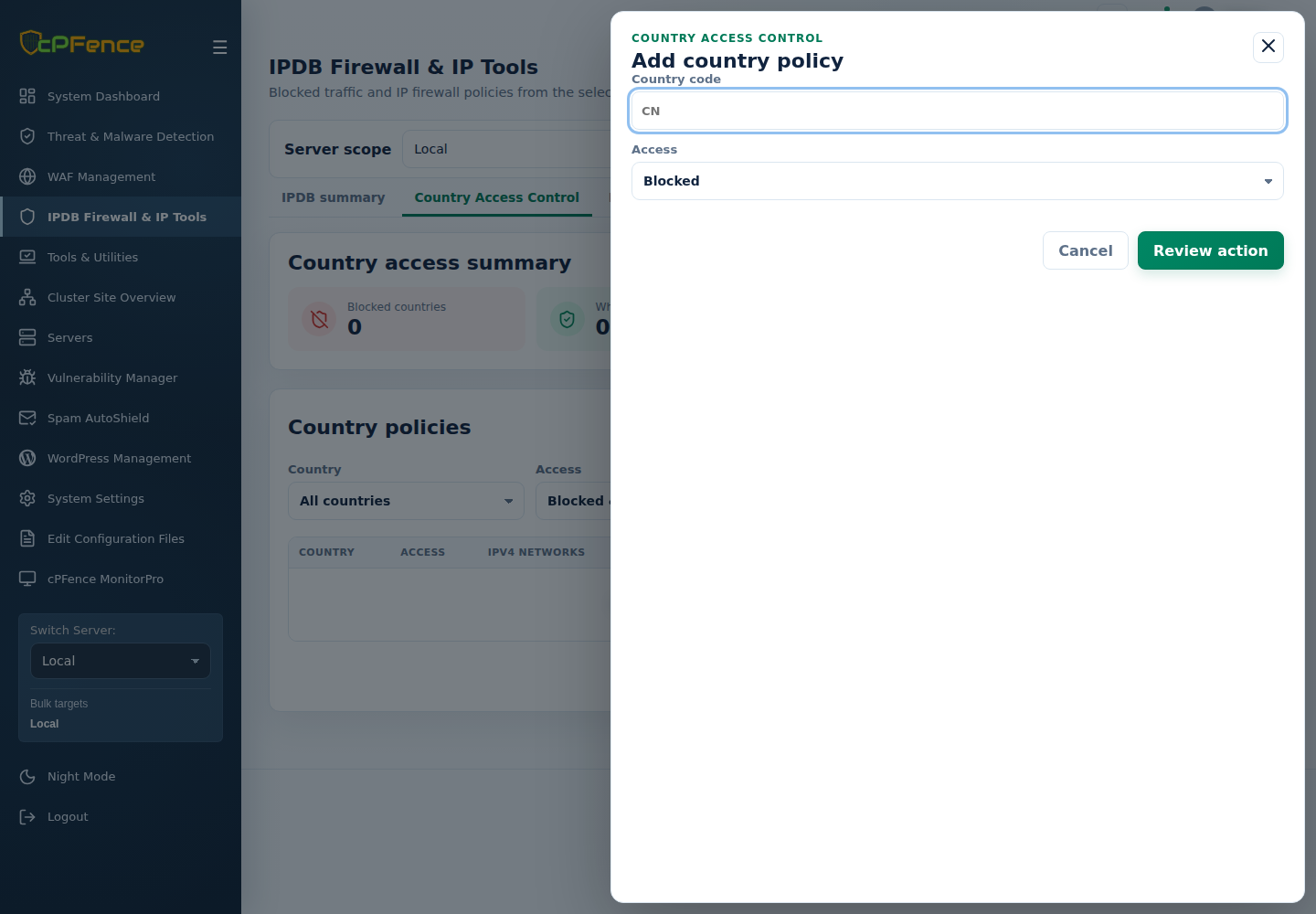
- Open IPDB Firewall & IP Tools, choose one server and select Country Access Control.
- Click Add country policy, enter Country code, and choose Blocked or Whitelisted.
- Click Review action, check the server and access type, then confirm.
- Check the policy and IPv4/IPv6 network counts. To reverse it, open its details and Remove country policy.
For several servers, use the named country actions in Advanced Tools, checking sidebar targets and each result. Support users need country-policy permission.
Using the CLI
Section titled “Using the CLI”As root, substitute the intended two-letter code:
| Action | Command |
|---|---|
| Block country | cpfence --blacklist-country us |
| Remove country block | cpfence --del-blacklist-country us |
| Whitelist country | cpfence --whitelist-country us |
| Remove country whitelist | cpfence --del-whitelist-country us |
A failed dataset refresh retains existing data. For Tor, use a Tor exit-node list rather than a country code.