
Review and reset custom IPDB policies
In cPFence v4+, reset protection settings separately from custom allow/block policies.
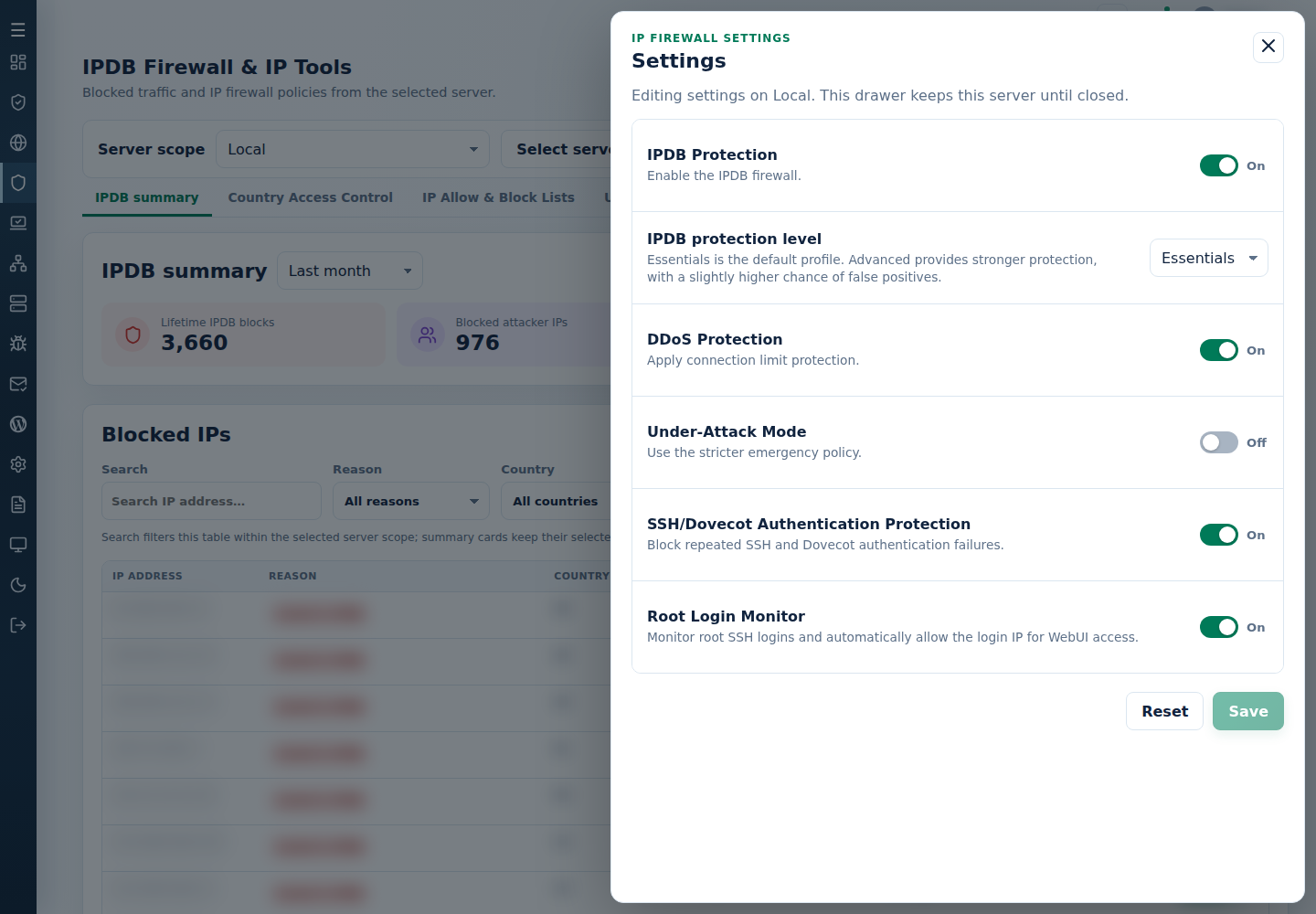
- In IPDB Firewall & IP Tools, choose one server and review IP Allow & Block Lists and Country Access Control.
- Remove only intended entries through their row actions or named Advanced Tools removal commands. Use the saved original list for a deliberate bulk removal.
- Remove ASN and DDNS policies through their named controls; other owners can retain an overlapping address.
- To reset protection switches, open Settings → Reset → Confirm reset. Review the server and default settings before confirming.
- Refresh current policy and verify administrator and site access.
Reset restores this settings group; it is not a command to erase all lists, UFW rules or incident history. Some servers can succeed while others fail, so inspect each result before retrying. For uncertain ownership, contact support before removing additional policy.