
Back up and restore WordPress sites
A cPFence WordPress snapshot contains a site file archive and SQL database export. Restore uses the complete verified pair. These Enhance WebUI backups are separate from cPFence settings archives and the Enhance backups managed through ApiMachine.
Support users need site/server access and Manage WordPress backups. Scheduled settings need System Settings permissions. Check disk space before backing up. Restore replaces files and database content; save current data first and choose a maintenance window.
1. Configure the schedule and exclusions
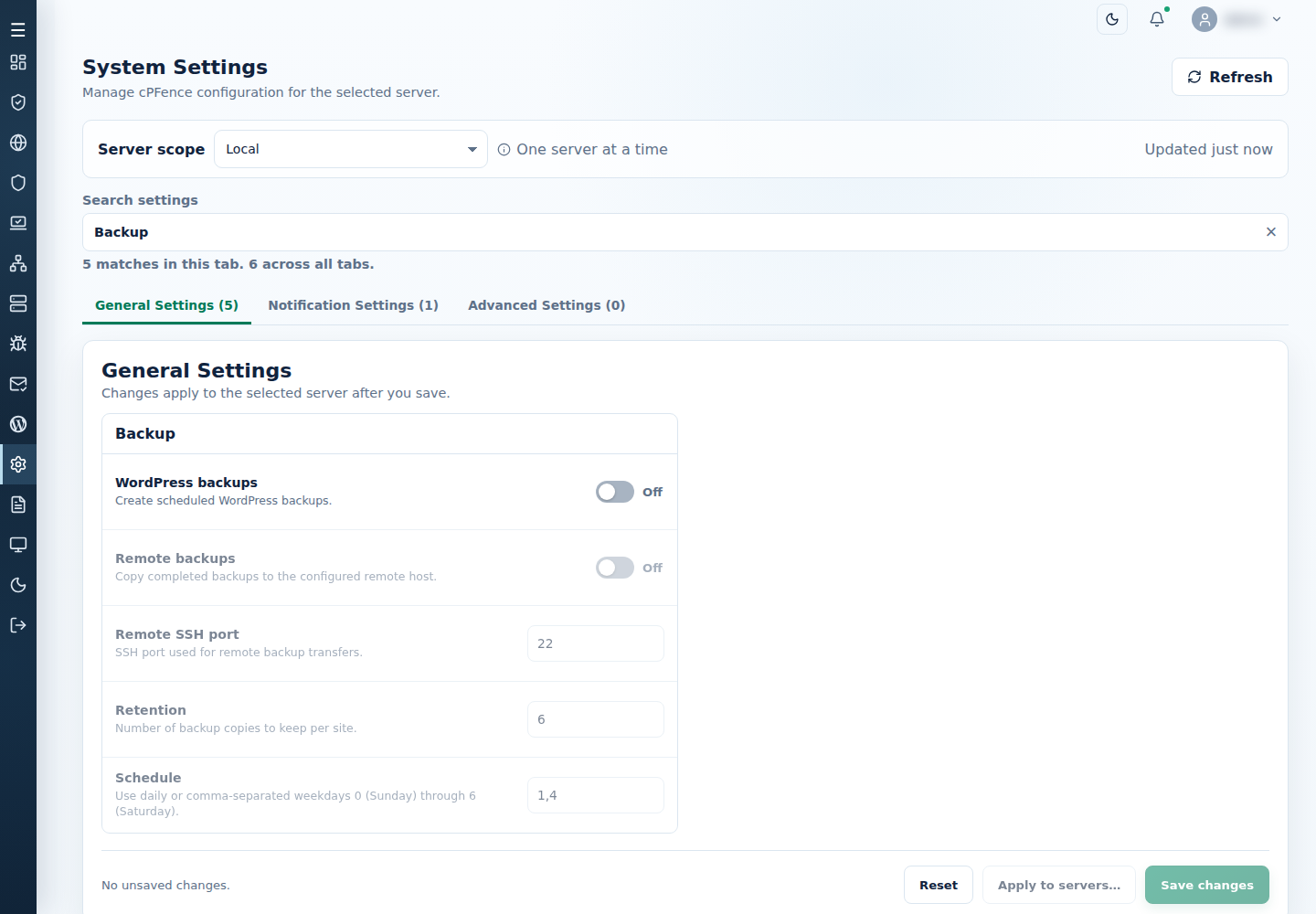
Section titled “1. Configure the schedule and exclusions”- Open System Settings → General Settings and choose one server.
- Find Backup and set WordPress backups on.
- Choose the options below, then save and check the result.
| Setting | Packaged default | Meaning |
|---|---|---|
| WordPress backups | Off | Enable scheduled backups. Manual Back up selected sites remains available when off. |
| Remote backups | Off | Use a separately configured remote destination. A switch alone does not establish credentials or network access. |
| Remote SSH port | 22 | The destination’s SSH port, 1–65535. Saving it does not open an external firewall. |
| Retention | 12 | Whole snapshots kept per site, 1–1000. Reduction takes effect during retention processing; saving is not an immediate purge. |
| Schedule | 1,4 |
Monday and Thursday. Use daily or comma-separated weekdays from 0 (Sunday) to 6 (Saturday). Scheduled backups run at 04:10 server time on eligible days. |
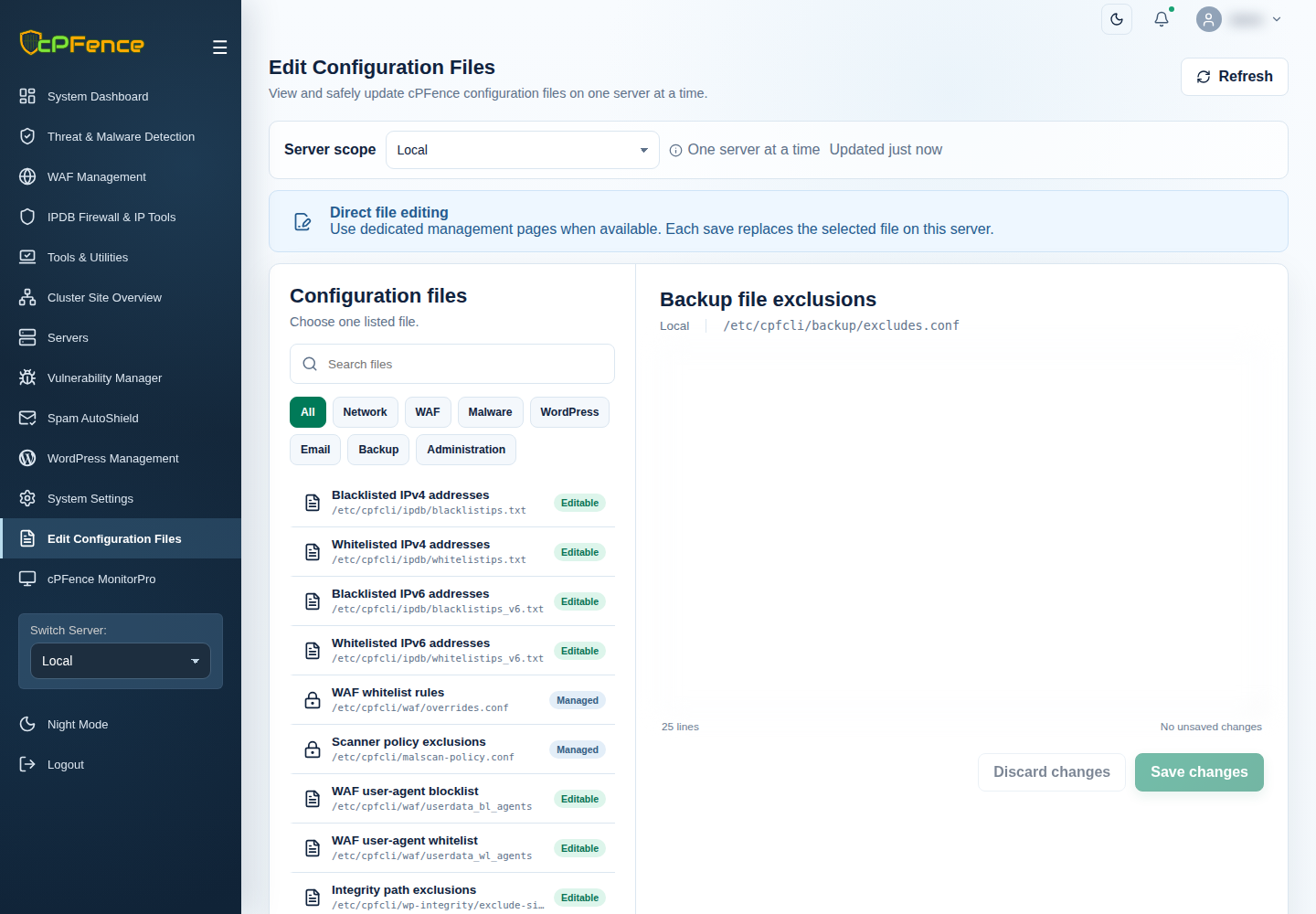
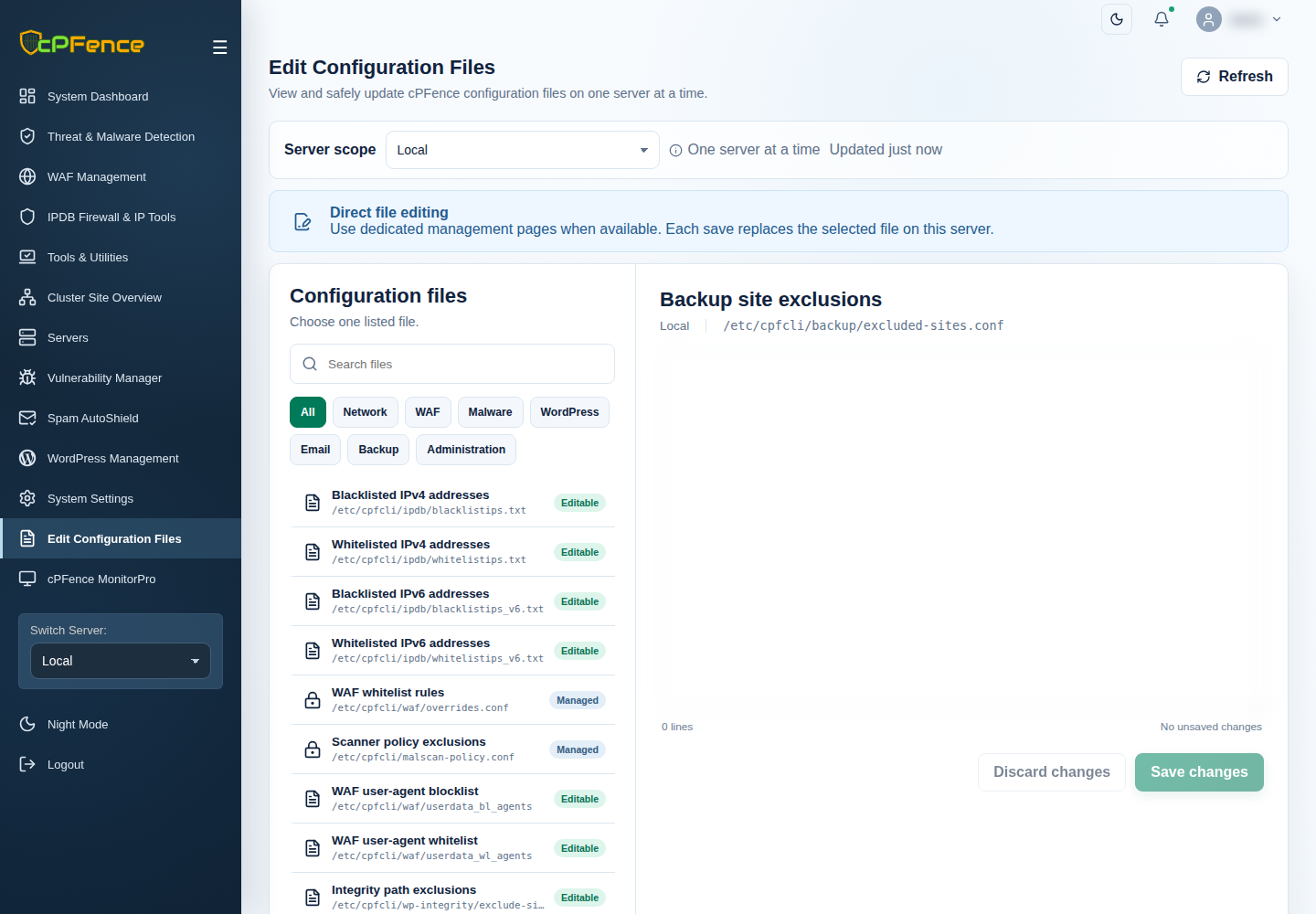
Use Edit Configuration Files → Backup file exclusions / Backup site exclusions for exceptions. Excluded files are absent; excluded sites produce no snapshot. Disabling backups preserves stored data.
Successful-backup notifications require their notification setting and a configured delivery channel; they are off by default.
2. Create a snapshot now
Section titled “2. Create a snapshot now”- Open WordPress Management, set Server scope, filter the table, and explicitly select sites.
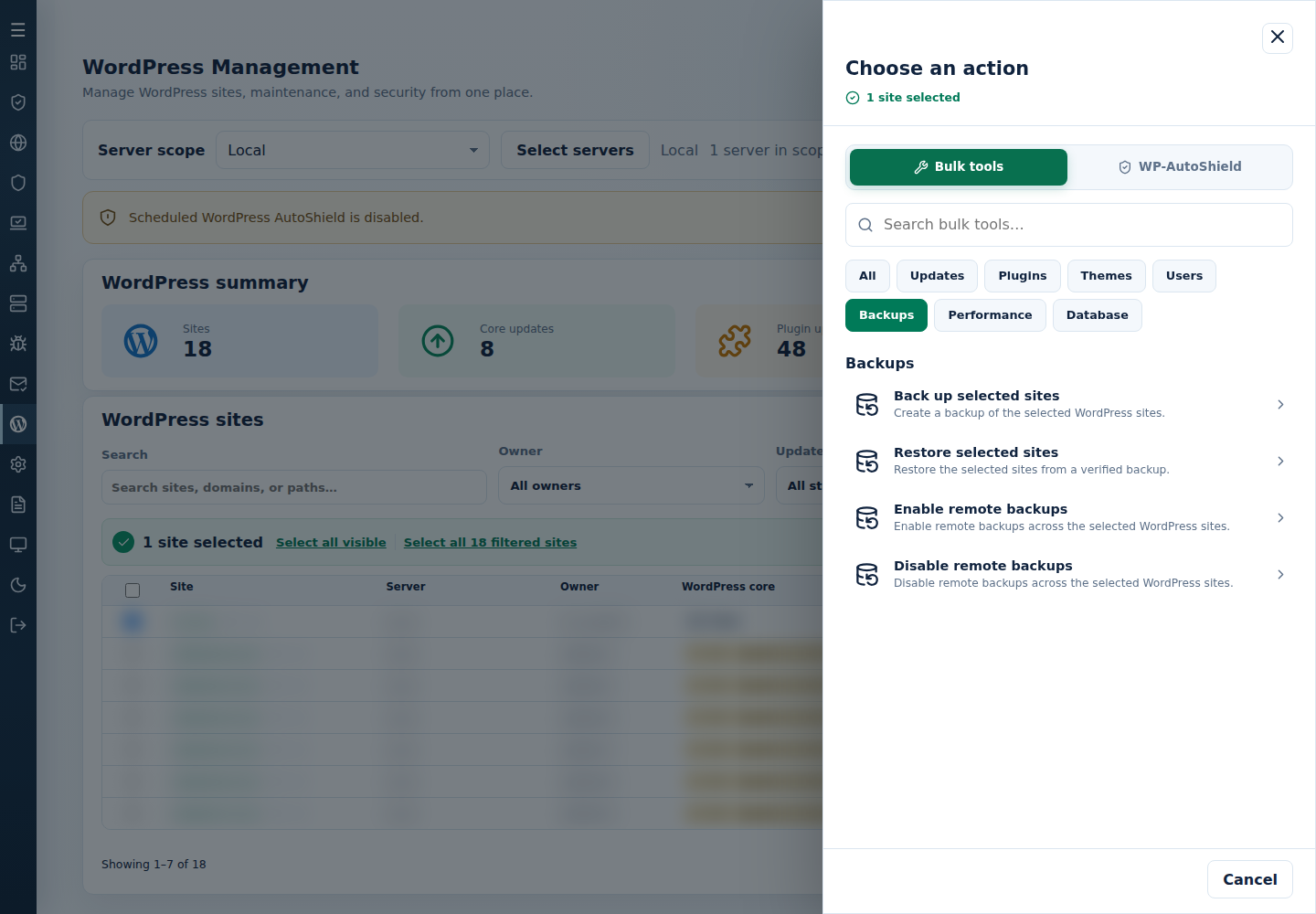
- Click Choose action → Bulk tools → Backups → Back up selected sites.
- Review the site/server count and confirm. Read the streaming per-site output until the request ends.
- Check each snapshot’s timestamp and recorded storage location. Local snapshots live under
/cpf_wp_backups; retain the SQL/archive pair and its completion information together.
Read every site’s result: one can succeed while another fails. A run that backs up some sites shows Finished even when others failed; failed sites are listed in the output and in /var/log/wordpress-backup-error.log. Scheduled backups with failed sites send a Backup Process completed with errors notification. An archive alone is not a complete backup; wait for verified completion.
3. Use a remote destination
Section titled “3. Use a remote destination”- In Backups, choose Enable remote backups.
- Enter Remote backup host as
user@host.
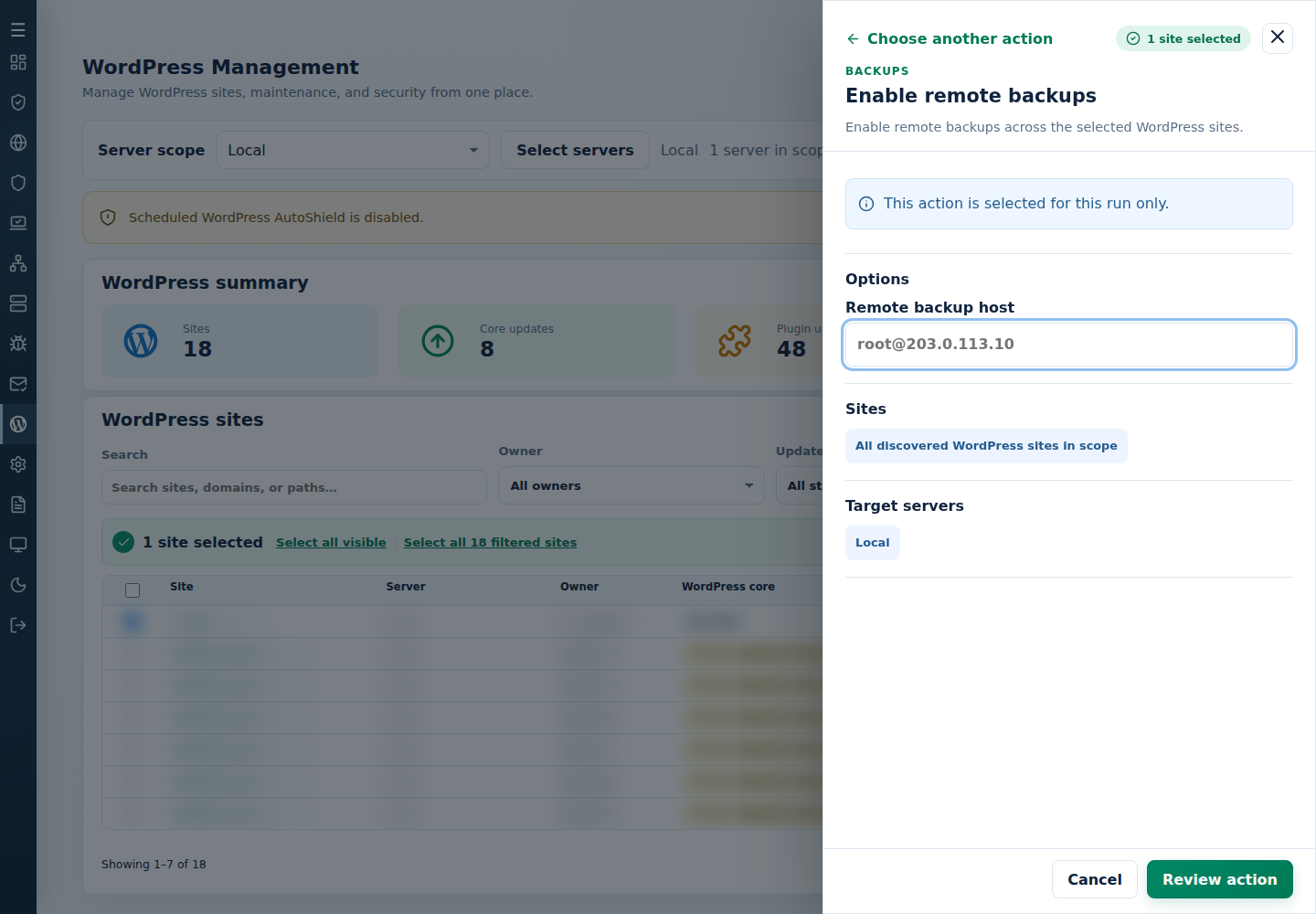
- Select Review action, check All discovered WordPress sites in scope and Target servers, then confirm. This applies to those servers, rather than checked site rows.
Verified remote transfers remove the local copy. Check the reported remote location. Disable remote backups changes future storage; it does not delete remote snapshots or bring them back locally.
For a failed transfer, check destination space, SSH access, port and host approval. Check whether a complete snapshot exists before relying on it.
4. Restore the intended snapshot
Section titled “4. Restore the intended snapshot”- Identify the verified snapshot for every selected site. Check its date, time, storage location and exclusions.
- Select those sites in WordPress Management.
- Open Choose action → Bulk tools → Backups → Restore selected sites.
- Set Backup date using the date picker (
YYYY-MM-DD, for example2026-10-02). Enter Time (optional) asHH-MM-SSto select one snapshot precisely. If several snapshots match a date without a time, the oldest timestamp is selected.
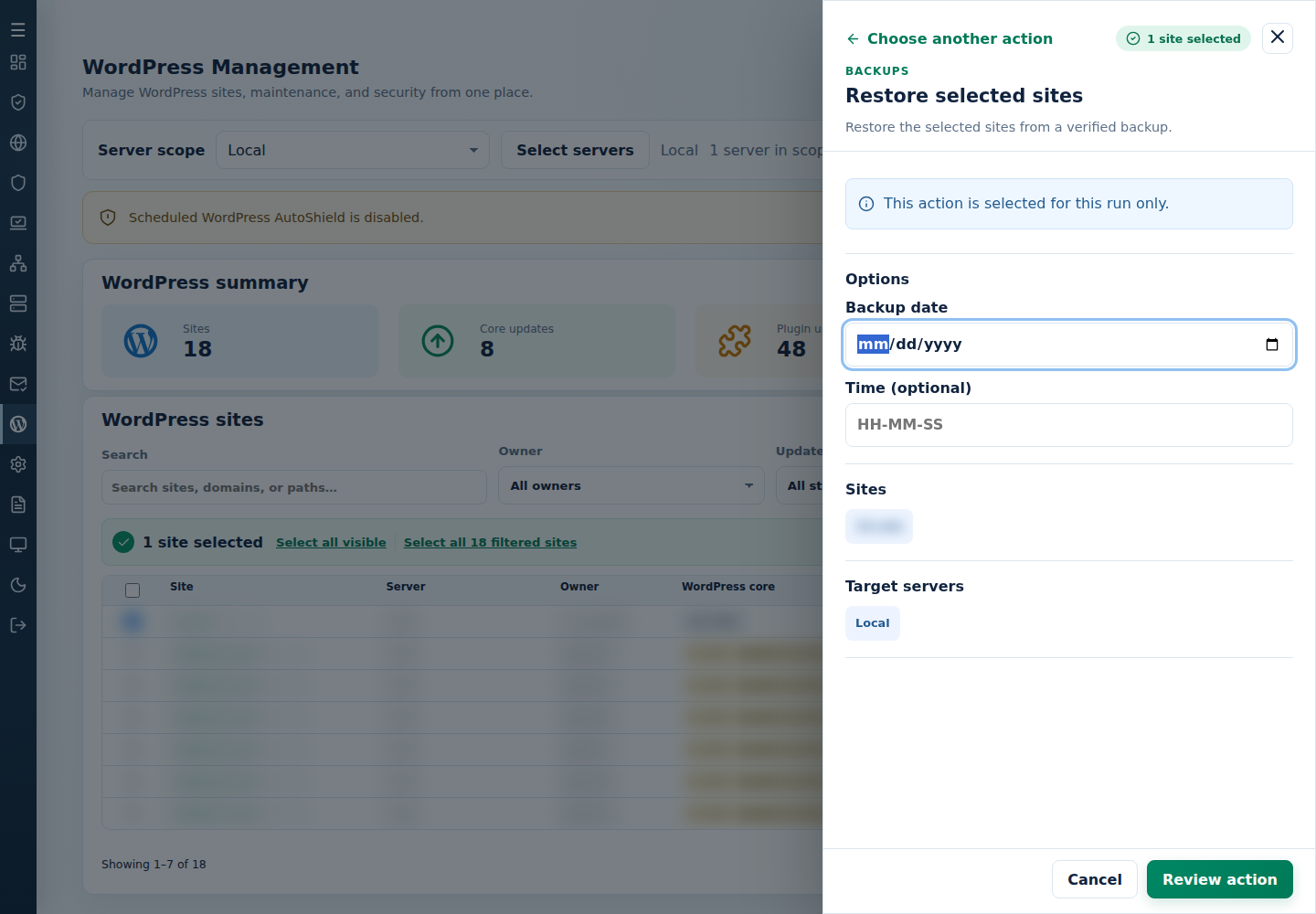
- Select Review action, check the target sites and timestamp, then confirm or Cancel.
- Wait for the final result and inspect every site. Check public pages, administrator sign-in and expected database content before reopening traffic.
Restore validates the pair, temporarily preserves current files/database for rollback, and retains current database credentials. If rollback fails, preserve the reported recovery data and logs for manual recovery. Resolve that failure before another restore.
A WordPress snapshot belongs to its site. It does not restore cPFence settings or the control panel.
When a snapshot is missing or a job fails
Section titled “When a snapshot is missing or a job fails”Check the server, date/time, remote setting and exclusions. Missing or corrupt pairs are rejected. If the site’s identity changed, inspect the error; do not rename backup directories to bypass it.
Check failed sites in the output and in /var/log/wordpress-backup-error.log, including runs that show Finished. Needs attention means no site was backed up, the run itself failed or no final status arrived. After a lost connection, check actual site state before repeating a restore.
Keep separate recovery copies before reducing retention or manually deleting snapshots. Package removal and disabling scheduling preserve WordPress backup data, but deleting backup files removes that recovery option.
To stop future backups and remove stored snapshots deliberately, follow Disable and delete WordPress backups.
Command-line method
Section titled “Command-line method”From a root terminal on each server hosting the sites, enable scheduled backups:
cpfence --cpf-backup-cron-onReview that server’s saved retention, SSH port and schedule above. Root administrators can also set these values in /etc/cpfcli/config.conf: CPF_BACKUP_ENABLED, CPF_REMOTE_BACKUP_ENABLED, CPF_BACKUP_SSH_PORT, CPF_BACKUP_RETENTION and CPF_BACKUP_SCHEDULE. Use the schedule command or WebUI settings to apply scheduling, rather than assuming a file edit has updated the active schedule.
For remote storage, prepare the passwordless SSH connection first, then configure a destination:
The command also accepts no argument, using a saved destination or prompting for one. Check its connection result: an enabled configuration with a connection warning does not prove a transfer will succeed.
To create backups now:
cpfence --bulk-backup-wp-sitesReview the discovered-site count and both confirmation prompts. Unlike ordinary AutoShield list-based commands, native CLI backups discover WordPress installations on this server and honor backup exclusions. They do not use checked WebUI rows or a hand-edited AutoShield site list. Use the WebUI for explicit selected-site scope. Read each site’s final result and verify the complete archive/SQL pair.
Restore using a verified date, or its exact timestamp:
cpfence --bulk-restore-wp-sites YYYY-MM-DDcpfence --bulk-restore-wp-sites YYYY-MM-DD_HH-MM-SSReplace the placeholders with the snapshot’s actual date/time. A date without time selects the oldest matching timestamp. Inspect final results and check sites before reopening traffic.
To stop future scheduling or return future backups to local storage, respectively:
cpfence --cpf-backup-cron-offcpfence --cpf-remote-backup-offThese switches preserve existing snapshots. Keep checking any already running job; switching policy off is not a cancellation or deletion command.