
Manage authentication protection
cPFence v4+ SSH/Dovecot Authentication Protection blocks source IPs after repeated failed SSH, mailbox (IMAP and POP3) or SMTP sign-ins. Five failed SSH logins, or ten failed mailbox or SMTP logins, from one IP within 15 minutes block it for 10 minutes. It requires IPDB protection and is separate from DDoS connection limits and Root Login Monitor.
You need access to the target server and Manage IPDB protection permission. The server must be connected and licensed.
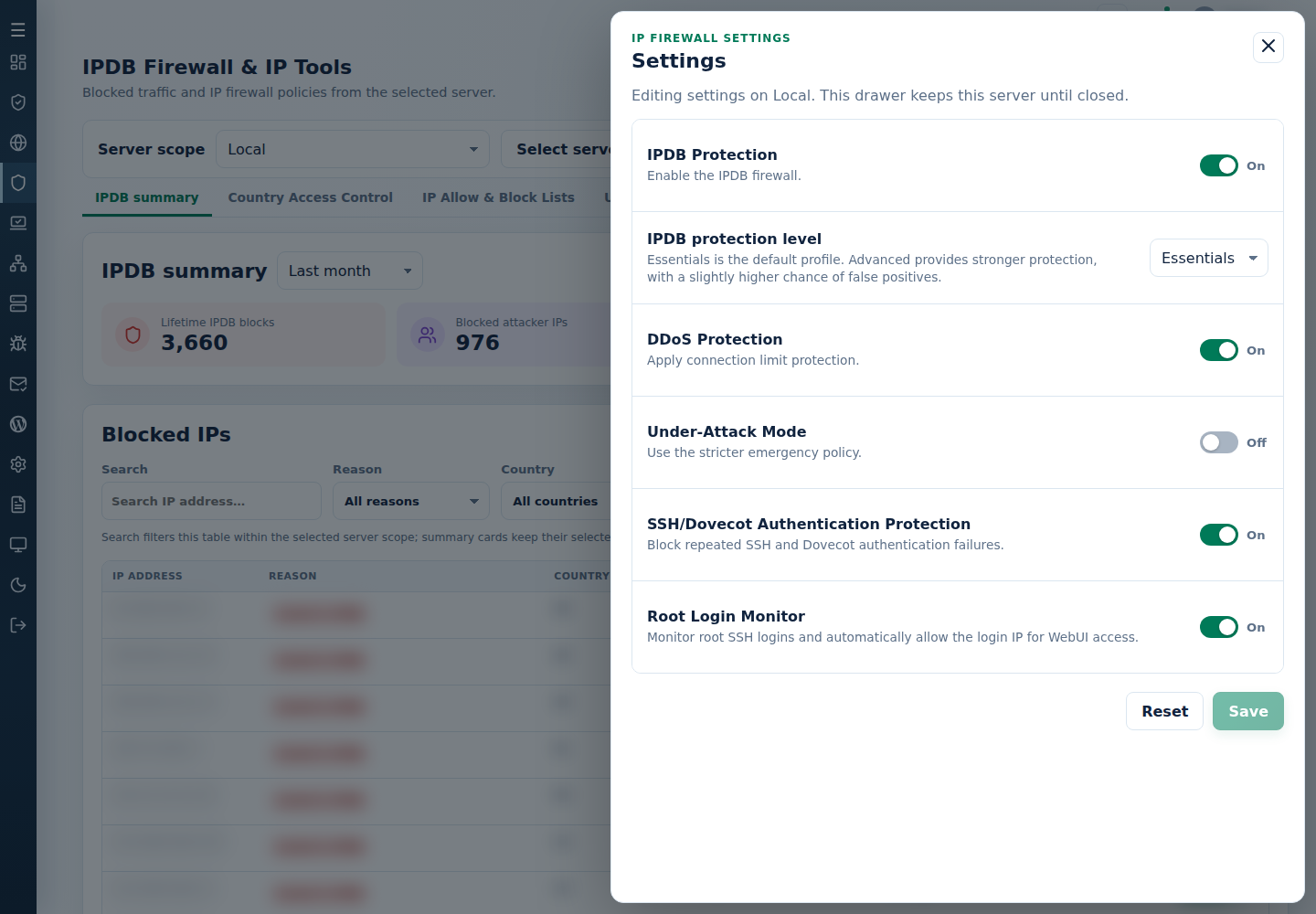
Enable or disable protection
Section titled “Enable or disable protection”- Open IPDB Firewall & IP Tools and choose one server in Server scope.
- Open Settings. Check that IPDB Protection is on.
- Set SSH/Dovecot Authentication Protection to the intended state, then click Save. The drawer keeps the server selected when it was opened.
- Read the save result and reopen Settings to confirm the saved state. If it reports an error, check the current state before trying again.
Recover a legitimate client’s access
Section titled “Recover a legitimate client’s access”For historical activity, choose the affected scope on System Dashboard, select DDoS & Brute-force Attacks Blocked, and filter the client’s IP with Source → DDoS & brute-force. Read LAST SEEN before checking current policy below; the combined count is not proof of a current authentication block. See shared drawer filters and data meanings.
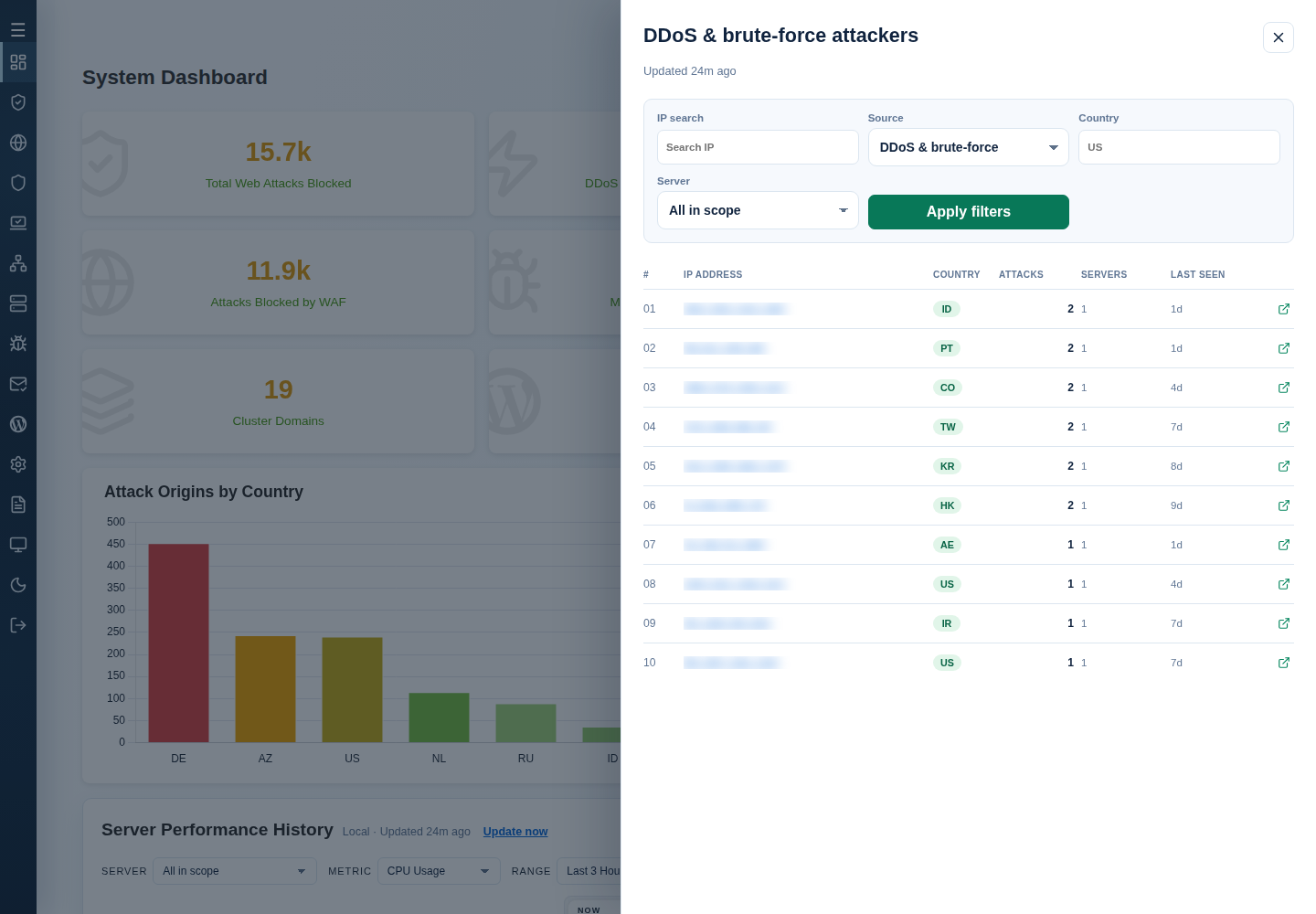
- Check the client’s IP on the affected server. Compare the incident’s reason and Current policy in IPDB summary → Details.
- Correct saved passwords or devices repeatedly attempting failed logins. Several users can share one public IP.
- If an exception is justified, add a narrow IP whitelist, then check access again. Remove the exception when it is no longer needed.
A whitelist is an access exception, not proof that a source is safe. If access remains blocked, investigate the other policy or service error before disabling protection broadly.