
Edit supported configuration files
Use Edit Configuration Files to inspect or replace a supported file on one server. Prefer a dedicated management page when available.
For cPFence v4+ on Enhance. You need View configuration files, plus Edit configuration files to save. Choose an available server with the required license.
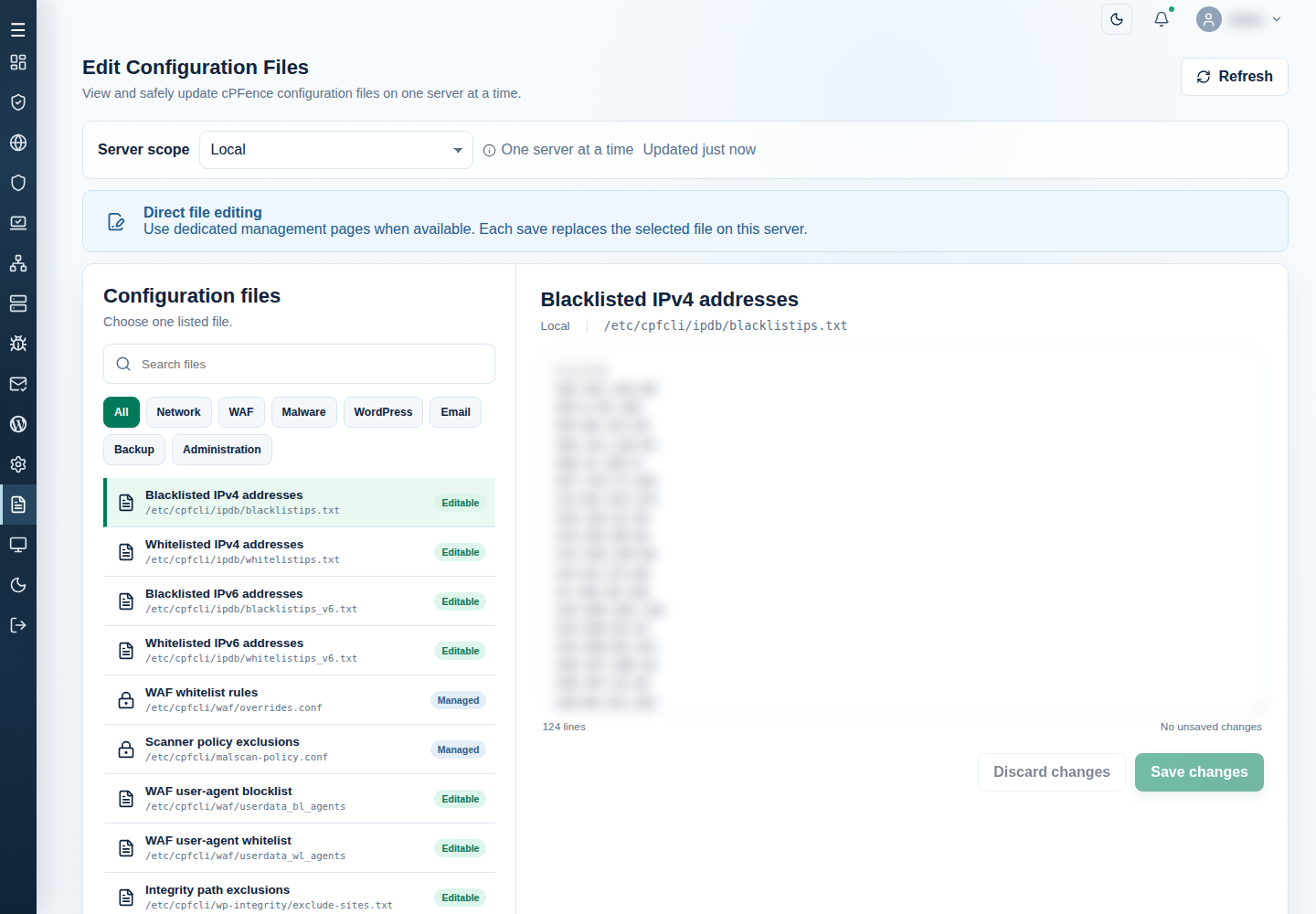
1. Select the server and file
Section titled “1. Select the server and file”- Open Edit Configuration Files.
- Read Server scope and choose one server. See server scope for selection defaults.
- Use Search files or a category: Network, WAF, Malware, WordPress, Email, Backup, or Administration. Select All to show the complete catalog.
- Select the file and check its label, path, server, and Editable or Managed status.
The catalog contains 35 supported entries. Entries marked Managed provide their owning page’s link instead of a saveable text editor.
| Category | Supported entries |
|---|---|
| Network | Blacklisted and whitelisted IPv4 addresses; blacklisted and whitelisted IPv6 addresses. |
| WAF | WAF whitelist rules; user-agent blocklist and whitelist; WAF IP blocklist; CAPTCHA protected URLs. |
| Malware | Scanner policy exclusions (Managed); scanner path exclusions. |
| WordPress | Integrity path and filename exclusions; WP-AutoShield exclusions and site list; required plugin bundle; blacklisted plugins; database scan site exclusions and result allowlist. |
| Ten Managed Spam AutoShield maps: subject, TLD, domain, email, IP and ASN blocklists; email, domain and ASN whitelists; outbound email blocklist. | |
| Backup | Backup file exclusions, backup site exclusions, and remote backup server. |
| Administration | MonitorPro site list, WebUI server list, and WebUI custom CSS. |
For Managed entries, use Open Threat & Malware Detection or Open Spam AutoShield, as offered. These pages keep the saved policy and its active settings consistent.
WebUI server list editing does not establish secondary server enrollment; use Servers. Use System Settings for the main settings.
2. Make and save a controlled change
Section titled “2. Make and save a controlled change”- Edit File content using the existing file’s format. Keep secret-bearing configuration out of shared notes and screenshots.
- Check the unsaved-change indicator and review the whole replacement. Choose Discard changes to return to the loaded content if it is not correct.
- Select Save changes once and read the result. If validation or another error is reported, correct its cause rather than assuming the save happened.
- Reload the file and verify the saved text. Check its owning page for the intended policy or runtime result.
Cancel a file/scope change if you need to keep unsaved text. Keep your draft privately before discarding or refreshing.
Formats and effects to review
Section titled “Formats and effects to review”| Entry | What matters before saving |
|---|---|
| IPDB address lists | Use the correct IPv4/IPv6 blacklist or whitelist. Save updates the stored policy; it does not restart IPDB or prove active traffic rules changed. Use IPDB controls to apply and check protection. |
| Scanner path exclusions | One validated Go regular expression per line. These add exclusions; they do not override protected system paths. See exclusions before widening scan exclusions. |
| Integrity exclusions | Path exclusions and filename exclusions have different meanings. Use an exact site path or basename in the appropriate list. |
| WP-AutoShield site list | Preserve absolute-path,unix-identity rows. Regenerating a site list through its owning tool can replace a manually edited selection. |
| Plugin lists | One plugin slug per line. Required installation and blacklist removal have different effects; review the owning WordPress policy before changing either. |
| MonitorPro site list | Preserve the five-field CSV contract and its Keep/Ignore decision. Use MonitorPro for list and check behavior. |
| Database scan lists | A site exclusion skips that site’s database; a result allowlist suppresses a matching result. They are separate policies. |
| Remote backup server | Use the supported endpoint format and confirm destination/SSH settings in the backup workflow. |
| WAF and CAPTCHA text files | Disable WAF on that server before editing user-agent lists, the WAF IP blocklist, or CAPTCHA URLs. Save, then enable WAF again to apply the changes, using WAF controls. Protection is paused while WAF is off. A saved URL list does not establish a completed hosted CAPTCHA challenge. |
| WebUI custom CSS | A change can impair readability or navigation. Keep the prior CSS and verify the WebUI after saving. |
Files need safe ownership, permissions, valid text, and a size no larger than 1 MiB. Validation does not establish that the policy suits your sites.
Recover from an error or unwanted change
Section titled “Recover from an error or unwanted change”For changed while this page was open, keep your draft, reload, compare, and apply only changes still needed. The newer revision is protected from a stale overwrite.
To undo an unwanted save, read the latest file and restore your private prior copy through the editor. Check the owning module afterward. Check actual content before repeating an uncertain save; the editor does not promise an automatic undo copy.
For unsafe/missing files, ask the administrator to check the reported path and ownership. For missing save controls, check permissions and the server connection. Follow the owner link for Managed entries.