
Whitelist files, folders and signatures
In cPFence v4+, use Threat & Malware Detection to manage malware exceptions and recover quarantined files. Administrators can use these controls; support users need access to the server and the relevant exclusions, preview, restore, or file-action permissions.
Add or remove an exception
Section titled “Add or remove an exception”- Open Advanced Tools and check the sidebar’s target servers. These controls use bulk targets, separately from the page’s history selector.
- Choose Whitelist a Path or File Name, enter Path or File Name, and click Whitelist.
- Check the confirmation and each server’s result.
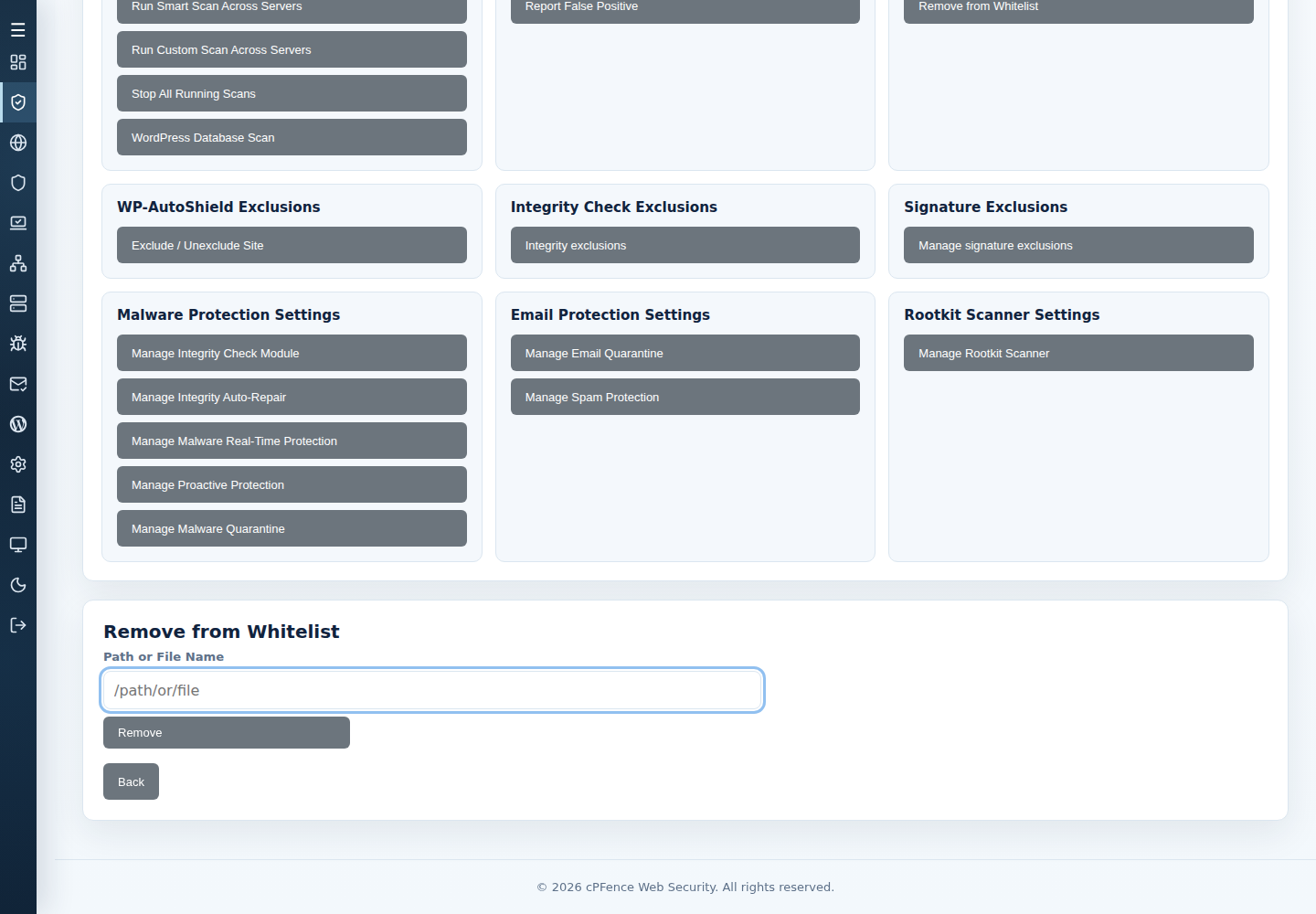
- To reverse it, choose Remove from Whitelist, enter the same value, and click Remove.
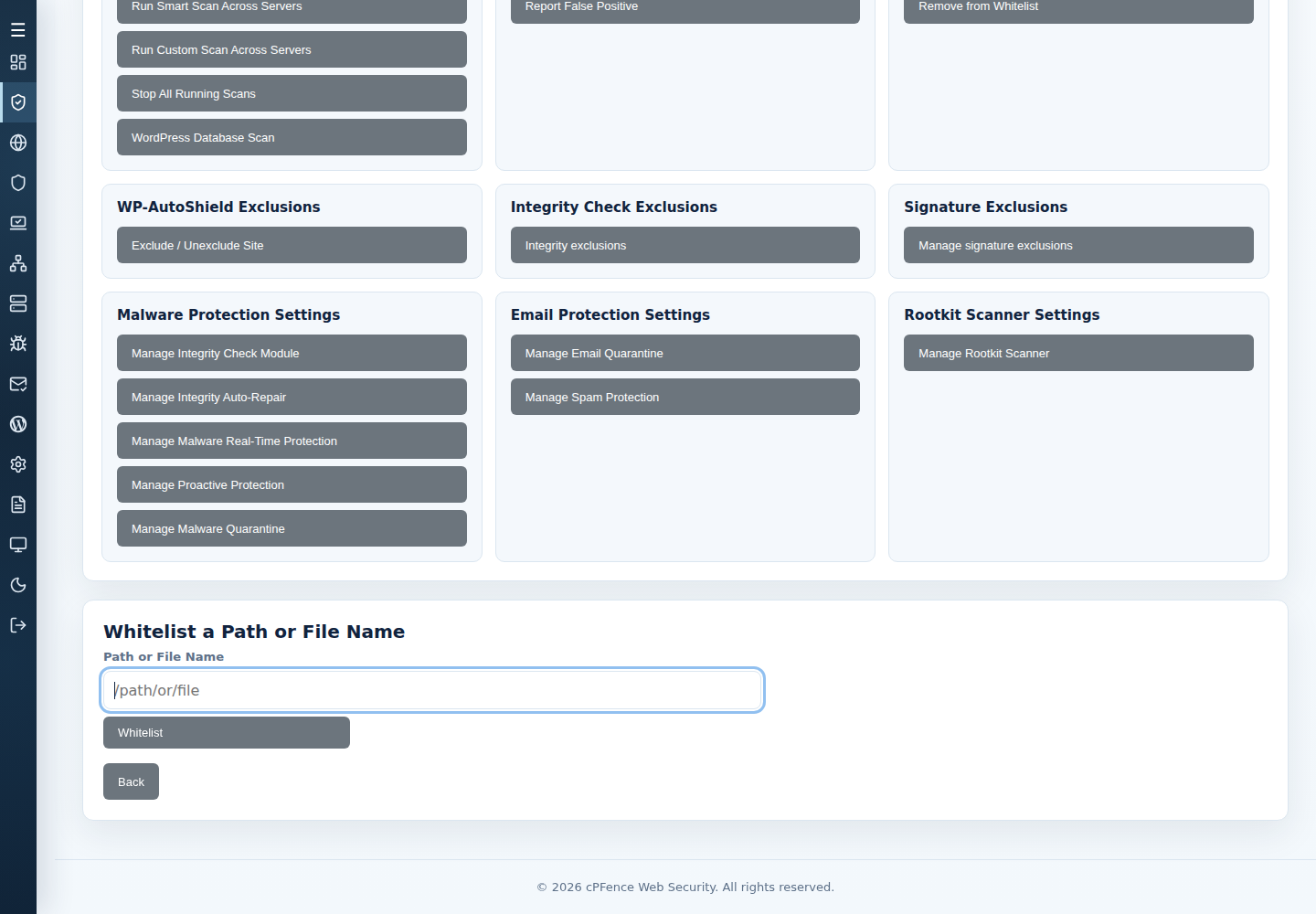
The path input is a regular expression. A filename or broad expression can skip files across many sites. Anchor a file-specific expression and escape regex punctuation: ^/var/www/example\.com/public_html/known-clean\.php$ is an example, not a path to copy unchanged.
For an exact file or directory-tree exception, a root administrator can instead use one of these actions with the actual absolute path:
| Action | Command |
|---|---|
| Add exact-path exception | cpfence --exclude-exact-path /var/www/example.com/public_html/known-clean.php |
| Remove exact-path exception | cpfence --del-exclude-exact-path /var/www/example.com/public_html/known-clean.php |
For a pattern, use quoted regular expressions so the shell does not expand them:
| Scope | Example expression |
|---|---|
| Files with one basename across sites | /error_log$ |
| One specific file | ^/var/www/example\.com/public_html/known-clean\.php$ |
| Paths containing a directory component | /trusted-backup/ |
Add with cpfence --exclude-path 'EXPRESSION' and remove with cpfence --del-exclude-path 'EXPRESSION', substituting the actual expression. Exact-path controls are preferable when you mean one file or one tree.
For a signature exception, choose Manage signature exclusions, copy the finding’s Signature name, then Add exclusion or Remove exclusion. This suppresses that signature across the server’s eligible scans. Other signatures remain active; ClamAV signature exceptions belong to email scanning.
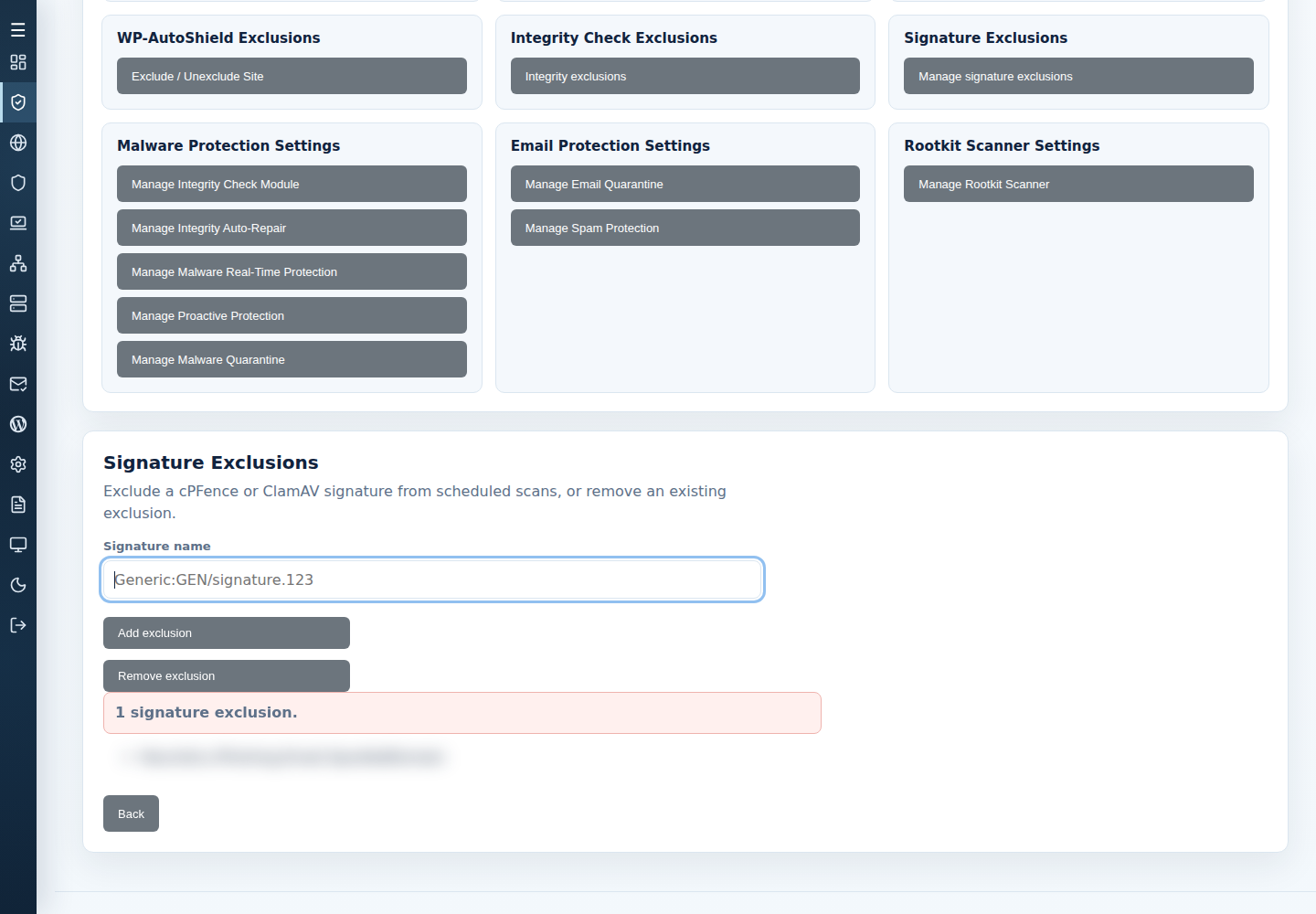
Root CLI equivalents are cpfence --exclude-sig SIGNATURE_NAME and cpfence --del-exclude-sig SIGNATURE_NAME. Copy the actual finding identifier. Legacy file-hash exclusions are not a website scanning policy in cPFence v4+; use an exact-path or narrow signature/path exception.
A signature-specific allowlist permits one signature at a full or suffix path and still checks other signatures. It is separate from Mark as safe, which skips that exact file in future malware scans and is listed under Safe files. Ask your root administrator for a narrow allowlist entry when a server-wide signature exception would be too broad.
Exceptions do not clean or restore files. Quick scans bypass configured operator exclusions. WP-AutoShield Exclusions and Integrity Check Exclusions affect their named WordPress features, not malware scans.
Recovery and false positives
Section titled “Recovery and false positives”An exception does not recover a file already moved. Follow identify and restore quarantined files to preview stored bytes and choose recovery deliberately. Also mark as safe skips the restored file in future scans; leave it unchecked unless that is intended.
See automatic quarantine to choose isolation or reporting, and change retention before delaying recovery.
For a suspected false positive, open the scan’s Details and select Report false positive next to the file. The flagged file is attached automatically and sent only to cPFence. A report asks support to review the signature; it does not create an exception. If cPFence missed a malicious file, use Report missed malware. Both forms are described in report a false positive or missed malware.