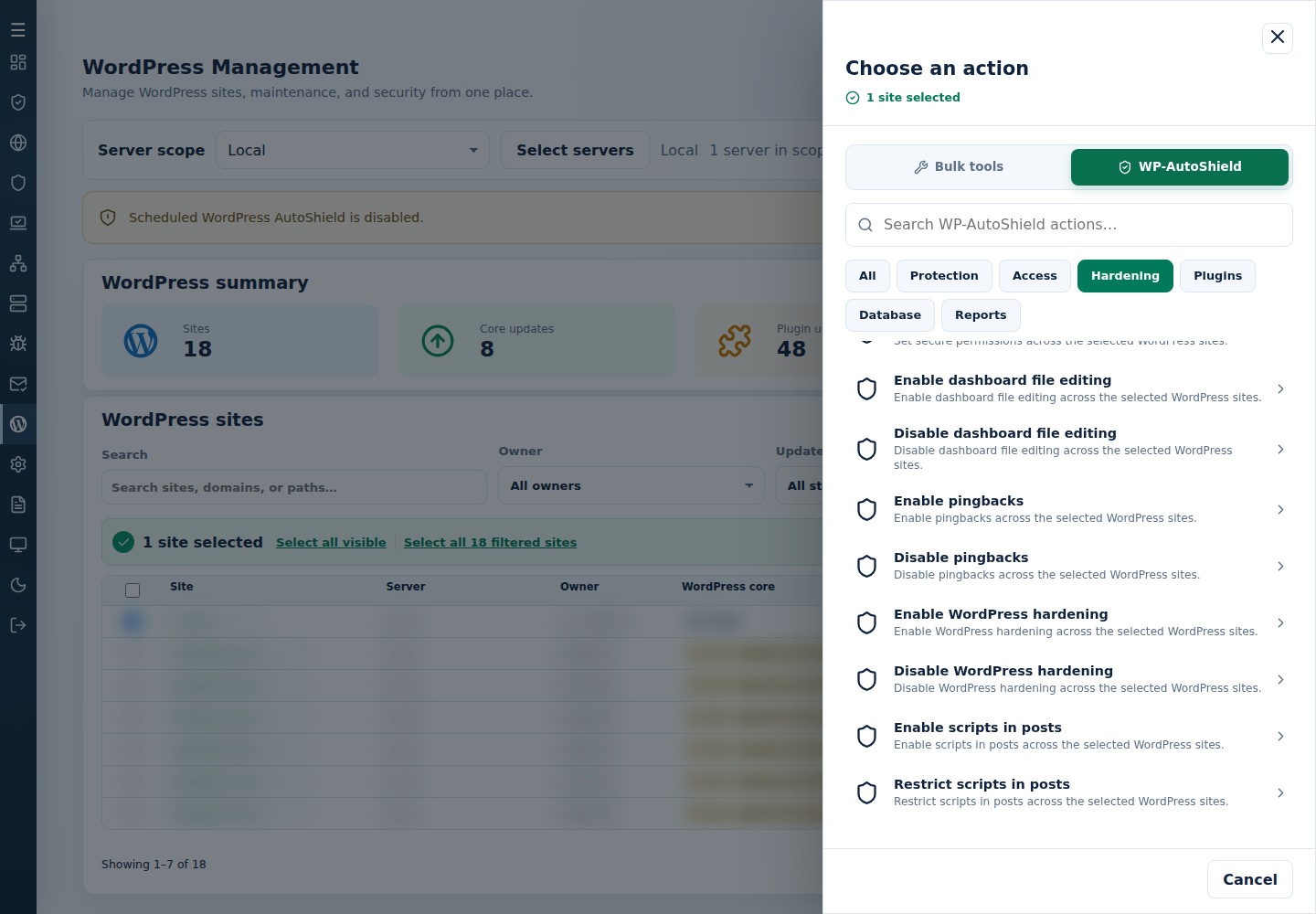
Open Choose action → WP-AutoShield → Hardening → Enable scripts in posts and review the selected site before confirming.
Choose Enable scripts in posts only for the site’s verified editor requirement. This is separate from enabling dashboard file editing. Select the image to view it full size; use your browser’s Back command to return.
Reopen the editor and check the feature you needed.
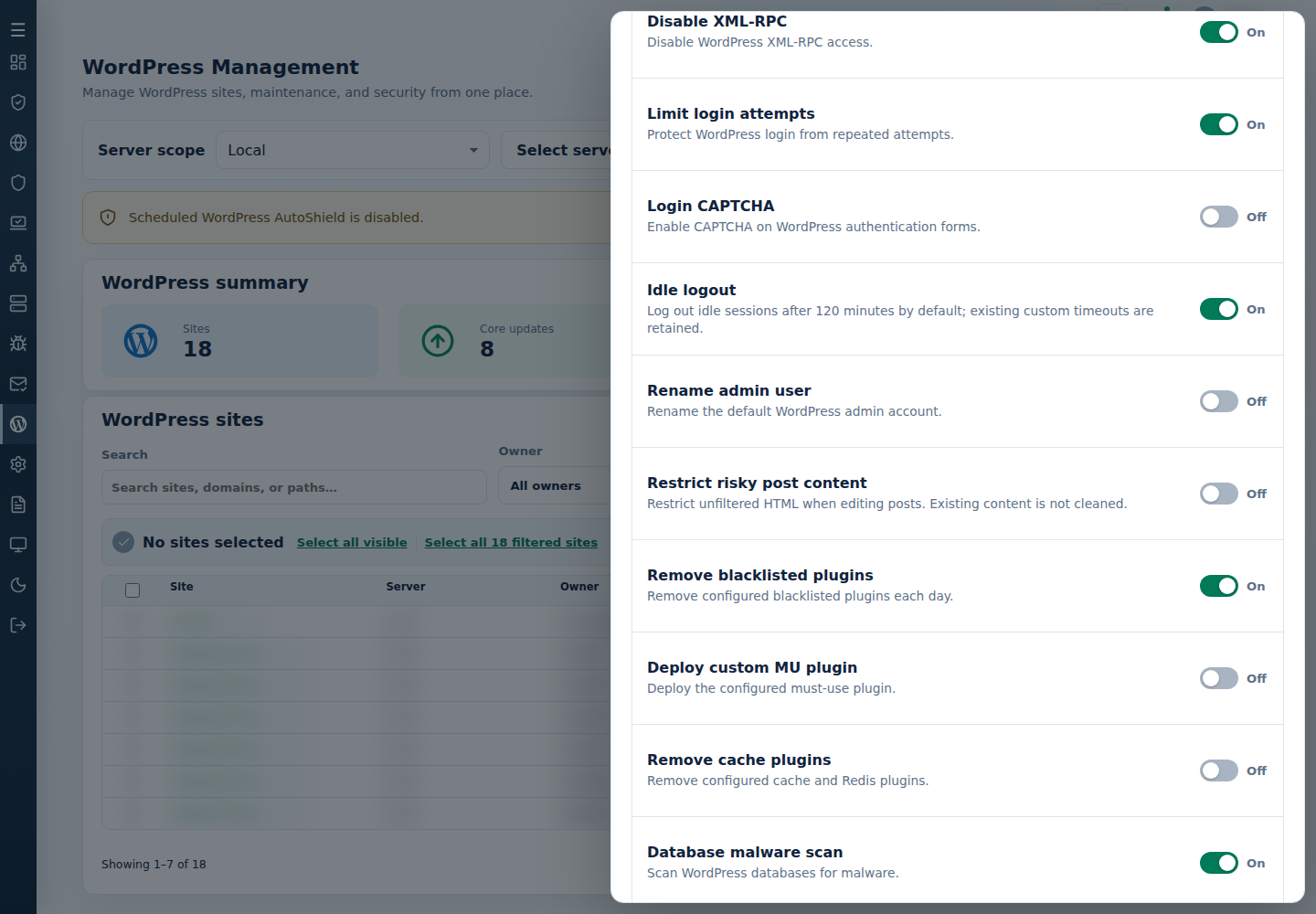
For a server-wide policy change, turn Restrict risky post content off in WordPress Settings, then apply the explicit action to sites that already have the restriction.
Restrict risky post content controls unfiltered HTML capabilities. It is separate from dashboard plugin/theme file editing. Select the image to view it full size; use your browser’s Back command to return.