
Fix a missing LogSpot report
- Confirm LogSpot is enabled on the site’s application server.
- Read that server’s final action output and check
systemctl status cpfcli-logspot.serviceandjournalctl -u cpfcli-logspot.serviceas an administrator. - Generate a normal site request, then check whether collection and report files appear.
- Inspect the site’s document root. Generated viewers live in the site’s
public_html/traffic-reportsand, when present,httpdocs/traffic-reports. - For a custom document root, follow the link example below with the site administrator. Confirm the destination and protect authentication before creating it.
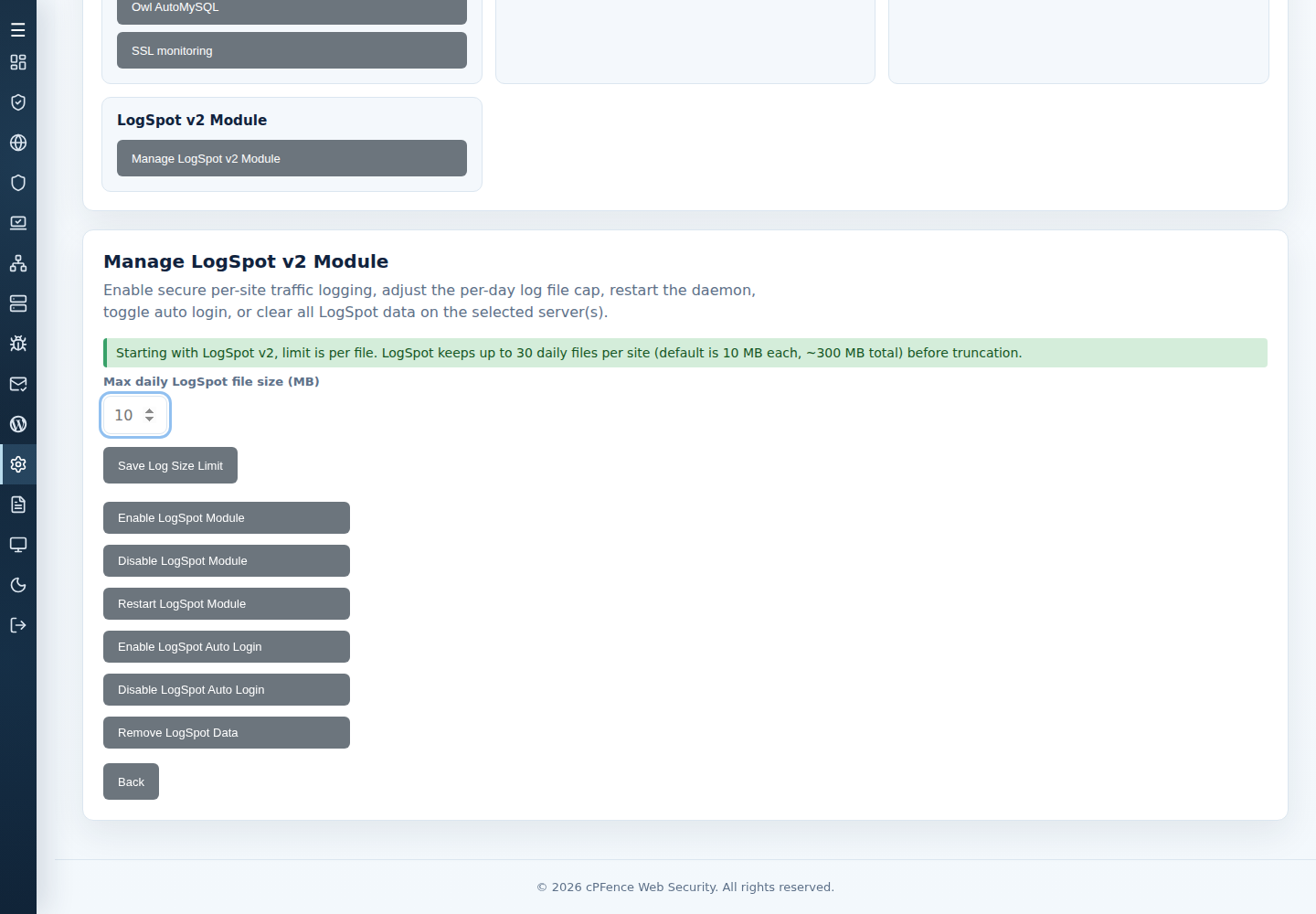
Use the reviewed Restart LogSpot Module control after resolving the reported problem. A zero file-size cap truncates logs; it does not mean unlimited. See LogSpot controls.
Make the viewer accessible from a custom document root
Section titled “Make the viewer accessible from a custom document root”If LogSpot has generated its viewer but /traffic-reports/ still returns 404, check the site’s configured document root in Enhance. A custom root can put the generated viewer outside the directory served by the website.
For example, the website’s user container may contain:
/public_html/traffic-reports/ Generated LogSpot viewer/public_html/custom-root/ Website's configured document rootThe following example applies only to that layout. Use the website’s system user on its application server, and substitute the actual custom-root directory.
-
Open the custom document root and check that the existing viewer files are present in its sibling directory:
Terminal window cd /public_html/custom-rootls -l ../traffic-reports/index.php ../traffic-reports/logview.phpIf either file is missing, return to the collection and service checks above. A link cannot generate a missing report.
-
Check whether the custom root already contains a
traffic-reportspath:Terminal window ls -ld traffic-reportsIf it exists, inspect it with the site administrator. Do not replace it. If it is absent, create a link to the generated viewer:
Terminal window ln -sT -- ../traffic-reports traffic-reportsThis refuses to replace any existing path, including a dangling symlink. The relative target is correct only for the sibling layout shown above.
-
Verify where the new link resolves:
Terminal window readlink -f traffic-reportsExpect the existing
/public_html/traffic-reportsdirectory in this example. Then openhttps://example.com/traffic-reports/, replacing the domain with yours, and verify the intended login and report access. Use generated credentials, or the deliberately configured WHMCS auto-login flow.
If the URL returns 403 or downloads PHP instead of running the viewer, ask the site administrator to check PHP handling, permissions and the web server’s symlink policy. Do not disable authentication or copy private logs into the public document root to repair access.
Undo the example link
Section titled “Undo the example link”From the same custom root, run readlink traffic-reports and confirm it is still the ../traffic-reports link you created. Then remove only that link:
test -L traffic-reports && unlink traffic-reportsThis leaves the generated viewer and stored reports in place. Do not delete the real traffic-reports directory as a rollback.