
Reset WordPress passwords
- Choose the intended servers and sites. Start with one installation.
- Open Choose action → Bulk tools → Users → Reset all passwords.
- Choose Role deliberately. For just one account, use Reset one user password and enter Login, email or numeric ID. Supply New password (optional) when you need a known replacement; leaving it blank generates one.
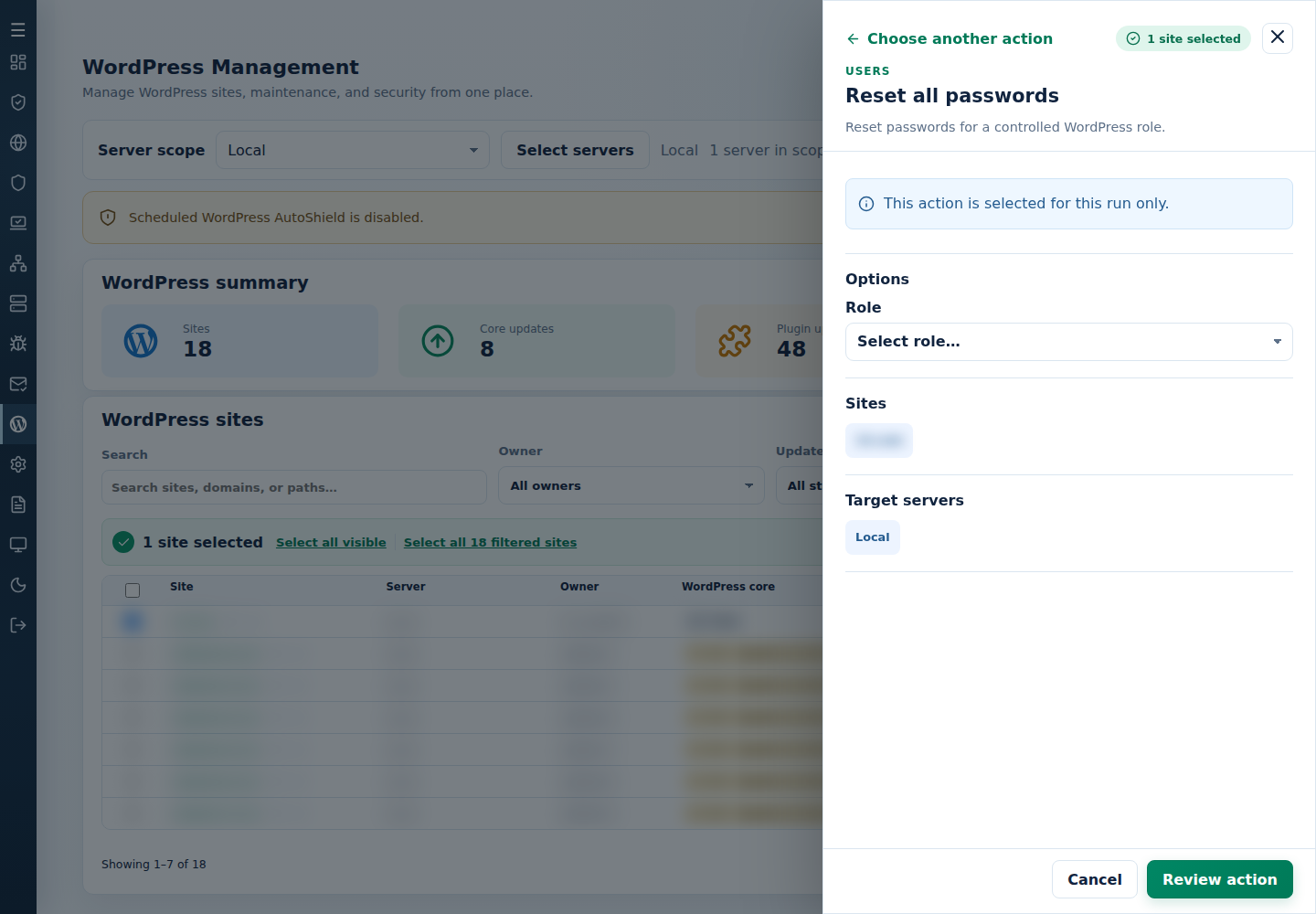
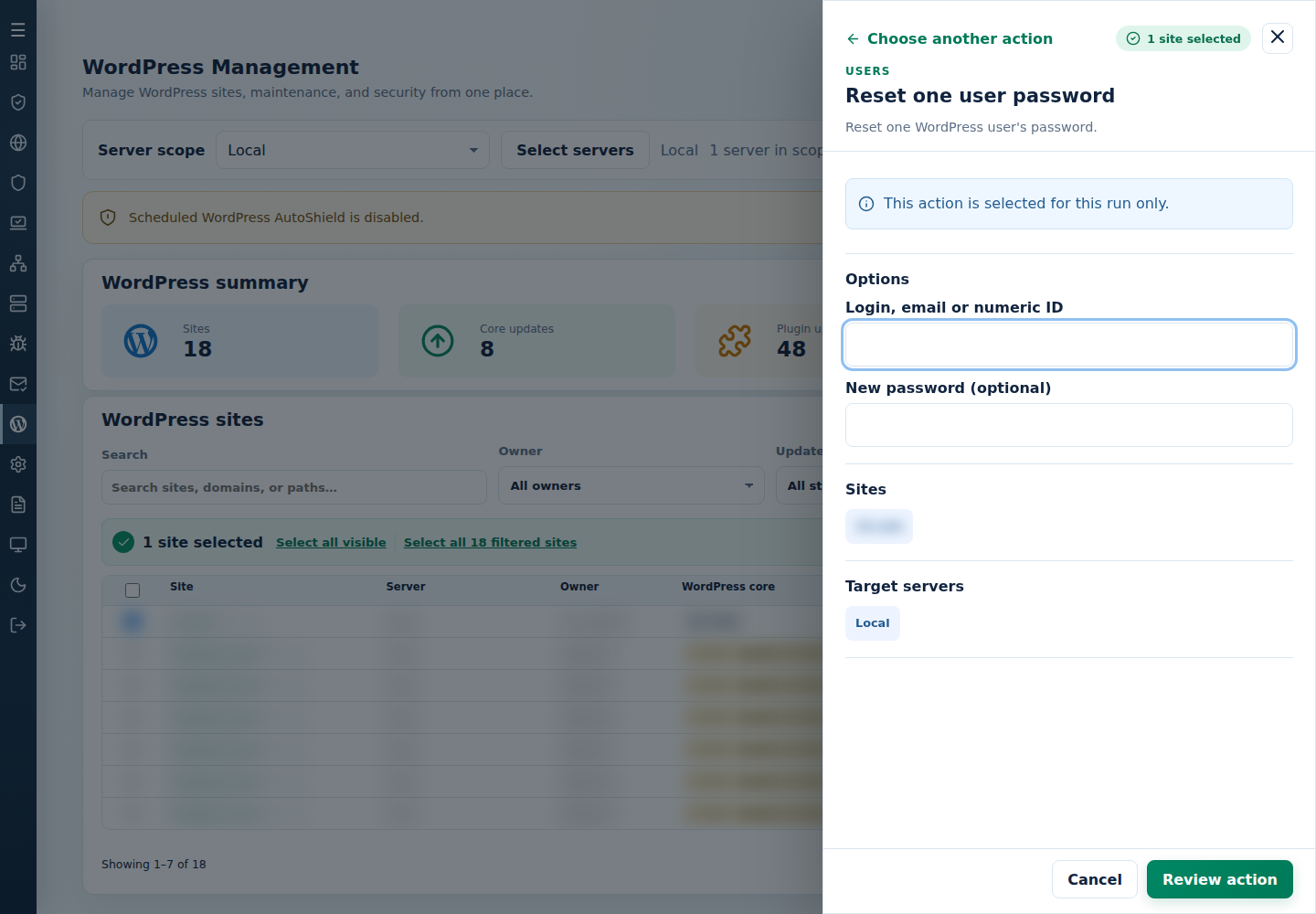
- Review the action and targets, then confirm. Read every site’s final result, including skips. Finished can include failed sites; see Read the outcome.
Check each account result and arrange secure recovery for its owner. Email is often a clearer cross-site identifier than a numeric ID.
Command-line method
Section titled “Command-line method”Use a root terminal on the server hosting the sites. Review the user list and /var/log/cpfenceav/wp-sites-list.txt first, and arrange secure recovery with the account owners. The CLI uses this server’s listed installations, not checked WebUI rows.
For the interactive method, run the appropriate command without arguments and answer its inventory and account/role prompts:
| Reset | Command |
|---|---|
| All users or one role | cpfence --bulk-wp-reset-all-passwords |
| One account | cpfence --bulk-wp-reset-user-password |
For automation, reset administrator passwords with:
cpfence --bulk-wp-reset-all-passwords-auto administratorReplace administrator with another role, or all only when every matching account is intended. To generate new passwords for one account across the listed sites:
Or supply an explicit replacement using the single IDENTIFIER,PASSWORD argument:
Read each site’s final result, notify the affected owners and check their sign-in. Encourage them to change temporary passwords after recovery. Do not assume one account’s numeric ID identifies the same person on every site.