
Troubleshoot WebUI browser access
Use this guide when you cannot open the cPFence v4+ WebUI on your Enhance main control panel server. Terminal checks need root access there; firewall and DNS changes need the relevant administrator.
1. Check the address and certificate
Section titled “1. Check the address and certificate”Open the HTTPS address printed when you enable the WebUI, such as https://panel.example.com:9095/.
- Use HTTPS and port 9095.
- Use the Enhance panel’s primary hostname. The WebUI uses that domain and the panel’s own certificate.
- The WebUI opens even when the panel certificate is expired or does not match; your browser then shows a certificate warning. Renew or repair the Enhance panel TLS certificate rather than bypassing the warning.
Changing the system hostname does not update the panel hostname or certificate.
Behind Cloudflare? TCP 9095 is outside the ports proxied by default. Ask your DNS administrator to arrange direct access using a DNS-only record for the correct panel hostname, or another configured route supporting this port. A DNS-only record exposes the origin address; keep the required access restrictions. Continue using HTTPS with the matching hostname.
2. Check your approved client IP
Section titled “2. Check your approved client IP”If another administrator can open the WebUI, they can review this switch in System Settings → General Settings.
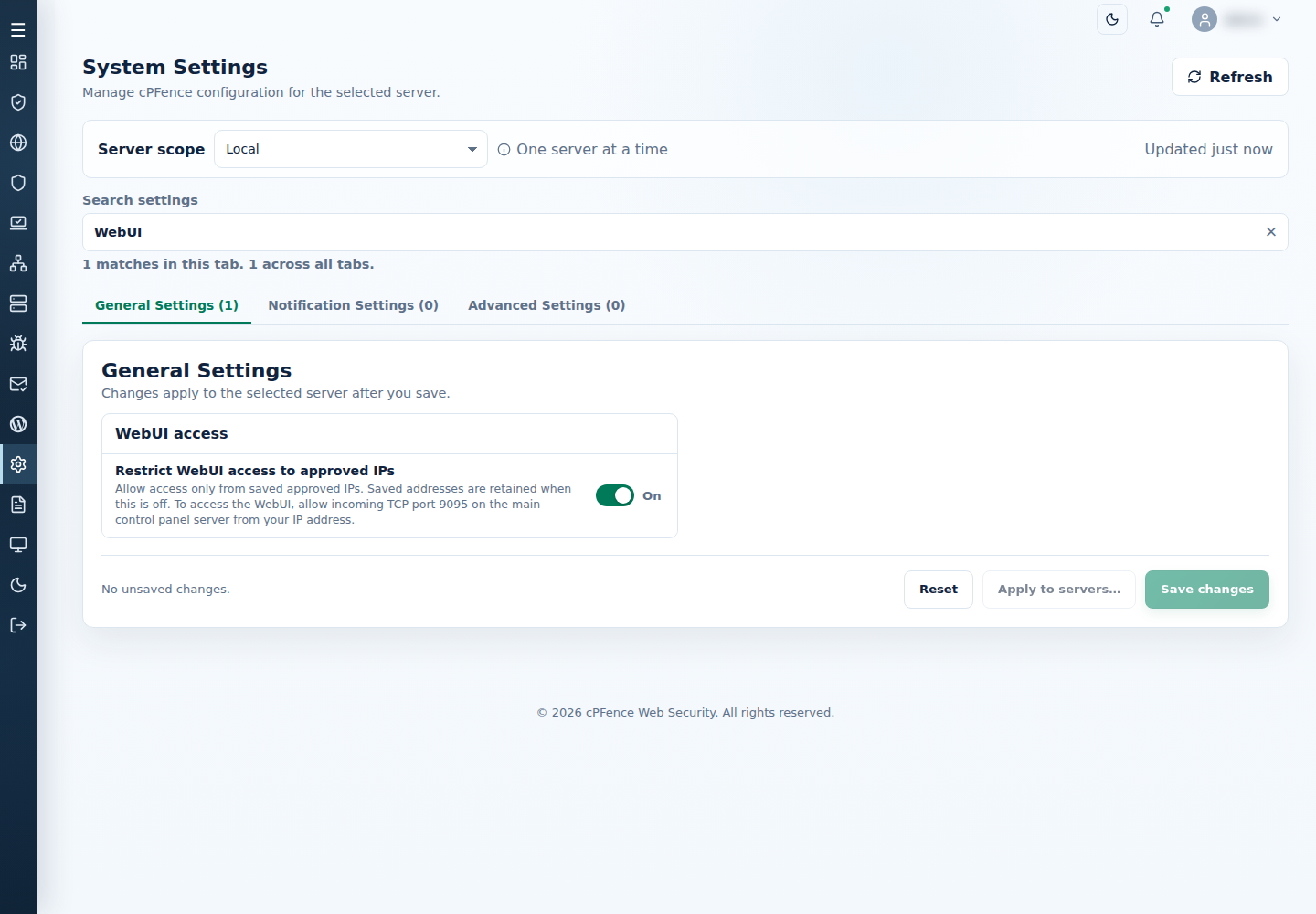
As root on the main control panel server, replace the example with your actual public client IP:
cpfence --add-webui-ip 192.0.2.10For an IPv6 client, use its actual IPv6 address instead, for example 2001:db8::10. The command records manual approval and adds its TCP 9095 UFW rule. Read the result, then reopen the WebUI from that client.
With Root login monitoring and Root login alerts enabled, a processed root SSH login on the main control panel server can grant temporary browser access for 24 hours. For a changing address, see DDNS whitelisting. Preserve loopback entries and use the supported commands to manage access.
3. Check the local service
Section titled “3. Check the local service”Run these read-only checks on the main control panel server:
cpfence --statussystemctl status --no-pager cpfcli-webui.servicess -ltn 'sport = :9095'journalctl --unit=cpfcli-webui.service --since='30 minutes ago' --lines=100 --no-pagerExpect an active WebUI service and a listener on TCP 9095. If the WebUI has not been enabled, follow the installation steps. For a failed service, read the journal and correct the reported problem before trying again.
To check local HTTPS without changing DNS, replace panel.example.com in both places with the actual panel hostname:
curl --head --silent --show-error --connect-timeout 5 --max-time 10 \ --resolve 'panel.example.com:9095:127.0.0.1' \ 'https://panel.example.com:9095/'An HTTP response shows the local HTTPS listener answered; it does not establish external access or a successful login. Certificate or connection errors identify the next check. curl --resolve reference
4. Check the external route
Section titled “4. Check the external route”If local HTTPS responds but your browser cannot connect, check routing and firewalls. When UFW is installed:
ufw status numberedufw show addedReview provider firewalls or security groups too. Allow inbound TCP 9095 to the main control panel server from the approved browser-client addresses. Check both address families when used. Preserve existing administrator rules; do not reset the firewall or disable protection to diagnose access.
Still having trouble?
Section titled “Still having trouble?”| Problem | Next step |
|---|---|
| Login page opens, but sign-in fails | Check account security and recovery for password, MFA, country, and session issues. |
| WebUI opens, but a secondary server is unavailable | Follow secondary-server connection checks. That communication uses TCP 9096. |
| WordPress or server totals look wrong | Check server scope and dashboard refresh and the cluster site overview. |
| External access still fails | Ask the provider to confirm the route and TCP 9095 restrictions. |
For a support ticket, include the browser error, version, service state, local HTTPS result, and bounded journal output. Remove credentials and customer information before sharing.