
Delete a WordPress theme
- Choose the intended servers and sites. Start with one installation.
- Open Choose action → Bulk tools → Themes → Delete theme by slug.
- Enter Installed theme slug. Activate a replacement first if the target theme is in use.
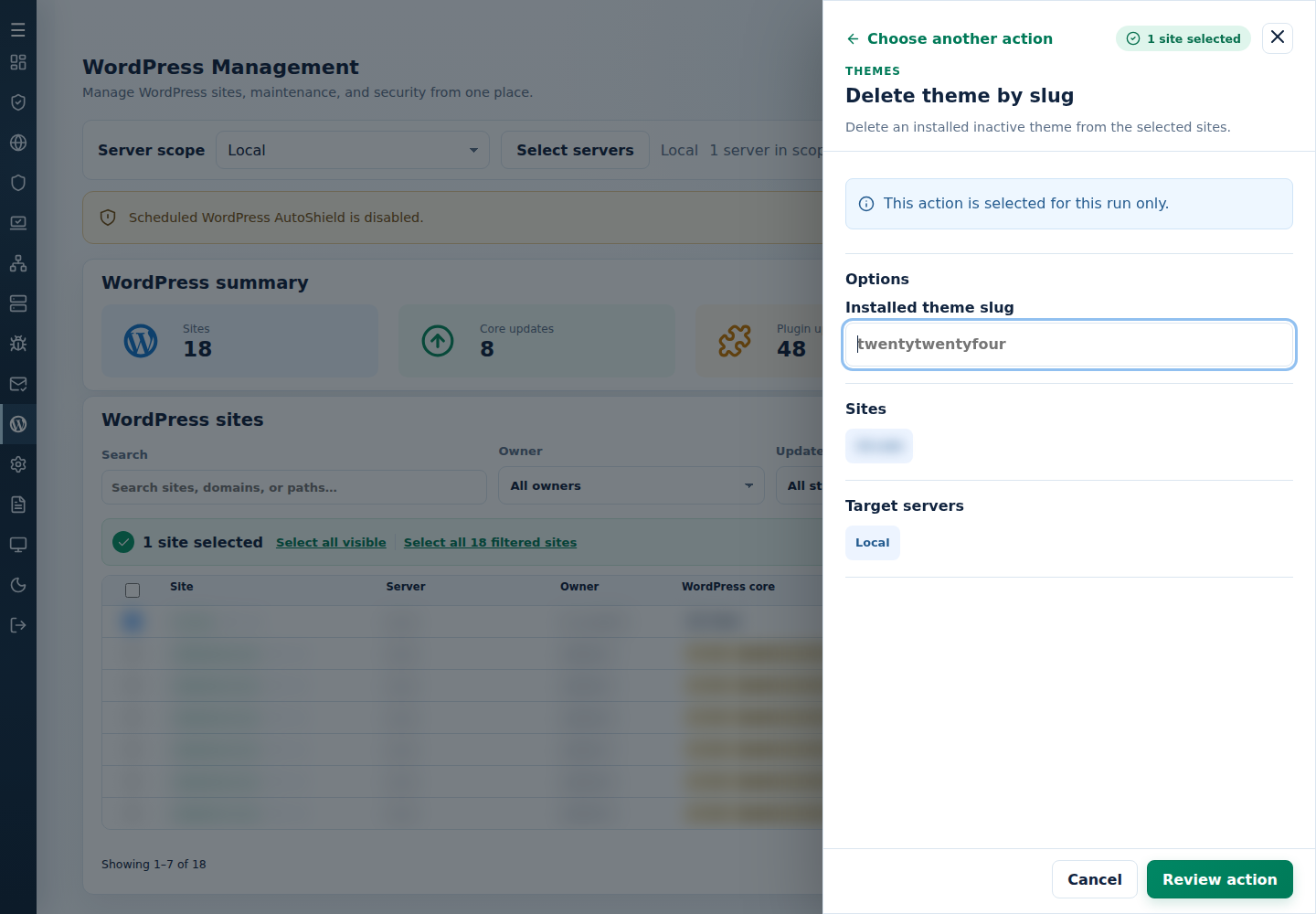
- Review the action and targets, then confirm. Read every site’s final result, including skips. Finished can include failed sites; see Read the outcome.
Check every site’s result and retain custom-theme files outside the site before removal.
Command-line method
Section titled “Command-line method”As root on the server hosting the sites, review /var/log/cpfenceav/wp-sites-list.txt first. CLI deletion uses the listed installations, not the rows checked in the WebUI. Activate a replacement where needed and preserve custom-theme files before deleting anything.
For an interactive deletion, run:
cpfence --bulk-delete-wp-theme twentytwentyReplace twentytwenty with the exact installed slug, check the inventory prompt and confirm only the intended deletion. Read each site’s final output rather than assuming every theme was removed.
For a reviewed automation job, the original non-interactive method remains available:
cpfence --bulk-delete-wp-theme-auto twentytwentyThis skips confirmation and deletes the theme’s files on eligible listed sites. Check the slug, list and recovery copy beforehand. If the wrong theme was removed, recover it from the saved copy; reactivation alone cannot recreate its deleted custom files.