
Update one WordPress theme
- Choose the intended servers and sites. Start with one installation.
- Open Choose action → Bulk tools → Updates → Update one theme.
- Choose Source and fill Slug, URL or path, Stored upload or ZIP file for that source. For a repository slug, click Verify slug; verify again after editing it.
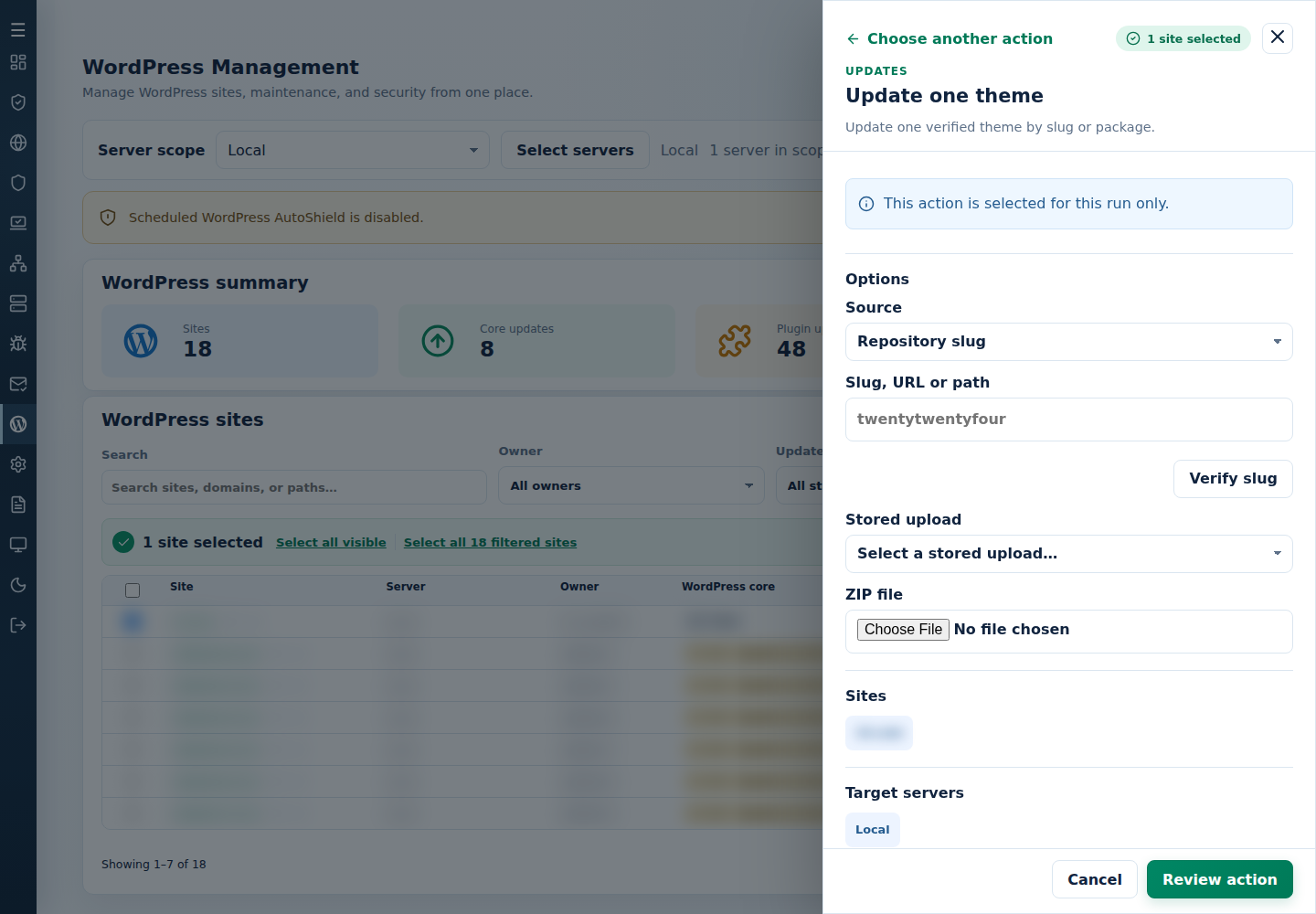
- Review the action and targets, then confirm. Read every site’s final result, including skips. Finished can include failed sites; see Read the outcome.
The theme is updated where already installed. Inspect missing-component skips and check the new version and site behavior. Preserve customized files before updates; test premium ZIPs on one site first.
For package sources and installation, see Install a theme.
Command-line method
Section titled “Command-line method”From a root terminal on the server hosting the sites, update by slug:
cpfence --bulk-update-wp-theme astraOr use a trusted direct HTTPS ZIP package:
cpfence --bulk-update-wp-theme https://example.com/agency-theme.zipChoose the intended source and review /var/log/cpfenceav/wp-sites-list.txt and the inventory/update prompts first. This uses the server’s listed installations, not checked WebUI rows. Preserve theme customizations and a usable backup, and test a premium package on one staging site first.
For automation, cPFence v4+ also supports:
cpfence --bulk-update-wp-theme-auto astraThe automatic method skips confirmation and also accepts a trusted ZIP path or URL. Read each site’s final output, including missing-theme results, then check the installed version and public pages. Clear caches after a successful update if old templates remain visible. Restore the previous package and backup if the update is incompatible.