
Change WordPress editors, pingbacks and headers
- Select the sites.
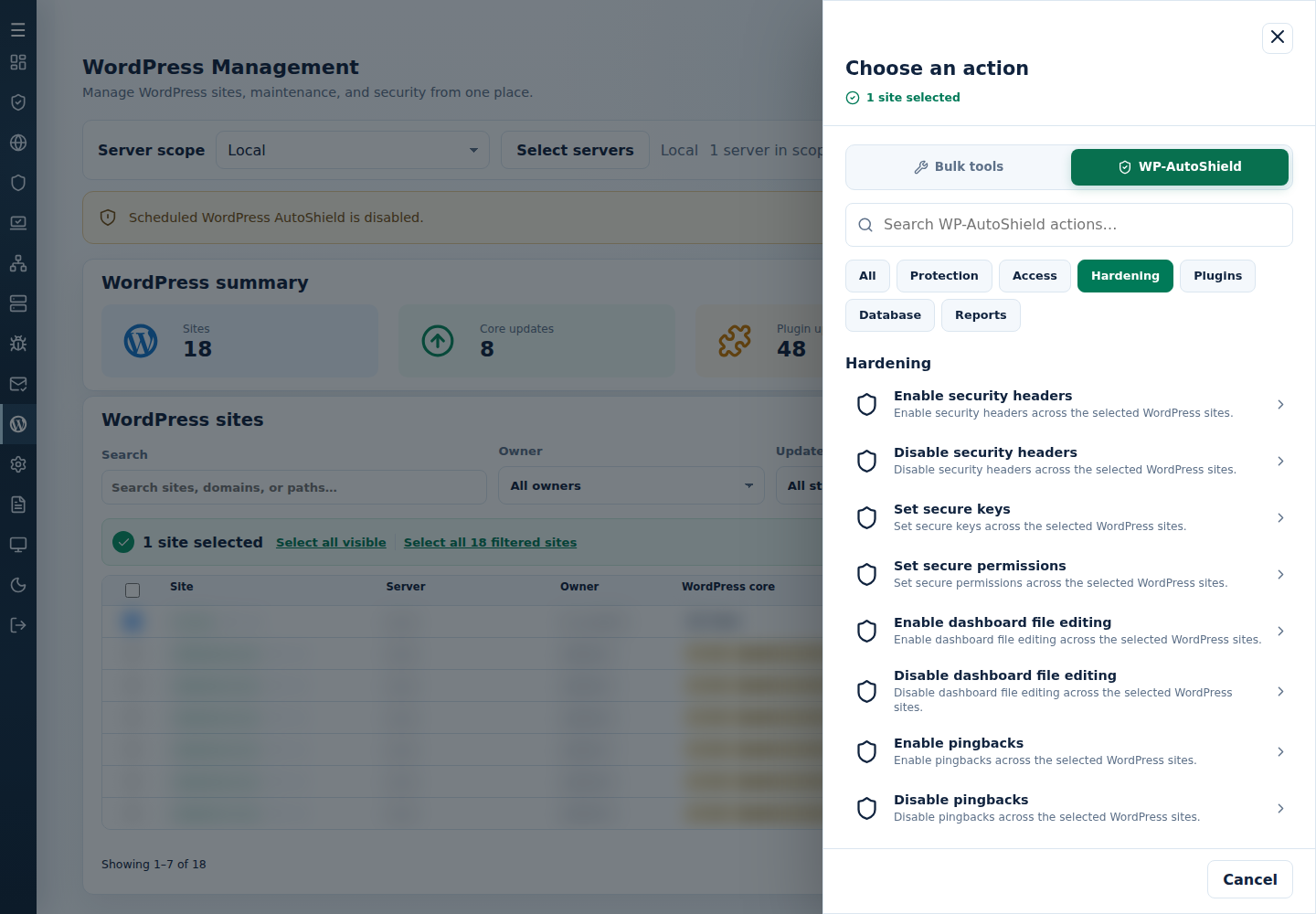
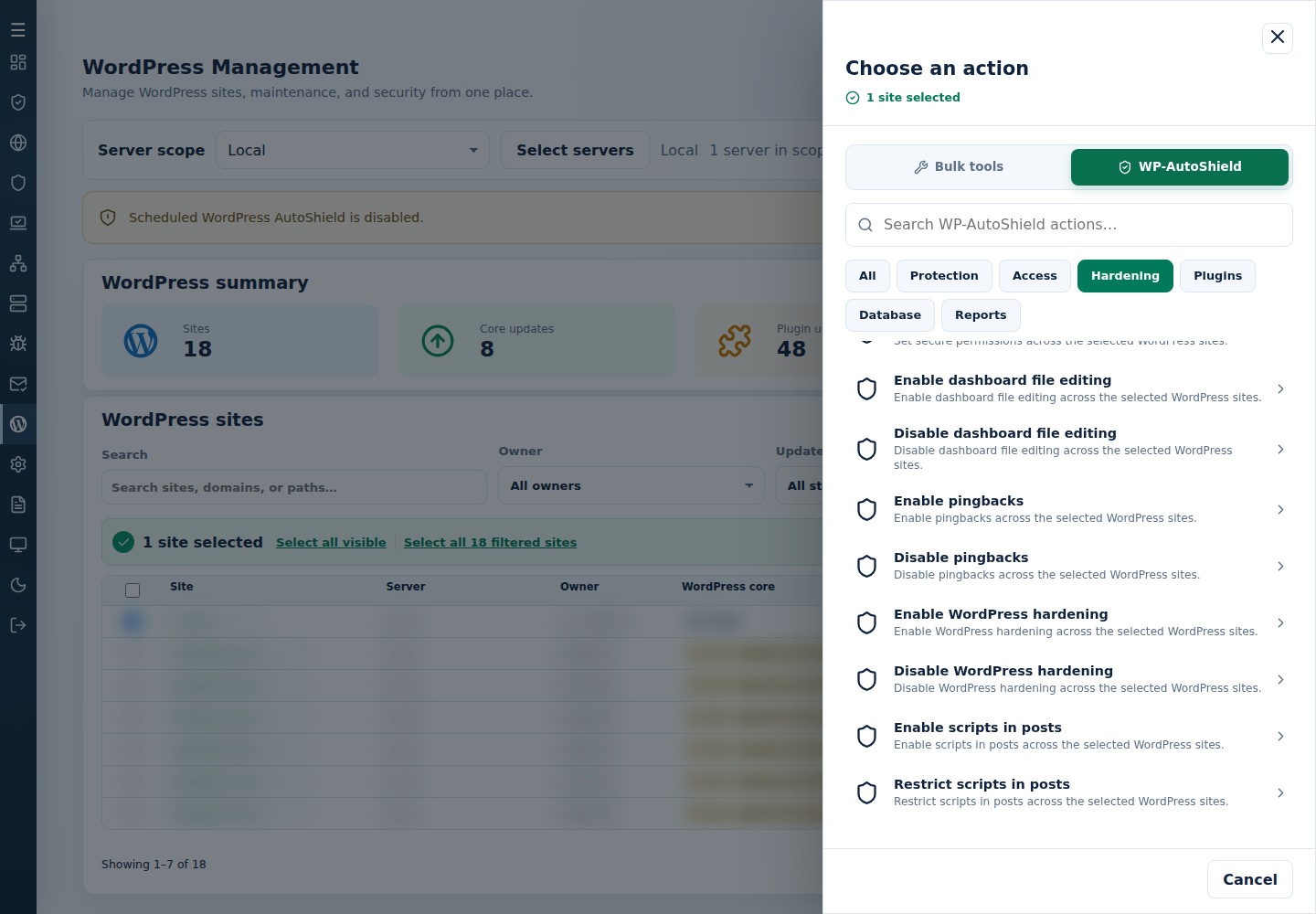
- Open Choose action → WP-AutoShield → Hardening, then choose the required action.
- Review the targets, confirm, and inspect each site’s result and affected feature.
| Requirement | Action |
|---|---|
| Restrict plugin/theme editing in wp-admin | Disable dashboard file editing; use Enable dashboard file editing when a trusted developer requires it. |
| Stop pingbacks | Disable pingbacks; use Enable pingbacks for a required integration. |
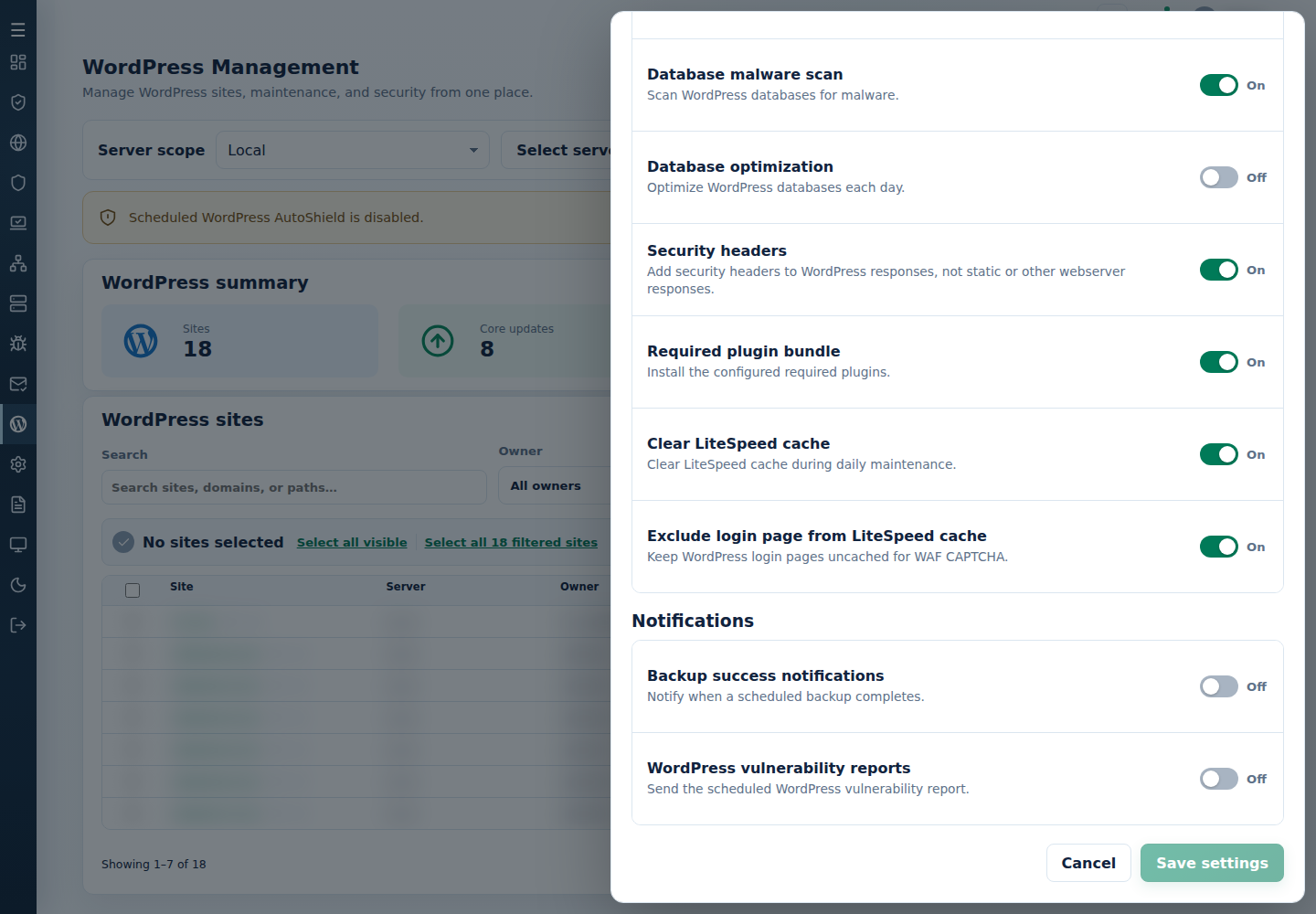
| Add WordPress response headers | Enable security headers; Disable security headers removes the supported set. Check CDN caches and actual responses; static/non-WordPress responses are separate. |
| Initialize authentication keys | Set secure keys fills missing keys while retaining existing nonempty keys. |
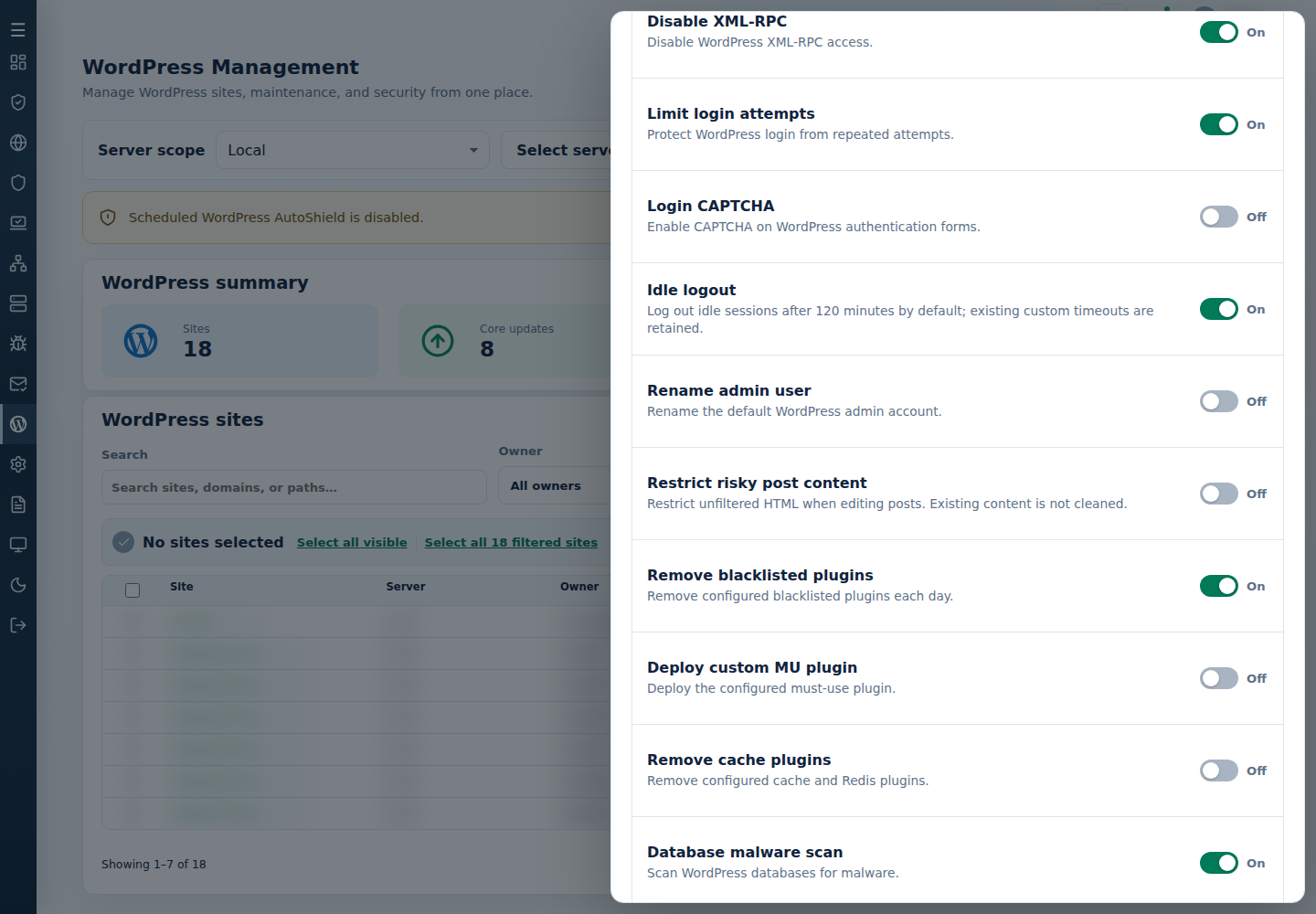
| Restrict unfiltered post HTML | Restrict scripts in posts; use Enable scripts in posts for a verified requirement. Existing posts are not cleaned. |
Advanced editors such as WPBakery or Elementor may need risky-content capabilities. Follow Additional CSS and editor features rather than changing every site’s policy.
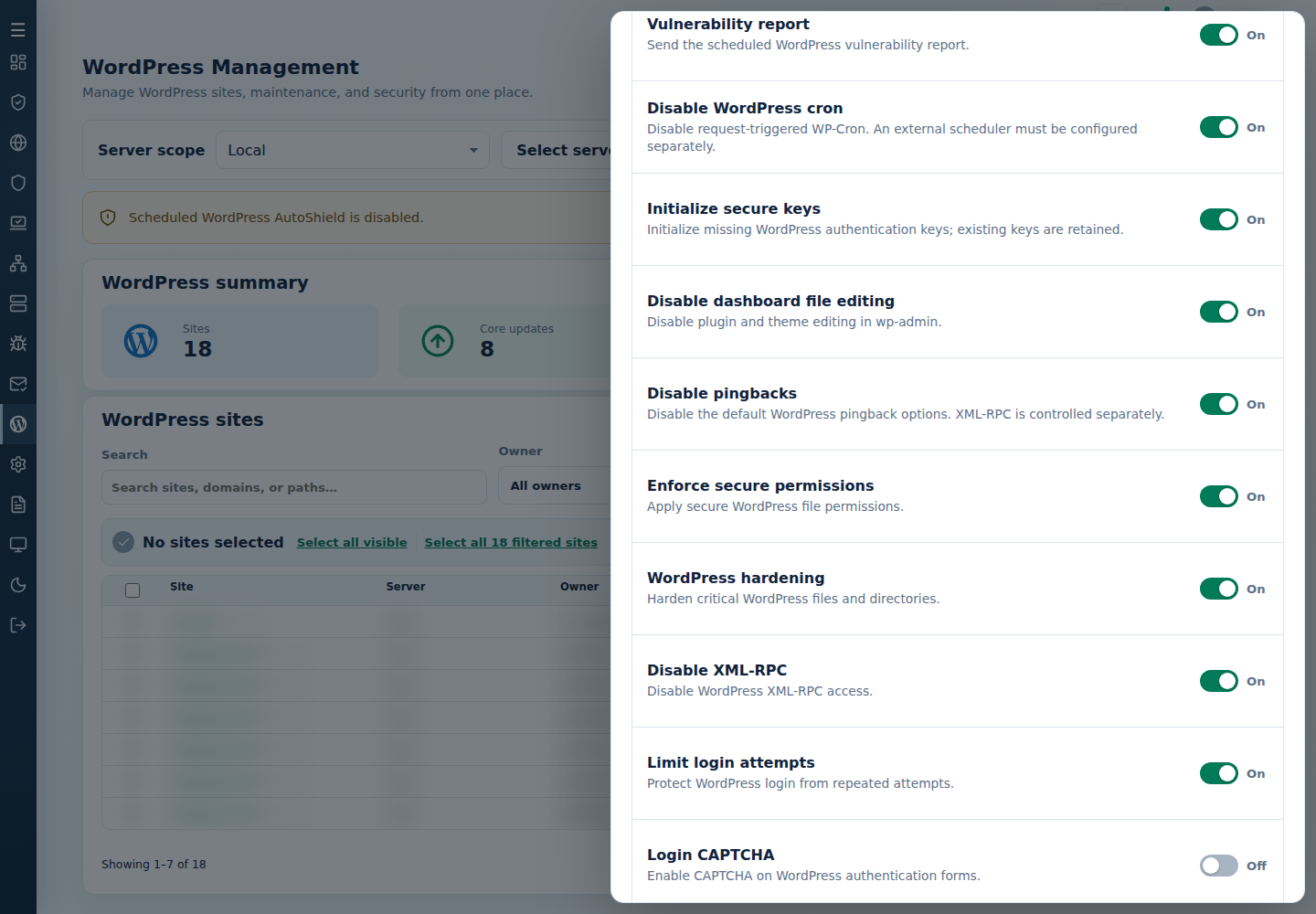
Secure-key initialization does not rotate existing keys or log every existing user out. Preserve custom requirements before changing configuration.
Command-line method
Section titled “Command-line method”From a root terminal on the server hosting the sites, review /var/log/cpfenceav/wp-sites-list.txt. The following actions use that local list, not checked WebUI rows. Read the inventory and confirmation prompts before applying one change.
Security headers
Section titled “Security headers”Enable the supported WordPress header set:
cpfence --bulk-enable-sec-headersRemove it when needed:
cpfence --bulk-disable-sec-headersCheck actual responses after clearing relevant CDN caches. Match the daily Security headers child policy to a lasting exception.
Dashboard file editing
Section titled “Dashboard file editing”Disable the built-in plugin/theme editor:
cpfence --bulk-disable-wp-file-editRestore it for a trusted developer:
cpfence --bulk-enable-wp-file-editReapply the restriction and intended daily policy after temporary maintenance.
Pingbacks
Section titled “Pingbacks”Turn the default pingback options off:
cpfence --bulk-disable-wp-pingbackRestore them for a required integration:
cpfence --bulk-enable-wp-pingbackFor a lasting exception, also turn the daily Disable pingbacks child policy off or exclude that site.
Risky post content
Section titled “Risky post content”Restrict unfiltered HTML in future edits:
cpfence --bulk-disable-xss-in-wp-postsRestore that capability when required:
cpfence --bulk-enable-xss-in-wp-postsCommunicate with developers before changing rich embeds or editor capabilities. This does not remove existing scripts, and the paired enable command cannot restore content removed by an editor. Check the actual editor behavior and final result on each site, then match Restrict risky post content to the intended recurring policy.