
Enable or disable forced HTTPS
Use the Enhance main control panel server with a valid cPFence license and a Super admin API key. WebUI users need access to the selected websites and permission for this action.
Confirm that usable certificates and HTTPS are working before forcing redirects. Use Disable Force SSL briefly when diagnosing redirect, mixed-content, or CDN problems.
From the WebUI
Section titled “From the WebUI”- Open Tools & Utilities → ApiMachine Bulk Tools.
- Choose Cluster scope or Select servers, apply your filters, then check the intended website rows. Review the selection rules; filtering alone does not select websites.
- Open Choose action → SSL & HTTPS → Enable Force SSL or Disable Force SSL.
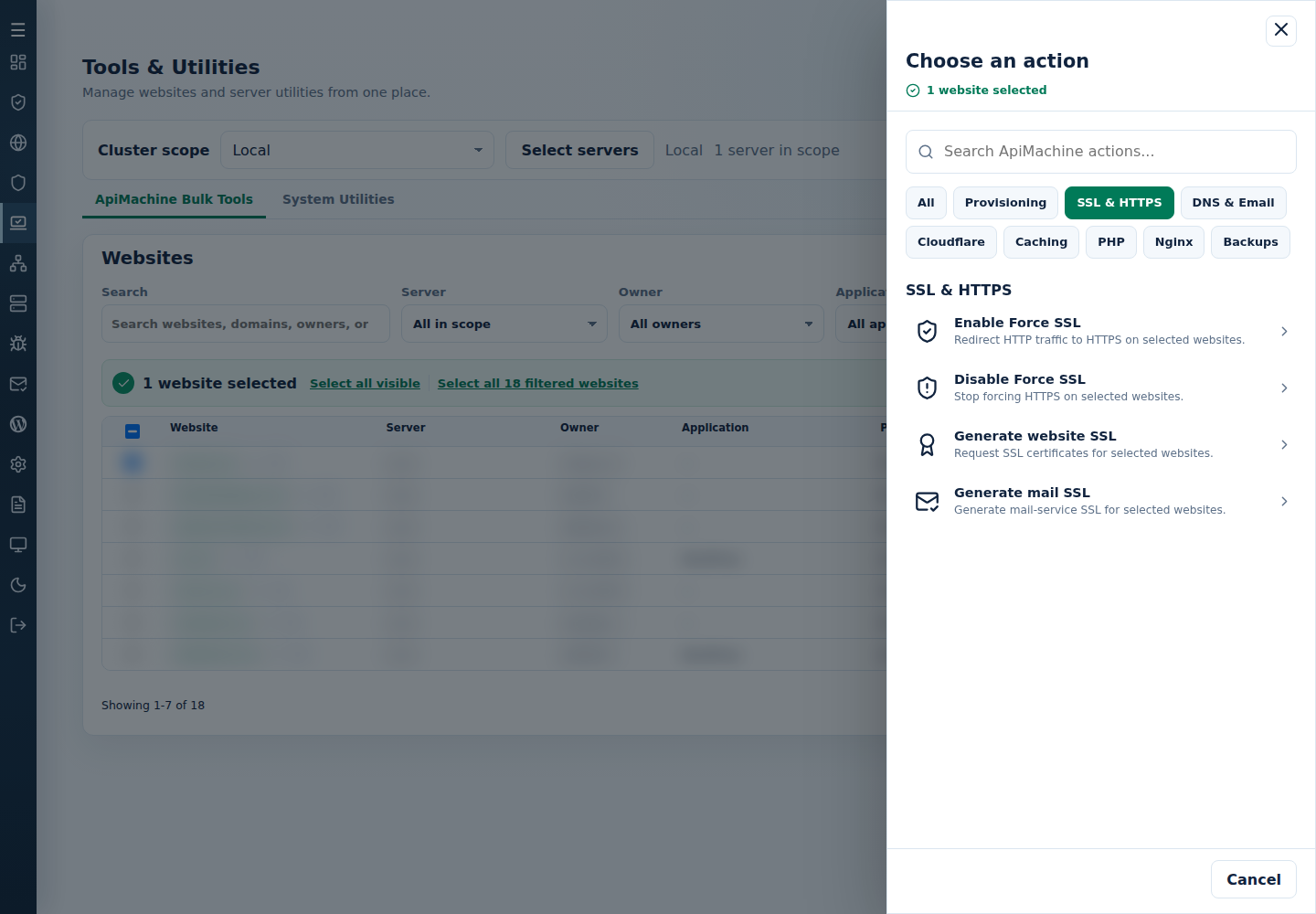
- Review the selected websites and Confirm and run. Read Finished or Needs attention and the per-target output.
Check the resulting HTTP-to-HTTPS behavior on each selected website.
From the terminal
Section titled “From the terminal”Use root on the main control panel server. Generate and edit the CLI site list first so that /var/log/cpfenceav/cluster-sites-list.txt contains only your intended targets.
| Action | Command |
|---|---|
| Enable forced HTTPS | cpfence --bulk-enable-force-ssl-cluster |
| Disable forced HTTPS | cpfence --bulk-disable-force-ssl-cluster |
Run the command for your intended choice and confirm its target list.
For failures, read each target’s error and check its actual state before retrying. Keep the retry selection limited to the intended websites.