
Allow safe database results or exclude a site
Use database exceptions for verified safe data that the WordPress database scan repeatedly reports. A result exception and a full-site exclusion have different scope.
Allow a safe result
Section titled “Allow a safe result”- Open Edit Configuration Files and select the server hosting the site.
- Choose Database scan result allowlist.
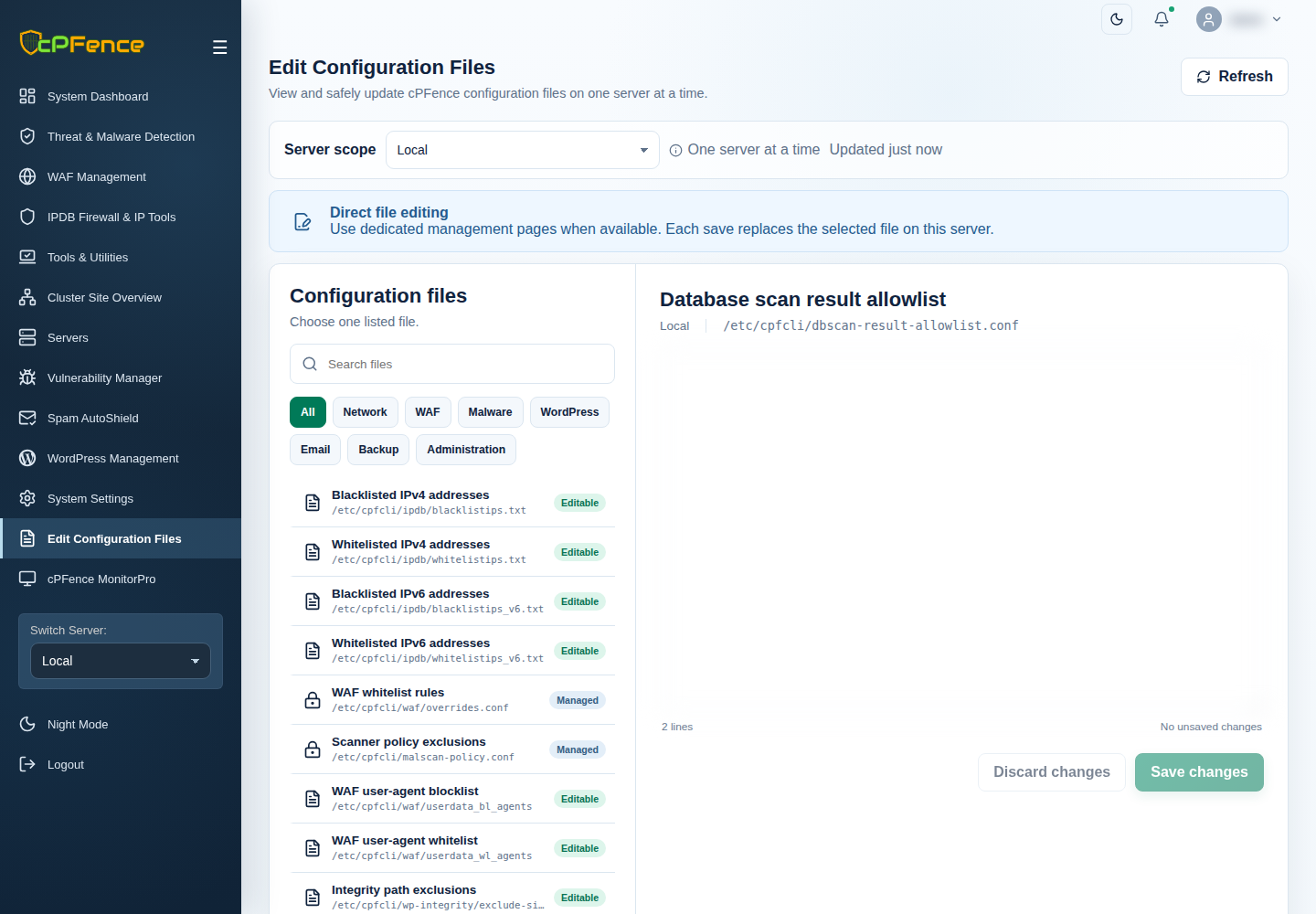
- Add a narrow regular expression matching the verified safe result, one entry per line. Plain text matches that text; escape regular-expression punctuation when you intend it literally.
- Select Save changes and inspect validation errors.
- Run Scan databases for malware for the affected selected sites and review the results.
Exclude an installation’s database
Section titled “Exclude an installation’s database”- Choose Database scan site exclusions on the same server.
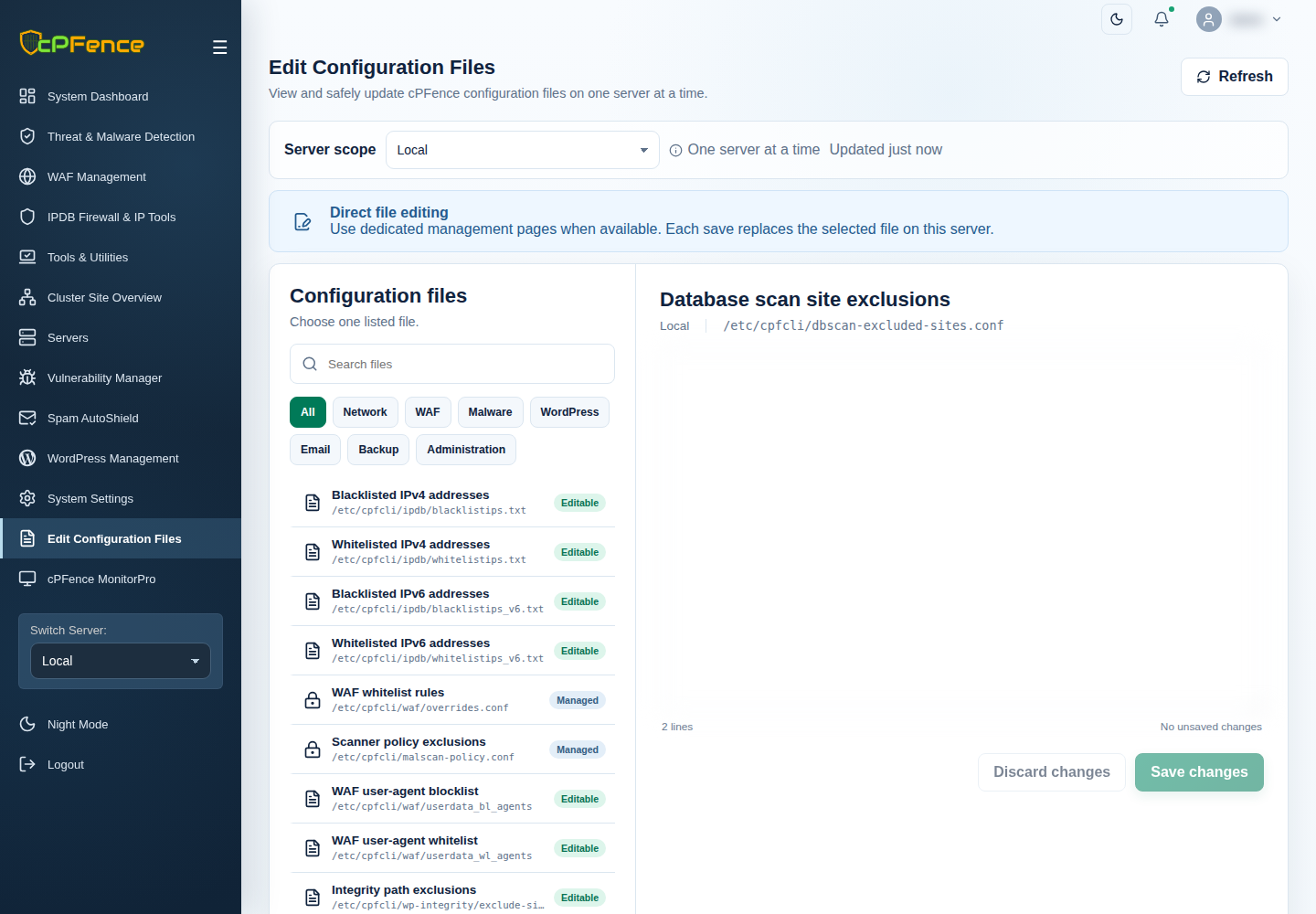
- Add the intended site’s full path, one entry per line. Use the installation path for one site; an account path can match several installations beneath it.
- Save and inspect the next scan’s per-site output.