
Troubleshoot a secondary server connection
Use this guide when a secondary server shows Needs setup, Offline, or Needs attention in cPFence v4+.
Open the WebUI on your Enhance main control panel server. Retry/reconnect needs an administrator; terminal checks need root. The secondary server must share the Enhance cluster; an Application role is not required.
1. Find the connection problem
Section titled “1. Find the connection problem”- Open Servers and use Search name or IP to find the server.
- Review Role, Version, Status, and Last seen.
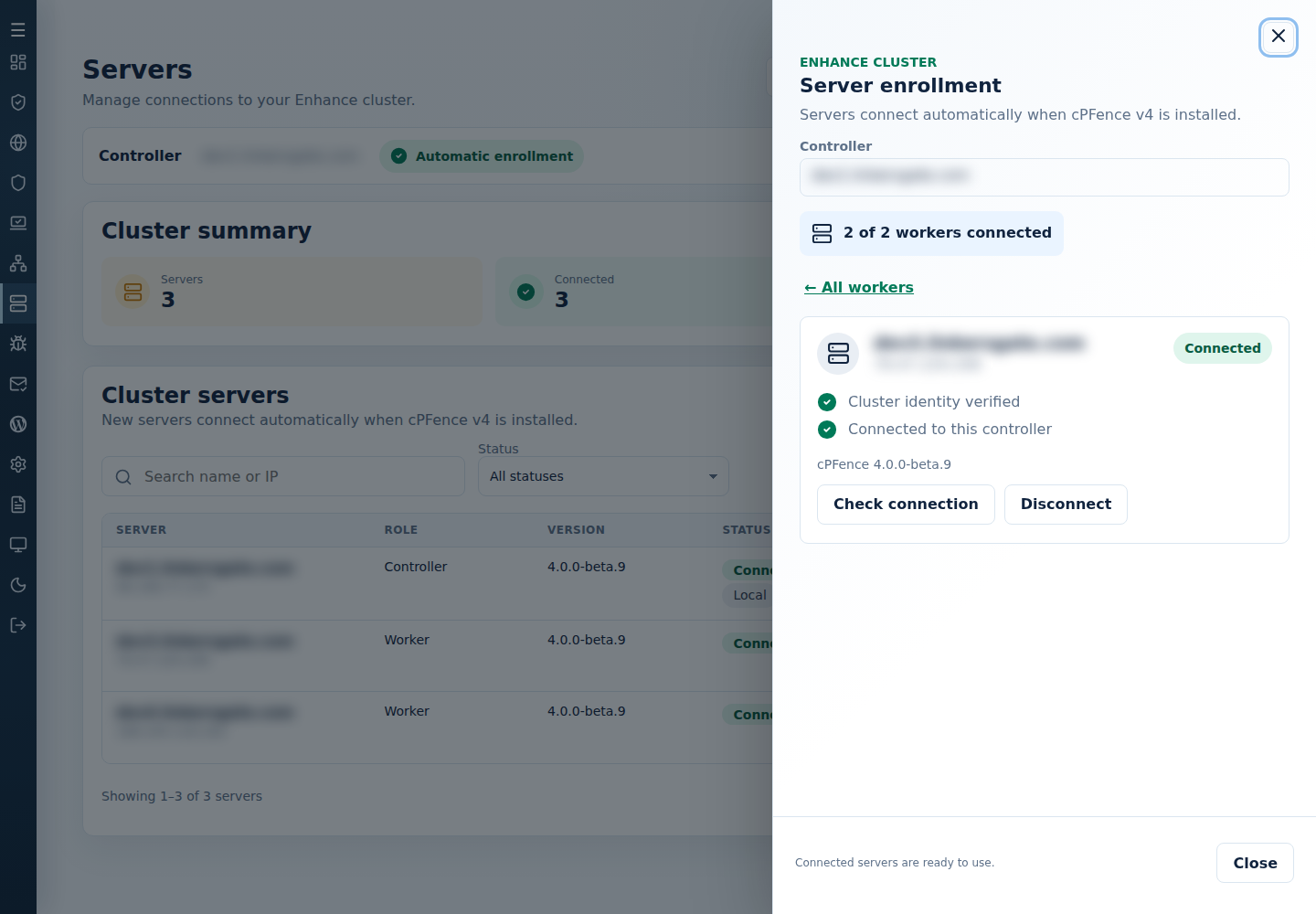
- Select View issue, or Details on a connected server. Alternatively, open Enrollment status → View details.
- Read the checks and guidance; expand Technical details if an error is shown.
Server enrollment identifies the main control panel server and counts connected secondary servers. Blank versions are unknown; last-known values are historical.
2. Check the installed version
Section titled “2. Check the installed version”You can upgrade the main control panel server first. A v3 secondary server keeps its local protection but cannot provide v4 remote management. Upgrade the secondary server locally, then return to Servers.
v4 enrolls automatically when identity and connectivity checks succeed. A reinstalled secondary server, or one whose cPFence identity changed, also reconnects automatically after the same Enhance identity check a new server gets. A Disconnected server is not reconnected automatically. Retry does not install or upgrade cPFence.
3. Check the secondary server’s listener
Section titled “3. Check the secondary server’s listener”Run these read-only checks as root on the affected secondary server:
cpfence --statussystemctl status --no-pager cpfcli-agent.socket cpfcli-agent.servicesystemctl cat cpfcli-agent.socket cpfcli-agent.servicess -ltn 'sport = :9096'journalctl --unit=cpfcli-agent.service --since='30 minutes ago' --lines=100 --no-pagercpfence --status reports local version and protection, including license failures. Resolve missing, failed, or masked units before retrying.
4. Check firewall access
Section titled “4. Check firewall access”The main control panel server must reach the secondary server on TCP 9096. TCP 9095 provides browser access on the main control panel server; enabling a secondary server’s WebUI does not repair agent communication.
If UFW is installed, inspect it locally:
ufw status numberedufw show addedThese show active and configured rules, including when UFW is inactive. Preserve administrator rules and the separate cPFence agent rule.
Check provider firewalls and routing. Allow TCP 9096 from the main control panel server to the secondary server; 192.0.2.10 → 192.0.2.20 illustrates the direction—use actual addresses. Ask the administrator to correct restrictions without resetting the firewall or disabling protection.
5. Retry and confirm the connection
Section titled “5. Retry and confirm the connection”- Return to that server’s View issue drawer.
- Select Retry or Retry connection. A connected server offers Check connection.
- Read the result and any technical error.
- Confirm Connected, a current Last seen, and the expected version before resuming remote work.
For a Disconnected server, use Reconnect only when management by this main control panel server is intended. Confirm the named destination. Disconnect blocks automatic enrollment until reconnect; local protection stays active.
Choose the intended server; table searches do not select operation targets.
Still unavailable?
Section titled “Still unavailable?”| What you see | Next check |
|---|---|
| Needs setup, Offline, or unknown version | Confirm the version locally, listener, address, and TCP 9096 route. Unavailability alone does not prove v3. |
| Incompatible or different versions | Compare installed versions and the technical error; plan the affected server’s upgrade. |
| Cluster inventory unavailable | Check the Enhance main control panel server before relying on cluster coverage. |
| Missing server or action for a support user | Check server grants and tool permissions. |
| This server’s cPFence identity changed … could not be reconnected automatically | Confirm the server belongs to this cluster and should be managed by this main control panel server, then select Reconnect and confirm the named destination. |
| Ownership, identity, or certificate error | Verify the intended cluster and main control panel server; keep enrollment credentials intact. |
For support, collect the error, status, Last seen, version, unit state, and bounded journal output. Remove credentials and customer information before sharing.