
Run overdue WordPress cron events
Use Run due WordPress Cron when scheduled posts or plugin tasks are overdue. This executes events that are due; it does not create a repeating schedule.
Run due events for selected sites
Section titled “Run due events for selected sites”- Open WordPress Management, choose the servers and select the affected sites.
- Open Choose action → Bulk tools, search for WordPress Cron, then choose Run due WordPress Cron.
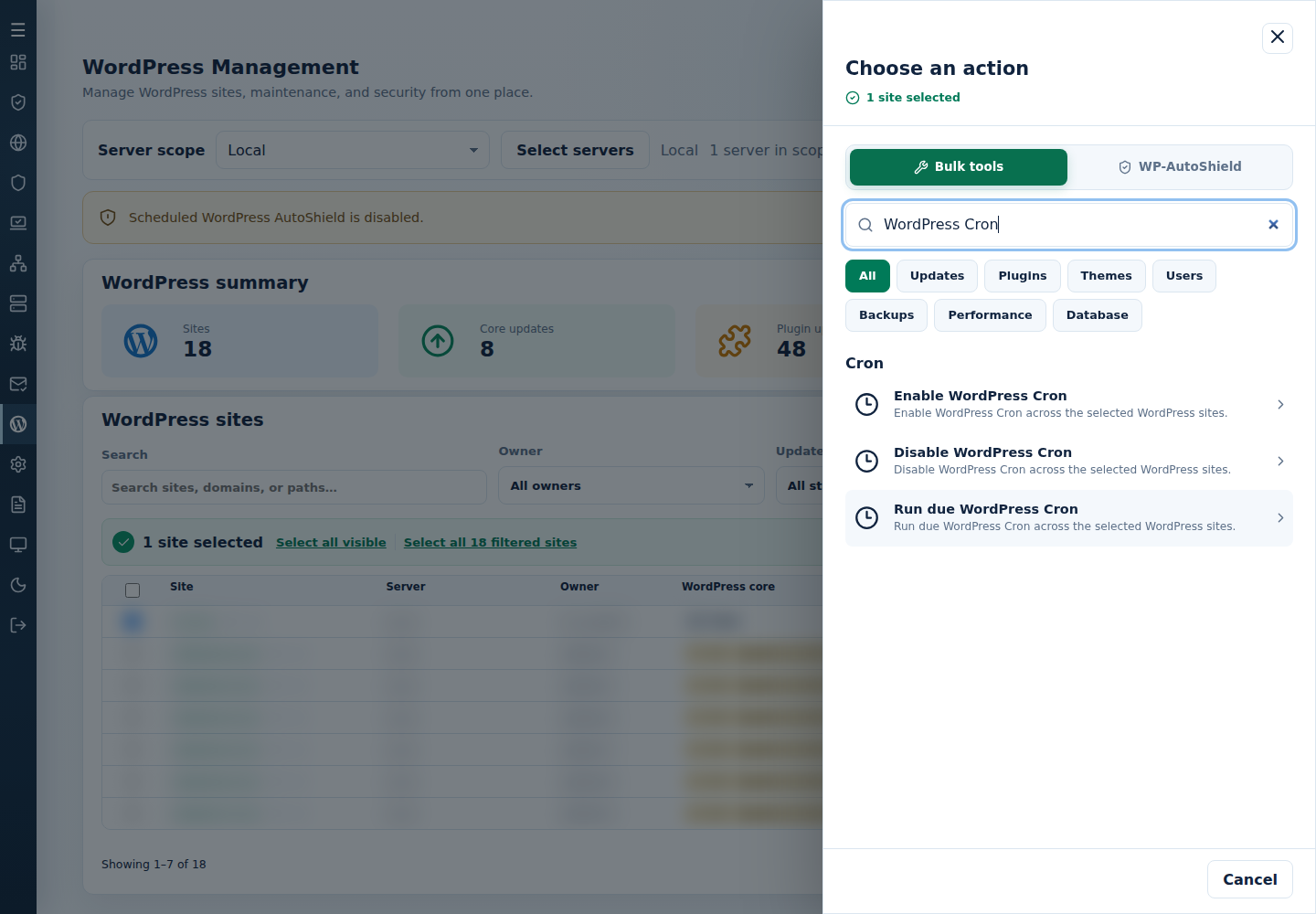
- Review the sites and confirm once.
- Read each site’s result. Check the scheduled post or plugin task afterward.
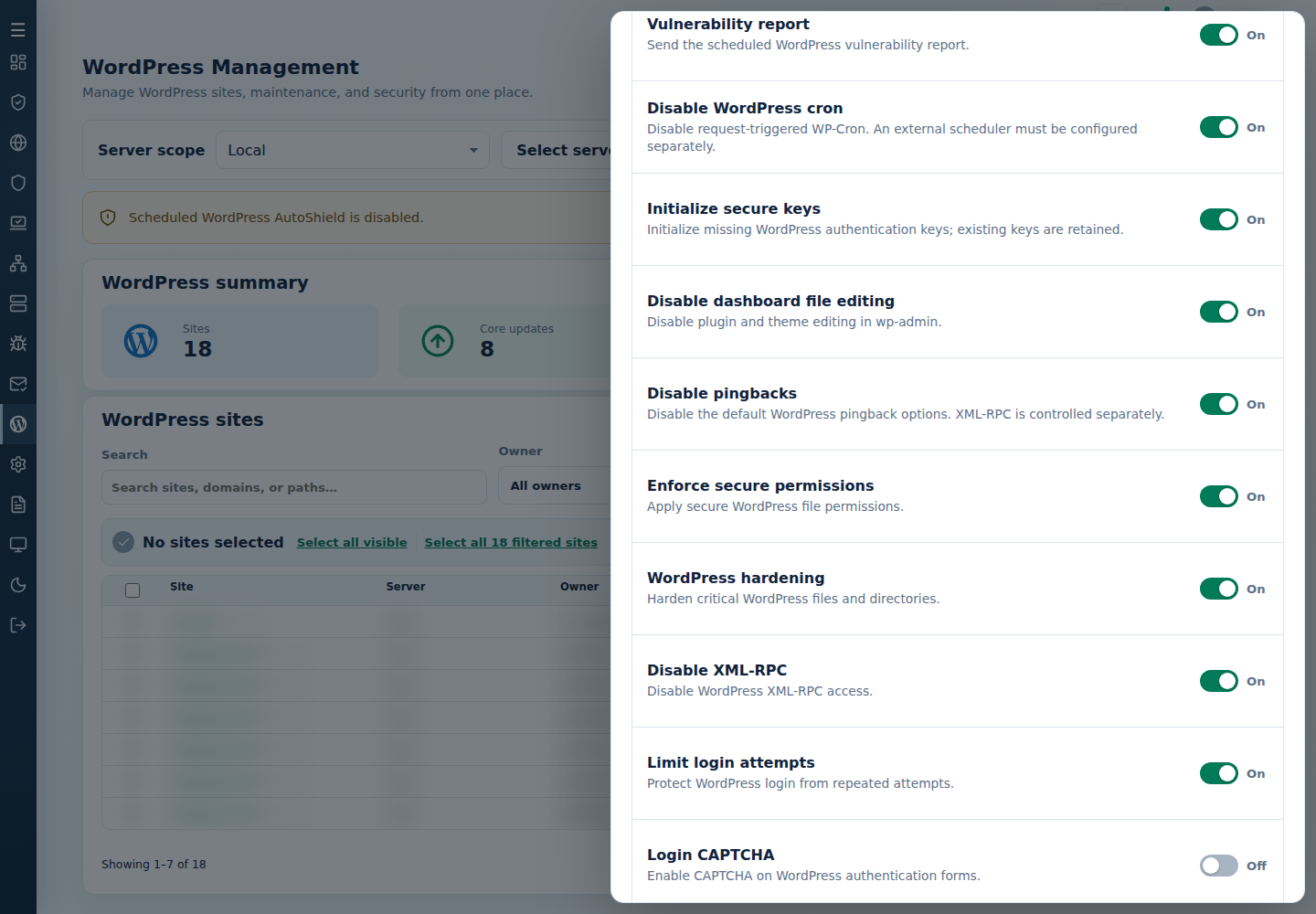
If the site needs request-triggered cron, exclude it from daily AutoShield before applying Enable WordPress Cron. To change all sites’ future policy, review Disable WordPress cron in the server’s WordPress Settings.
For failures, inspect the per-site output and the site’s own scheduled-task errors. Resolve a broken plugin or inaccessible installation before retrying. Do not repeatedly run every site’s events to diagnose one failing site.
Check one installation from its user container
Section titled “Check one installation from its user container”An administrator can enter the site’s user container and run the due events directly:
su - SITE_USER/usr/bin/wp-cli cron event run --due-now --path=/public_htmlUse the actual installation path if it is not /public_html. Review that account’s Enhance scheduler and cron log entries for errors or delays; do not add a second recurring scheduler without checking the existing owner.
Command-line method
Section titled “Command-line method”From a root terminal on the server hosting the sites, review /var/log/cpfenceav/wp-sites-list.txt, then run events that are due:
cpfence --bulk-run-due-wp-cronReview the inventory and confirmation prompts. This acts on that server’s listed installations, not checked WebUI rows or every secondary server. Check each site’s output and the scheduled post or plugin task afterward.
To turn request-triggered cron off or on, respectively:
cpfence --bulk-disable-wp-croncpfence --bulk-enable-wp-cronCheck the site’s existing scheduler before disabling native cron. For an enduring enable choice, turn the daily Disable WordPress cron child policy off or exclude the site, as described above. Running due events is a separate action from either switch.
Optional daily catch-up
Section titled “Optional daily catch-up”If an administrator has decided an additional daily catch-up is needed, the original 07:00 example becomes:
0 7 * * * /usr/bin/cpfence --bulk-run-due-wp-cron -yAdd it to root’s crontab on the intended hosting server only after checking existing schedules and reviewing the command manually. -y skips confirmation and uses the list present at run time; discovery may refresh that list. Keep the output available for troubleshooting rather than discarding it. This is not a replacement for a correctly configured site scheduler. See scheduled WordPress tools for the setup and outcome checks.