
Understand website and email scan scheduling
cPFence v4+ website protection checks changed files every two minutes. Mailbox scanning is enabled separately. Support users need access to the server and the relevant scan/history or protection-setting permissions.
Choose the setting task
Section titled “Choose the setting task”| Task | Guide |
|---|---|
| Enable or disable changed-file checks | Malware real-time protection |
| Faster scanning on a capable server | Proactive scanning |
| Enable scanning or exclude one mailbox | Mailbox scanning |
| Move infected messages or report them | Email quarantine |
| Add mailbox spam rules | Email spam protection |
| Move website detections or report them | Automatic quarantine |
Check website protection health
Section titled “Check website protection health”- Open Threat & Malware Detection and choose one server in Server scope.
- In Scan Summary, read the protection card.
- Filter Recent scans by Real-time and inspect the latest result.
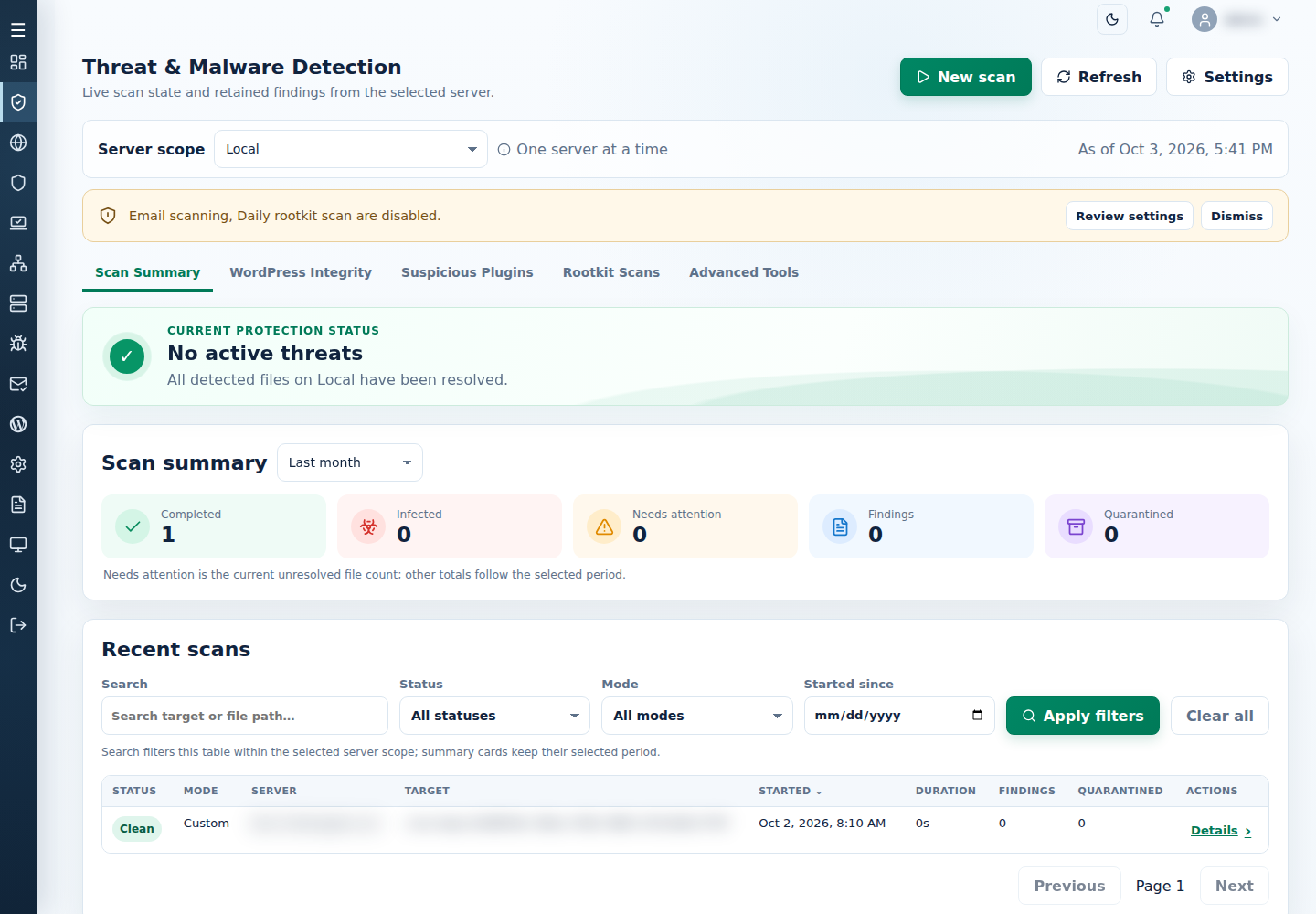
The card also shows when protection is off or starting. When real-time scanning is delayed or paused, it shows one of these messages:
| Card heading | Meaning | What to do |
|---|---|---|
| Scanning is running behind | High server load delayed scanning. Changed files are queued. | Nothing; scanning catches up automatically. |
| Your server is under heavy load | Scanning is temporarily slowed. Nothing is skipped. | Nothing; full speed resumes when the load drops. |
| Real-time scanning needs attention | No scan check has completed in over 60 minutes. | Check the server’s CPU and memory usage, or restart cPFence. |
| Real-time scanning is paused: disk almost full | Disk usage reached the pause limit shown on the card. File changes since the pause are queued. | Free up disk space; scanning resumes and scans the queued files automatically. |
| Real-time scanning is paused: low memory | Memory usage has stayed at the pause limit shown on the card. File changes since the pause are queued. | Free up memory; scanning resumes and scans the queued files automatically. |
Understand mailbox timing
Section titled “Understand mailbox timing”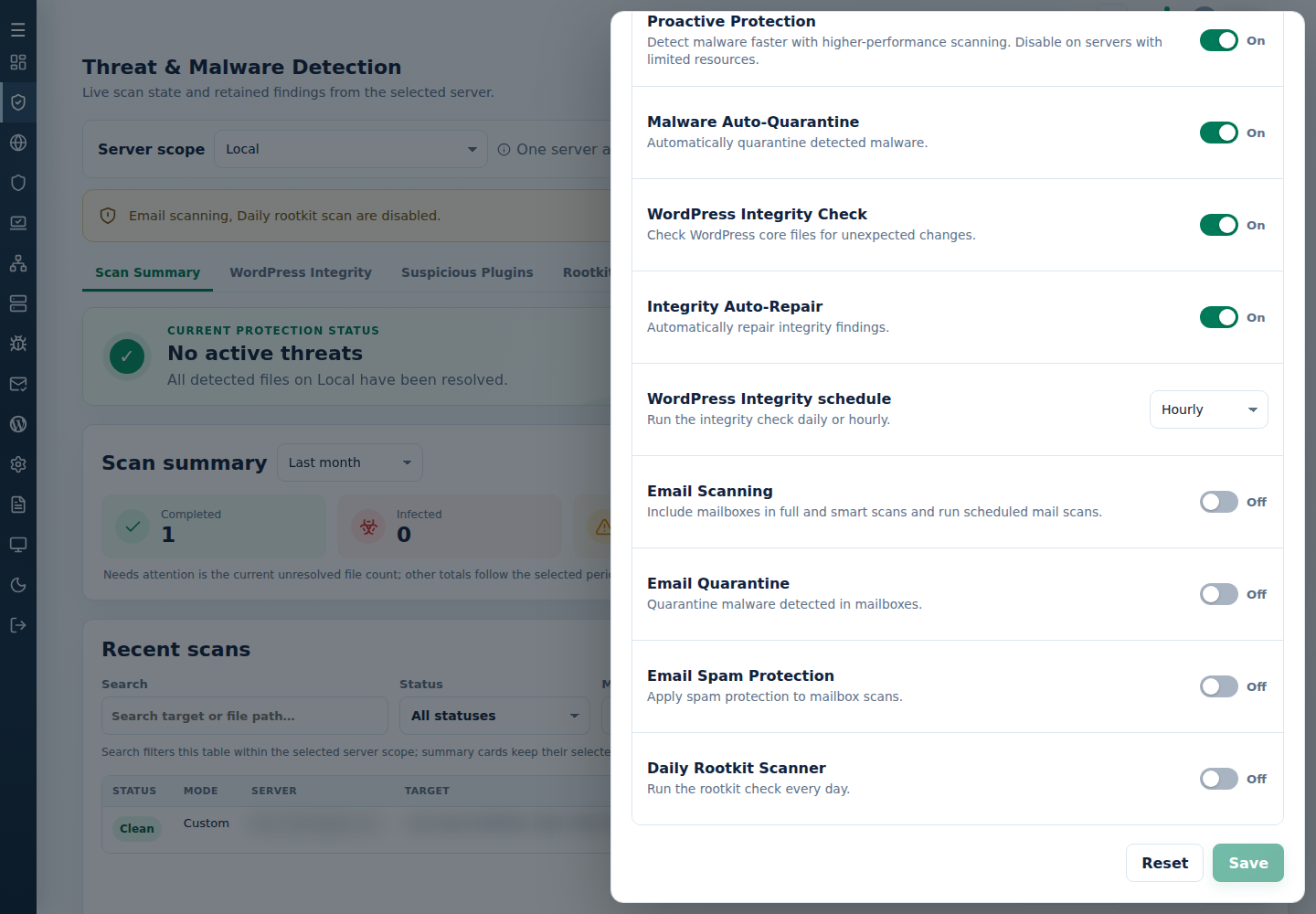
Enabled Full and Smart scans can include mail; Custom path remains a website-path scan. Scheduled mailbox eligibility is checked at minute :50 with MRTP enabled. Full-license proactive operation is normally hourly when resources permit; free or non-proactive eligibility is every 12 hours. A busy scanner or resource condition can defer work.
Review mail counts and errors in scan output. A failed or stopped phase can have partial findings; it does not cover every eligible message. In System Settings → Notification Settings, review Email threat notifications and Successful scan notifications. A finding or submitted notification does not prove recipient receipt.