
Enable or disable malware real-time protection
Malware Real-Time Protection (MRTP) in cPFence v4+ checks changed website files every two minutes.
Using the WebUI
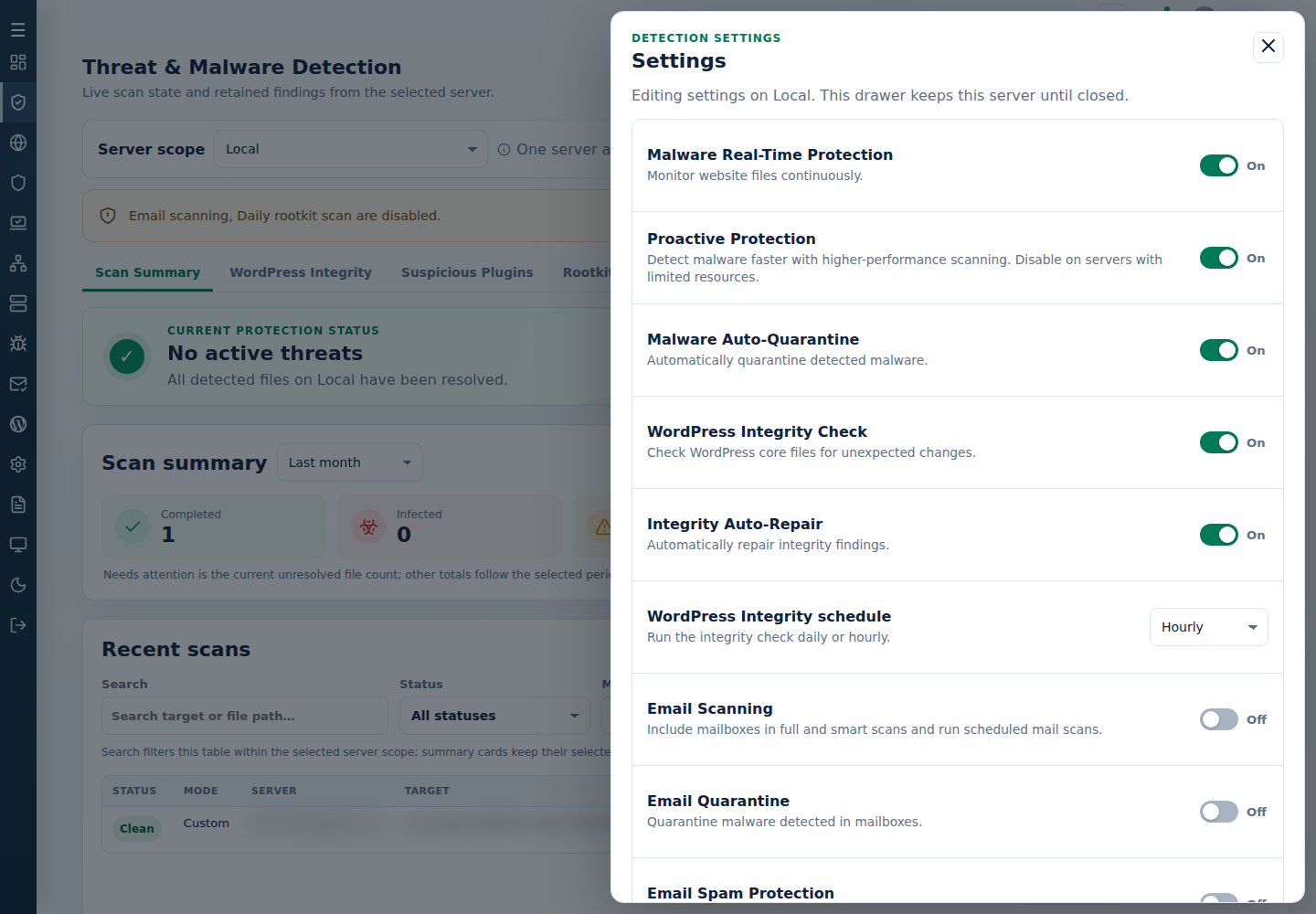
Section titled “Using the WebUI”- Open the WebUI on your main control panel server and select Threat & Malware Detection.
- Choose one server in Server scope and open Settings.
- Set Malware Real-Time Protection, then Save.
- Check the protection card and the latest Real-time scan result.
For several servers, use Advanced Tools → Manage Malware Real-Time Protection. Check the sidebar targets and each server’s result. Support users need target access and protection-setting permission.
To restore this page’s defaults, follow reset feature-page settings.
Using the CLI
Section titled “Using the CLI”Run the appropriate command as root on the licensed target server:
| Action | Command |
|---|---|
| Enable MRTP | cpfence --enable-MRTP |
| Disable MRTP | cpfence --disable-MRTP |
See scanning settings and results for health notices and mailbox scheduling.