
Diagnose missing IPDB log activity
Quiet cPFence v4+ logs do not necessarily mean protection is off. There may be no new matching incidents.
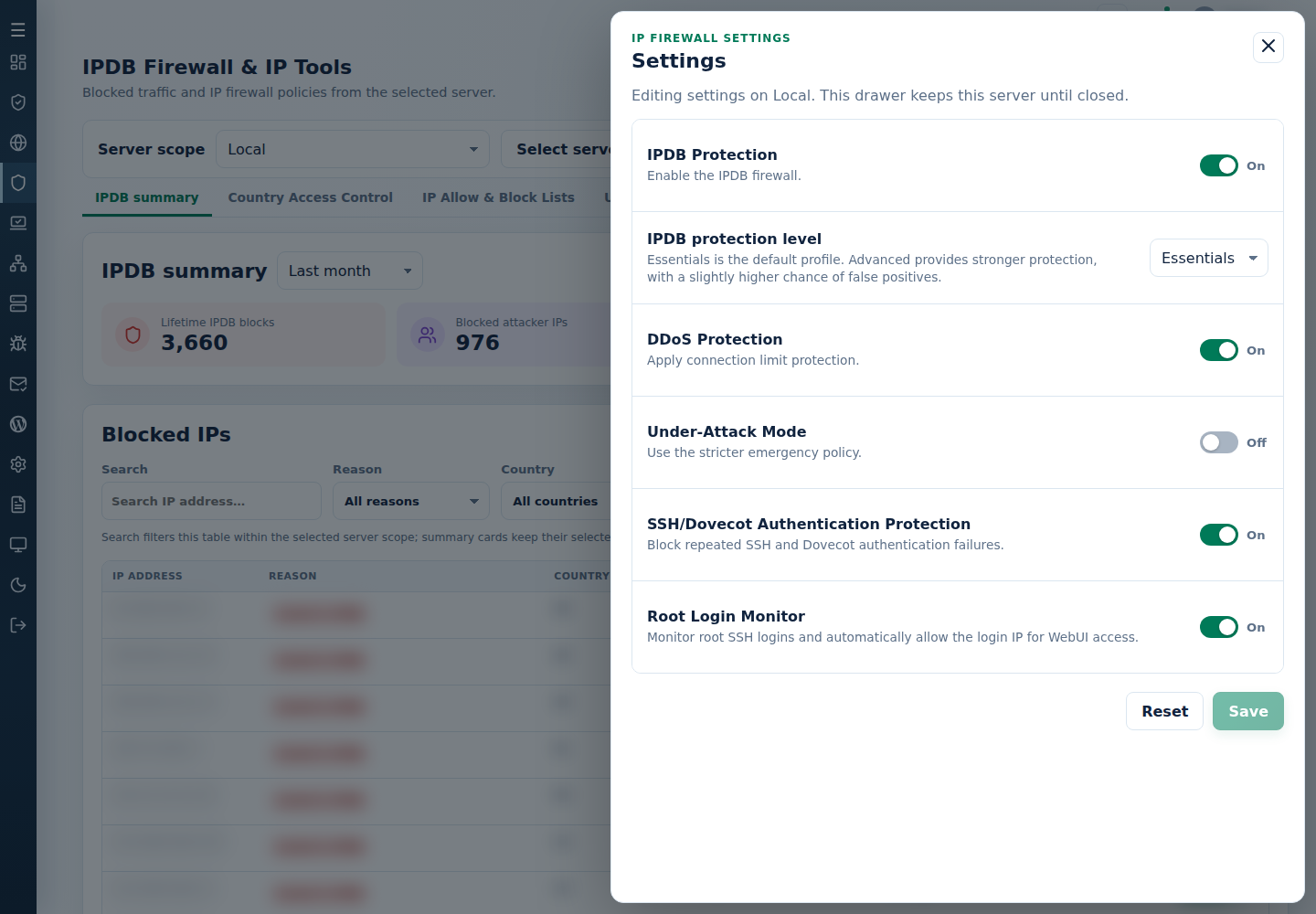
- Check IPDB Protection and DDoS Protection in IPDB Firewall & IP Tools → Settings.
- As root, run
cpfence --monitor-ipdb-blocksand compare its output with IPDB summary. - Check system logging:
systemctl status rsyslog --no-pagerjournalctl -u rsyslog -n 20 --no-pagerls -lah /var/log/syslogsystemctl list-units --failed- If rsyslog is inactive, resolve the logged error. An administrator can start the configured service with
systemctl start rsyslogafter checking why it stopped. - If IPDB itself reports a failure, review that error before deliberately using
cpfence --restart-ipdb.
Avoid creating, truncating or changing ownership of system logs blindly. If logging remains unavailable, ask your server administrator or support to check the system logging configuration, preserving the reported errors.