
Investigate an IP block
cPFence v4+ blocks can come from reputation policy, login abuse, connection protection or a custom policy.
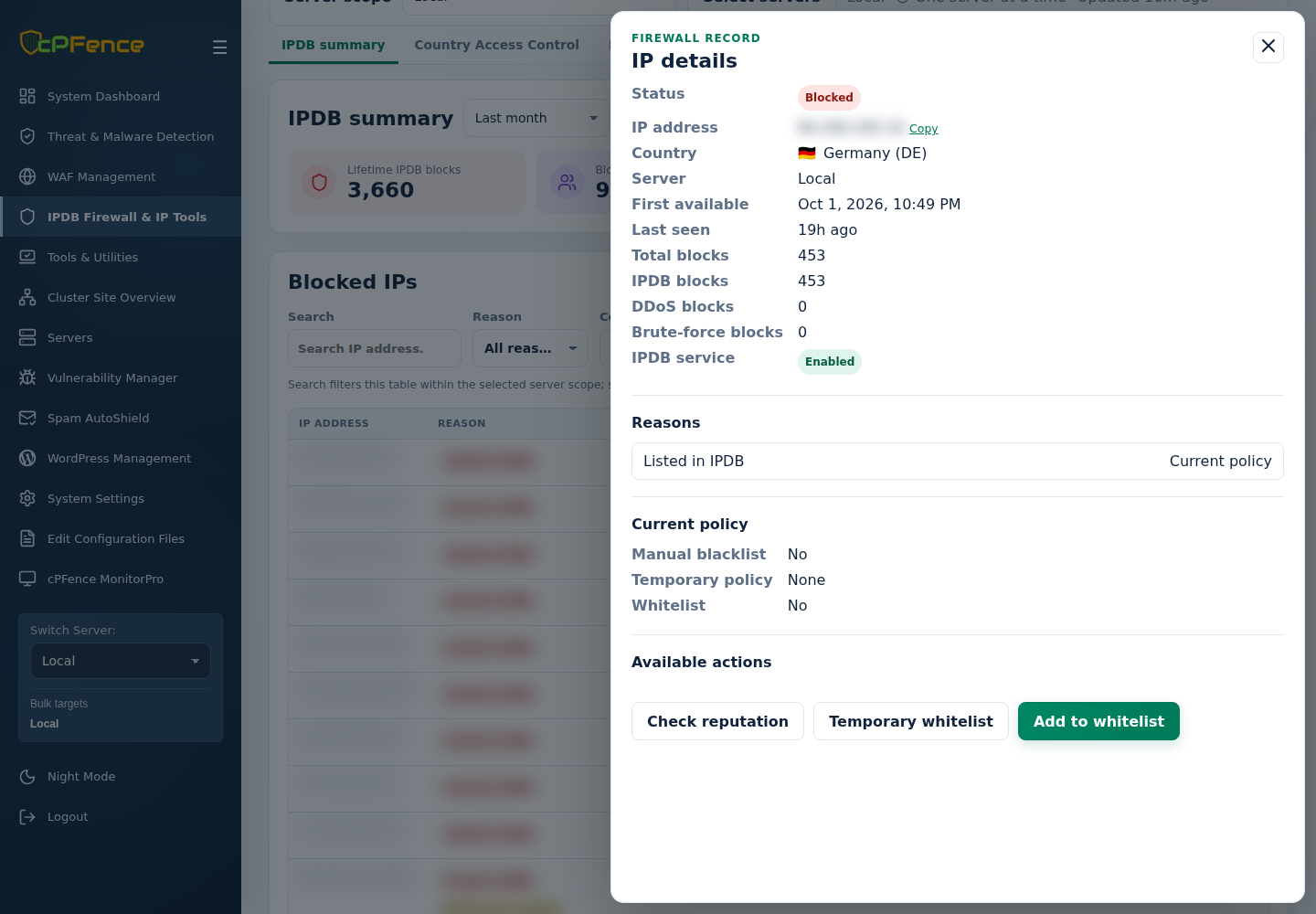
- Check the IP status on the affected server.
- In IPDB summary, open the incident’s Details. Compare the time, reason and Current policy.
- Review relevant service and system logs. As root,
grep -F '192.0.2.10' /var/log/syslogsearches the current system log; substitute the actual address. - If local logs are sparse, review reputation and the current blocklist. A firewall block can occur before an application records a request.
- For a verified client, correct excessive connections or use a narrow whitelist. Check access after the change.
A whitelist is an access exception, not evidence that the source is safe. Use DDNS whitelisting for an administrator whose IP changes. If a listed IP is compromised, investigate the activity or request delisting from its source rather than hiding the warning.