
Find sites in Cluster Site Overview
Use Cluster Site Overview to find a domain, identify its client, application and server, and open the appropriate site details or authorized login action.
This guide applies to cPFence v4+ on Enhance. Use the main control panel server WebUI as an administrator or a support user with Read cluster sites list. Login actions require separate authorization. WordPress login also requires the destination secondary server to be available and authorized; Enhance member login requires its eligible client and a configured Enhance API key.
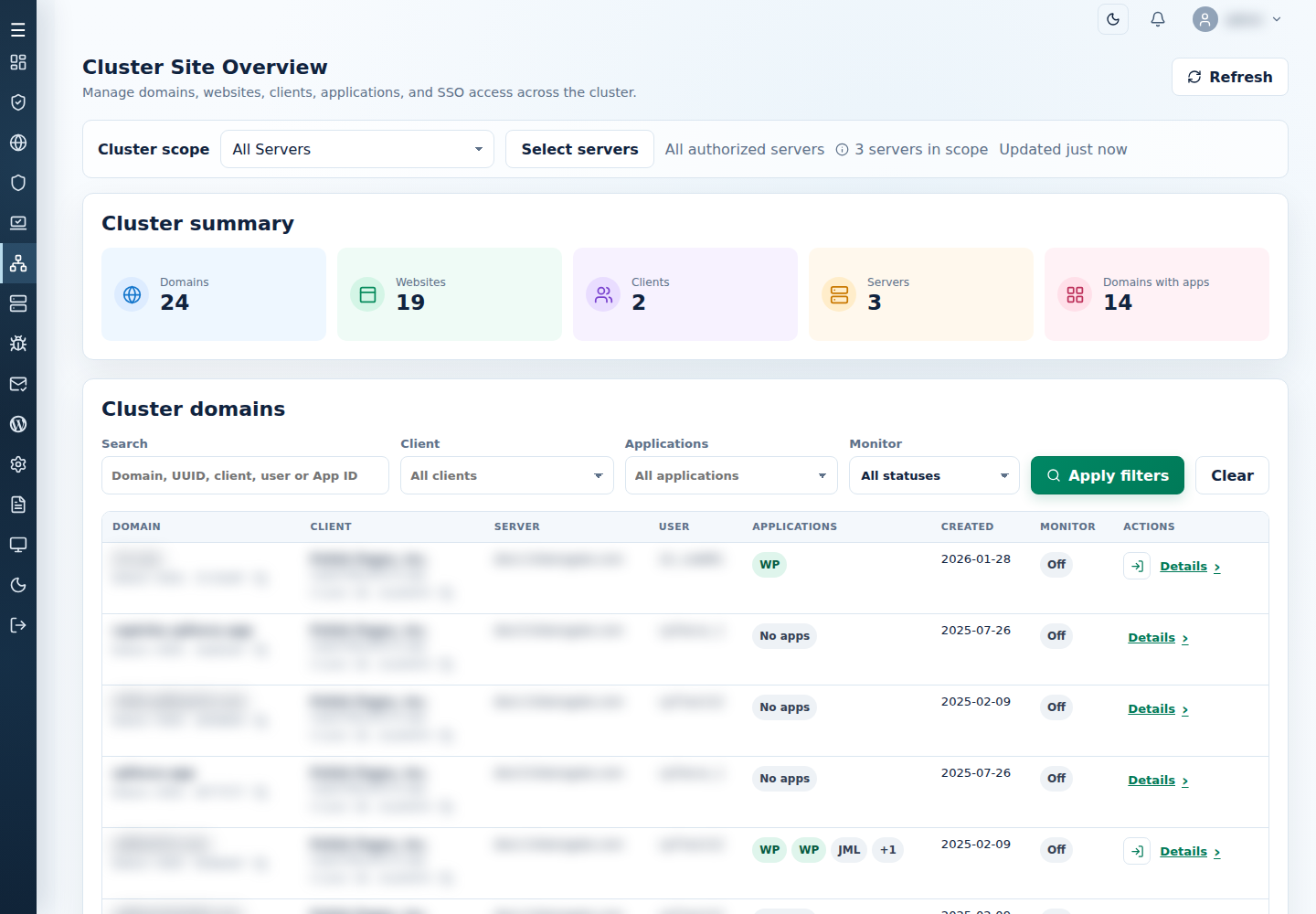
1. Choose a scope and find the domain
Section titled “1. Choose a scope and find the domain”- Open Cluster Site Overview.
- Read Cluster scope and choose the intended servers. See server scope for selection controls and defaults.
- Use Search, Client, Applications, and Monitor to narrow the domain list, then select Apply filters. Searchable controls help locate clients or applications in a larger inventory.
- Use Clear to remove the row filters. Use Previous/Next for more results and the column headings to change supported sort order.
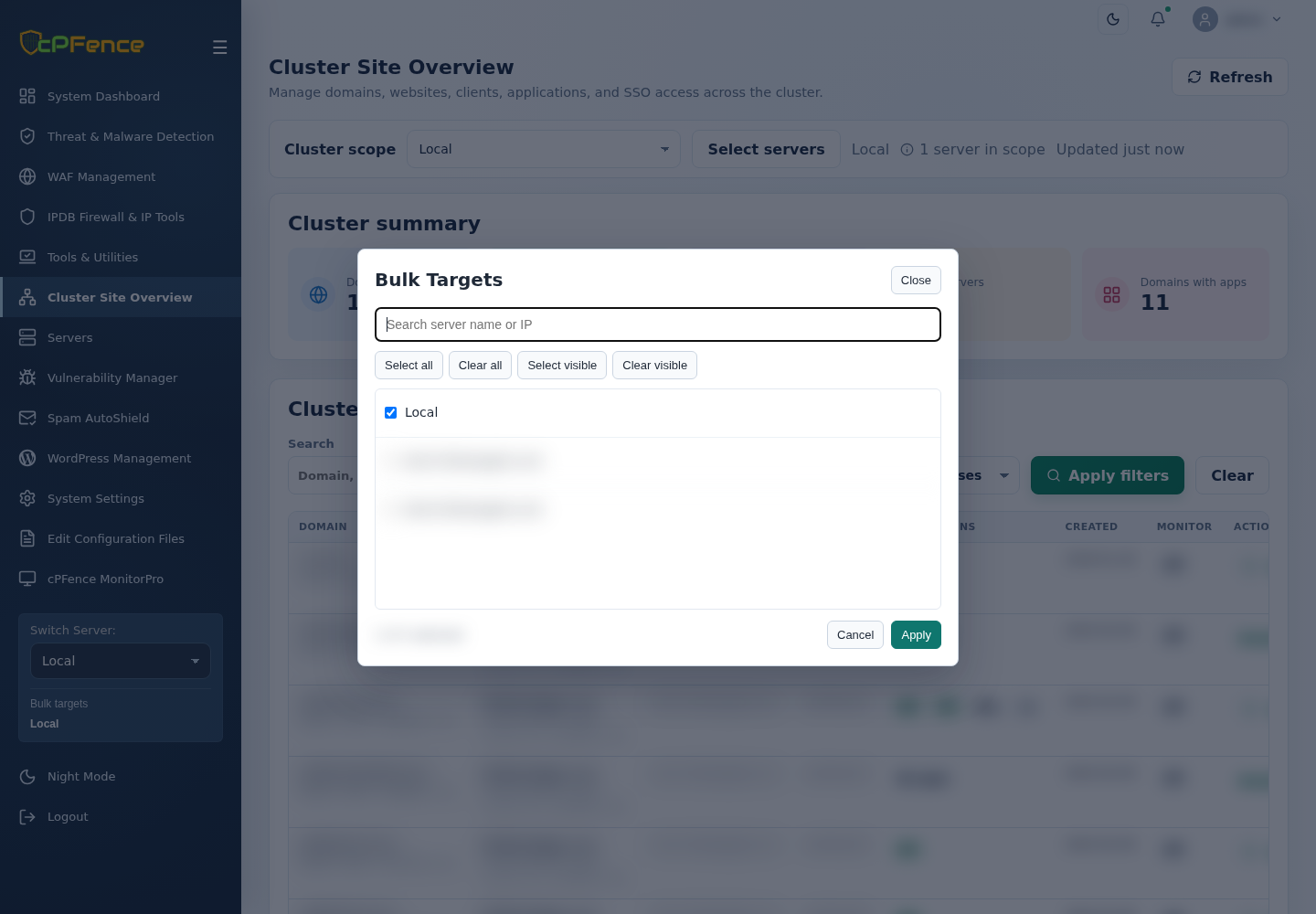
Cluster summary describes the scoped inventory; it need not equal the filtered table count. A domain, website, application, client, and server are related records, not interchangeable counts.
Read DOMAIN, CLIENT, SERVER, USER, APPLICATIONS, CREATED, and MONITOR together. Multiple domains can map to one website or application. Scroll the table horizontally on a small screen to reach every column and action.
2. Inspect details and copy the right identifier
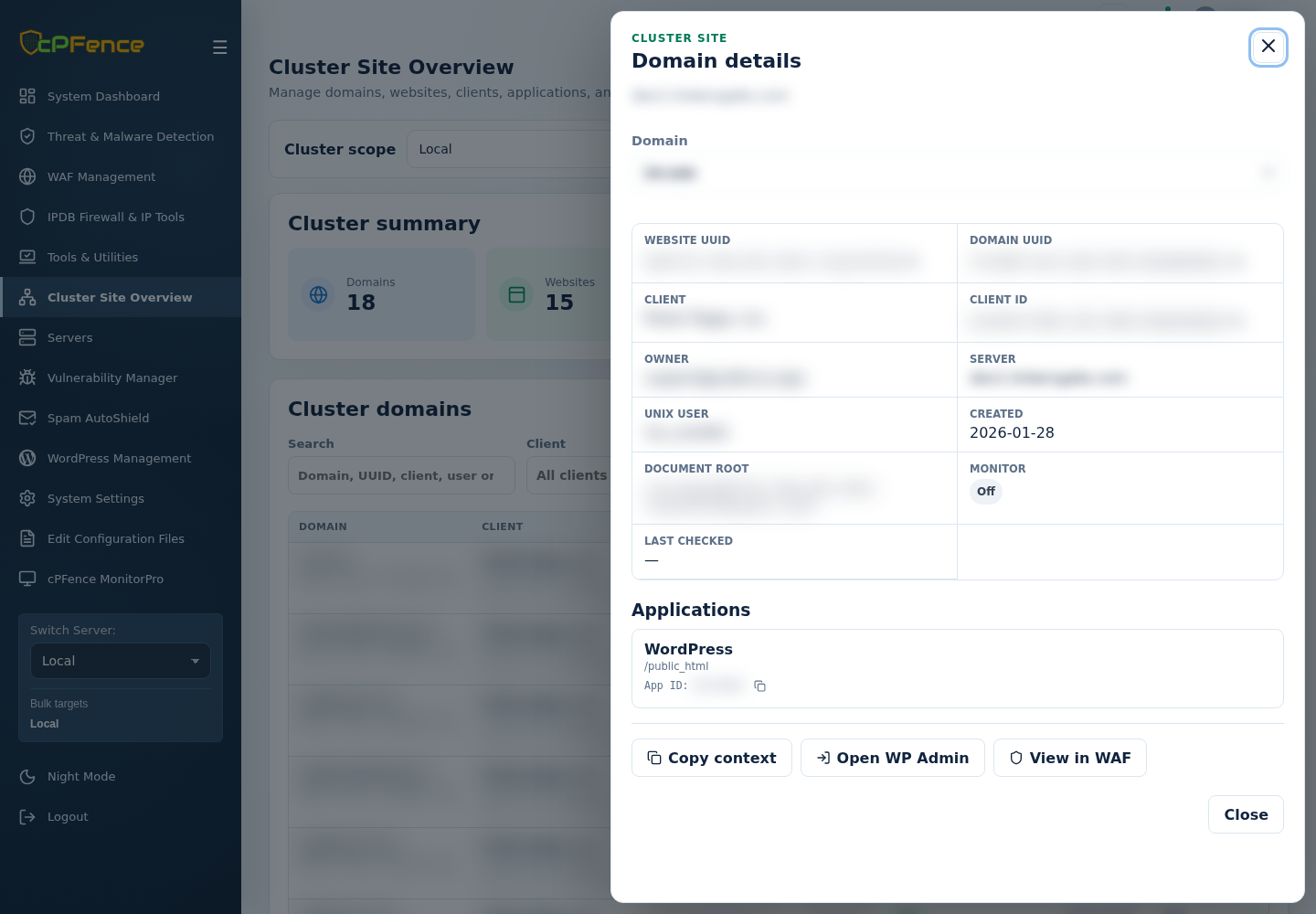
Section titled “2. Inspect details and copy the right identifier”- Find the domain and select Details to open Domain details.
- Choose the intended Domain and review its application/client information.
- Use Copy full website UUID, Copy full domain UUID, Copy full client ID, or Copy full application ID, according to the identifier your tool requests. Copy context copies the displayed context.
- Verify the domain/client name before using the copied value. Use View in WAF to continue with that domain’s firewall view.
3. Open a permitted login action
Section titled “3. Open a permitted login action”- Verify the domain, application, and server in the row or drawer.
- Select Open WordPress admin in the table, or Open WP Admin in the drawer, when offered. It opens an authorized session at that website.
- For an eligible Enhance client, use Open Enhance panel when offered to your account. Configure the Enhance API key through Tools & Utilities → API key if the interface reports it is missing.
- Confirm that the opened destination is the intended site or panel before administering it.
For website changes, continue with WordPress management or website tools. Those workflows have their own selected-site previews; a filtered Cluster Site Overview list does not submit an action.
Troubleshooting
Section titled “Troubleshooting”- No results: clear the row filters and verify the server scope and account grants before assuming a site was removed.
- Unavailable secondary server or old information: check Servers and use Refresh. Do not treat retained inventory as evidence of current runtime health.
- Login action missing: verify the application type, account permission, secondary server availability, and any API-key requirement. An administrator can check permissions without granting unrelated tools.
- Login fails or opens an unexpected destination: stop and retain the error and domain/client identifiers for investigation. Do not distribute the generated login URL.