
Is a large number of GET requests a DDoS attack?
A browser loads HTML, styles, scripts, images and fonts separately. Many GET requests can be normal; request counts alone do not prove a DDoS attack.
- Check server load and whether sites are slow or unavailable.
- Review the affected site’s access logs or LogSpot for source IPs, paths, response codes and timing.
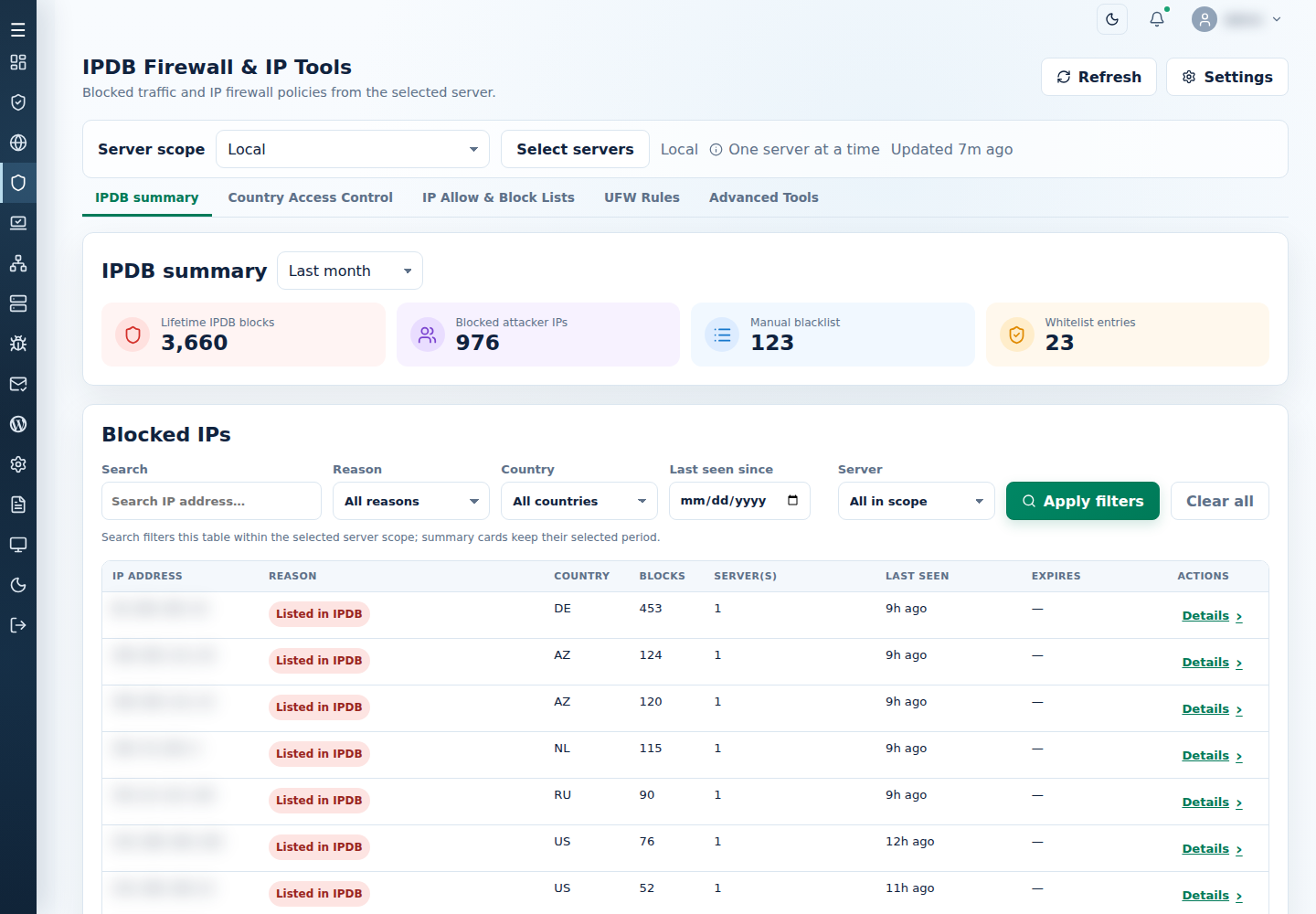
- In IPDB summary, compare incidents and Current policy. Connection protection counts concurrent connections, not total requests in an access log.
Use the dashboard DDoS and brute-force drawer to review retained source activity; its counts do not prove present blocking or turn normal request volume into an attack.
- Investigate suspicious sources before using a narrow IP block. Preserve the relevant records and time.
Avoid blocking search engines, CDNs or legitimate clients just because they make many requests. See proxy limitations and traffic that is not blocked. If the server is under a verified attack, use under-attack mode temporarily.
Find the busiest source IPs in access logs
Section titled “Find the busiest source IPs in access logs”If several sources are generating heavy traffic while staying below the concurrent-connection limit, review their requests before deciding whether to block them.
As root on the affected application server, use the following read-only command for Enhance access logs whose first field is the source IP:
tail -q -n 50000 /var/local/enhance/webserver_logs/*.log \ | awk '$1 ~ /^[0-9A-Fa-f:.]+$/ {print $1}' \ | sort | uniq -c | sort -nr | head -n 20This reads the last 50,000 lines per log file, counts requests by source IP and shows the 20 highest counts. The first output column is the request count; the second is the address. These are sampled requests, not concurrent connections or a fixed time window.
For one site, replace *.log with its actual Enhance website-ID log filename. Check its log format before using the first-field filter; if your logs use another format, use the site’s LogSpot report or ask the server administrator to adapt the extraction.
-
Review the busiest addresses and their request paths, response codes and timestamps in the affected site’s log.
-
Check each address and its operator. With a proxy, confirm whether the logged address is the visitor or the proxy before applying a policy.
-
Exclude legitimate search engines, CDNs, cluster servers and customers from your suspected-abuse list. A high count alone is not proof of an attack.
-
For a verified abusive source, use the IP blacklist controls on the affected server, or run:
Terminal window cpfence --add-blacklist-ip 192.0.2.10Replace the example with the verified source IP. Check the command result, current policy and legitimate site access afterward.
To remove that manual blacklist entry later, run:
cpfence --del-blacklist-ip 192.0.2.10Replace the address with the entry you added and check the result. Other block sources can still apply; removing this entry does not clear every policy.