
Update WordPress components
cPFence lets you update WordPress core, plugins, themes and translations without signing in to every site. Back up the sites and check public pages before beginning.
WebUI method
Section titled “WebUI method”- Select the intended sites.
- Choose Bulk tools → Updates → Update WordPress components.
- Choose All components, WordPress core, Plugins, Themes or Translations in Component.
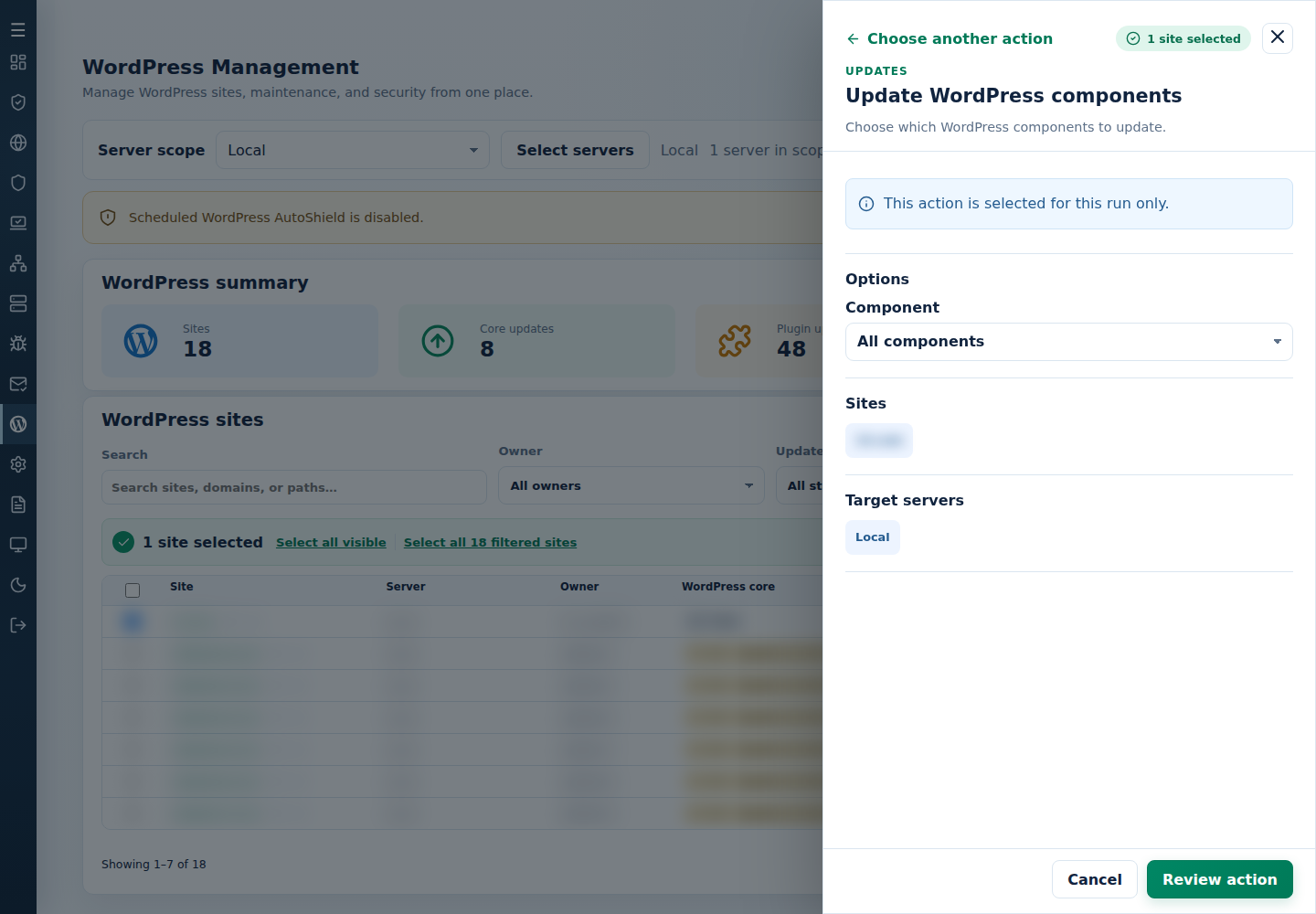
- Review and confirm. Check each site’s result and resolve failures individually.
- Verify versions, public pages and sign-in; clear relevant caches after successful updates.
A manual update is separate from future auto-update policy. For failures, use WordPress update and backup troubleshooting.
Command-line method
Section titled “Command-line method”Step 1: Check the sites list
Section titled “Step 1: Check the sites list”Sign in as root to the server hosting the sites. Refresh the list when installations have changed:
cpfence --generate-wp-sites-listReview /var/log/cpfenceav/wp-sites-list.txt before proceeding. Terminal bulk updates use that server’s listed installations; they do not inherit your checked WebUI rows. For a small selected rollout, use the WebUI method above.
Step 2: Update the intended components
Section titled “Step 2: Update the intended components”For an interactive update of core, plugins, themes and translations, run:
cpfence --bulk-update-wordpressFollow its prompts and read the results for each site. For an automated update without confirmation, specify the component explicitly:
| Update now | Command |
|---|---|
| All components | cpfence --bulk-auto-update-all-sites all |
| WordPress core | cpfence --bulk-auto-update-all-sites core |
| Plugins | cpfence --bulk-auto-update-all-sites plugins |
| Themes | cpfence --bulk-auto-update-all-sites themes |
| Translations | cpfence --bulk-auto-update-all-sites translations |
The updater checks site loading and can remove a stuck .maintenance file. Still verify public pages and sign-in yourself; an automated response check cannot prove every page or plugin works.
Step 3: Review future updates and vulnerabilities
Section titled “Step 3: Review future updates and vulnerabilities”Use auto-update policy to enable or disable future updates for the intended components. For older or customized sites, use an individual maintenance plan instead of enabling broad automation.
Export a vulnerability report to help plan follow-up work:
cpfence --vuln-exportSee download and analyze the CSV. The report identifies known vulnerabilities; it does not apply another update.