
Choose settings for DNS, backup, and email servers
For a secondary server used only for DNS, backups, or email, review the features it needs. This guide applies to cPFence v4+ on Enhance. You need Manage General Settings for the selected server.
1. Check the server’s roles
Section titled “1. Check the server’s roles”Check the server’s assigned service roles in Enhance, then select the matching server in cPFence. Confirm whether it also hosts websites before disabling website protection. The cPFence Role column describes its management role, not its Enhance service roles.
2. Save only the changes you need
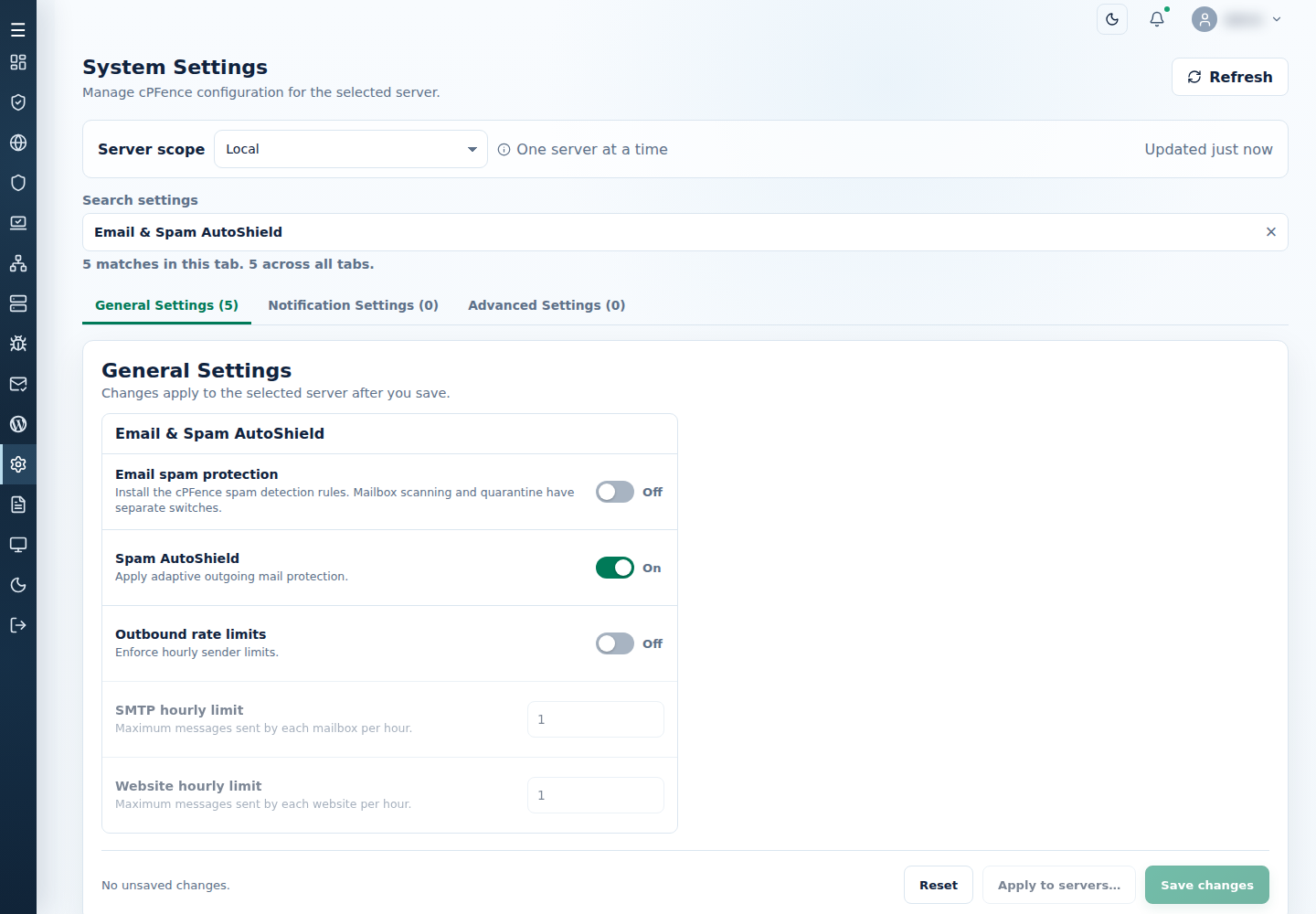
Section titled “2. Save only the changes you need”- Open System Settings, choose the intended Server scope, and select General Settings.
- Review the choices below against the server’s workload.
- Change only the appropriate switches and select Save changes.
- Refresh the saved values and check the module status. Other protection remains governed by its own settings.
| Server workload | Settings to review |
|---|---|
| DNS or backup only, without websites | Turn off Real-time malware protection, Proactive scanning, and Web application firewall when those website features are not needed. |
| Email only, without websites | Keep needed mail/security controls; turn off Web application firewall when it has no website workload. |
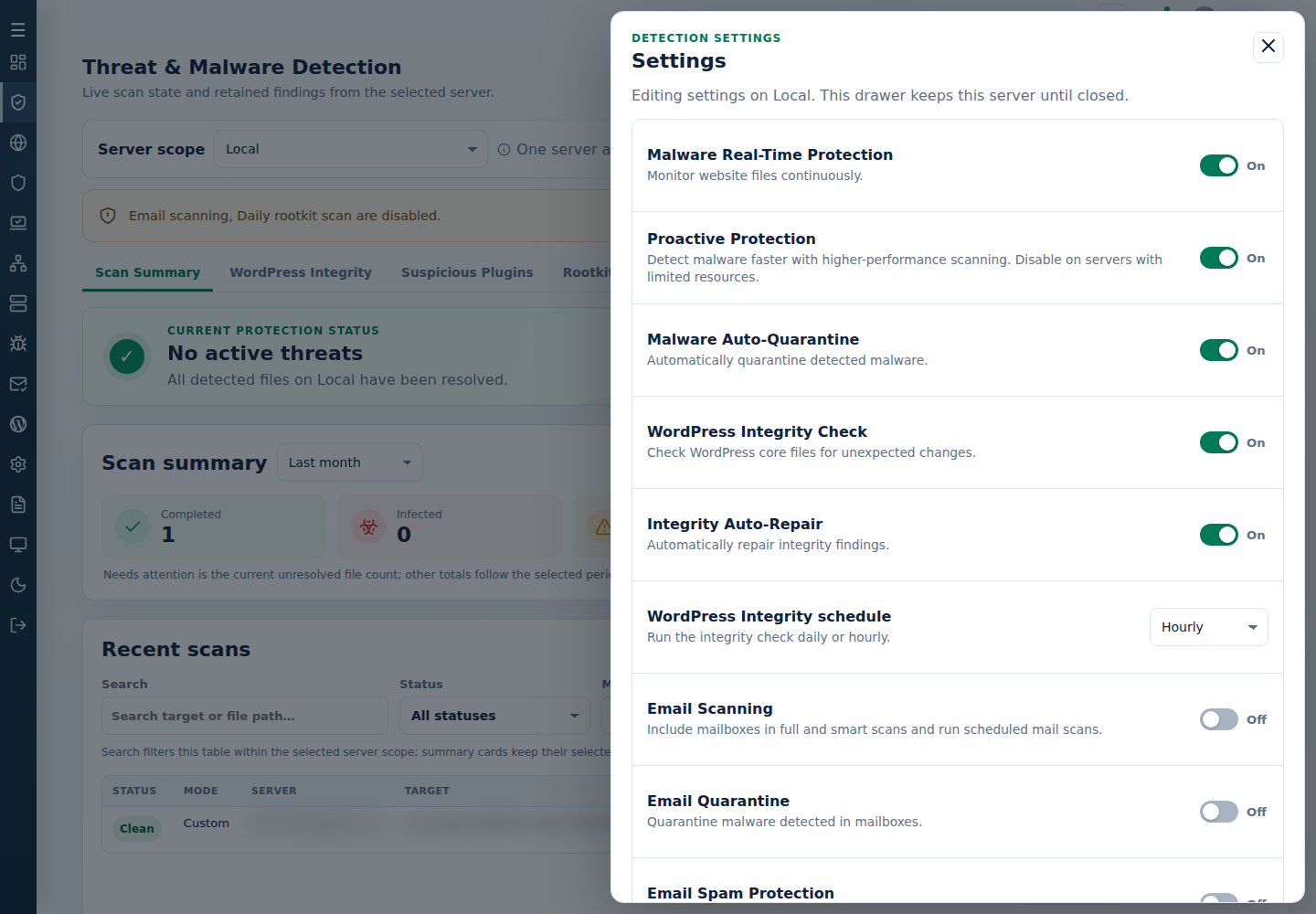
| Email protection | Review Email scanning, Email quarantine, Email spam protection, and Spam AutoShield independently. Website auto quarantine is a separate choice. |
The same malware and mailbox masters are also available under Threat & Malware Detection → Settings.
3. Copy a role-specific selection safely
Section titled “3. Copy a role-specific selection safely”For several servers with the same workload, follow Apply to servers…. Select only matching destinations and changed fields, then inspect every result. Do not copy a DNS-only profile to application servers.
Use settings backup and restore to preserve a configuration before broader changes. License management remains a separate task.
Troubleshooting
Section titled “Troubleshooting”- Disabled control: check its owning master and your General Settings permission.
- Unexpected saved value: reload after a conflict and compare the actual server’s settings before trying again.
- Resource use remains high: review Owl monitoring and resource thresholds to identify the workload before disabling more protection.