
Block or unblock a sender IP
Open Spam AutoShield and choose the mail server whose policy you want to inspect. The master must be on for stored entries to take effect; see the illustrated Spam AutoShield guide.
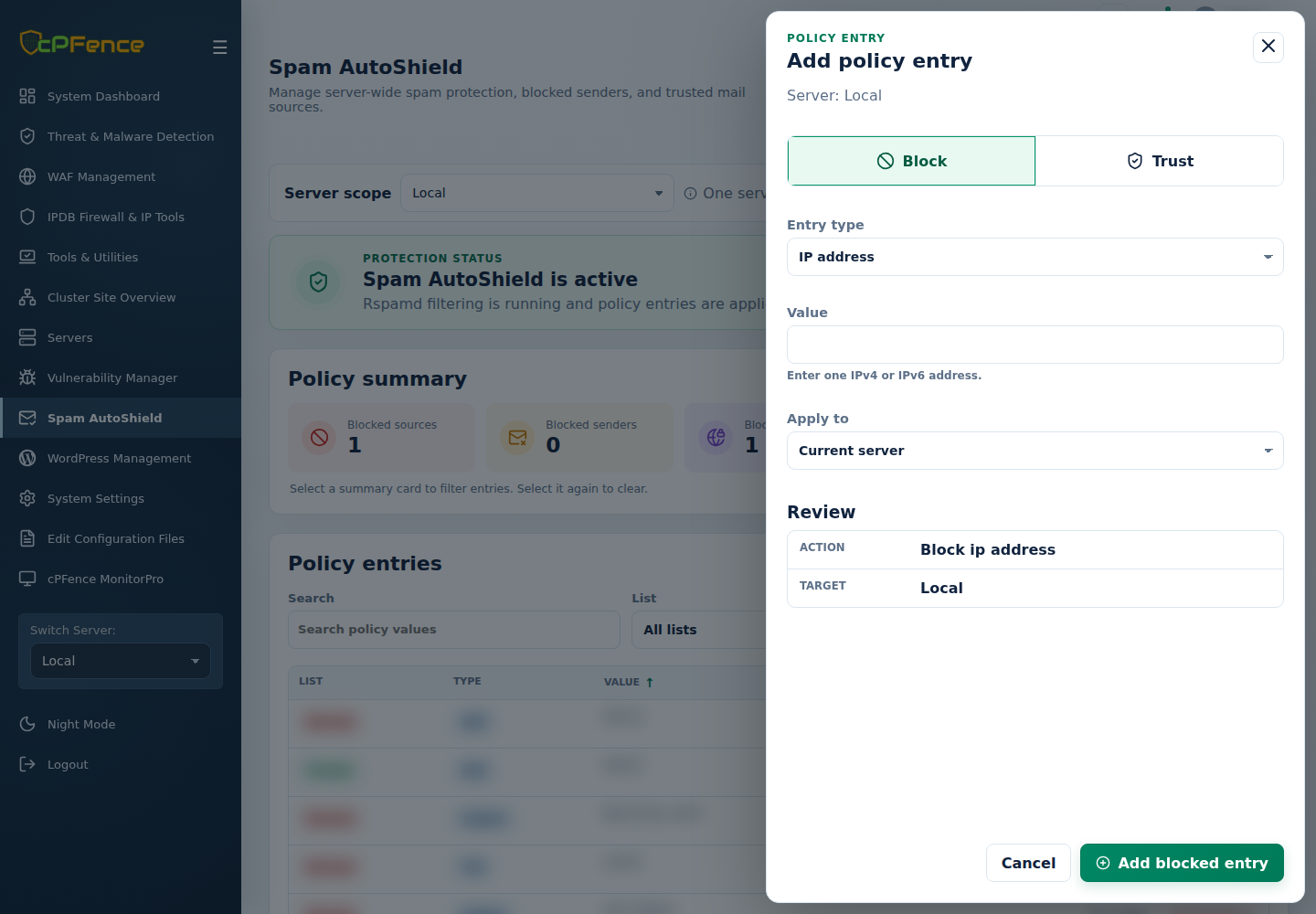
- Click Add entry and choose Block.
- Set Entry type to IP address and enter an IPv4 or IPv6 address.
- Choose Apply to, review the servers, then click Add blocked entry.
- Read every server’s result and refresh the intended list.
To remove the block, filter List and Type, find the exact value, and use Remove on the displayed server. Review its confirmation and result.
A sender IP block concerns incoming mail. Use an outgoing-email block to stop a compromised local mailbox.
Command-line method
Section titled “Command-line method”From a root terminal on the intended mail server, block a sender IP:
cpfence --add-spam-autoshield-ip 1.2.3.4Remove that same block:
cpfence --del-spam-autoshield-ip 1.2.3.4Replace the example with the verified sender’s IPv4 or IPv6 address; enter one address, not a CIDR range. These commands update this mail server’s policy, not the WebUI’s Apply to selection. Read the result and refresh its IP block list.
Use this for problematic senders that get past content filtering, and remove the block once the abuse is resolved. For sustained campaigns, review related domain or ASN blocks too, checking their wider impact on legitimate mail. Removing this IP entry leaves those other blocks in place.