
Set Owl resource alerts and watchdog timing
- Read the load notification and identify the server and affected account.
- Open that server’s System Settings → General Settings → Resource thresholds.
- Set CPU load, memory, disk, disk I/O and inode thresholds, then save.
- Configure load/resource alerts and delivery under Notification Settings.
- Watch subsequent measurements and alerts before changing limits again.
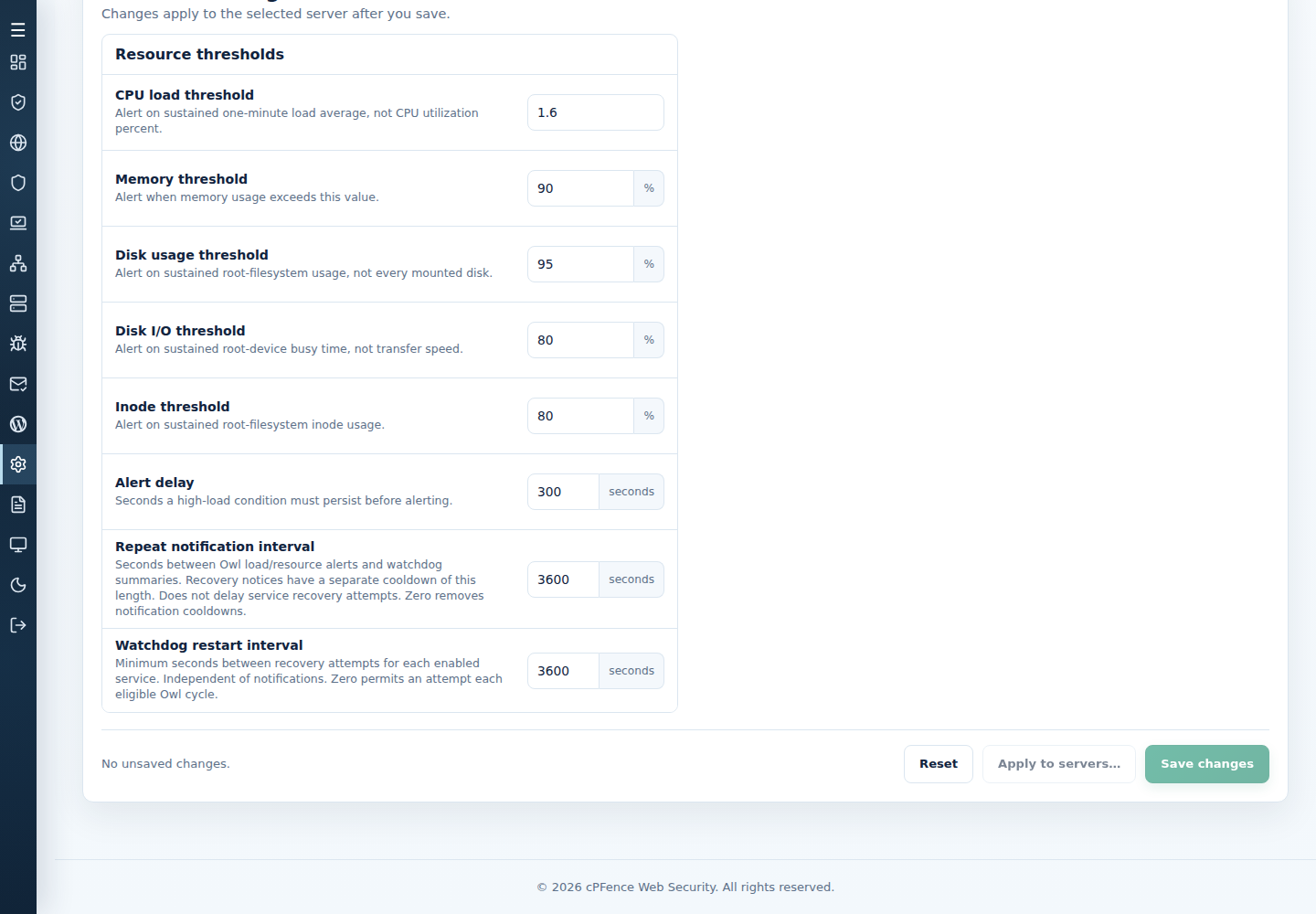
CPU load is a one-minute load value, not a percentage; the packaged threshold is 3. Resource percentages default to 80%, alert delay to 300 seconds and repeat notification interval to 21600 seconds.
The watchdog checks eligible enabled services and can attempt recovery. Its restart interval defaults to 3600 seconds independently of notification cooldown. Services disabled by their owner should not be activated merely to silence a notice.
Respond to high server load
Section titled “Respond to high server load”- On the affected server, use
topor an availablehtopto identify the busy processes and account. Keep the load notification and observation time. - Review that account’s package CPU/RAM limits in Enhance. For a repeat offender, use its website resource overrides rather than reducing every customer’s allocation. Choose limits from measured demand and check the sites afterward.
- Prefer Owl AutoMySQL for eligible MySQL connections. Its guide also explains manual selection and exclusions; it does not replace account resource limits.
- Review recent website access logs or LogSpot to identify busy source IPs. Use the worked access-log counting example, then compare request paths, timestamps and legitimate traffic before adding a narrow IP block.
- If a country policy is appropriate for your audience, follow country access controls, then verify intended access. Request volume alone does not establish abuse.
If the load appears to come from cPFence, contact support with the observation time and relevant redacted logs. Application or capacity problems may also need the hosting or database administrator.
Investigate a repeated service alert
Section titled “Investigate a repeated service alert”The cPFence Owl WatchDog monitors important server services. If an enabled service stops unexpectedly, Owl checks it again, attempts recovery when eligible, and can send a notification through your configured delivery channel.
Services monitored by Owl WatchDog
Section titled “Services monitored by Owl WatchDog”- SSH and CRON
- Rspamd, Postfix and Dovecot
- Pure-FTP and MySQL
- The detected web server: Apache, LiteSpeed, OLS or Nginx
- DNS and the main control panel
- AppCD, Filerd and Syslog
Only eligible enabled services are monitored on the selected server.
Common and fastest solution: disable unused services
Section titled “Common and fastest solution: disable unused services”The quickest fix for repeated notices about an unused service is to disable it. First confirm with the panel administrator that it is genuinely unused and that disabling it will not disrupt customers. Use the owning panel’s service controls where available.
For example, a root administrator can disable an unused Rspamd or Apache service on the affected server:
systemctl disable rspamd.servicesystemctl disable apache2.serviceRun only the command appropriate to that server. Disabling prevents automatic startup and makes Owl skip the service; it does not stop a currently running service. Record the previous state. If the service is required again, restore it through its owning controls and verify it is enabled and running.
How Owl WatchDog monitors services: Rspamd example
Section titled “How Owl WatchDog monitors services: Rspamd example”-
Check whether Rspamd is enabled:
Terminal window systemctl is-enabled rspamd.serviceOwl skips disabled services.
-
If enabled, check whether it is running:
Terminal window systemctl is-active rspamd.serviceIf it remains inactive on a subsequent check, Owl can attempt recovery. Read the reported result: an attempted restart is not proof that the service became active.
The recovery interval and notification interval are separate in cPFence v4+. The default recovery interval is one hour; repeated notifications follow the configured repeat notification interval and delivery settings, rather than an unconditional hourly email.
Further troubleshooting
Section titled “Further troubleshooting”To investigate why the service is failing frequently, review its logs:
journalctl -u rspamd.service -bTrack Owl’s real-time activities with:
cpfence --monitor-owl-logsUse Ctrl+C to leave the log view. Keep the failure time and relevant redacted journal lines. Resolve the reported cause if the service is needed, then check its status and subsequent Owl results. For further assistance, contact support.
Root administrators can also edit alert values in /etc/cpfcli/config.conf: CPULoadAverageThreshold, MEMORY_THRESHOLD, DISK_USAGE_THRESHOLD, DISK_IO_THRESHOLD, INODE_THRESHOLD, time_diff_wait and email_send_interval. The next collection uses the saved threshold values; changing thresholds does not require restarting a service.
For a service that remains unavailable, inspect its status and journal and resolve its reported problem; see Owl status and controls.