
Manage root login monitoring
cPFence v4+ Root Login Monitor processes root-privileged SSH logins and can allow the login IP for administrator access. It observes successful sessions; use authentication protection for repeated failed sign-ins.
You need a connected, licensed server and Manage IPDB protection permission. Notification changes also need Manage Notification Settings. Keep a working root session or provider console while changing access policy.
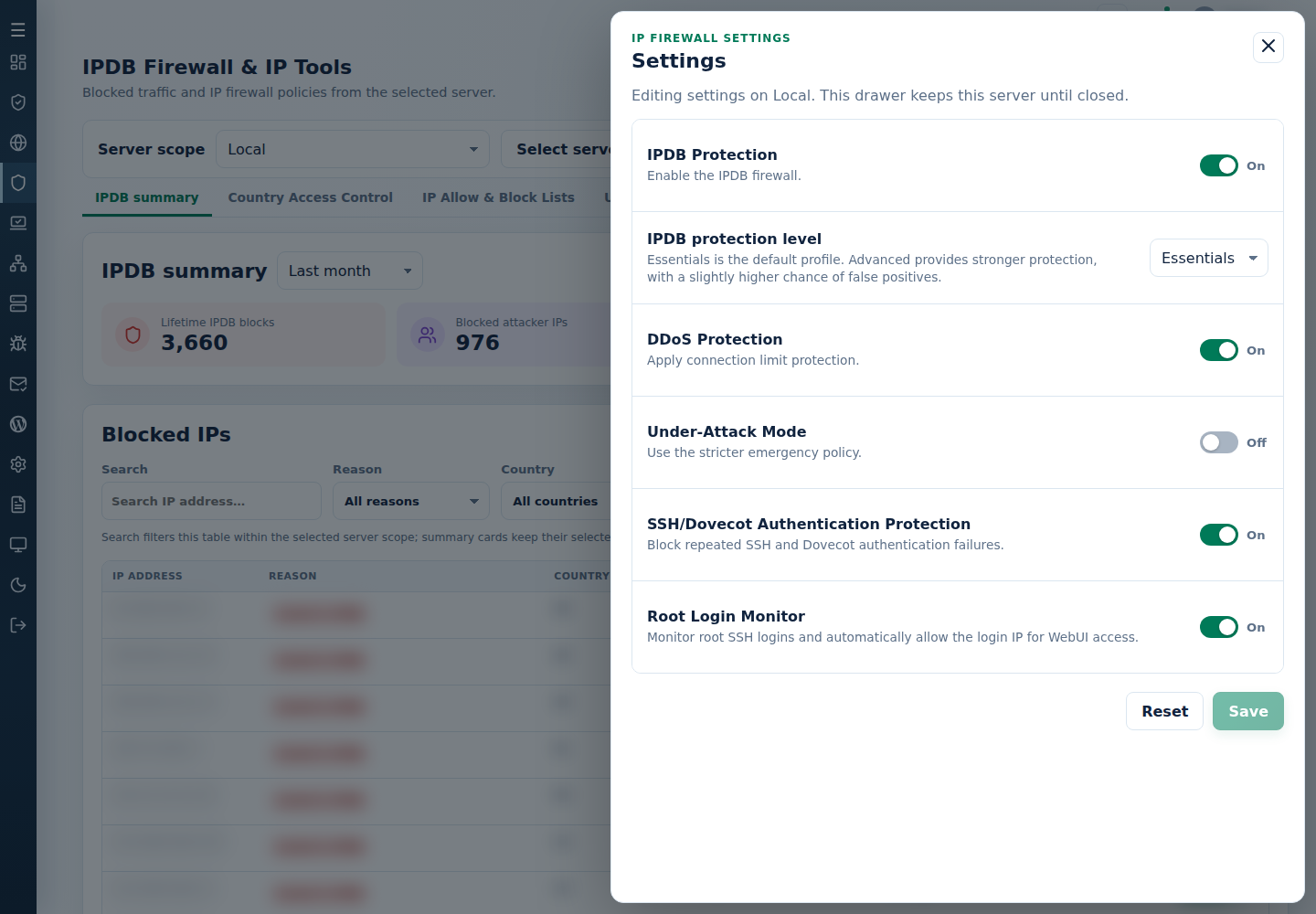
Configure the monitor
Section titled “Configure the monitor”- Open IPDB Firewall & IP Tools, choose one server and open Settings.
- Check IPDB Protection, set Root Login Monitor and click Save.
- In System Settings → Notification Settings, keep Root login alerts on so new login sessions are processed. Configure email or Slack delivery separately, then Save changes.
- Reopen the settings and review any save or delivery error. Saved settings do not prove an alert reached its recipient.
Understand the access allowances
Section titled “Understand the access allowances”| Allowance | Scope and recovery |
|---|---|
| IPDB login access | A separately owned, temporary allowance for the login IP, lasting 24 hours. Other whitelist owners can retain access after it expires. |
| WebUI access | Added when the WebUI is enabled on the main control panel server. Review approved browser IPs separately; a manual allowance has its own owner. |
This switch does not permit SSH root login or change your SSH password/key policy. Follow SSH access settings for that task. For unexpected alerts, compare recent SSH sessions and whitelist policy before changing protection.