
Block or unblock outgoing email
Open Spam AutoShield and choose the mail server whose policy you want to inspect. The master must be on for stored entries to take effect; see the illustrated Spam AutoShield guide.
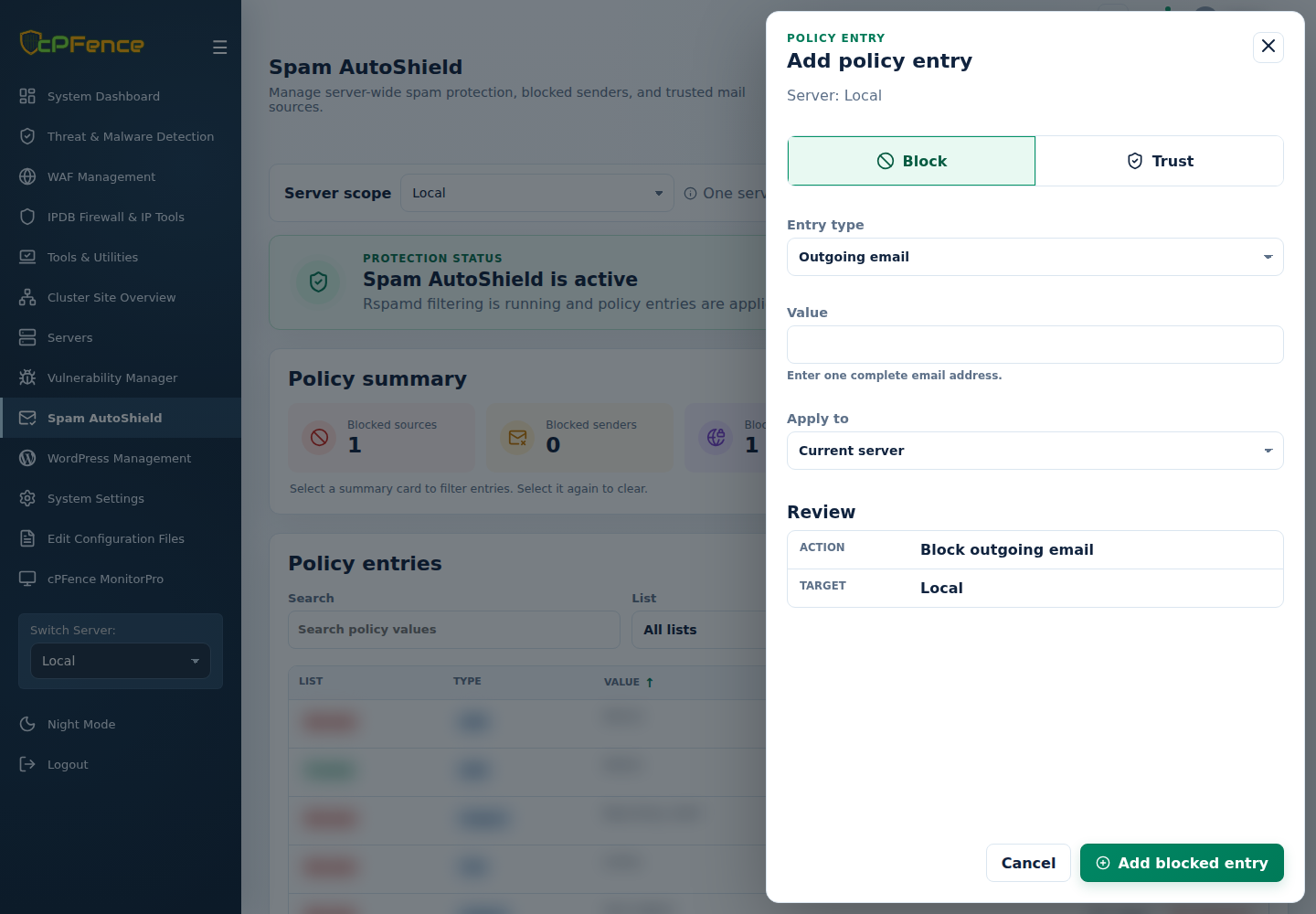
- Click Add entry and choose Block.
- Set Entry type to Outgoing email and enter the complete local sending address.
- Choose Apply to, review the servers, then click Add blocked entry.
- Read every server’s result and refresh the intended list.
To remove the block, filter List and Type, find the exact value, and use Remove on the displayed server. Review its confirmation and result.
Investigate the compromised mailbox, reset its password and check the sending device or website before unblocking it. Review automatic outbound limits.
Command-line method
Section titled “Command-line method”From a root terminal on the intended mail server, stop a local sender from sending mail:
After cleanup and verification, remove the block:
Replace the example with the intended complete local mailbox address. The commands update this server’s policy, not the WebUI’s Apply to selection. Read the result and refresh its outgoing-email block list.
Reset a compromised mailbox’s password and check its sending device or website before unblocking. Verify subsequent sending and watch for renewed abuse; removing the block does not repair the source of the spam.