
Resolve a malware finding
Use Threat & Malware Detection in cPFence v4+ to resolve a recorded malware finding. Support users need access to the server and scan history, plus permission for each file action. A finding does not mean its file was quarantined successfully.
1. Review the file and action
Section titled “1. Review the file and action”- Choose the affected server in Server scope, then open Scan Summary.
- Select Needs attention to open Unresolved files, or find the scan in Recent scans and open Details.
- Check the file’s Path, Signature, and Action. Select Preview to read the file’s content, and compare its path with the affected website before changing anything.
- Choose an available action for that row. Controls depend on the finding’s state and your permissions.
| Action | What it does |
|---|---|
| Quarantine | Moves the detected file into quarantine, retaining bytes for supported recovery. |
| Delete | Permanently removes the detected file without quarantine recovery. |
| Restore | Returns stored quarantine bytes to the original path. |
| Mark as safe | Keeps the file where it is, stops warning about it and skips it in future scans. Undo it with Scan again under Safe files. |
| Report false positive | Sends the file to cPFence support for review. See report a false positive. |
2. Quarantine or delete deliberately
Section titled “2. Quarantine or delete deliberately”- Choose Quarantine or Delete on the intended finding.
- Read the confirmation’s path and server.
- Choose Move to quarantine or Delete permanently, or Cancel to leave the file unchanged.
- Read the per-file result and refresh the scan record. Confirm the site’s normal operation afterward.
An error or interrupted action is not proof that the file stayed unchanged. Inspect the recorded result and current file state before using Retry quarantine or Retry delete. A changed file at the original path requires a fresh review.
3. Recover verified content
Section titled “3. Recover verified content”Follow identify and restore quarantined files to preview stored content and check its original path. An existing destination or missing payload can prevent recovery.
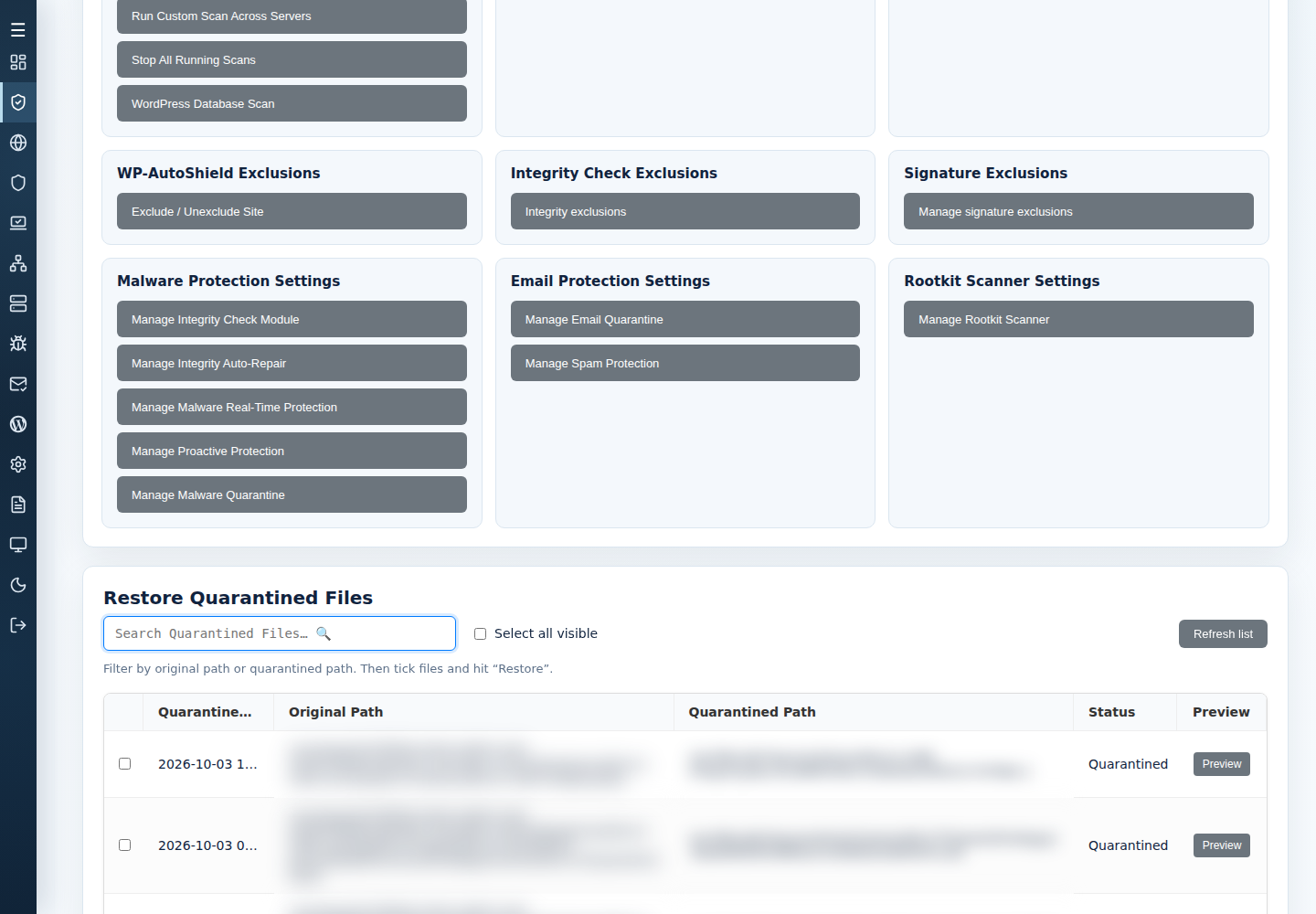
Restore without Also mark as safe can leave Restored — action required. If you later verify that content is clean, use Mark as safe on the finding and read its confirmation. Remove an unnecessary exception through the exclusion controls.
4. Record a file already removed outside cPFence
Section titled “4. Record a file already removed outside cPFence”If the detected file is no longer present, the row offers Mark fixed. First verify your external remediation, then choose Mark fixed and read the confirmation: the server checks that the file is still absent and preserves scan history. To do this for every missing file at once, choose Mark deleted files fixed on the Scan Summary status card.
Mark fixed records resolution; it does not clean a file or establish that the entire website is safe. If the check fails, inspect the reported condition rather than retrying blindly. Run an appropriate follow-up scan after remediation.