
Check the status of an IP
Check an address before changing its cPFence v4+ policy.
Using the WebUI
Section titled “Using the WebUI”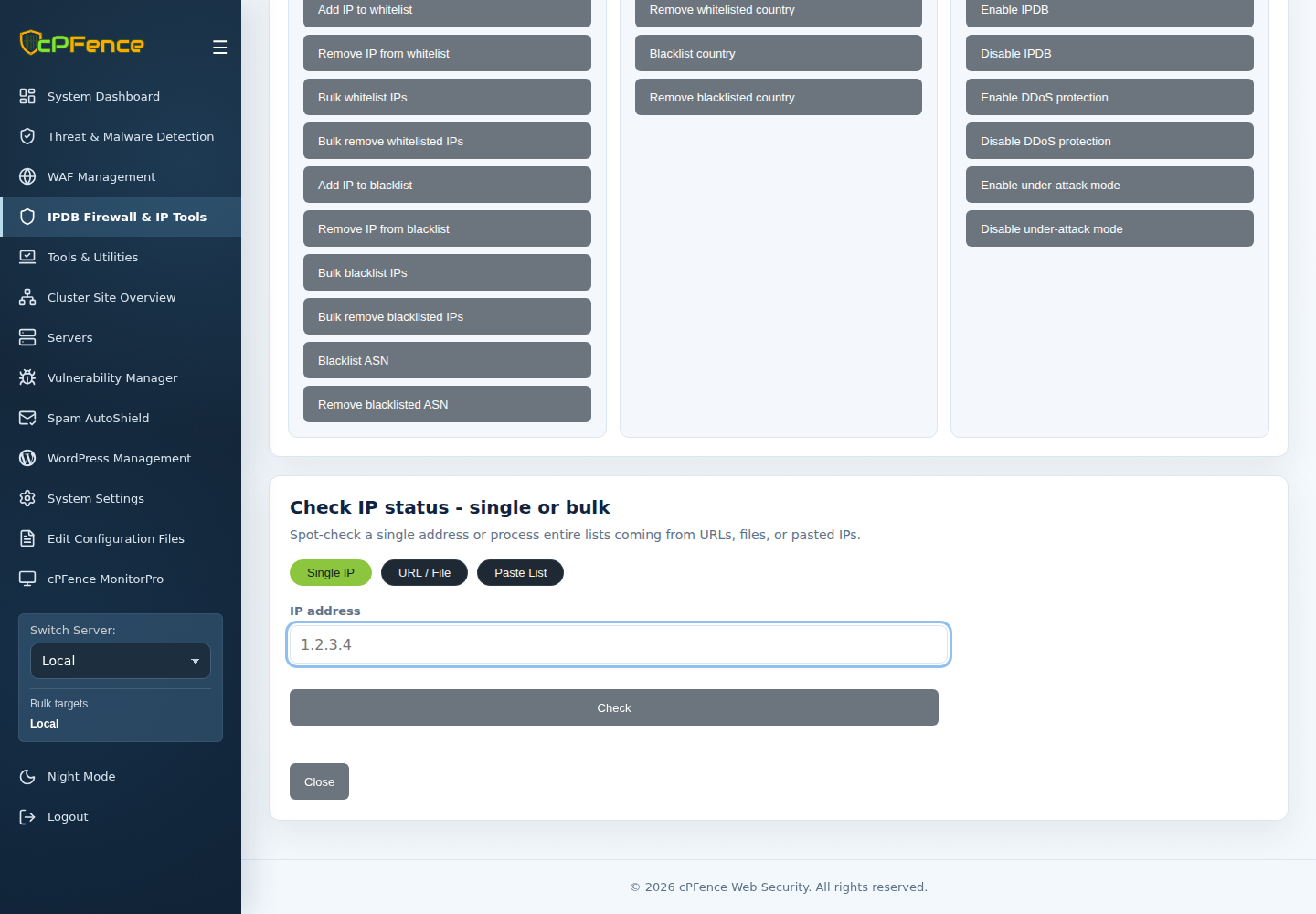
- Open IPDB Firewall & IP Tools → Advanced Tools → Check IP status.
- Check the sidebar target servers.
- Choose Single IP, enter the address and run the check.
- Read each server’s result, including whitelist/blocklist membership and block counts.
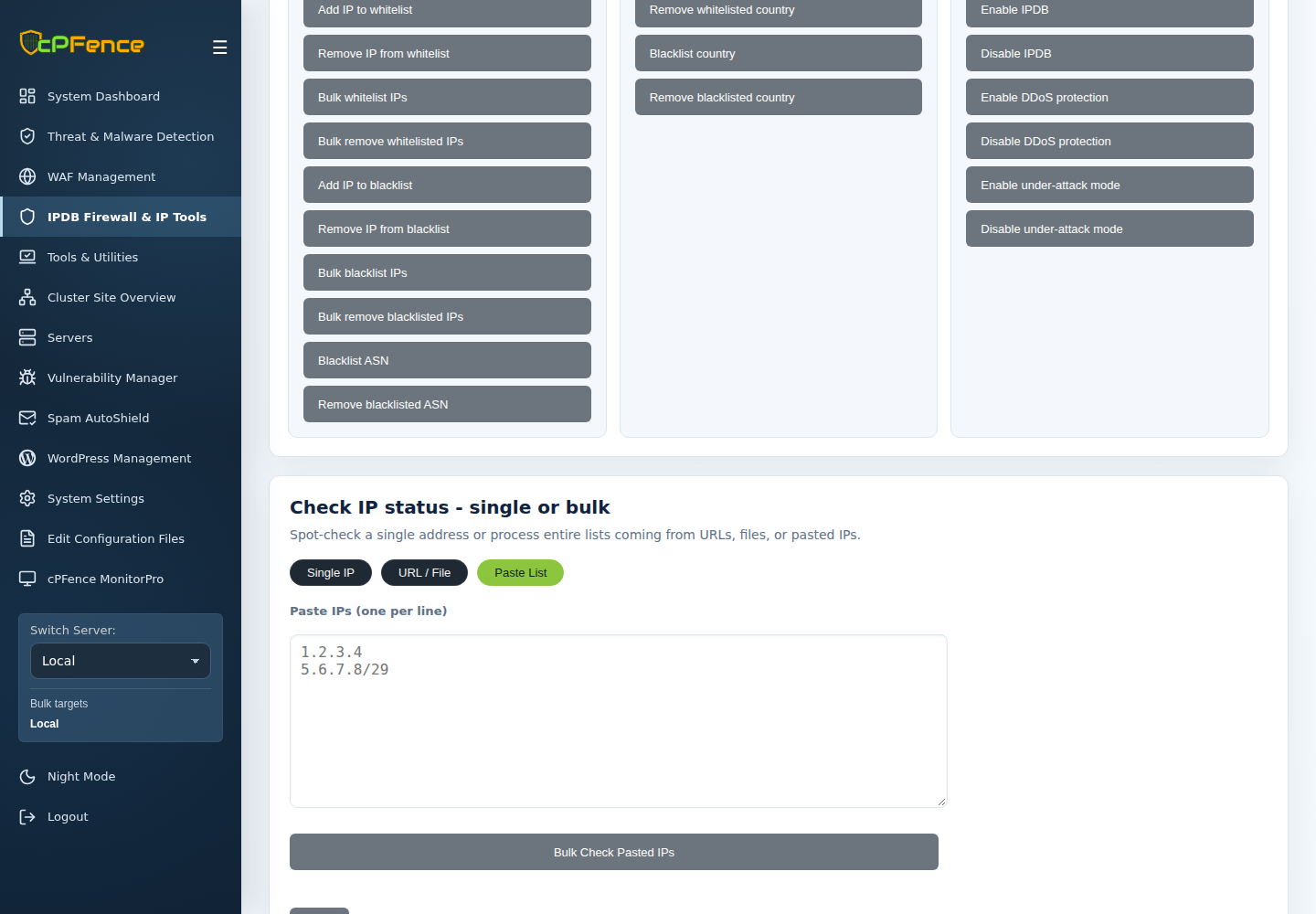
Support users need IP checking permission and access to each target. URL / File and Paste List check several addresses; they do not add blocks. A file must exist on each target.
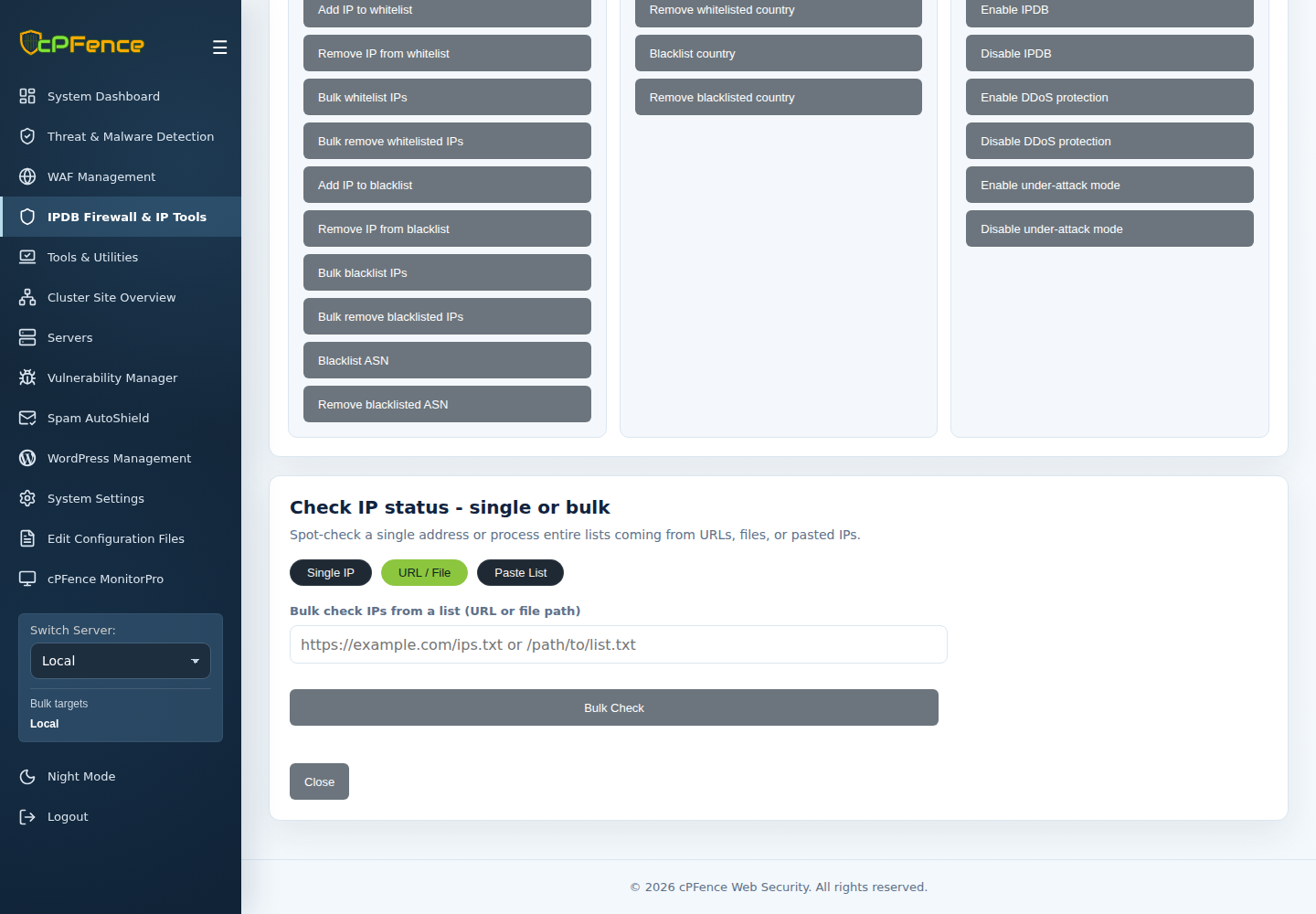
Bulk checking accepts individual addresses, not CIDR ranges. Use policy add/remove tools when your task concerns a whole network range.
Using the CLI
Section titled “Using the CLI”As root on the licensed server, replace the documentation address with the address you are investigating:
cpfence --check-ip 192.0.2.10Follow investigate an IP block if the policy or connection remains unclear.