
Monitor website availability and content
cPFence MonitorPro checks configured website availability and response content on Enhance. Choose one Server scope: its domains, settings, activity and history belong to that server.
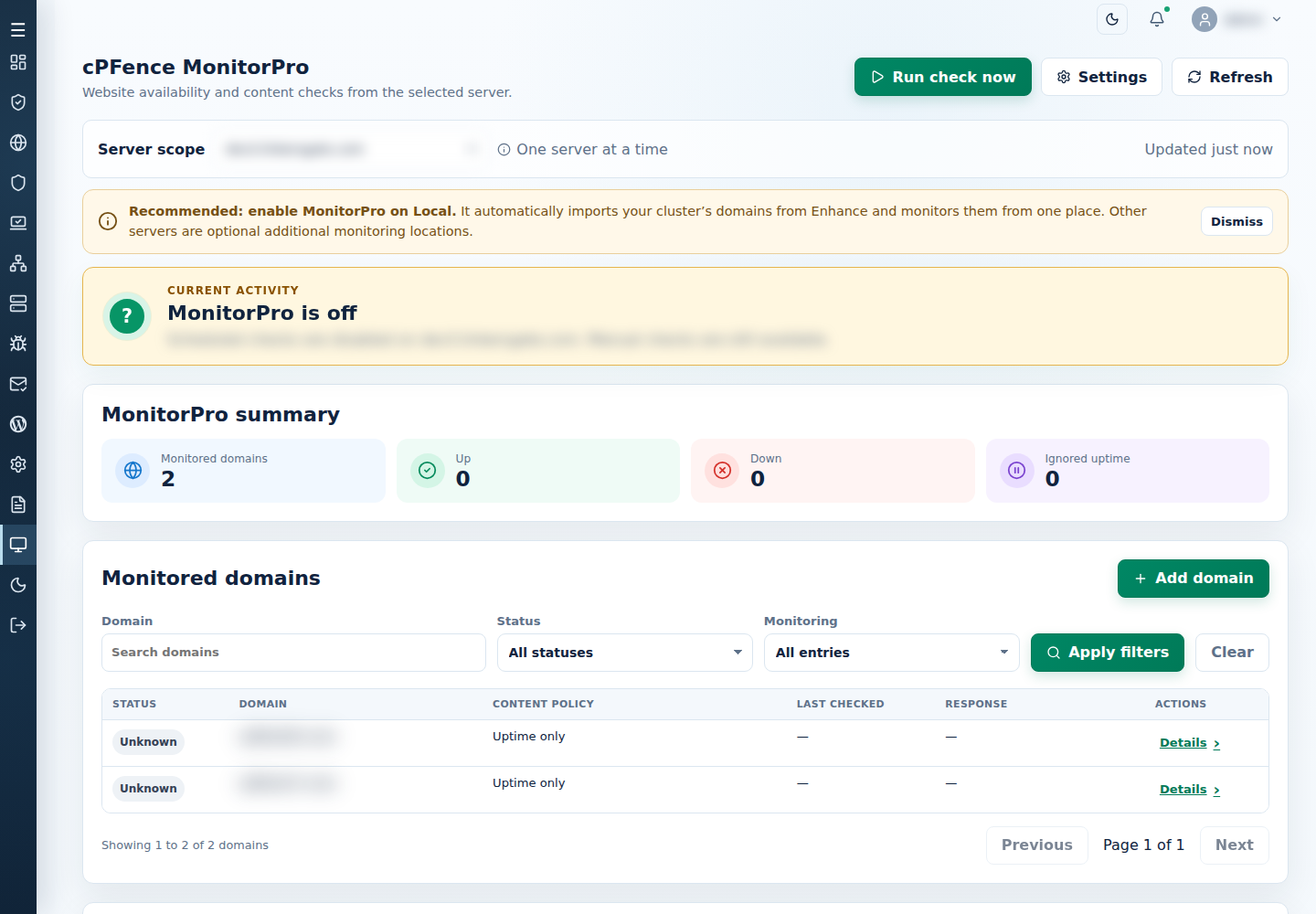
Support users need server access and the view, policy or run/stop permission for the task. Use a stable public marker for content checks; CDN challenges and login pages can change the response.
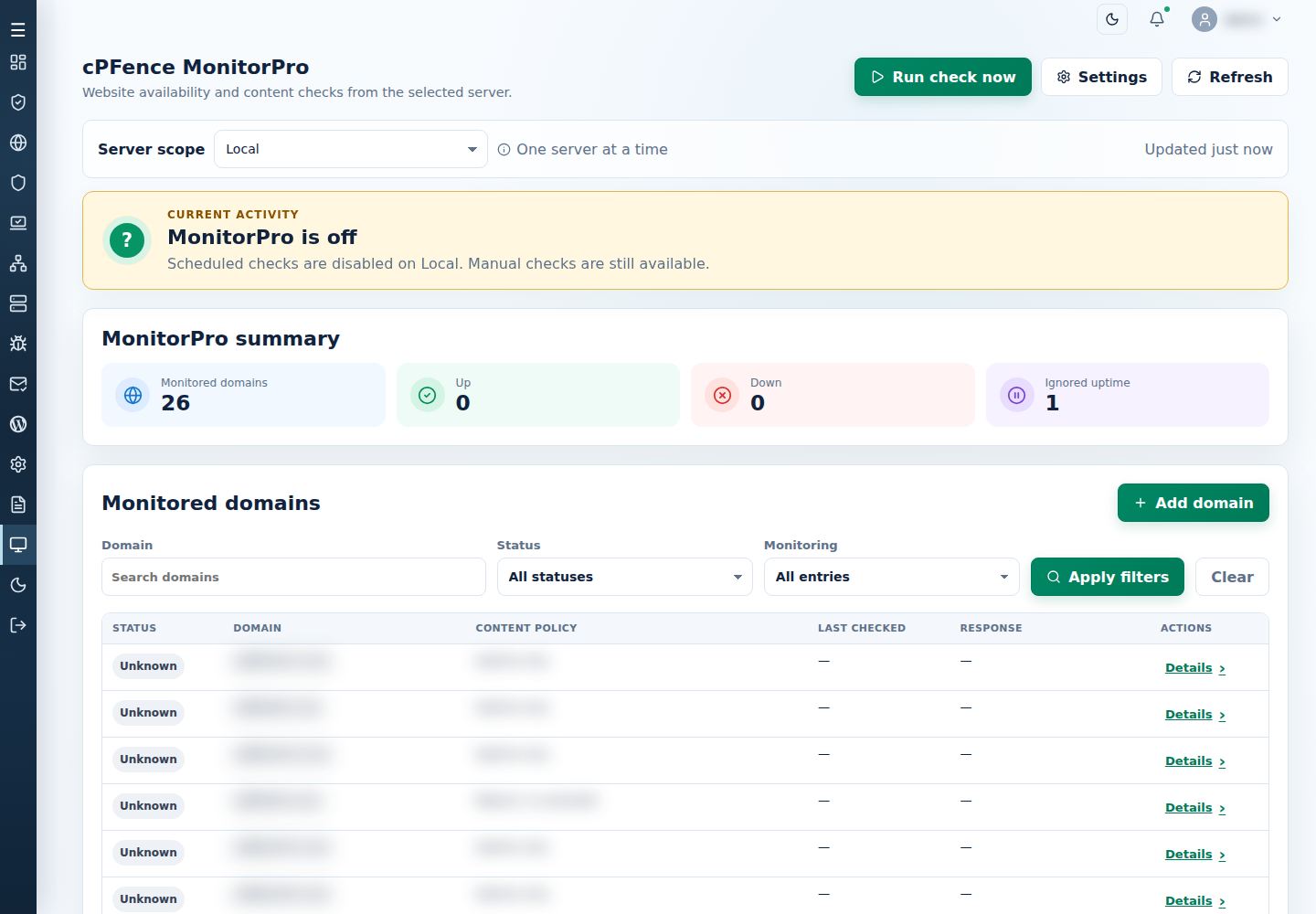
1. Configure scheduling
Section titled “1. Configure scheduling”- Open Settings.
- Set MonitorPro website monitoring and Concurrent checks.
- Click Save changes and check the result.
Defaults are monitoring Off and 3 concurrent checks. On enables checks Every 5 minutes. Concurrent checks accepts 1–8; changes apply next cycle and need spare capacity. Manual checks remain available when off.
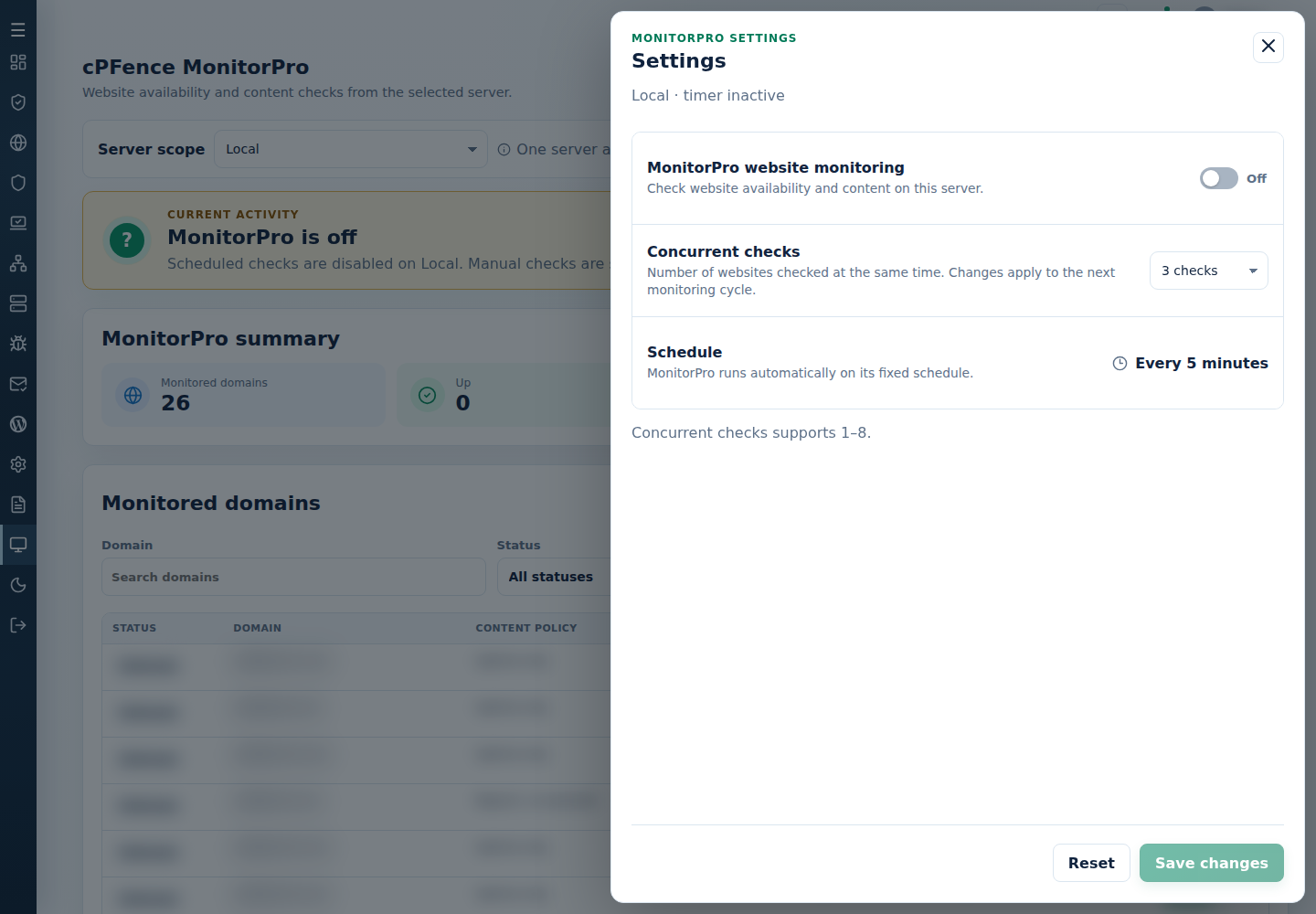
Reset restores monitoring and check worker defaults after confirmation; Cancel preserves them. If the schedule needs attention, check the activity card.
2. Add or edit a domain
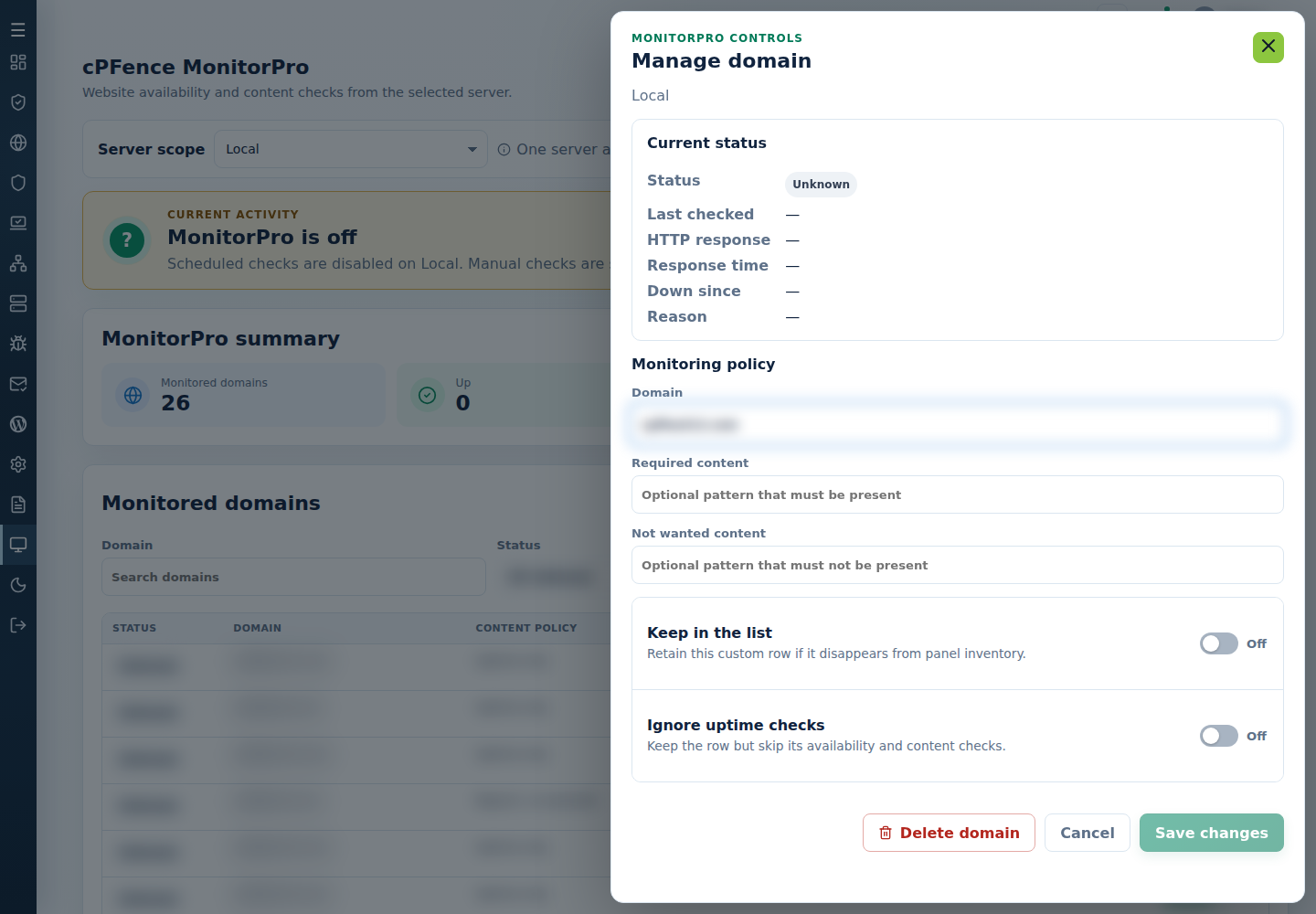
Section titled “2. Add or edit a domain”- Click Add domain, or a row’s Details › to edit it.
- Enter Domain, such as
example.com. - Optionally set Required content and Not wanted content.
- Set Keep in the list and Ignore uptime checks deliberately.
- Click Save changes, or Cancel to discard the edit. Check the saved row.
| Field | Effect |
|---|---|
| Required content | The response must match this pattern for an UP result. Leave empty for no required-content check. |
| Not wanted content | A matching pattern makes the result DOWN. Leave empty for no unwanted-content check. |
| Keep in the list | Retain a custom row if it disappears from panel inventory. New custom rows default On. Panel-inventory merging occurs on the main control panel server. |
| Ignore uptime checks | Keep the row but skip both availability and content checks. New rows default Off. |
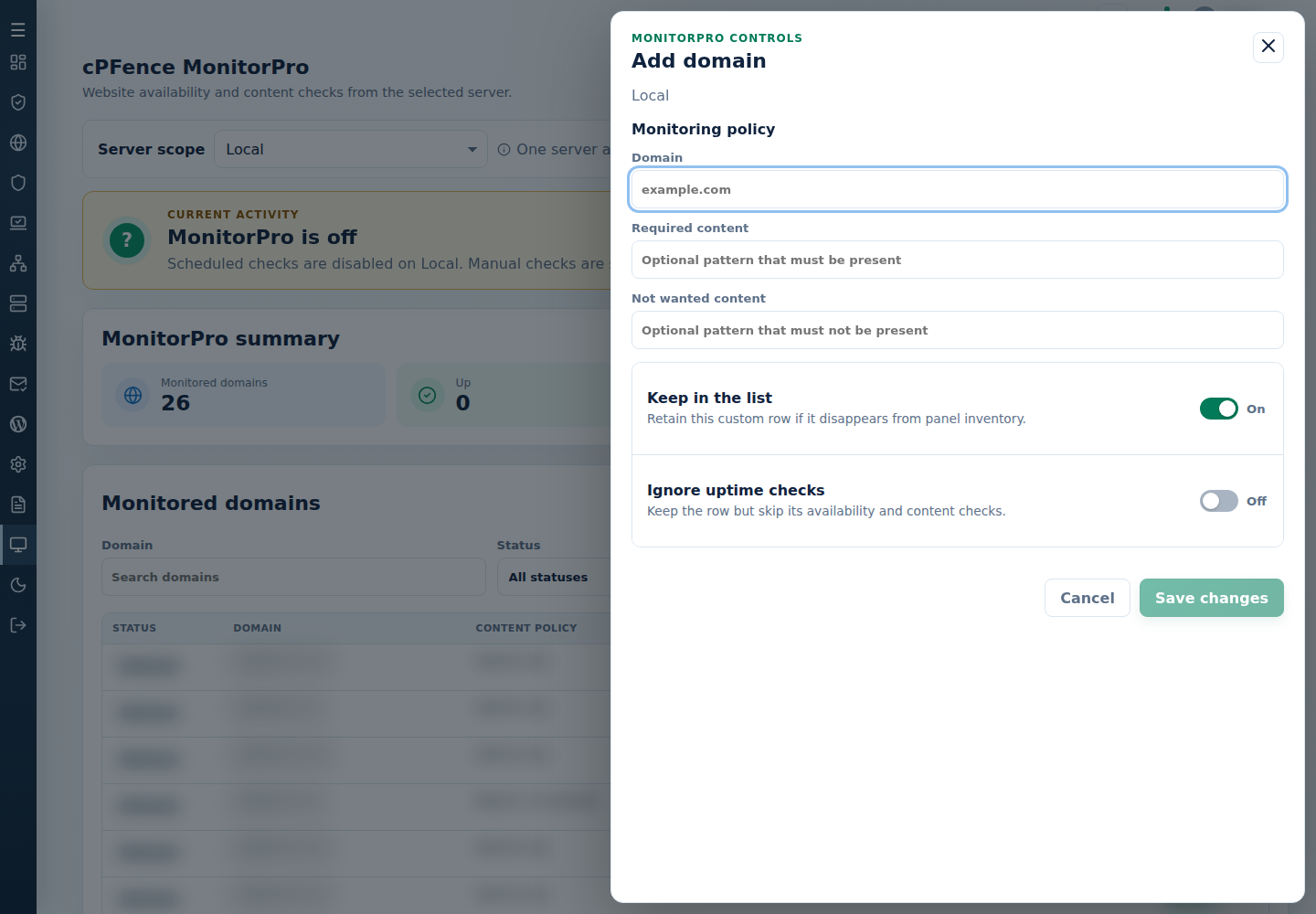
Deleting a panel-managed domain can be temporary: inventory can add it again. To retain the row without checking it, use Ignore uptime checks. Delete domain requires confirmation. A concurrent edit produces a conflict; reload and compare current policy before saving again.
Content patterns
Section titled “Content patterns”Patterns use case-insensitive basic regular expressions within response lines. Start with simple text: . matches a character, .* a sequence, and [0-9] a digit. Grouping/alternation use basic-regex escaping; JavaScript/Perl expressions may behave differently.
For example, require Welcome to Example and reject database connection error. Choose markers present in the returned page. Content and availability use the same response.
Invalid/slow patterns or bodies above 2 MiB produce incomplete checks. Simplify the expression or monitor a smaller page; incomplete does not mean UP.
3. Run and inspect a check
Section titled “3. Run and inspect a check”Click Run check now on the selected server, confirm, and watch its activity. A duplicate active check is rejected. A manual check offers Stop check; stopping work does not roll back earlier recorded transitions.
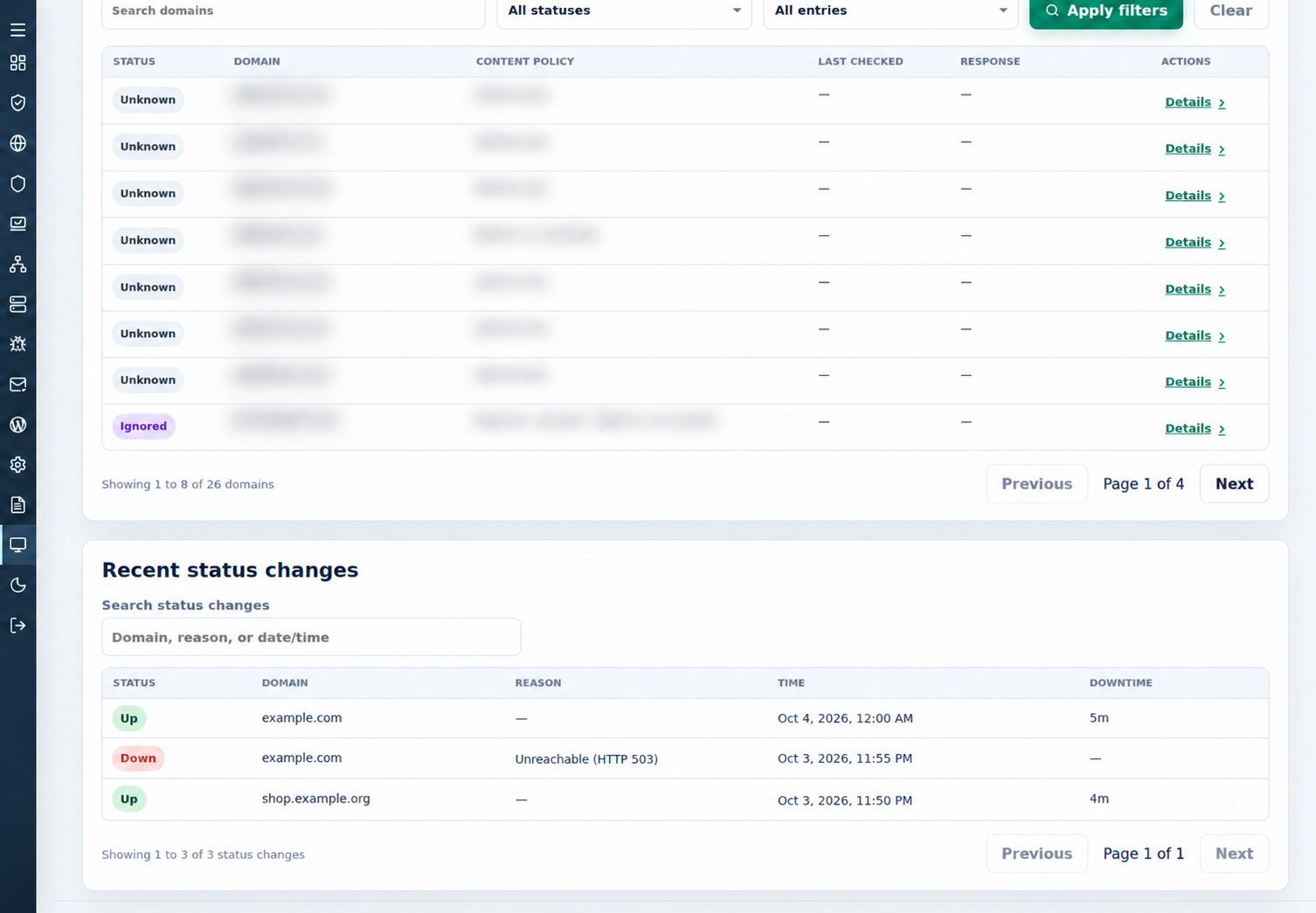
Use Refresh to reload records. Domain, Status, Monitoring and summary cards filter the table; filters do not change policy.
| Result | Interpretation |
|---|---|
| Up | The check obtained an accepted response and passed its configured content checks. |
| Down | Availability failed or a required/unwanted pattern failed. The alert names the cause, such as connection reset, connection refused, timeout, DNS, SSL or a Cloudflare challenge; inspect Response and the reason. |
| Unknown | No usable observation establishes this domain’s current status. |
| Ignored | Policy skips checks; it is not a successful availability result. |
| Incomplete check | The run could not finish safely or fully; it does not commit a false clean/DOWN transition. |
MonitorPro tries HTTPS and can fall back to HTTP when the HTTPS attempt fails. An UP result therefore does not certify HTTPS-only service or certificate health. Use SSL monitoring for certificate-expiry alerts.
Read the activity card’s final result/problem and Last checked for freshness. A saved policy or accepted request is not a completed check.
When the server is under heavy load, MonitorPro skips that scheduled cycle and keeps each website’s previous state. The next cycle runs normally.
Command-line method
Section titled “Command-line method”You can also check uptime from a root terminal. On the main control panel server, run:
cpfence --monitorpro-scan-statusThis starts an on-demand check using that server’s MonitorPro domain list and content policy. Wait for its completed output and inspect any failures or incomplete checks. It does not enable the recurring schedule, and it does not automatically run from every secondary server.
For another monitoring location, run the command on that secondary server and review its own configured domains. If a check is already active, wait for it rather than starting duplicate work.
To enable or disable recurring monitoring on the intended server, choose the corresponding command:
| Choice | Command |
|---|---|
| Enable scheduled checks | cpfence --monitorpro-on |
| Disable scheduled checks | cpfence --monitorpro-off |
v4+ also lets you set the number of simultaneous checks from the terminal:
cpfence --monitorpro-workers 3Choose a number from 1–8 with the server’s spare capacity in mind. It applies to the next monitoring cycle, matching Concurrent checks in the WebUI. This is not a command to start a check.
4. Browse status-change history
Section titled “4. Browse status-change history”- Check Server scope, then scroll to Recent status changes. It provides access to all retained status-change records on that checking server, with the newest first.
- Use Search status changes to find a domain, reason, or date/time, such as
2026-10-04or2026-10-04 14:30in your browser’s local timezone. Clear the search text to return to unfiltered history. - Read Status, Domain, Reason, Time and Downtime. Use Previous/Next and the page indicator to browse matching records.
These are historical transitions, not every check or a current-status guarantee; repeated DOWN is not a new transition each cycle. An empty history or search result does not prove the sites are UP. Use the domain table and Last checked for the latest observations.
Troubleshooting and alerts
Section titled “Troubleshooting and alerts”For content failures, inspect redirects/CDN challenges and the page returned to this server. For unavailable data, check Server scope and the secondary server connection. After an incomplete/interrupted check, resolve its problem before retrying. Configure notification channels separately.
Focused steps: extra domains/subdomains and bulk CSV, ignore a domain and Cloudflare monitoring exceptions.