
Sync IPs for a per-website license
Use this task for an activated per-website license. cPFence must be installed and licensed on the Enhance main control panel server; use root for the command below. Bulk server licenses use support-managed IP changes. For a short checklist covering both, see Add a new server IP to your license.
Add a server
Section titled “Add a server”-
Add the new server to your Enhance cluster first.
-
On the main control panel server, run:
Terminal window cpfence --sync-ips -
Wait for Sync completed. Response from server: success. This updates the cluster IPs and website count with the licensing service.
-
Install cPFence on the new server with your license key, then check
cpfence --statusfor an Active license.
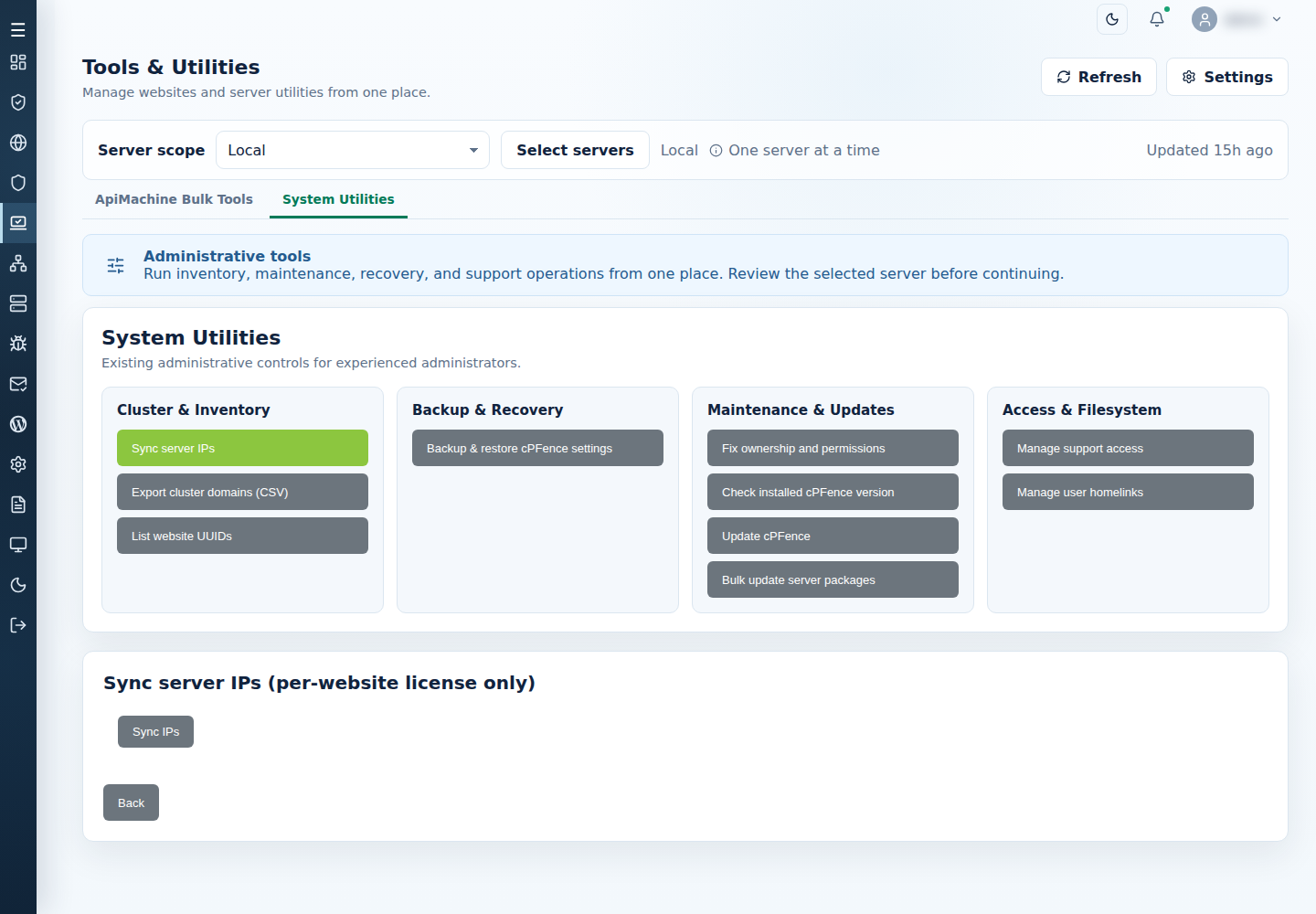
In the main control panel server’s WebUI, choose Local, then Tools & Utilities → System Utilities → Sync server IPs (per-website license only) → Sync IPs. Check its result before continuing; synchronization does not repair a secondary server’s connection.
If synchronization fails
Section titled “If synchronization fails”Check the main server’s license and network access, then contact support with the error if needed. An uncertain response is not confirmed success; check with support before repeating it. Output contains account and cluster details, so share it privately.
If a PostgreSQL helper reports a /root directory warning, read the working-directory explanation and the actual sync result before retrying.